> ## Documentation Index
> Fetch the complete documentation index at: https://docs.cloosphere.ai/llms.txt
> Use this file to discover all available pages before exploring further.
# Channels
> Configure and manage email (SMTP/SendGrid/Azure Email/MS Graph) and webhook (Slack/Teams/Discord/Telegram/Google Chat) notification channels, plus bot connections and API integrations
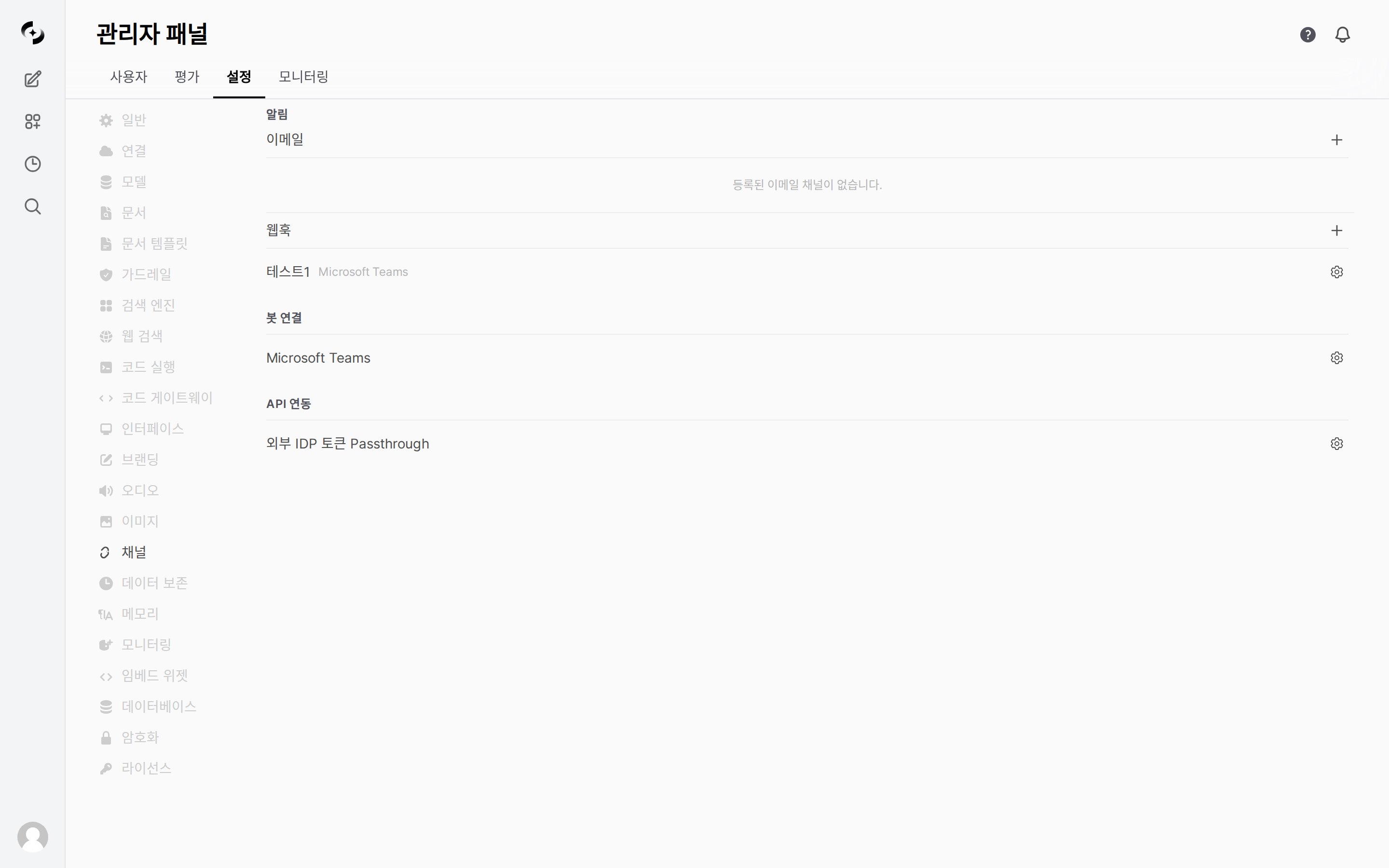
Admin › Settings › Channels
The **Channels** page manages notification channels (email and webhooks) along with **bot connections** (Microsoft Teams bot) and **API integrations** (external IdP token passthrough) in one place.
* Notification channels automatically deliver scheduled task results via email and webhooks.
* Once admins pre-configure notification channels, users select a channel when creating scheduled tasks to receive result notifications.
 ***
## Notification Architecture
```mermaid theme={null}
flowchart TB
subgraph Admin_Setup
A[Add email channel] --> B[SMTP / SendGrid / Azure Email / MS Graph]
C[Add webhook channel] --> D[Slack / Teams / Discord / Telegram / Google Chat]
end
subgraph User_Schedule
E[Create schedule] --> F{Pick channel}
F --> G[Email channel]
F --> H[Webhook channel]
end
subgraph Notification_Send
G --> I[Send email]
H --> J[Send webhook]
I --> K[Result + chart image]
J --> K
end
```
| Stage | Owner | Description |
| ------------------------- | ------ | ------------------------------------------------------------------ |
| **Channel setup** | Admin | Pre-configure SMTP, SendGrid, Azure Email, Slack, etc. |
| **Channel selection** | User | Specify notification channel and trigger condition in the schedule |
| **Notification dispatch** | System | After scheduled task runs, deliver result to selected channel |
***
## Email Channels
Add email channels in **Admin > Settings > Channels** or the dedicated notification management screen.
* Register multiple channels to use different sender configs per team.
An email channel is a **prerequisite for scheduled task email notifications**. If no channel is registered, the Email type does not appear at all in the user's scheduled task screen — only webhook options are selectable.
### Add Channel
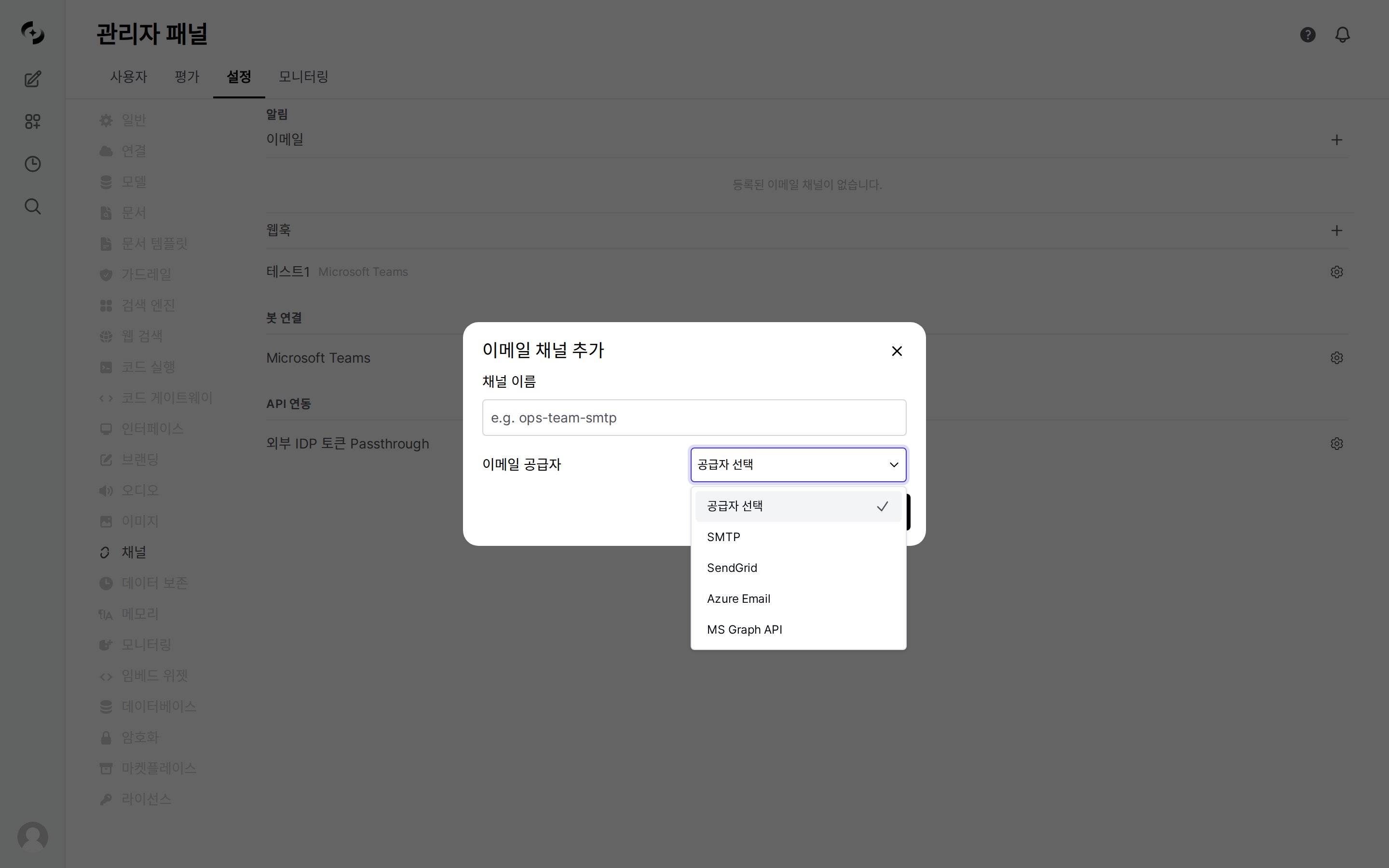
Click the **+** icon button on the right of the Email section (tooltip: Add Email Channel), then choose an **Email Provider**.
***
## Notification Architecture
```mermaid theme={null}
flowchart TB
subgraph Admin_Setup
A[Add email channel] --> B[SMTP / SendGrid / Azure Email / MS Graph]
C[Add webhook channel] --> D[Slack / Teams / Discord / Telegram / Google Chat]
end
subgraph User_Schedule
E[Create schedule] --> F{Pick channel}
F --> G[Email channel]
F --> H[Webhook channel]
end
subgraph Notification_Send
G --> I[Send email]
H --> J[Send webhook]
I --> K[Result + chart image]
J --> K
end
```
| Stage | Owner | Description |
| ------------------------- | ------ | ------------------------------------------------------------------ |
| **Channel setup** | Admin | Pre-configure SMTP, SendGrid, Azure Email, Slack, etc. |
| **Channel selection** | User | Specify notification channel and trigger condition in the schedule |
| **Notification dispatch** | System | After scheduled task runs, deliver result to selected channel |
***
## Email Channels
Add email channels in **Admin > Settings > Channels** or the dedicated notification management screen.
* Register multiple channels to use different sender configs per team.
An email channel is a **prerequisite for scheduled task email notifications**. If no channel is registered, the Email type does not appear at all in the user's scheduled task screen — only webhook options are selectable.
### Add Channel
Click the **+** icon button on the right of the Email section (tooltip: Add Email Channel), then choose an **Email Provider**.
 | Field | Description |
| ------------------ | ------------------------------------------------------------------------------------------------------------ |
| **Channel name** | Identifier name (e.g., `ops-team-smtp`). Scheduled task notifications reference the channel **by this name** |
| **Email Provider** | Choose SMTP, SendGrid, Azure Email, or MS Graph API |
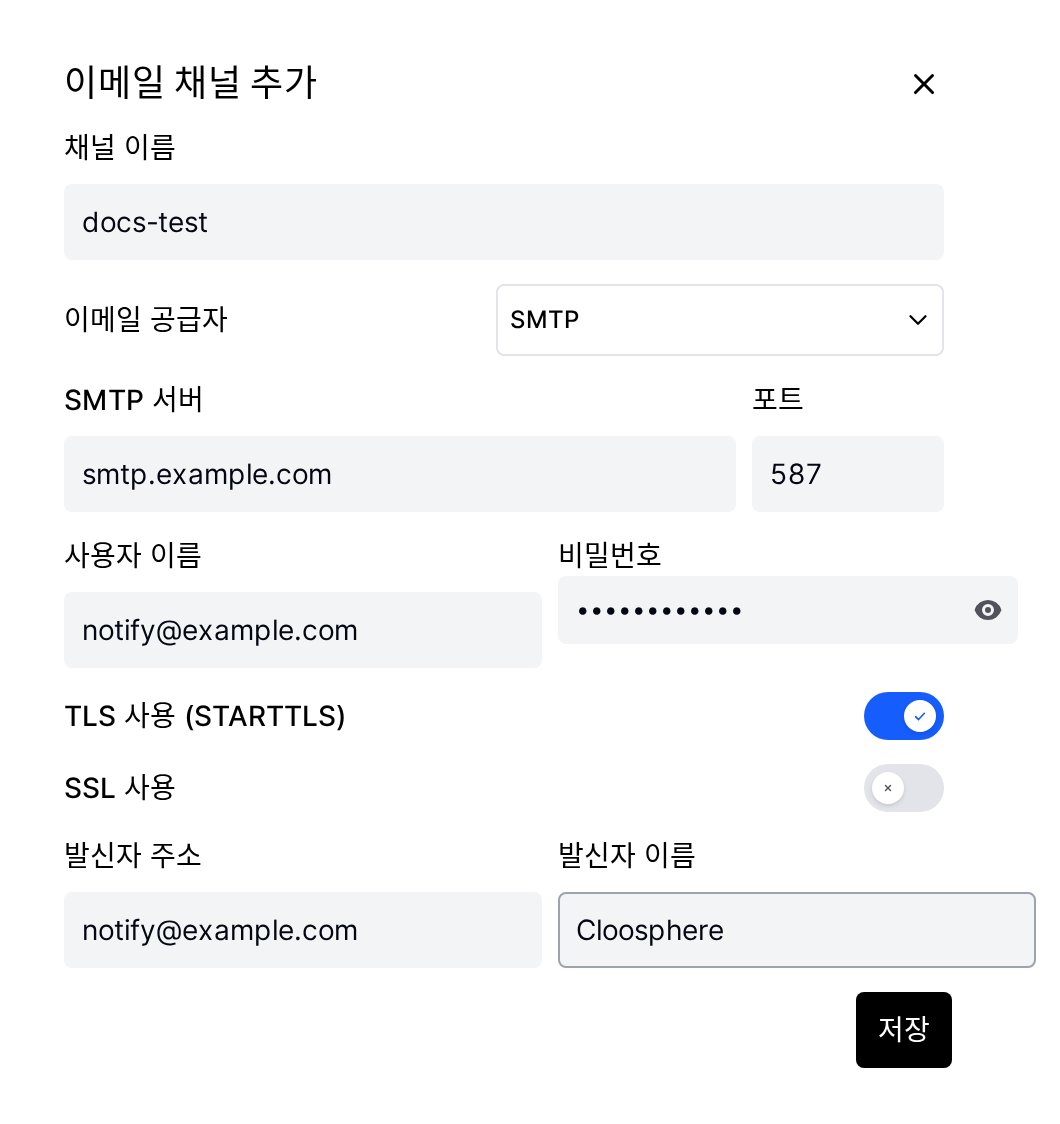
Selecting a provider reveals the input fields for that method.
| Field | Description |
| ------------------ | ------------------------------------------------------------------------------------------------------------ |
| **Channel name** | Identifier name (e.g., `ops-team-smtp`). Scheduled task notifications reference the channel **by this name** |
| **Email Provider** | Choose SMTP, SendGrid, Azure Email, or MS Graph API |
Selecting a provider reveals the input fields for that method.
 Avoid renaming a channel after creation. Scheduled tasks reference channels by name, so renaming or deleting a channel makes tasks that used it skip delivery silently. The task itself is still recorded as successful, so the run history alone will not reveal the problem.
### Per-Provider Settings
Connect your internal mail server or external SMTP service (Gmail, Outlook, etc.).
| Setting | Description | Example |
| ------------------ | --------------------- | ------------------------------------------------- |
| **Server** | SMTP server address | smtp.gmail.com |
| **Port** | SMTP port | 587 (TLS) / 465 (SSL) |
| **Username** | Auth account | [noreply@company.com](mailto:noreply@company.com) |
| **Password** | Auth password | |
| **Use TLS** | Enable TLS encryption | Use on port 587 |
| **Use SSL** | Enable SSL encryption | Use on port 465 |
| **Sender address** | From email address | [noreply@company.com](mailto:noreply@company.com) |
| **Sender name** | From name | Cloosphere |
TLS and SSL can't be used together. Use TLS on port 587 and SSL on port 465.
Email sending using the SendGrid API.
| Setting | Description |
| ------------------ | ------------------------------ |
| **API Key** | SendGrid API key |
| **Sender address** | SendGrid-verified sender email |
| **Sender name** | From name |
Email sending via Azure Communication Services.
| Setting | Description |
| --------------------- | ----------------------------------------------------------------------------- |
| **Connection String** | Azure Communication Services connection string |
| **Sender address** | Azure-provisioned sender email (e.g., `DoNotReply@your-domain.azurecomm.net`) |
| **Sender name** | From name |
Send directly from Microsoft 365 mailboxes — use your corporate domain sender address without SPF/DKIM setup burden.
| Setting | Description |
| ----------------- | ---------------------------------------------------------------------- |
| **Tenant ID** | Microsoft Entra ID tenant ID (GUID) |
| **Client ID** | Application (Client) ID of the Entra app registration |
| **Client Secret** | Entra app's client secret (auto-masked on save) |
| **Sender Email** | Email address of the sending mailbox (e.g., `noreply@your-domain.com`) |
| **Sender name** | From name |
The Entra app must have **`Mail.Send`** Application permission with admin consent. Since this uses app permission (not delegated), the system must be allowed to send mail directly from the specified sender mailbox.
### Connection Test and Test Email
**Test Connection** and **Send Test Email** are available **only in the edit screen after saving** the channel. They are not in the add modal, so save a new channel first, then reopen it from the list with the gear icon.
Avoid renaming a channel after creation. Scheduled tasks reference channels by name, so renaming or deleting a channel makes tasks that used it skip delivery silently. The task itself is still recorded as successful, so the run history alone will not reveal the problem.
### Per-Provider Settings
Connect your internal mail server or external SMTP service (Gmail, Outlook, etc.).
| Setting | Description | Example |
| ------------------ | --------------------- | ------------------------------------------------- |
| **Server** | SMTP server address | smtp.gmail.com |
| **Port** | SMTP port | 587 (TLS) / 465 (SSL) |
| **Username** | Auth account | [noreply@company.com](mailto:noreply@company.com) |
| **Password** | Auth password | |
| **Use TLS** | Enable TLS encryption | Use on port 587 |
| **Use SSL** | Enable SSL encryption | Use on port 465 |
| **Sender address** | From email address | [noreply@company.com](mailto:noreply@company.com) |
| **Sender name** | From name | Cloosphere |
TLS and SSL can't be used together. Use TLS on port 587 and SSL on port 465.
Email sending using the SendGrid API.
| Setting | Description |
| ------------------ | ------------------------------ |
| **API Key** | SendGrid API key |
| **Sender address** | SendGrid-verified sender email |
| **Sender name** | From name |
Email sending via Azure Communication Services.
| Setting | Description |
| --------------------- | ----------------------------------------------------------------------------- |
| **Connection String** | Azure Communication Services connection string |
| **Sender address** | Azure-provisioned sender email (e.g., `DoNotReply@your-domain.azurecomm.net`) |
| **Sender name** | From name |
Send directly from Microsoft 365 mailboxes — use your corporate domain sender address without SPF/DKIM setup burden.
| Setting | Description |
| ----------------- | ---------------------------------------------------------------------- |
| **Tenant ID** | Microsoft Entra ID tenant ID (GUID) |
| **Client ID** | Application (Client) ID of the Entra app registration |
| **Client Secret** | Entra app's client secret (auto-masked on save) |
| **Sender Email** | Email address of the sending mailbox (e.g., `noreply@your-domain.com`) |
| **Sender name** | From name |
The Entra app must have **`Mail.Send`** Application permission with admin consent. Since this uses app permission (not delegated), the system must be allowed to send mail directly from the specified sender mailbox.
### Connection Test and Test Email
**Test Connection** and **Send Test Email** are available **only in the edit screen after saving** the channel. They are not in the add modal, so save a new channel first, then reopen it from the list with the gear icon.
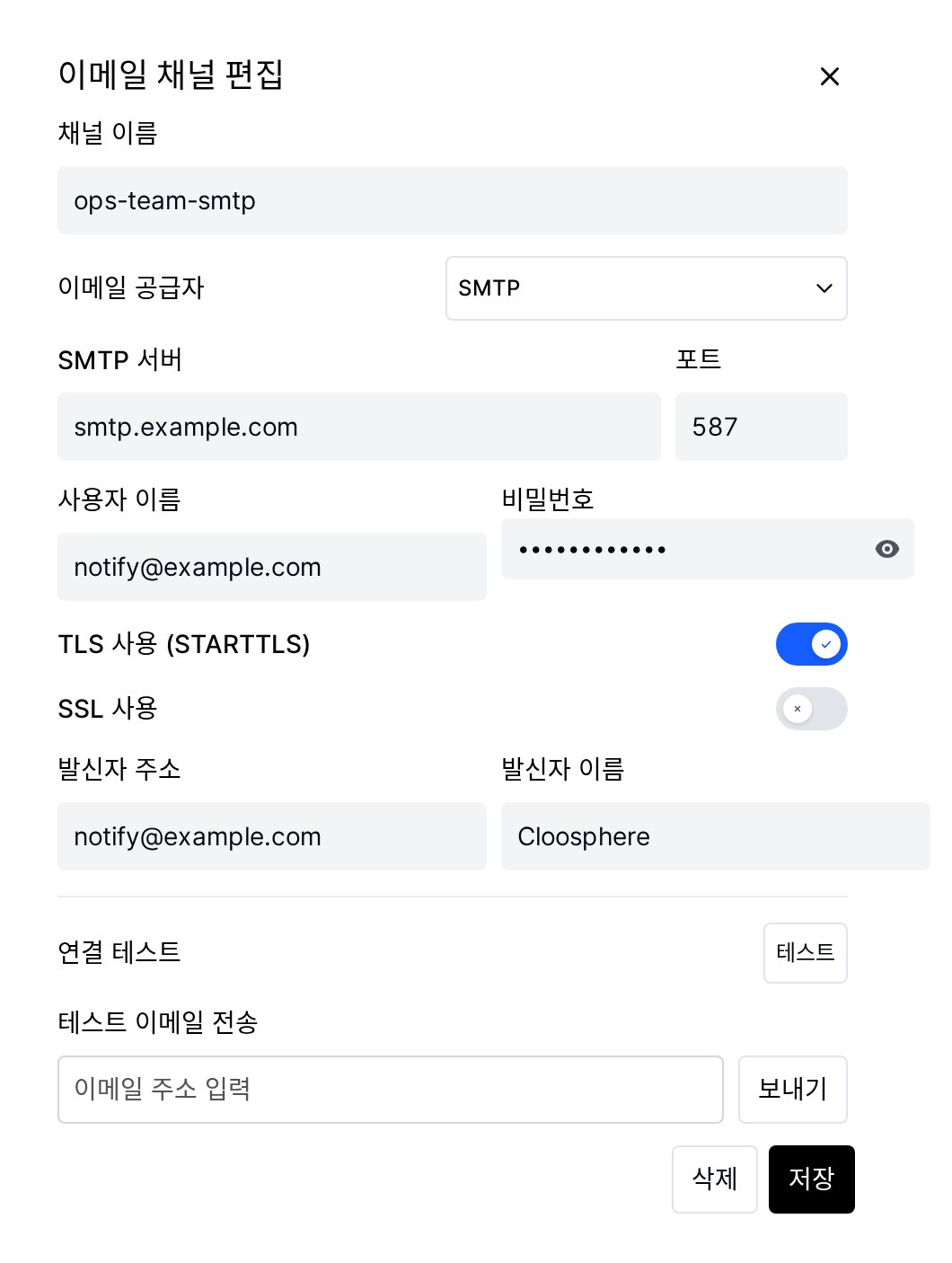 The **Test** button verifies mail server connection and authentication only.
| Result | Description |
| ---------------------- | -------------------------------------------- |
| **Success** | Server connection and authentication both OK |
| **Auth failure** | Verify username/password |
| **Connection failure** | Verify server address, port, firewall |
| **Timeout** | Verify network connection |
To verify actual delivery, enter an address under **Send Test Email** and click **Send**. Check both the inbox and the spam folder — a successful connection test does not guarantee delivery, since sender domain policy (SPF/DKIM) can still filter the message.
***
## Webhook Channels
Connect with external messaging services to send notifications.
### Add Channel
Click the **+** icon button on the right of the Webhook section. (Tooltip: "Add Webhook Channel")
The **Test** button verifies mail server connection and authentication only.
| Result | Description |
| ---------------------- | -------------------------------------------- |
| **Success** | Server connection and authentication both OK |
| **Auth failure** | Verify username/password |
| **Connection failure** | Verify server address, port, firewall |
| **Timeout** | Verify network connection |
To verify actual delivery, enter an address under **Send Test Email** and click **Send**. Check both the inbox and the spam folder — a successful connection test does not guarantee delivery, since sender domain policy (SPF/DKIM) can still filter the message.
***
## Webhook Channels
Connect with external messaging services to send notifications.
### Add Channel
Click the **+** icon button on the right of the Webhook section. (Tooltip: "Add Webhook Channel")
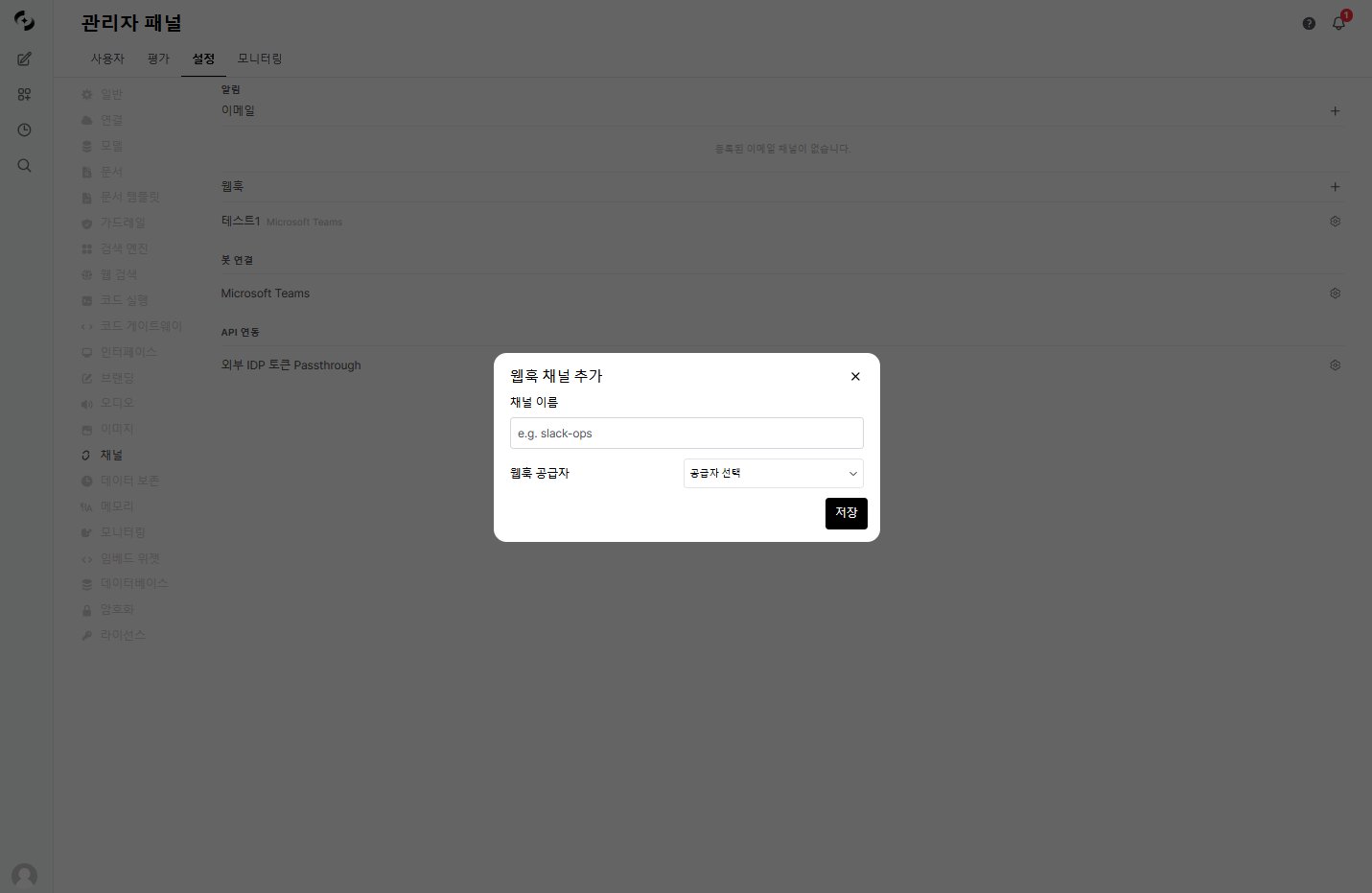 | Field | Description |
| ---------------- | --------------------------------------------------------------------- |
| **Channel name** | Identifier name (e.g., "Engineering Slack") |
| **Provider** | Slack / Microsoft Teams / Discord / Telegram / Google Chat |
| **Webhook URL** | Receiving webhook URL from the provider (except Telegram — see below) |
Telegram uses **Bot Token** and **Chat ID** instead of webhook URL. The input form auto-changes when Telegram is selected.
### Per-Provider Settings
**Generate webhook URL:**
1. Enable **Incoming Webhooks** in your Slack app management page
2. Click **Add New Webhook to Workspace**
3. Pick a channel and click **Allow**
4. Copy the generated URL (`https://hooks.slack.com/services/...`)
**Notification format:** Header block + Fields (prompt, completion time) + Section (result) + chart image
**Generate webhook URL:**
1. Configure **Connectors** or **Workflows** on the Teams channel
2. Add **Incoming Webhook**
3. Set name and click **Create**
4. Copy the generated URL (`https://...webhook.office.com/...`)
**Notification format:** Adaptive Card 1.5 — TextBlock, FactSet, Table + chart image
**Generate webhook URL:**
1. Discord channel settings > **Integrations** > **Webhooks**
2. Click **New Webhook**
3. Set name and **Copy Webhook URL** (`https://discord.com/api/webhooks/...`)
**Notification format:** Embed — Title + Fields + Description + chart image (first only)
Telegram uses **Bot Token + Chat ID** instead of webhook URL.
**Bot setup:**
1. Create bot via `@BotFather` and obtain **Bot Token**
2. Add the bot to channel/group
3. Get **Chat ID** (group/channel ID, e.g., `-1001234567890`)
| Setting | Description |
| ------------- | ------------------------------------- |
| **Bot Token** | Token issued by BotFather |
| **Chat ID** | Chat room ID to send notifications to |
When Telegram is selected, the form shows Bot Token and Chat ID fields instead of webhook URL.
**Generate webhook URL:**
1. In Google Chat space, pick **Apps & integrations** > **Webhooks**
2. Set name and **Save**
3. Copy the generated URL (`https://chat.googleapis.com/v1/spaces/.../messages?key=...`)
**Notification format:** Simple text message (same text payload as Slack)
### Test Webhook
Click **Test Webhook** to send a test message in the selected provider's format.
As with email, Test Webhook is available only in the edit screen after saving the channel.
***
## Bot Connections
Connect a Microsoft Teams bot so users can chat with Cloosphere directly from Teams.
* Configure it via the gear (⚙) icon to the right of the **Microsoft Teams** item in the **Bot Connections** section.
For detailed setup, see the [Teams Bot](/en/admin/teams-bot) documentation.
***
## API Integration
Configure **token passthrough**, which forwards external IdP (Identity Provider) tokens directly to downstream services.
* Configure it via the gear (⚙) icon to the right of the **External IdP Token Passthrough** item in the **API Integration** section.
***
## Schedule Notification Integration
After admins configure channels, users configure notifications in scheduled tasks.
### Trigger Conditions
| Condition | Description | Use Case |
| ---------------- | ------------------------------------ | ---------------------------- |
| **Always** | Notify on success and failure | Critical schedule monitoring |
| **Success only** | Notify only on successful completion | Regular report delivery |
| **Failure only** | Notify only on errors | Failure detection alerts |
### Multiple Notifications
A single scheduled task can have multiple notification channels.
| Notification | Channel | Target | Condition |
| ------------ | ------------- | ------------------- | ------------ |
| Notif 1 | Email | Team Lead | Always |
| Notif 2 | Slack webhook | Engineering channel | Failure only |
| Notif 3 | Teams webhook | Executive channel | Success only |
***
## Chart Image Delivery
Plotly charts generated by DbSphere agents are server-side rendered to PNG images and included in notifications.
| Channel | Method | Description |
| --------------- | ------------- | ------------------------------- |
| **Email** | Inline Base64 | Image directly embedded in body |
| **Slack** | Image URL | Displayed as image block |
| **Teams** | Adaptive Card | Image element in card |
| **Discord** | Embed image | Only first chart included |
| **Google Chat** | Text | Same text payload as Slack |
Chart images are auto-extracted before notification dispatch. Chart markers are removed from the notification body so clean text is delivered.
***
## Troubleshooting
| Symptom | Check |
| ---------------------- | -------------------------------------------------------------------- |
| **Connection failure** | Verify server address, port. Check firewall SMTP port allowance |
| **Auth failure** | Verify username/password. Google requires app passwords |
| **Email not received** | Check recipient spam folder. Verify sender domain SPF/DKIM |
| **TLS error** | Verify TLS/SSL setting and port combination (587-TLS, 465-SSL) |
| **SendGrid error** | Check API key permission. Verify sender address verified |
| **Azure Email error** | Check Connection String validity. Verify sender provisioned in Azure |
| Symptom | Check |
| --------------------- | ----------------------------------------------------------------------------------- |
| **Send failure** | Check webhook URL validity. Check if URL has expired |
| **Message not shown** | Check target channel/app permissions. Check if bot can access channel |
| **Timeout** | Check network connection. Check firewall outbound HTTPS allowance |
| **Format broken** | Check provider setting (Slack/Teams/Discord/Telegram/Google Chat selection correct) |
| Symptom | Check |
| -------------------- | ---------------------------------------------------------------------------- |
| **No notifications** | Check schedule's notification settings. Verify trigger condition correctness |
| **No chart image** | Verify the agent is connected to DbSphere |
| Field | Description |
| ---------------- | --------------------------------------------------------------------- |
| **Channel name** | Identifier name (e.g., "Engineering Slack") |
| **Provider** | Slack / Microsoft Teams / Discord / Telegram / Google Chat |
| **Webhook URL** | Receiving webhook URL from the provider (except Telegram — see below) |
Telegram uses **Bot Token** and **Chat ID** instead of webhook URL. The input form auto-changes when Telegram is selected.
### Per-Provider Settings
**Generate webhook URL:**
1. Enable **Incoming Webhooks** in your Slack app management page
2. Click **Add New Webhook to Workspace**
3. Pick a channel and click **Allow**
4. Copy the generated URL (`https://hooks.slack.com/services/...`)
**Notification format:** Header block + Fields (prompt, completion time) + Section (result) + chart image
**Generate webhook URL:**
1. Configure **Connectors** or **Workflows** on the Teams channel
2. Add **Incoming Webhook**
3. Set name and click **Create**
4. Copy the generated URL (`https://...webhook.office.com/...`)
**Notification format:** Adaptive Card 1.5 — TextBlock, FactSet, Table + chart image
**Generate webhook URL:**
1. Discord channel settings > **Integrations** > **Webhooks**
2. Click **New Webhook**
3. Set name and **Copy Webhook URL** (`https://discord.com/api/webhooks/...`)
**Notification format:** Embed — Title + Fields + Description + chart image (first only)
Telegram uses **Bot Token + Chat ID** instead of webhook URL.
**Bot setup:**
1. Create bot via `@BotFather` and obtain **Bot Token**
2. Add the bot to channel/group
3. Get **Chat ID** (group/channel ID, e.g., `-1001234567890`)
| Setting | Description |
| ------------- | ------------------------------------- |
| **Bot Token** | Token issued by BotFather |
| **Chat ID** | Chat room ID to send notifications to |
When Telegram is selected, the form shows Bot Token and Chat ID fields instead of webhook URL.
**Generate webhook URL:**
1. In Google Chat space, pick **Apps & integrations** > **Webhooks**
2. Set name and **Save**
3. Copy the generated URL (`https://chat.googleapis.com/v1/spaces/.../messages?key=...`)
**Notification format:** Simple text message (same text payload as Slack)
### Test Webhook
Click **Test Webhook** to send a test message in the selected provider's format.
As with email, Test Webhook is available only in the edit screen after saving the channel.
***
## Bot Connections
Connect a Microsoft Teams bot so users can chat with Cloosphere directly from Teams.
* Configure it via the gear (⚙) icon to the right of the **Microsoft Teams** item in the **Bot Connections** section.
For detailed setup, see the [Teams Bot](/en/admin/teams-bot) documentation.
***
## API Integration
Configure **token passthrough**, which forwards external IdP (Identity Provider) tokens directly to downstream services.
* Configure it via the gear (⚙) icon to the right of the **External IdP Token Passthrough** item in the **API Integration** section.
***
## Schedule Notification Integration
After admins configure channels, users configure notifications in scheduled tasks.
### Trigger Conditions
| Condition | Description | Use Case |
| ---------------- | ------------------------------------ | ---------------------------- |
| **Always** | Notify on success and failure | Critical schedule monitoring |
| **Success only** | Notify only on successful completion | Regular report delivery |
| **Failure only** | Notify only on errors | Failure detection alerts |
### Multiple Notifications
A single scheduled task can have multiple notification channels.
| Notification | Channel | Target | Condition |
| ------------ | ------------- | ------------------- | ------------ |
| Notif 1 | Email | Team Lead | Always |
| Notif 2 | Slack webhook | Engineering channel | Failure only |
| Notif 3 | Teams webhook | Executive channel | Success only |
***
## Chart Image Delivery
Plotly charts generated by DbSphere agents are server-side rendered to PNG images and included in notifications.
| Channel | Method | Description |
| --------------- | ------------- | ------------------------------- |
| **Email** | Inline Base64 | Image directly embedded in body |
| **Slack** | Image URL | Displayed as image block |
| **Teams** | Adaptive Card | Image element in card |
| **Discord** | Embed image | Only first chart included |
| **Google Chat** | Text | Same text payload as Slack |
Chart images are auto-extracted before notification dispatch. Chart markers are removed from the notification body so clean text is delivered.
***
## Troubleshooting
| Symptom | Check |
| ---------------------- | -------------------------------------------------------------------- |
| **Connection failure** | Verify server address, port. Check firewall SMTP port allowance |
| **Auth failure** | Verify username/password. Google requires app passwords |
| **Email not received** | Check recipient spam folder. Verify sender domain SPF/DKIM |
| **TLS error** | Verify TLS/SSL setting and port combination (587-TLS, 465-SSL) |
| **SendGrid error** | Check API key permission. Verify sender address verified |
| **Azure Email error** | Check Connection String validity. Verify sender provisioned in Azure |
| Symptom | Check |
| --------------------- | ----------------------------------------------------------------------------------- |
| **Send failure** | Check webhook URL validity. Check if URL has expired |
| **Message not shown** | Check target channel/app permissions. Check if bot can access channel |
| **Timeout** | Check network connection. Check firewall outbound HTTPS allowance |
| **Format broken** | Check provider setting (Slack/Teams/Discord/Telegram/Google Chat selection correct) |
| Symptom | Check |
| -------------------- | ---------------------------------------------------------------------------- |
| **No notifications** | Check schedule's notification settings. Verify trigger condition correctness |
| **No chart image** | Verify the agent is connected to DbSphere |