> ## Documentation Index
> Fetch the complete documentation index at: https://docs.cloosphere.ai/llms.txt
> Use this file to discover all available pages before exploring further.
# Organization Management
> Manage organizational structure, sync with Microsoft Entra ID, and use OU-based access control
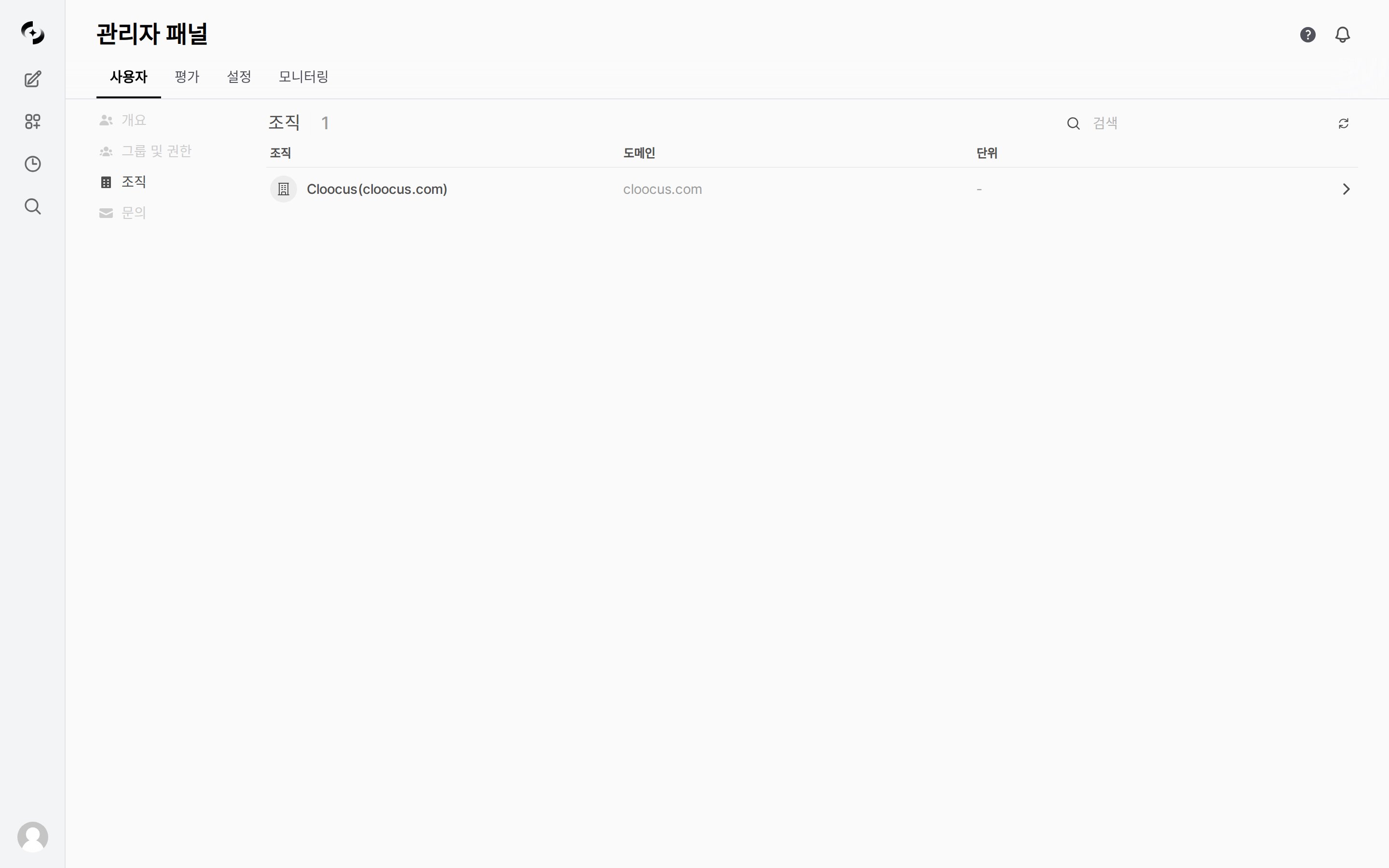
Admin › Users › Organizations
Organization management reflects your company's department structure in Cloosphere to systematically control resource access.
* Sync with Microsoft Entra ID (Azure AD), Keycloak, or Google Workspace, or build the org structure directly via JSON Import.
 ***
## Organizational Hierarchy
Cloosphere's organization system consists of hierarchical Organizations and Organizational Units.
```mermaid theme={null}
flowchart TD
A[Organization] --> B[Organizational Unit OU - Level 0]
B --> C[Organizational Unit OU - Level 1]
B --> D[Organizational Unit OU - Level 1]
C --> E[Organizational Unit OU - Level 2]
C --> F[Organizational Unit OU - Level 2]
A -.- A1["tenant_id, domain"]
B -.- B1["type: department"]
C -.- C1["type: department"]
E -.- E1["member_ids: user list"]
```
| Concept | Description | Example |
| ---------------------------- | ---------------------------------------------------------- | ---------------------------- |
| **Organization** | Top-level entity. Identified by tenant ID and domain | "Cloocus Inc." |
| **Organizational Unit (OU)** | Sub-units like departments, teams. Hierarchically nestable | "Engineering > Backend Team" |
| **Members** | List of users belonging to an OU | user\_id array |
### Organizational Unit Types
OUs distinguish purpose via the `type` field.
| Type | Description |
| -------------- | ---------------------------------------------- |
| **department** | Department (division-level upper organization) |
| **team** | Team (working-unit organization) |
| **group** | Group (functional unit, e.g., project team) |
In the current production environment, most observed organizational units are of type `department`.
***
## Organizations vs Groups
Cloosphere offers two user grouping mechanisms — **groups** and **organizations**. Use them appropriately by purpose.
| Aspect | Group | Organization |
| ------------------------ | ------------------------------------------ | ---------------------------------------- |
| **Purpose** | Permission management | Reflect organizational structure |
| **Structure** | Flat (no hierarchy) | Tree (hierarchical) |
| **Permission setup** | Permissions assigned directly to the group | Specify OU in resource's access\_control |
| **External integration** | Manual management | Auto-sync with Entra ID |
| **Use case** | "Grant agent creation permission" | "HR team only accesses HR Policy KB" |
Use groups for **permission control** (what they can do) and organizations for **access control** (what they can see). The two systems can be used together.
***
## Creating Organizations
Organizations and OUs are created **only via sync**.
* There's no UI to create them manually.
Supported sync methods:
| Method | Description |
| -------------------- | ----------------------------------------------------------- |
| **Microsoft Graph** | Auto-sync organizational structure from Entra ID (Azure AD) |
| **Keycloak** | Sync from Keycloak groups/organizations |
| **Google Workspace** | Sync from Google Workspace directory |
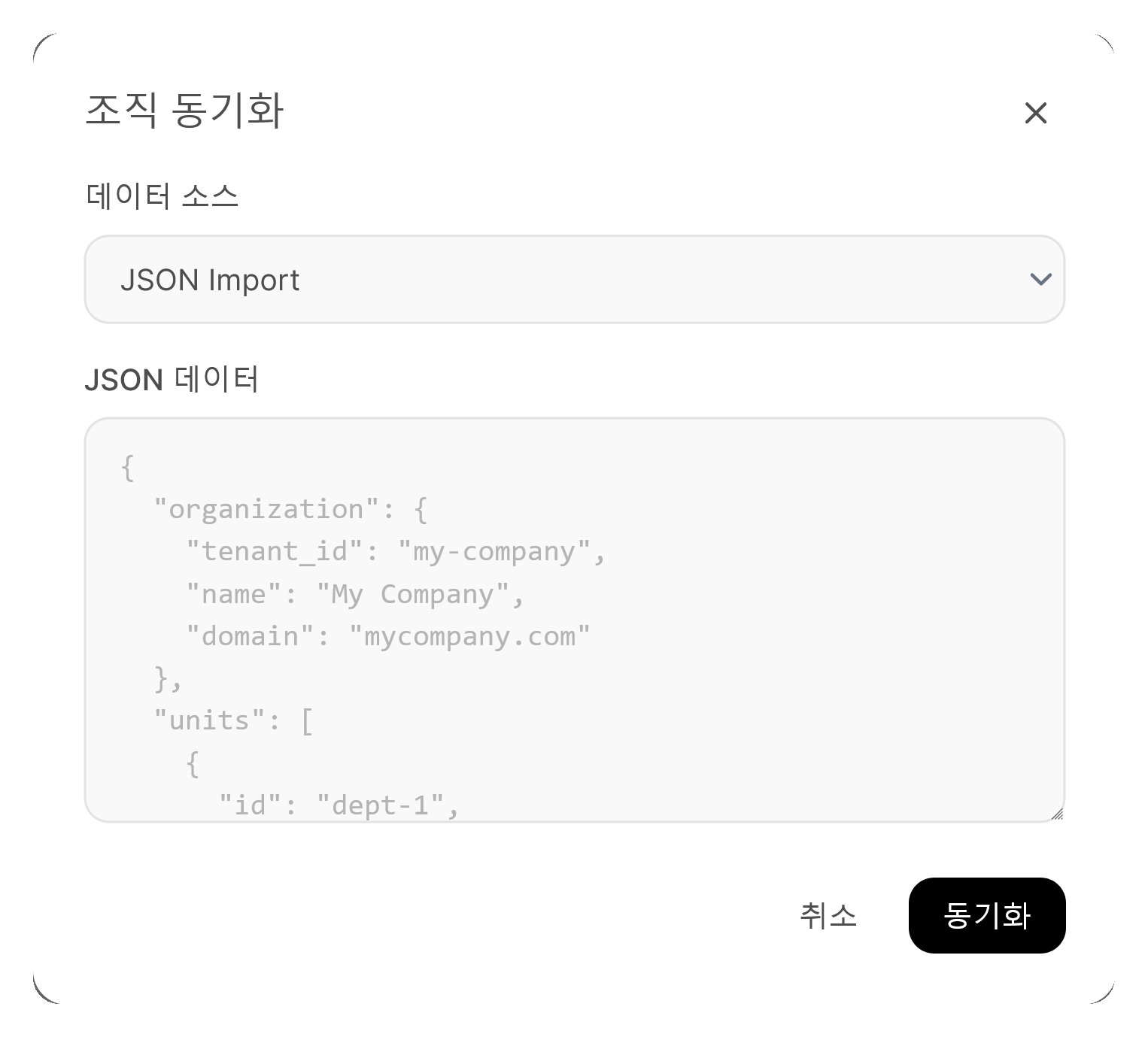
| **JSON Import** | Upload JSON data to construct the org structure |
See [Microsoft Entra ID Sync](#microsoft-entra-id-sync) and [JSON Import](#json-import) below for details.
***
## Microsoft Entra ID Sync
Sync organizational structure automatically with Microsoft Entra ID (Azure AD).
```mermaid theme={null}
flowchart LR
A[Microsoft Entra ID] -->|MS Graph API| B[Cloosphere]
B --> C[Create/update organization]
B --> D[Construct OU tree]
B --> E[Map members]
```
### Prerequisites
Microsoft OAuth setup is required for Entra ID sync. Set the following environment variables on the server.
| Environment Variable | Description |
| ---------------------------- | ---------------------------------- |
| `MICROSOFT_CLIENT_ID` | Azure App Registration's Client ID |
| `MICROSOFT_CLIENT_SECRET` | Client Secret |
| `MICROSOFT_CLIENT_TENANT_ID` | Azure AD Tenant ID |
### Running Sync
Click the **sync button** () next to the search box at the top-right of the organization list to open the **Organization Sync** dialog.
In the **Data Source** dropdown, pick the sync method — JSON Import (default) · Microsoft Graph · Keycloak · Google Workspace. For Entra ID integration, pick **Microsoft Graph**.
When Microsoft Graph is selected, choose which items to fetch.
| Option | Description | Default |
| -------------------------------- | -------------------------------------------------------------------- | :-----: |
| **Administrative Units** (관리 단위) | Entra ID's org management feature; suited to hierarchies | ON |
| **Security Groups** (보안 그룹) | Use security groups as organizational units; filter with OData query | OFF |
| **Departments** (부서) | Auto-extract department names from user profiles | OFF |
| **Group Filter** | Filter to specific groups (optional) | - |
***
## Organizational Hierarchy
Cloosphere's organization system consists of hierarchical Organizations and Organizational Units.
```mermaid theme={null}
flowchart TD
A[Organization] --> B[Organizational Unit OU - Level 0]
B --> C[Organizational Unit OU - Level 1]
B --> D[Organizational Unit OU - Level 1]
C --> E[Organizational Unit OU - Level 2]
C --> F[Organizational Unit OU - Level 2]
A -.- A1["tenant_id, domain"]
B -.- B1["type: department"]
C -.- C1["type: department"]
E -.- E1["member_ids: user list"]
```
| Concept | Description | Example |
| ---------------------------- | ---------------------------------------------------------- | ---------------------------- |
| **Organization** | Top-level entity. Identified by tenant ID and domain | "Cloocus Inc." |
| **Organizational Unit (OU)** | Sub-units like departments, teams. Hierarchically nestable | "Engineering > Backend Team" |
| **Members** | List of users belonging to an OU | user\_id array |
### Organizational Unit Types
OUs distinguish purpose via the `type` field.
| Type | Description |
| -------------- | ---------------------------------------------- |
| **department** | Department (division-level upper organization) |
| **team** | Team (working-unit organization) |
| **group** | Group (functional unit, e.g., project team) |
In the current production environment, most observed organizational units are of type `department`.
***
## Organizations vs Groups
Cloosphere offers two user grouping mechanisms — **groups** and **organizations**. Use them appropriately by purpose.
| Aspect | Group | Organization |
| ------------------------ | ------------------------------------------ | ---------------------------------------- |
| **Purpose** | Permission management | Reflect organizational structure |
| **Structure** | Flat (no hierarchy) | Tree (hierarchical) |
| **Permission setup** | Permissions assigned directly to the group | Specify OU in resource's access\_control |
| **External integration** | Manual management | Auto-sync with Entra ID |
| **Use case** | "Grant agent creation permission" | "HR team only accesses HR Policy KB" |
Use groups for **permission control** (what they can do) and organizations for **access control** (what they can see). The two systems can be used together.
***
## Creating Organizations
Organizations and OUs are created **only via sync**.
* There's no UI to create them manually.
Supported sync methods:
| Method | Description |
| -------------------- | ----------------------------------------------------------- |
| **Microsoft Graph** | Auto-sync organizational structure from Entra ID (Azure AD) |
| **Keycloak** | Sync from Keycloak groups/organizations |
| **Google Workspace** | Sync from Google Workspace directory |
| **JSON Import** | Upload JSON data to construct the org structure |
See [Microsoft Entra ID Sync](#microsoft-entra-id-sync) and [JSON Import](#json-import) below for details.
***
## Microsoft Entra ID Sync
Sync organizational structure automatically with Microsoft Entra ID (Azure AD).
```mermaid theme={null}
flowchart LR
A[Microsoft Entra ID] -->|MS Graph API| B[Cloosphere]
B --> C[Create/update organization]
B --> D[Construct OU tree]
B --> E[Map members]
```
### Prerequisites
Microsoft OAuth setup is required for Entra ID sync. Set the following environment variables on the server.
| Environment Variable | Description |
| ---------------------------- | ---------------------------------- |
| `MICROSOFT_CLIENT_ID` | Azure App Registration's Client ID |
| `MICROSOFT_CLIENT_SECRET` | Client Secret |
| `MICROSOFT_CLIENT_TENANT_ID` | Azure AD Tenant ID |
### Running Sync
Click the **sync button** () next to the search box at the top-right of the organization list to open the **Organization Sync** dialog.
In the **Data Source** dropdown, pick the sync method — JSON Import (default) · Microsoft Graph · Keycloak · Google Workspace. For Entra ID integration, pick **Microsoft Graph**.
When Microsoft Graph is selected, choose which items to fetch.
| Option | Description | Default |
| -------------------------------- | -------------------------------------------------------------------- | :-----: |
| **Administrative Units** (관리 단위) | Entra ID's org management feature; suited to hierarchies | ON |
| **Security Groups** (보안 그룹) | Use security groups as organizational units; filter with OData query | OFF |
| **Departments** (부서) | Auto-extract department names from user profiles | OFF |
| **Group Filter** | Filter to specific groups (optional) | - |
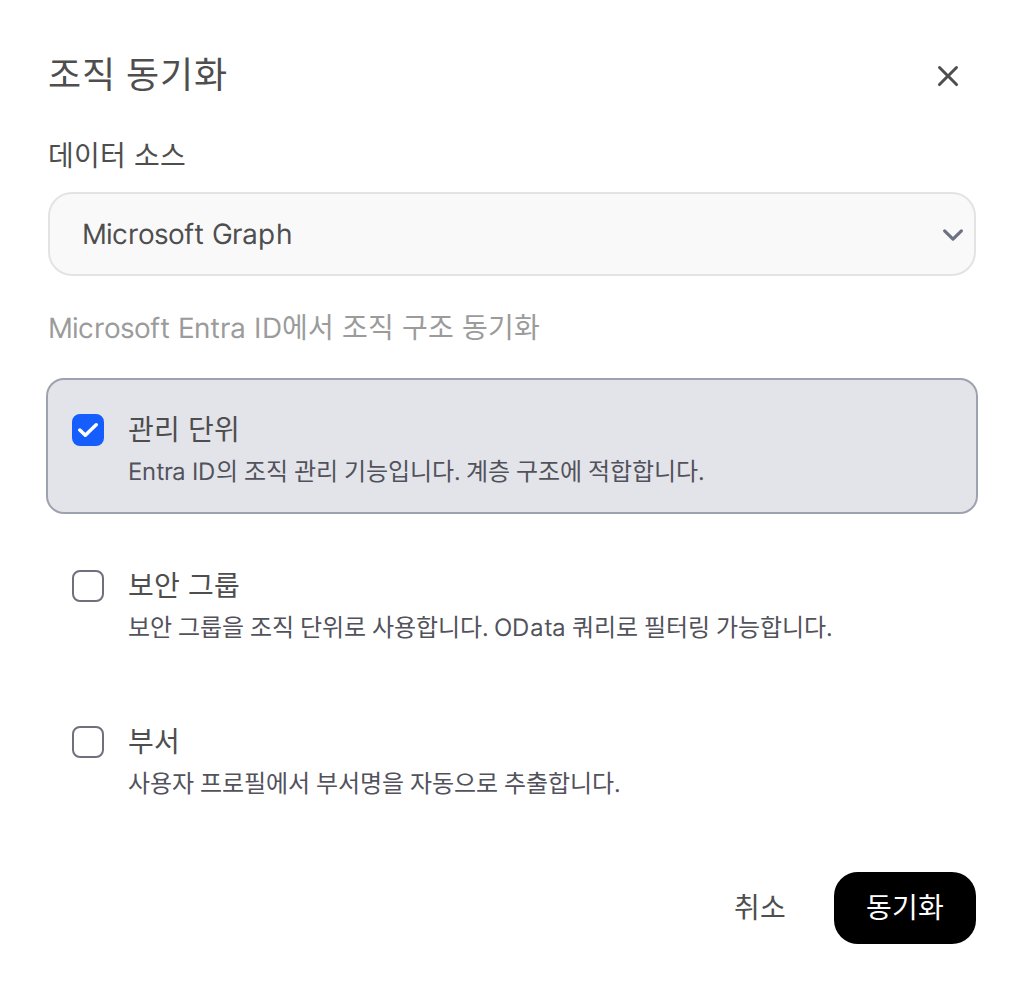 Click the **Sync** button at the bottom of the dialog.
 Verify the synced OU tree and member mapping.
### JSON Import
In environments without Entra ID, import the org structure via JSON data directly.
```json theme={null}
{
"organization": {
"tenant_id": "my-company",
"name": "My Company",
"domain": "mycompany.com"
},
"units": [
{
"id": "dept-1",
"name": "Engineering",
"type": "department",
"children": [
{ "id": "team-1", "name": "Backend Team", "type": "team" },
{ "id": "team-2", "name": "Frontend Team", "type": "team" }
]
}
]
}
```
***
## Organization-based Access Control
Use OUs to control resource (agents, KBs, databases, etc.) access scope.
### Setting OU Permissions on Resources
In each workspace resource's **Access** settings, specify the OU.
| Access Level | Description |
| ------------ | ------------------------------------ |
| **Read** | OU members can view/use the resource |
| **Write** | OU members can edit the resource |
### Permission Inheritance
Permissions granted to upper OUs are inherited by lower OUs.
```mermaid theme={null}
flowchart TD
A["Engineering (Read permission)"] --> B["Backend Team (inherited)"]
A --> C["Frontend Team (inherited)"]
B --> D["Backend Team members: can access"]
C --> E["Frontend Team members: can access"]
```
When resource access is set on an upper OU, all members of lower OUs automatically receive the same permission.
### Example Use
| Resource | Access Control | Description |
| -------------------------- | ----------------------------- | --------------------------------------------- |
| **HR Policy KB** | HR Team OU (Read) | Only HR team can view HR policy |
| **Sales Agent** | Sales Division OU (Read) | Entire Sales department can use |
| **Sales DB** | Operations Division OU (Read) | Only Operations department queries sales data |
| **Company-wide Notice KB** | Top-level OU (Read) | Entire organization can access |
***
## Per-OU Resource Permission View
Admins can review the resource permissions assigned to a specific OU. The items shown are:
A single consolidated list of a unit's resource permissions is not included in the current release. For now, check permissions individually via each resource's **Access** settings (Knowledge Base, Agents, Databases, etc.) by whether an OU is assigned.
| Resource Type | Items Shown |
| ------------------ | ----------------------------- |
| **Knowledge Base** | Name, Read/Write, inheritance |
| **Tools** | Name, Read/Write, inheritance |
| **Prompts** | Name, Read/Write, inheritance |
| **Models** | Name, Read/Write, inheritance |
| **Database** | Name, Read/Write, inheritance |
| **Glossary** | Name, Read/Write, inheritance |
***
## Per-Organization Usage Limits
In the OU detail panel, set **daily token limits**.
| Setting | Description |
| --------------------- | -------------------------------------------------------------- |
| **Daily token limit** | Daily token cap for users belonging to this OU (0 = unlimited) |
This feature requires admin settings to have **usage limits** (`enable_usage_limit`) enabled.
Usage limits can be set at four levels — global, user, group, organization. When set at multiple levels, the **most permissive (highest)** value applies.
***
## Per-OU Guardrails
Connect **guardrails to OUs** to auto-validate AI inputs/outputs of users in that OU.
* Configure in the **Guardrail Settings** of the OU detail panel.
| Setting | Description |
| ----------------------------- | ------------------------------------------------------------------------------------------------------ |
| **Pick guardrails** | List of guardrails to apply to this OU (multi-select) |
| **Inherit global guardrails** | When on, also apply global (Code Gateway) guardrails. When off, only the OU-specified guardrails apply |
### Application Priority
Guardrails can be set at multiple levels — to users, the **sum across all levels** is applied.
```
Agent guardrail ─┐
Group guardrail ─┼─ All combined and applied
OU guardrail ─┤
Global guardrail ─┘ (when global inheritance is on)
```
Global guardrails are configured in [Admin > Code Gateway](/en/admin/code-gateway). Turning off `Inherit global guardrails` for an OU exempts it from global guardrail influence.
***
## Sync Provider List
The four currently supported sync providers:
| Provider | Description | Requirements |
| -------------------- | --------------------------------------- | ------------------------------------------------------------------------------ |
| **JSON Import** | Direct configuration via JSON data | None |
| **Microsoft Graph** | Auto-sync from Entra ID (Azure AD) | `MICROSOFT_CLIENT_ID`, `MICROSOFT_CLIENT_SECRET`, `MICROSOFT_CLIENT_TENANT_ID` |
| **Keycloak** | Sync from Keycloak groups/organizations | `OPENID_PROVIDER_URL`, `OAUTH_CLIENT_ID`, `OAUTH_CLIENT_SECRET` |
| **Google Workspace** | Sync from Google Workspace directory | `GOOGLE_ADMIN_SERVICE_ACCOUNT_KEY`, `GOOGLE_ADMIN_IMPERSONATE_EMAIL` |
***
## FAQ
1. Verify Azure App Registration has `Directory.Read.All` permission.
2. Verify environment variables `MICROSOFT_CLIENT_ID`, `MICROSOFT_CLIENT_SECRET`, `MICROSOFT_CLIENT_TENANT_ID` are correctly set.
3. Check server logs for detailed error messages.
Not necessarily. **Permission management** alone is fine with groups. Use organizations additionally when you need **department-based access control** with Entra ID integration.
Deleting an OU doesn't delete the user accounts in it. Only the resource access permissions configured for that OU are removed.
***
## Related Pages
User list, roles/groups, permission settings
Input/output safety policies applied per organization unit
Usage and cost monitoring by organization and user
OIDC environment variables required for Keycloak/Entra sync
Verify the synced OU tree and member mapping.
### JSON Import
In environments without Entra ID, import the org structure via JSON data directly.
```json theme={null}
{
"organization": {
"tenant_id": "my-company",
"name": "My Company",
"domain": "mycompany.com"
},
"units": [
{
"id": "dept-1",
"name": "Engineering",
"type": "department",
"children": [
{ "id": "team-1", "name": "Backend Team", "type": "team" },
{ "id": "team-2", "name": "Frontend Team", "type": "team" }
]
}
]
}
```
***
## Organization-based Access Control
Use OUs to control resource (agents, KBs, databases, etc.) access scope.
### Setting OU Permissions on Resources
In each workspace resource's **Access** settings, specify the OU.
| Access Level | Description |
| ------------ | ------------------------------------ |
| **Read** | OU members can view/use the resource |
| **Write** | OU members can edit the resource |
### Permission Inheritance
Permissions granted to upper OUs are inherited by lower OUs.
```mermaid theme={null}
flowchart TD
A["Engineering (Read permission)"] --> B["Backend Team (inherited)"]
A --> C["Frontend Team (inherited)"]
B --> D["Backend Team members: can access"]
C --> E["Frontend Team members: can access"]
```
When resource access is set on an upper OU, all members of lower OUs automatically receive the same permission.
### Example Use
| Resource | Access Control | Description |
| -------------------------- | ----------------------------- | --------------------------------------------- |
| **HR Policy KB** | HR Team OU (Read) | Only HR team can view HR policy |
| **Sales Agent** | Sales Division OU (Read) | Entire Sales department can use |
| **Sales DB** | Operations Division OU (Read) | Only Operations department queries sales data |
| **Company-wide Notice KB** | Top-level OU (Read) | Entire organization can access |
***
## Per-OU Resource Permission View
Admins can review the resource permissions assigned to a specific OU. The items shown are:
A single consolidated list of a unit's resource permissions is not included in the current release. For now, check permissions individually via each resource's **Access** settings (Knowledge Base, Agents, Databases, etc.) by whether an OU is assigned.
| Resource Type | Items Shown |
| ------------------ | ----------------------------- |
| **Knowledge Base** | Name, Read/Write, inheritance |
| **Tools** | Name, Read/Write, inheritance |
| **Prompts** | Name, Read/Write, inheritance |
| **Models** | Name, Read/Write, inheritance |
| **Database** | Name, Read/Write, inheritance |
| **Glossary** | Name, Read/Write, inheritance |
***
## Per-Organization Usage Limits
In the OU detail panel, set **daily token limits**.
| Setting | Description |
| --------------------- | -------------------------------------------------------------- |
| **Daily token limit** | Daily token cap for users belonging to this OU (0 = unlimited) |
This feature requires admin settings to have **usage limits** (`enable_usage_limit`) enabled.
Usage limits can be set at four levels — global, user, group, organization. When set at multiple levels, the **most permissive (highest)** value applies.
***
## Per-OU Guardrails
Connect **guardrails to OUs** to auto-validate AI inputs/outputs of users in that OU.
* Configure in the **Guardrail Settings** of the OU detail panel.
| Setting | Description |
| ----------------------------- | ------------------------------------------------------------------------------------------------------ |
| **Pick guardrails** | List of guardrails to apply to this OU (multi-select) |
| **Inherit global guardrails** | When on, also apply global (Code Gateway) guardrails. When off, only the OU-specified guardrails apply |
### Application Priority
Guardrails can be set at multiple levels — to users, the **sum across all levels** is applied.
```
Agent guardrail ─┐
Group guardrail ─┼─ All combined and applied
OU guardrail ─┤
Global guardrail ─┘ (when global inheritance is on)
```
Global guardrails are configured in [Admin > Code Gateway](/en/admin/code-gateway). Turning off `Inherit global guardrails` for an OU exempts it from global guardrail influence.
***
## Sync Provider List
The four currently supported sync providers:
| Provider | Description | Requirements |
| -------------------- | --------------------------------------- | ------------------------------------------------------------------------------ |
| **JSON Import** | Direct configuration via JSON data | None |
| **Microsoft Graph** | Auto-sync from Entra ID (Azure AD) | `MICROSOFT_CLIENT_ID`, `MICROSOFT_CLIENT_SECRET`, `MICROSOFT_CLIENT_TENANT_ID` |
| **Keycloak** | Sync from Keycloak groups/organizations | `OPENID_PROVIDER_URL`, `OAUTH_CLIENT_ID`, `OAUTH_CLIENT_SECRET` |
| **Google Workspace** | Sync from Google Workspace directory | `GOOGLE_ADMIN_SERVICE_ACCOUNT_KEY`, `GOOGLE_ADMIN_IMPERSONATE_EMAIL` |
***
## FAQ
1. Verify Azure App Registration has `Directory.Read.All` permission.
2. Verify environment variables `MICROSOFT_CLIENT_ID`, `MICROSOFT_CLIENT_SECRET`, `MICROSOFT_CLIENT_TENANT_ID` are correctly set.
3. Check server logs for detailed error messages.
Not necessarily. **Permission management** alone is fine with groups. Use organizations additionally when you need **department-based access control** with Entra ID integration.
Deleting an OU doesn't delete the user accounts in it. Only the resource access permissions configured for that OU are removed.
***
## Related Pages
User list, roles/groups, permission settings
Input/output safety policies applied per organization unit
Usage and cost monitoring by organization and user
OIDC environment variables required for Keycloak/Entra sync