> ## Documentation Index
> Fetch the complete documentation index at: https://docs.cloosphere.ai/llms.txt
> Use this file to discover all available pages before exploring further.
# Branding
> Customize the platform appearance — logo, favicon, splash image — to match your corporate brand.
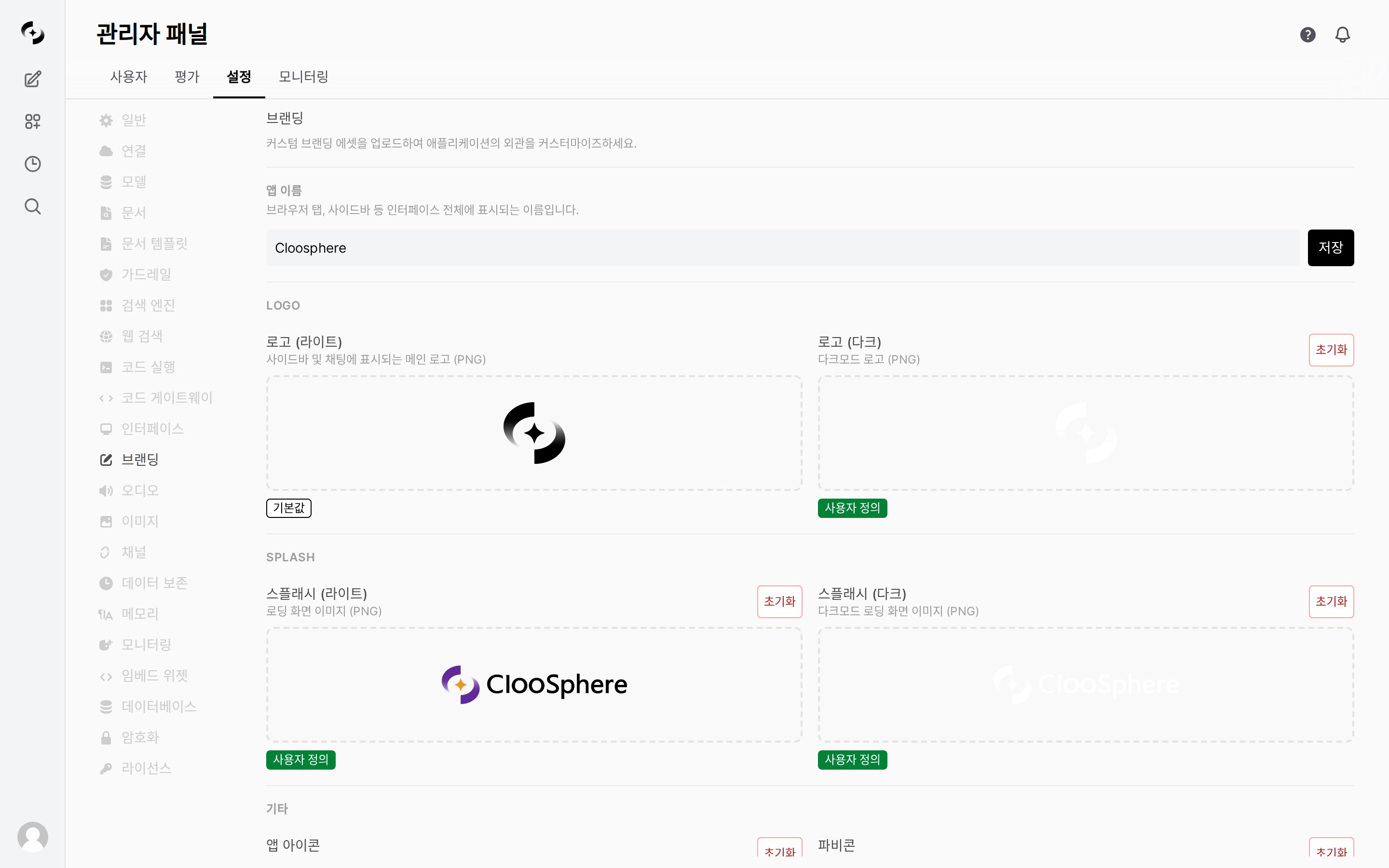
Admin › Settings › Branding
Customize logos, icons, and loading screens to match your corporate identity.
Branding customization may be restricted depending on the [license](/en/admin/settings/license) feature key.
 ***
## Customizable Items
### Logo
| Item | Description | Where Shown |
| ---------------- | -------------------------- | ------------------------- |
| **Logo (Light)** | Light mode main logo (PNG) | Sidebar, chat |
| **Logo (Dark)** | Dark mode main logo (PNG) | Sidebar, chat (dark mode) |
### Splash Image
| Item | Description | Where Shown |
| ------------------ | ------------------------------------- | -------------------------------------- |
| **Splash (Light)** | Light mode loading screen image (PNG) | App initial loading screen |
| **Splash (Dark)** | Dark mode loading screen image (PNG) | App initial loading screen (dark mode) |
### Others
| Item | Description | Recommended |
| ------------ | ---------------- | ----------- |
| **App Icon** | PWA install icon | 512x512 PNG |
| **Favicon** | Browser tab icon | ICO or PNG |
***
## App Name
| Setting | Description |
| ------------ | ---------------------------------------------------------------------------------- |
| **App Name** | Name shown across the interface — browser tab title, sidebar, sign-in screen, etc. |
***
## How to Upload Images
Go to **Admin > Settings > Branding**.
Click each item's upload area or drag and drop an image file.
Branding assets like logo and favicon save automatically on upload. **App Name** requires clicking save after editing.
***
## Reset
Click the **Reset button** to the right of each item to restore the default Cloosphere image.
Branding changes apply immediately to all users. Some users may see delayed updates due to browser cache.
***
## Customizable Items
### Logo
| Item | Description | Where Shown |
| ---------------- | -------------------------- | ------------------------- |
| **Logo (Light)** | Light mode main logo (PNG) | Sidebar, chat |
| **Logo (Dark)** | Dark mode main logo (PNG) | Sidebar, chat (dark mode) |
### Splash Image
| Item | Description | Where Shown |
| ------------------ | ------------------------------------- | -------------------------------------- |
| **Splash (Light)** | Light mode loading screen image (PNG) | App initial loading screen |
| **Splash (Dark)** | Dark mode loading screen image (PNG) | App initial loading screen (dark mode) |
### Others
| Item | Description | Recommended |
| ------------ | ---------------- | ----------- |
| **App Icon** | PWA install icon | 512x512 PNG |
| **Favicon** | Browser tab icon | ICO or PNG |
***
## App Name
| Setting | Description |
| ------------ | ---------------------------------------------------------------------------------- |
| **App Name** | Name shown across the interface — browser tab title, sidebar, sign-in screen, etc. |
***
## How to Upload Images
Go to **Admin > Settings > Branding**.
Click each item's upload area or drag and drop an image file.
Branding assets like logo and favicon save automatically on upload. **App Name** requires clicking save after editing.
***
## Reset
Click the **Reset button** to the right of each item to restore the default Cloosphere image.
Branding changes apply immediately to all users. Some users may see delayed updates due to browser cache.