> ## Documentation Index
> Fetch the complete documentation index at: https://docs.cloosphere.ai/llms.txt
> Use this file to discover all available pages before exploring further.
# Code Execution
> Configure code execution environment and code interpreter in chat.
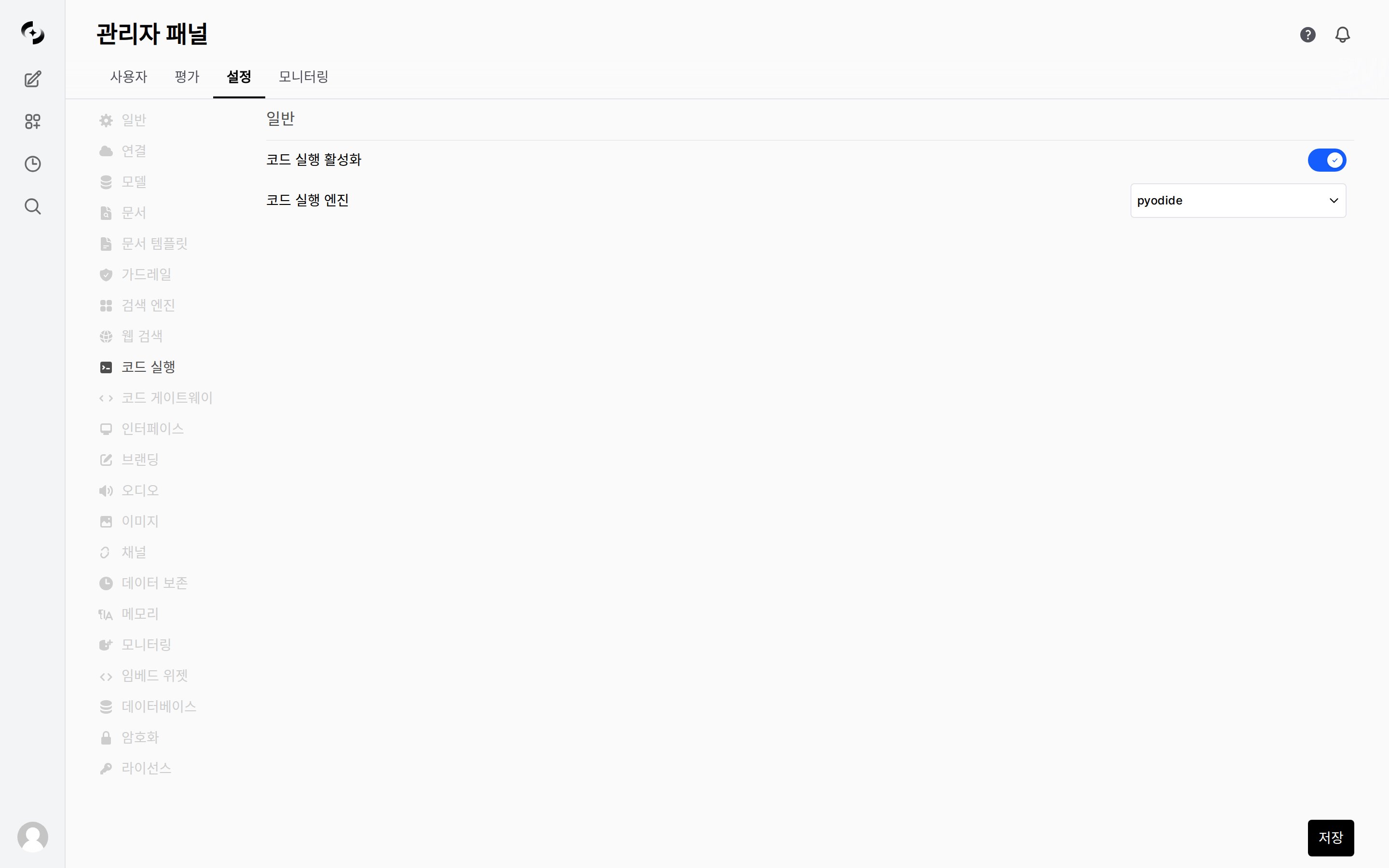
Admin › Settings › Code Execution
Configure the runtime for AI-generated code.
* This page configures the **code execution engine** (enable + Pyodide/Jupyter), and that engine is shared by both user-manual execution and the agent's **Code Interpreter** (auto-execution).
 ### Code Execution vs Code Interpreter
| | Code Execution | Code Interpreter |
| -------------- | ----------------------------------------------- | --------------------------------------------------------------------------------- |
| **Behavior** | User **manually runs** AI-generated code blocks | AI **auto-generates and runs** code |
| **Trigger** | Click the "Run" button on a code block | When the AI decides data analysis is needed |
| **Activation** | Code Execution enabled | Code Execution enabled + agent capability + user chat toggle — **all 3 required** |
***
## Code Execution
A feature that lets users directly run AI-generated code blocks in chat.
| Setting | Description | Default |
| -------------------------- | ----------------------------- | --------- |
| **Code Execution enabled** | Code execution feature ON/OFF | Enabled |
| **Execution engine** | Code execution environment | `pyodide` |
### Execution Engines
Run Python inside the browser. WebAssembly-based — doesn't affect the server.
| Pro | Con |
| ------------------------- | -------------------------------- |
| No separate server needed | Some native packages unsupported |
| No security risk | Large-data processing limits |
| Ready to use immediately | No filesystem access |
Run code on a Jupyter server. All packages in the server environment are available.
| Setting | Description |
| ----------------------- | ------------------------------ |
| **Server URL** | Jupyter server address |
| **Auth method** | None, Token, or Password |
| **Auth token/password** | Authentication info |
| **Timeout** | Execution time limit (seconds) |
Jupyter execution runs arbitrary code on the server, posing serious security risks. Use only in trusted environments.
***
## Code Interpreter
A feature where the agent auto-generates and runs code for data analysis, chart generation, etc.
* **This tab has no separate settings for it** — the Code Interpreter uses the code execution engine (Pyodide/Jupyter) configured above as-is.
* Whether it is enabled is controlled by agent settings, group permissions, and the chat toggle.
For Code Interpreter to work, **all 3 conditions** must be met:
1. **Code Execution enabled** in this tab (engine configured)
2. Code Interpreter capability set to **Default On** or **Default Off** in agent settings
3. User **manually toggles** Code Interpreter in chat (when Default Off)
Missing any one disables Code Interpreter.
Whether a user is allowed to use the Code Interpreter is controlled by the **Feature Permissions › Code Interpreter** toggle in [Groups & Permissions](/en/admin/groups).
### Code Execution vs Code Interpreter
| | Code Execution | Code Interpreter |
| -------------- | ----------------------------------------------- | --------------------------------------------------------------------------------- |
| **Behavior** | User **manually runs** AI-generated code blocks | AI **auto-generates and runs** code |
| **Trigger** | Click the "Run" button on a code block | When the AI decides data analysis is needed |
| **Activation** | Code Execution enabled | Code Execution enabled + agent capability + user chat toggle — **all 3 required** |
***
## Code Execution
A feature that lets users directly run AI-generated code blocks in chat.
| Setting | Description | Default |
| -------------------------- | ----------------------------- | --------- |
| **Code Execution enabled** | Code execution feature ON/OFF | Enabled |
| **Execution engine** | Code execution environment | `pyodide` |
### Execution Engines
Run Python inside the browser. WebAssembly-based — doesn't affect the server.
| Pro | Con |
| ------------------------- | -------------------------------- |
| No separate server needed | Some native packages unsupported |
| No security risk | Large-data processing limits |
| Ready to use immediately | No filesystem access |
Run code on a Jupyter server. All packages in the server environment are available.
| Setting | Description |
| ----------------------- | ------------------------------ |
| **Server URL** | Jupyter server address |
| **Auth method** | None, Token, or Password |
| **Auth token/password** | Authentication info |
| **Timeout** | Execution time limit (seconds) |
Jupyter execution runs arbitrary code on the server, posing serious security risks. Use only in trusted environments.
***
## Code Interpreter
A feature where the agent auto-generates and runs code for data analysis, chart generation, etc.
* **This tab has no separate settings for it** — the Code Interpreter uses the code execution engine (Pyodide/Jupyter) configured above as-is.
* Whether it is enabled is controlled by agent settings, group permissions, and the chat toggle.
For Code Interpreter to work, **all 3 conditions** must be met:
1. **Code Execution enabled** in this tab (engine configured)
2. Code Interpreter capability set to **Default On** or **Default Off** in agent settings
3. User **manually toggles** Code Interpreter in chat (when Default Off)
Missing any one disables Code Interpreter.
Whether a user is allowed to use the Code Interpreter is controlled by the **Feature Permissions › Code Interpreter** toggle in [Groups & Permissions](/en/admin/groups).