> ## Documentation Index
> Fetch the complete documentation index at: https://docs.cloosphere.ai/llms.txt
> Use this file to discover all available pages before exploring further.
# Images
> Configure AI image generation engines and connections.
Admin › Settings › Images
Configure AI image generation.
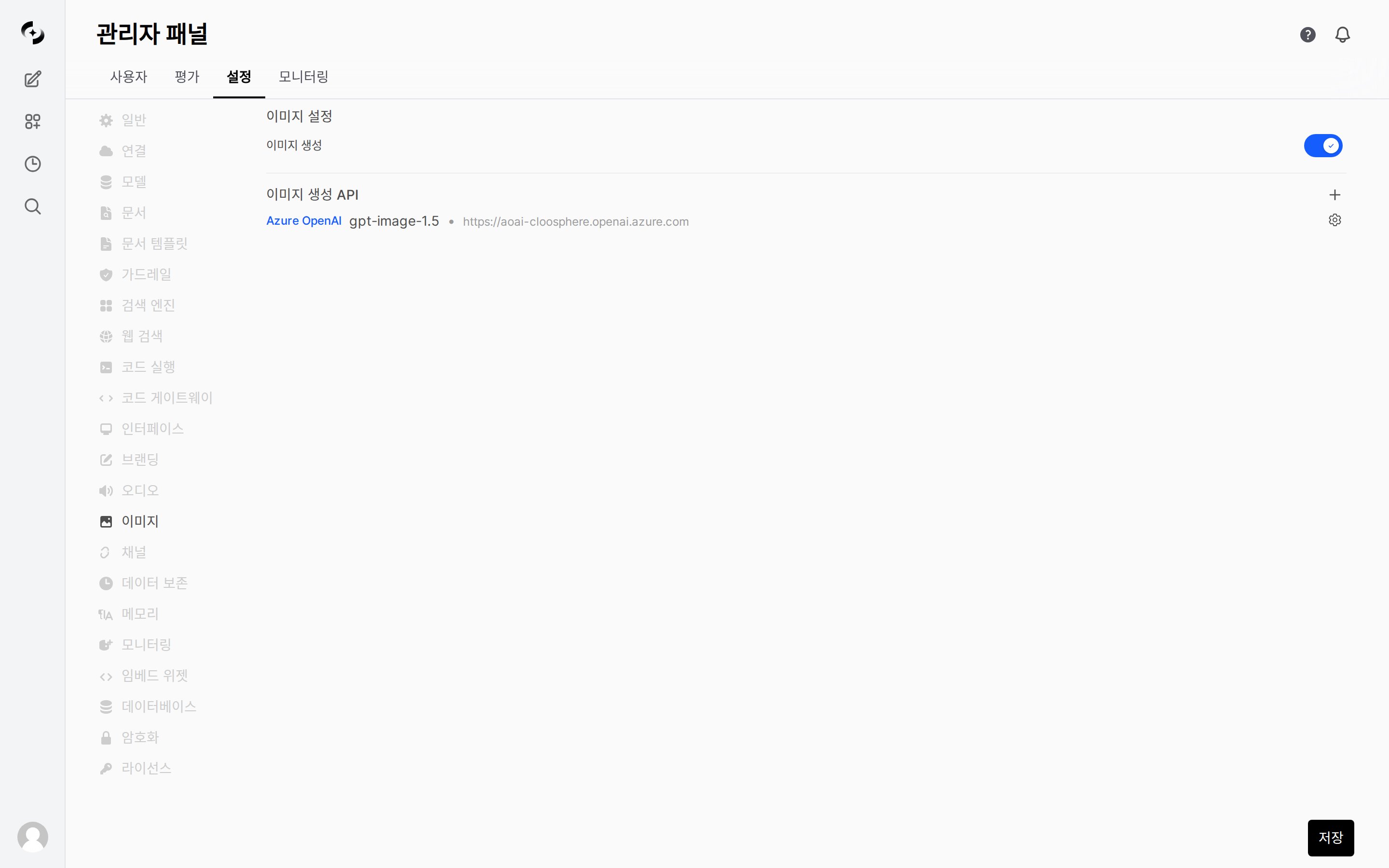 ***
## Enable Image Generation
| Setting | Description | Default |
| ---------------------------- | ------------------------------- | -------- |
| **Image generation enabled** | Image generation feature ON/OFF | Disabled |
Image generation is only exposed to users when enabled as an agent capability.
***
## Supported Engines
Add and manage image generation connections.
* Multiple engines can be configured simultaneously.
| Engine | Strengths |
| ------------------- | ---------------------------------------------------------------- |
| **DALL-E (OpenAI)** | OpenAI image generation API |
| **Azure OpenAI** | Azure gpt-image-1.5, quality/format/background options supported |
| **Gemini** | Google Gemini image generation (API Key auth) |
| **Vertex AI** | Google Vertex AI image generation (OAuth2 token caching) |
***
## Per-Engine Settings
| Setting | Description |
| ---------------- | -------------------------------- |
| **API Base URL** | OpenAI API Endpoint |
| **API Key** | API authentication key |
| **Model** | e.g., `dall-e-3` |
| **Image size** | Default size (e.g., `1024x1024`) |
| Setting | Description | Options |
| ----------------- | --------------------- | ------------------------------- |
| **API Base URL** | Azure OpenAI Endpoint | - |
| **API Key** | Azure auth key | - |
| **Quality** | Image quality | `auto`, `low`, `medium`, `high` |
| **Output Format** | Output format | `png`, `jpeg`, `webp` |
| **Background** | Background handling | `auto`, `transparent`, `opaque` |
Default image size is **1024x1024**.
| Setting | Description |
| ----------- | ----------------------------- |
| **API Key** | Google AI Studio API key |
| **Model** | Gemini image generation model |
| Setting | Description |
| -------------- | ----------------------------- |
| **Project ID** | Google Cloud project ID |
| **Location** | Region |
| **Model** | Gemini image generation model |
Multiple engines can be added simultaneously, and the image generation connection used per agent can be selected.
***
## Agent Integration
For image generation to work, **all 3 conditions** must be met:
1. Image generation **enabled** + engine connected in this tab
2. Image generation capability set to **Default On** or **Default Off** in agent settings
3. User **manually toggles** image generation in chat (when Default Off)
Image generation operates as an agent **Tool**. When the AI decides "an image is needed", it auto-invokes the image generation tool.
***
## Enable Image Generation
| Setting | Description | Default |
| ---------------------------- | ------------------------------- | -------- |
| **Image generation enabled** | Image generation feature ON/OFF | Disabled |
Image generation is only exposed to users when enabled as an agent capability.
***
## Supported Engines
Add and manage image generation connections.
* Multiple engines can be configured simultaneously.
| Engine | Strengths |
| ------------------- | ---------------------------------------------------------------- |
| **DALL-E (OpenAI)** | OpenAI image generation API |
| **Azure OpenAI** | Azure gpt-image-1.5, quality/format/background options supported |
| **Gemini** | Google Gemini image generation (API Key auth) |
| **Vertex AI** | Google Vertex AI image generation (OAuth2 token caching) |
***
## Per-Engine Settings
| Setting | Description |
| ---------------- | -------------------------------- |
| **API Base URL** | OpenAI API Endpoint |
| **API Key** | API authentication key |
| **Model** | e.g., `dall-e-3` |
| **Image size** | Default size (e.g., `1024x1024`) |
| Setting | Description | Options |
| ----------------- | --------------------- | ------------------------------- |
| **API Base URL** | Azure OpenAI Endpoint | - |
| **API Key** | Azure auth key | - |
| **Quality** | Image quality | `auto`, `low`, `medium`, `high` |
| **Output Format** | Output format | `png`, `jpeg`, `webp` |
| **Background** | Background handling | `auto`, `transparent`, `opaque` |
Default image size is **1024x1024**.
| Setting | Description |
| ----------- | ----------------------------- |
| **API Key** | Google AI Studio API key |
| **Model** | Gemini image generation model |
| Setting | Description |
| -------------- | ----------------------------- |
| **Project ID** | Google Cloud project ID |
| **Location** | Region |
| **Model** | Gemini image generation model |
Multiple engines can be added simultaneously, and the image generation connection used per agent can be selected.
***
## Agent Integration
For image generation to work, **all 3 conditions** must be met:
1. Image generation **enabled** + engine connected in this tab
2. Image generation capability set to **Default On** or **Default Off** in agent settings
3. User **manually toggles** image generation in chat (when Default Off)
Image generation operates as an agent **Tool**. When the AI decides "an image is needed", it auto-invokes the image generation tool.