> ## Documentation Index
> Fetch the complete documentation index at: https://docs.cloosphere.ai/llms.txt
> Use this file to discover all available pages before exploring further.
# Models
> Manage model list, set default model, control display order, import/export presets
Admin › Settings › Models
Manage the list of models from the LLM providers registered in [Connections](/en/admin/settings/connections).
* From this tab, control individual model activation, customization, display order, and default model selection.
 ***
## Model List
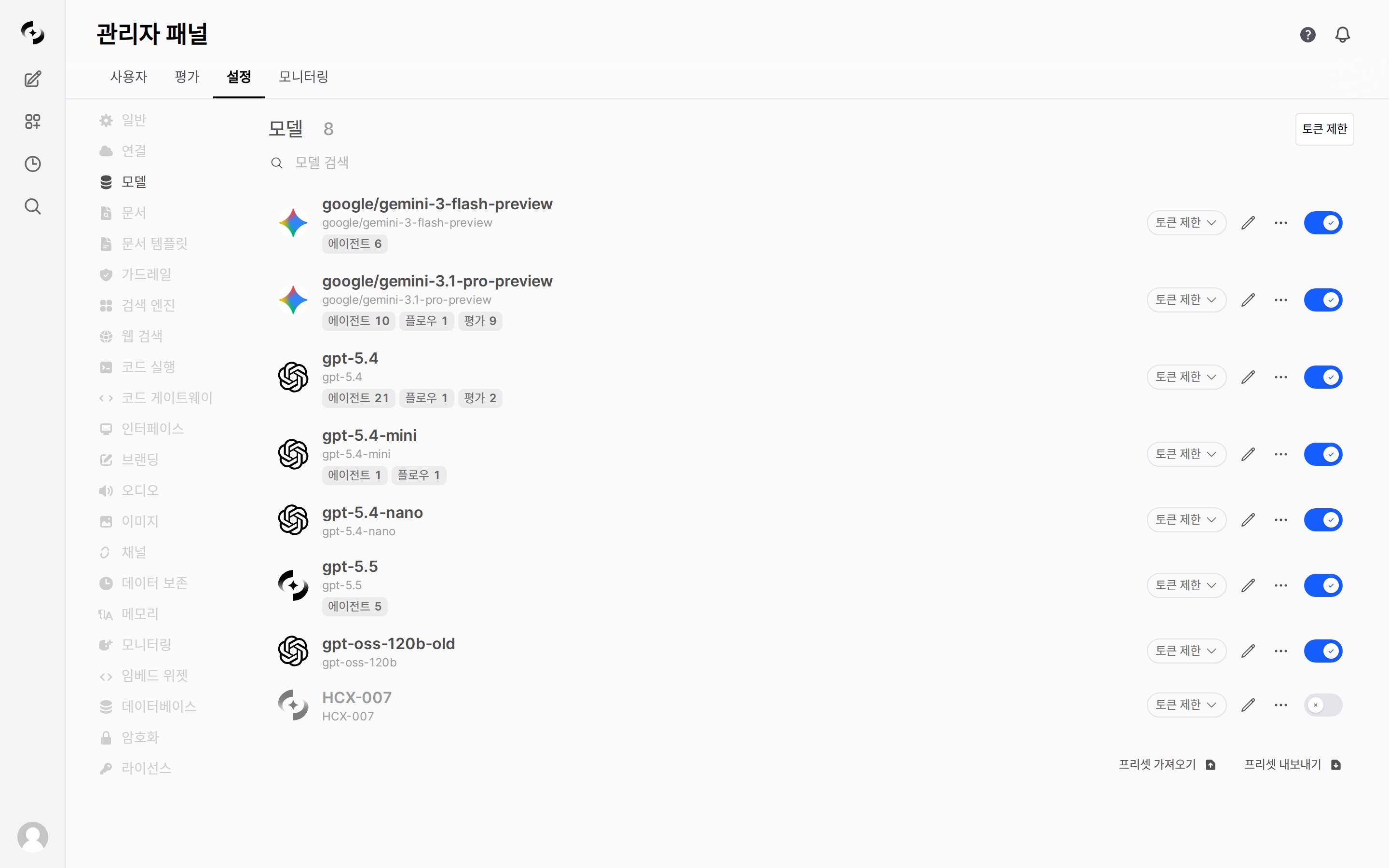
Shows Workspace models (admin-created/customized) combined with Base models (system models pulled from connected APIs).
* You can filter by name/ID with the **Model Search** input at the top of the list.
| Item | Description |
| ---------------------- | -------------------------------------------------- |
| **Model name** | Model name shown to users |
| **ID** | Model identifier used in API calls |
| **Enabled / Disabled** | Toggle (Switch) for whether the model is available |
Each model row also shows **dependency badges** counting the agents, flows, and evaluations that reference it (e.g. `Agents 6`, `Flows 1`, `Evaluations 9`), so you can see at a glance where the model is used (the same dependency information as **Used by** at the bottom of the model editor).
### Hide Model (Shift+Click)
Hold **Shift** and click the icon in a model row to toggle hide/show. Hidden models are managed as `meta.hidden` and don't appear in the user's model picker.
Hidden and Disabled are separate features.
Hidden removes from the model picker; Disabled makes the model itself unavailable.
***
## Default Model and Order
Click the settings (gear) icon at the top-right of the model list to open the model settings modal.
| Setting | Description |
| ----------------- | -------------------------------------------------- |
| **Default model** | Model auto-selected when starting a new chat |
| **Model order** | Display order in the model picker (drag or arrows) |
***
## Activate / Deactivate Models
Use per-model **Enabled / Disabled** toggle (Switch) to expose only needed models to users.
Disabled models don't appear in the user's model picker dropdown.
Disabling a model that's set as an agent's base model doesn't affect agent execution.
***
## Model Customization
Click the **edit (pencil) icon** on a model row to customize that model.
| Setting | Description |
| -------------------------- | ------------------------------------------------------------------------------------------------------------------------------------------------------------------ |
| **Model name / ID** | User-facing name and the identifier used in API calls |
| **Model image** | Change or reset the model avatar image |
| **Task Prompt** | The default system prompt — describe the role, behavior, and constraints (uses the default if left empty). Use the **AI** button on the right to refine your draft |
| **Response Format Prompt** | Specify the markdown style, structure, tone, and length of responses (default format if empty). An **AI** button is provided |
| **Advanced Params** | Temperature, Top P, Top K, Stop tokens, etc. (expand via **Advanced Params > Show**) |
| **Guardrails** | Connect the guardrails to apply to this model |
| **Capabilities** | Enable web search, image generation, etc. |
| **Access** | Expose only to specific groups/users |
**Knowledge base, database, tool, and glossary connections and auto-evaluation are agent-only.** They aren't offered in the admin model editor — configure them under [Workspace > Agents](/en/workspace/agents). The only runtime resource applied from the model editor is **guardrails**.
Customizing a model creates a **Workspace setting record** for that model. Unlike agents, this doesn't directly modify the base model — it adds an **override configuration**.
***
## Controlling Models Visible to Users
| Mechanism | Effect | Where to Configure |
| -------------------------------- | ------------------------------------- | ------------------------------- |
| **Activate/Deactivate** (toggle) | Disabled → excluded from model picker | Toggle on model row |
| **Hide** (Shift+click) | Hidden → excluded from model picker | Shift+icon on model row or menu |
| **Default model** | Auto-selected on new chat | Settings modal |
| **Display order** | Order in model picker dropdown | Settings modal (drag) |
| **Access control** | Only specific groups/users | Edit model > Access control |
Use **Hide** to temporarily conceal from the list only; use **Disable** to fully block use. (For the difference between the two, see the "Hide Model" description above.)
***
## Token Limits
Limit daily token usage per model to manage AI usage cost.
* Set the global default with the **`Token Limit` button at the top-right** of the model list.
* Set per-model limits with the **`Token Limit` dropdown on each model row**.
### Global Token Limit (Token Limit button)
| Item | Description |
| ----------------------------- | -------------------------------------------------------------------------------------------------------------------- |
| **Enable usage limits** | Overall ON/OFF for the token limit feature |
| **Default daily token limit** | Applied to all models without a separate limit set on their row (`0` = unlimited, empty = follow the global setting) |
| **Excess action** | **Warn** (show message only and allow usage) or **Block** (block additional usage) |
### Per-Model Limits
Set an individual daily limit for a model with the **`Token Limit` dropdown on its row**. Models without one follow the default daily token limit above.
Admin role users are excluded from token limit checks. Limits can be set at 4 levels — global, user, group, organization — and when set in multiple places, the **most permissive (highest)** value applies. Check per-user and per-model usage in the usage tab of [User Management](/en/admin/users#usage-limits).
***
## Ollama Model Management
Click the **download icon** at the top of the model list to open the Ollama model management modal.
| Feature | Description |
| -------------- | -------------------------------------------------------------------- |
| **Pull** | Download a model from the Ollama model registry (up to 3 concurrent) |
| **Update All** | Update all Ollama models to latest versions |
| **Upload** | Upload a GGUF file or download from URL to create a model |
| **Delete** | Delete an Ollama model |
When multiple Ollama instances are connected, you must first pick the instance to manage.
***
## Model Preset Import / Export
Back up and restore model settings as JSON.
* This feature is **admin-only**.
| Feature | Description |
| ------------------ | --------------------------------------------- |
| **Import Presets** | Restore model presets from a JSON file |
| **Export Presets** | Download current model presets as a JSON file |
| **Single Export** | More menu (⋯) on a model row > Export |
Import overwrites existing model settings. Always Export to back up first.
Only models with null `base_model_id` (Workspace custom settings) are imported. Agents (which reference another model via `base_model_id`) aren't imported in this tab — import them separately under Workspace > Agents.
Click **Reset All Models** at the bottom of the settings modal (gear) to delete all Workspace custom settings. Connected base model lists are preserved, but customizations like name/description/prompt are all reset.
***
## Related Pages
Configure LLM provider API connections
AI assistants combining Knowledge Bases, tools, and guardrails on top of a model
Per-model token usage and cost analysis
***
## Model List
Shows Workspace models (admin-created/customized) combined with Base models (system models pulled from connected APIs).
* You can filter by name/ID with the **Model Search** input at the top of the list.
| Item | Description |
| ---------------------- | -------------------------------------------------- |
| **Model name** | Model name shown to users |
| **ID** | Model identifier used in API calls |
| **Enabled / Disabled** | Toggle (Switch) for whether the model is available |
Each model row also shows **dependency badges** counting the agents, flows, and evaluations that reference it (e.g. `Agents 6`, `Flows 1`, `Evaluations 9`), so you can see at a glance where the model is used (the same dependency information as **Used by** at the bottom of the model editor).
### Hide Model (Shift+Click)
Hold **Shift** and click the icon in a model row to toggle hide/show. Hidden models are managed as `meta.hidden` and don't appear in the user's model picker.
Hidden and Disabled are separate features.
Hidden removes from the model picker; Disabled makes the model itself unavailable.
***
## Default Model and Order
Click the settings (gear) icon at the top-right of the model list to open the model settings modal.
| Setting | Description |
| ----------------- | -------------------------------------------------- |
| **Default model** | Model auto-selected when starting a new chat |
| **Model order** | Display order in the model picker (drag or arrows) |
***
## Activate / Deactivate Models
Use per-model **Enabled / Disabled** toggle (Switch) to expose only needed models to users.
Disabled models don't appear in the user's model picker dropdown.
Disabling a model that's set as an agent's base model doesn't affect agent execution.
***
## Model Customization
Click the **edit (pencil) icon** on a model row to customize that model.
| Setting | Description |
| -------------------------- | ------------------------------------------------------------------------------------------------------------------------------------------------------------------ |
| **Model name / ID** | User-facing name and the identifier used in API calls |
| **Model image** | Change or reset the model avatar image |
| **Task Prompt** | The default system prompt — describe the role, behavior, and constraints (uses the default if left empty). Use the **AI** button on the right to refine your draft |
| **Response Format Prompt** | Specify the markdown style, structure, tone, and length of responses (default format if empty). An **AI** button is provided |
| **Advanced Params** | Temperature, Top P, Top K, Stop tokens, etc. (expand via **Advanced Params > Show**) |
| **Guardrails** | Connect the guardrails to apply to this model |
| **Capabilities** | Enable web search, image generation, etc. |
| **Access** | Expose only to specific groups/users |
**Knowledge base, database, tool, and glossary connections and auto-evaluation are agent-only.** They aren't offered in the admin model editor — configure them under [Workspace > Agents](/en/workspace/agents). The only runtime resource applied from the model editor is **guardrails**.
Customizing a model creates a **Workspace setting record** for that model. Unlike agents, this doesn't directly modify the base model — it adds an **override configuration**.
***
## Controlling Models Visible to Users
| Mechanism | Effect | Where to Configure |
| -------------------------------- | ------------------------------------- | ------------------------------- |
| **Activate/Deactivate** (toggle) | Disabled → excluded from model picker | Toggle on model row |
| **Hide** (Shift+click) | Hidden → excluded from model picker | Shift+icon on model row or menu |
| **Default model** | Auto-selected on new chat | Settings modal |
| **Display order** | Order in model picker dropdown | Settings modal (drag) |
| **Access control** | Only specific groups/users | Edit model > Access control |
Use **Hide** to temporarily conceal from the list only; use **Disable** to fully block use. (For the difference between the two, see the "Hide Model" description above.)
***
## Token Limits
Limit daily token usage per model to manage AI usage cost.
* Set the global default with the **`Token Limit` button at the top-right** of the model list.
* Set per-model limits with the **`Token Limit` dropdown on each model row**.
### Global Token Limit (Token Limit button)
| Item | Description |
| ----------------------------- | -------------------------------------------------------------------------------------------------------------------- |
| **Enable usage limits** | Overall ON/OFF for the token limit feature |
| **Default daily token limit** | Applied to all models without a separate limit set on their row (`0` = unlimited, empty = follow the global setting) |
| **Excess action** | **Warn** (show message only and allow usage) or **Block** (block additional usage) |
### Per-Model Limits
Set an individual daily limit for a model with the **`Token Limit` dropdown on its row**. Models without one follow the default daily token limit above.
Admin role users are excluded from token limit checks. Limits can be set at 4 levels — global, user, group, organization — and when set in multiple places, the **most permissive (highest)** value applies. Check per-user and per-model usage in the usage tab of [User Management](/en/admin/users#usage-limits).
***
## Ollama Model Management
Click the **download icon** at the top of the model list to open the Ollama model management modal.
| Feature | Description |
| -------------- | -------------------------------------------------------------------- |
| **Pull** | Download a model from the Ollama model registry (up to 3 concurrent) |
| **Update All** | Update all Ollama models to latest versions |
| **Upload** | Upload a GGUF file or download from URL to create a model |
| **Delete** | Delete an Ollama model |
When multiple Ollama instances are connected, you must first pick the instance to manage.
***
## Model Preset Import / Export
Back up and restore model settings as JSON.
* This feature is **admin-only**.
| Feature | Description |
| ------------------ | --------------------------------------------- |
| **Import Presets** | Restore model presets from a JSON file |
| **Export Presets** | Download current model presets as a JSON file |
| **Single Export** | More menu (⋯) on a model row > Export |
Import overwrites existing model settings. Always Export to back up first.
Only models with null `base_model_id` (Workspace custom settings) are imported. Agents (which reference another model via `base_model_id`) aren't imported in this tab — import them separately under Workspace > Agents.
Click **Reset All Models** at the bottom of the settings modal (gear) to delete all Workspace custom settings. Connected base model lists are preserved, but customizations like name/description/prompt are all reset.
***
## Related Pages
Configure LLM provider API connections
AI assistants combining Knowledge Bases, tools, and guardrails on top of a model
Per-model token usage and cost analysis