> ## Documentation Index
> Fetch the complete documentation index at: https://docs.cloosphere.ai/llms.txt
> Use this file to discover all available pages before exploring further.
# Search Engine
> Configure the vector database and search settings used by Knowledge Bases, Glossaries, and DbSphere.
Admin › Settings › Search Engine
Set the vector database type and search parameters.
* These settings are shared across [Knowledge Bases](/en/workspace/knowledge) (KbSphere), Glossaries, and DbSphere.
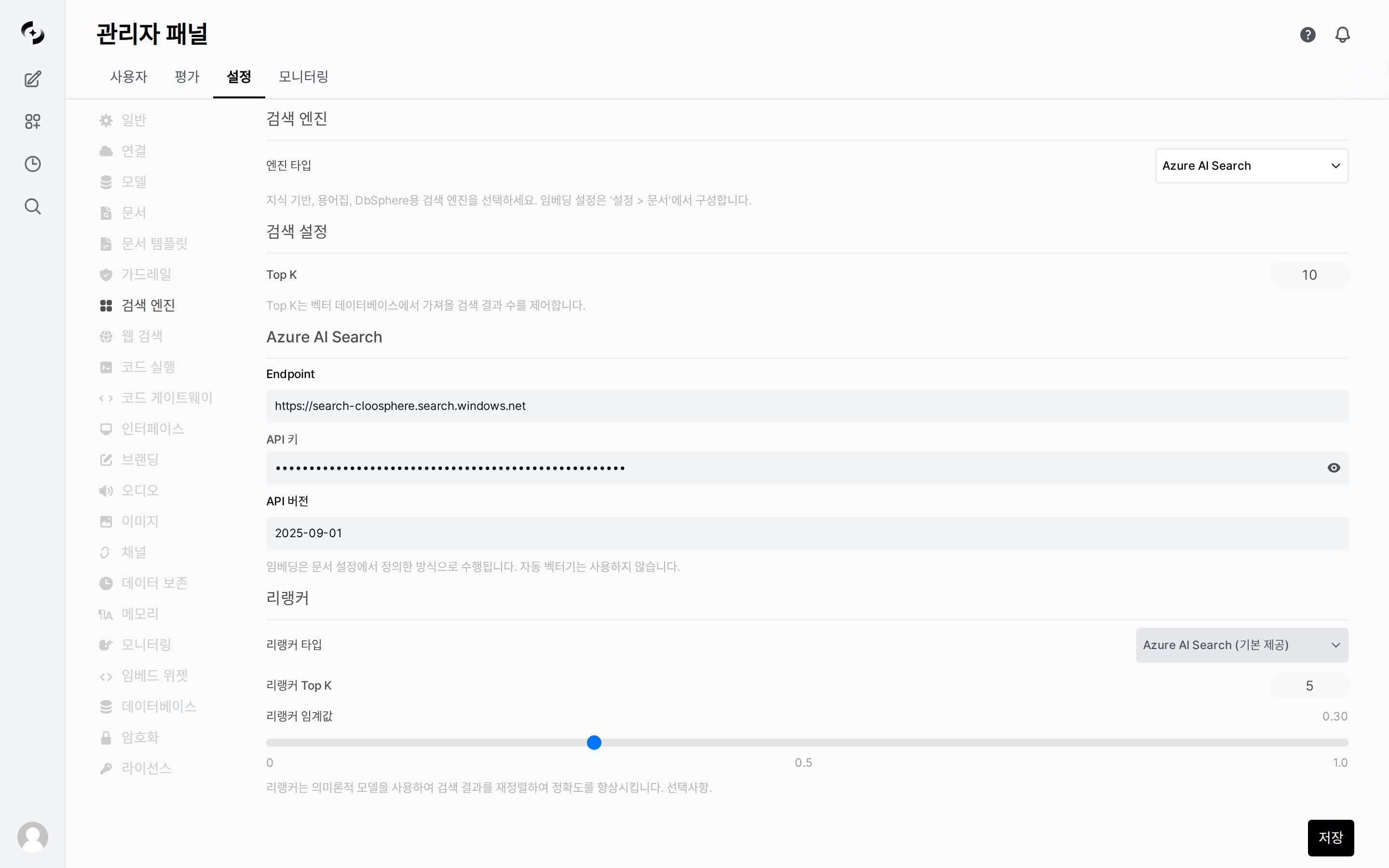 ***
## Search Engine Selection
| Engine | Strengths |
| --------------------------- | ------------------------------------------------------------------ |
| **Azure AI Search** | Azure managed service, hybrid search supported by default |
| **PostgreSQL pgvector** | PostgreSQL extension, memory-efficient halfvec support |
| **Milvus** | Large-scale distributed processing, high-performance vector search |
| **Elasticsearch** | Hybrid search (BM25 + vector), reuse existing ELK stack |
| **Google Vertex AI Search** | Google Cloud managed search service |
| Setting | Description |
| --------------- | -------------------------------- |
| **Endpoint** | Azure Search service URL |
| **API Key** | Admin API Key |
| **API Version** | API version (e.g., `2024-07-01`) |
| Setting | Description |
| ------------ | ------------------------- |
| **Host** | PostgreSQL server address |
| **Port** | Port number |
| **Database** | Database name |
| **User** | Connection username |
| **Password** | Connection password |
The `pgvector` extension must be installed in PostgreSQL.
| Setting | Description |
| ------------ | ------------------------ |
| **URI** | Milvus server address |
| **Token** | Auth token (optional) |
| **User** | Auth username (optional) |
| **Password** | Auth password (optional) |
| Setting | Description |
| ---------------- | ---------------------------- |
| **URL** | Elasticsearch server URL |
| **Username** | Auth username (optional) |
| **Password** | Auth password (optional) |
| **Index Prefix** | Index name prefix (optional) |
| Setting | Description |
| ------------------------------- | --------------------------------------------------------------------------------------------------------------- |
| **Project ID** | Google Cloud project ID |
| **Location** | Region |
| **Collection** | Data store collection |
| **Use Global Google Cloud Key** | When enabled, uses the global Google Cloud key. When disabled, enter Service Account Key JSON directly below. |
| **Service Account Key JSON** | JSON input field shown when `Use Global Google Cloud Key` is disabled. Paste the full service account key JSON. |
Embedding engines and models are configured in the **[Settings > Documents](/en/admin/settings/documents)** tab. Vector dimensions must match between search engine and embedding settings.
***
## Search Settings
Configure the number of results to retrieve from vector search.
| Setting | Description | Default |
| --------- | ------------------------------------------------------------- | ------- |
| **Top K** | Number of search results to retrieve from the vector database | `10` |
**Adjusting Top K:**
* **Higher** — retrieves more candidate documents and lowers the chance of missing the answer, but increases irrelevant results (noise), context tokens, and cost, and slows responses.
* **Lower** — precise, fast, and token-saving, but may miss the document containing the answer.
***
## Reranker
The reranker re-ranks search results with a semantic model to improve accuracy (optional).
* Select the reranker to use from the **Reranker Type** dropdown and configure the related parameters.
| Setting | Description | Default |
| ---------------------- | ----------------------------------------------------------------------------------- | ---------------------------- |
| **Reranker Type** | Type of reranker to use | `Azure AI Search (built-in)` |
| **Reranker Top K** | Result count after reranker | `5` |
| **Reranker threshold** | Minimum relevance score after reranking (0–1). Results below threshold are filtered | `0.0` |
**Tuning guide** — Reranker Top K decides how many of the results fetched by Top K are finally used, so always keep it at or below Top K.
* **Reranker Top K** — Raising it passes more evidence to the LLM and reduces omissions but increases noise and tokens; lowering it keeps only the most relevant few for precision but may miss results.
* **Reranker threshold** — Raising it filters out low-relevance results and reduces noise, but setting it too high lets no results through and returns an empty search. `0` passes everything with no filter.
When you select **Vertex AI Ranking API** as the reranker type, the sub-fields below are shown.
| Setting | Description |
| ------------------ | ---------------------------------------------------------------------------------- |
| **Project ID** | Google Cloud project ID (optional — uses Vertex AI Search's Project ID when unset) |
| **Location** | Vertex AI Ranking API region |
| **Reranker Model** | Reranking model to use |
| **Authentication** | Auth method (Use Global Google Cloud Key toggle or Service Account Key JSON entry) |
Changing the search engine type makes previously indexed data inaccessible. Always plan data migration before changing.
***
## Search Engine Selection
| Engine | Strengths |
| --------------------------- | ------------------------------------------------------------------ |
| **Azure AI Search** | Azure managed service, hybrid search supported by default |
| **PostgreSQL pgvector** | PostgreSQL extension, memory-efficient halfvec support |
| **Milvus** | Large-scale distributed processing, high-performance vector search |
| **Elasticsearch** | Hybrid search (BM25 + vector), reuse existing ELK stack |
| **Google Vertex AI Search** | Google Cloud managed search service |
| Setting | Description |
| --------------- | -------------------------------- |
| **Endpoint** | Azure Search service URL |
| **API Key** | Admin API Key |
| **API Version** | API version (e.g., `2024-07-01`) |
| Setting | Description |
| ------------ | ------------------------- |
| **Host** | PostgreSQL server address |
| **Port** | Port number |
| **Database** | Database name |
| **User** | Connection username |
| **Password** | Connection password |
The `pgvector` extension must be installed in PostgreSQL.
| Setting | Description |
| ------------ | ------------------------ |
| **URI** | Milvus server address |
| **Token** | Auth token (optional) |
| **User** | Auth username (optional) |
| **Password** | Auth password (optional) |
| Setting | Description |
| ---------------- | ---------------------------- |
| **URL** | Elasticsearch server URL |
| **Username** | Auth username (optional) |
| **Password** | Auth password (optional) |
| **Index Prefix** | Index name prefix (optional) |
| Setting | Description |
| ------------------------------- | --------------------------------------------------------------------------------------------------------------- |
| **Project ID** | Google Cloud project ID |
| **Location** | Region |
| **Collection** | Data store collection |
| **Use Global Google Cloud Key** | When enabled, uses the global Google Cloud key. When disabled, enter Service Account Key JSON directly below. |
| **Service Account Key JSON** | JSON input field shown when `Use Global Google Cloud Key` is disabled. Paste the full service account key JSON. |
Embedding engines and models are configured in the **[Settings > Documents](/en/admin/settings/documents)** tab. Vector dimensions must match between search engine and embedding settings.
***
## Search Settings
Configure the number of results to retrieve from vector search.
| Setting | Description | Default |
| --------- | ------------------------------------------------------------- | ------- |
| **Top K** | Number of search results to retrieve from the vector database | `10` |
**Adjusting Top K:**
* **Higher** — retrieves more candidate documents and lowers the chance of missing the answer, but increases irrelevant results (noise), context tokens, and cost, and slows responses.
* **Lower** — precise, fast, and token-saving, but may miss the document containing the answer.
***
## Reranker
The reranker re-ranks search results with a semantic model to improve accuracy (optional).
* Select the reranker to use from the **Reranker Type** dropdown and configure the related parameters.
| Setting | Description | Default |
| ---------------------- | ----------------------------------------------------------------------------------- | ---------------------------- |
| **Reranker Type** | Type of reranker to use | `Azure AI Search (built-in)` |
| **Reranker Top K** | Result count after reranker | `5` |
| **Reranker threshold** | Minimum relevance score after reranking (0–1). Results below threshold are filtered | `0.0` |
**Tuning guide** — Reranker Top K decides how many of the results fetched by Top K are finally used, so always keep it at or below Top K.
* **Reranker Top K** — Raising it passes more evidence to the LLM and reduces omissions but increases noise and tokens; lowering it keeps only the most relevant few for precision but may miss results.
* **Reranker threshold** — Raising it filters out low-relevance results and reduces noise, but setting it too high lets no results through and returns an empty search. `0` passes everything with no filter.
When you select **Vertex AI Ranking API** as the reranker type, the sub-fields below are shown.
| Setting | Description |
| ------------------ | ---------------------------------------------------------------------------------- |
| **Project ID** | Google Cloud project ID (optional — uses Vertex AI Search's Project ID when unset) |
| **Location** | Vertex AI Ranking API region |
| **Reranker Model** | Reranking model to use |
| **Authentication** | Auth method (Use Global Google Cloud Key toggle or Service Account Key JSON entry) |
Changing the search engine type makes previously indexed data inaccessible. Always plan data migration before changing.