> ## Documentation Index
> Fetch the complete documentation index at: https://docs.cloosphere.ai/llms.txt
> Use this file to discover all available pages before exploring further.
# User Management
> View user list, assign roles, add/edit users, and set usage limits
Admin › Users
Manage all platform users, groups, and organizations.
* Role-based access control with fine-grained per-group permissions enables systematic user management at any organization scale.
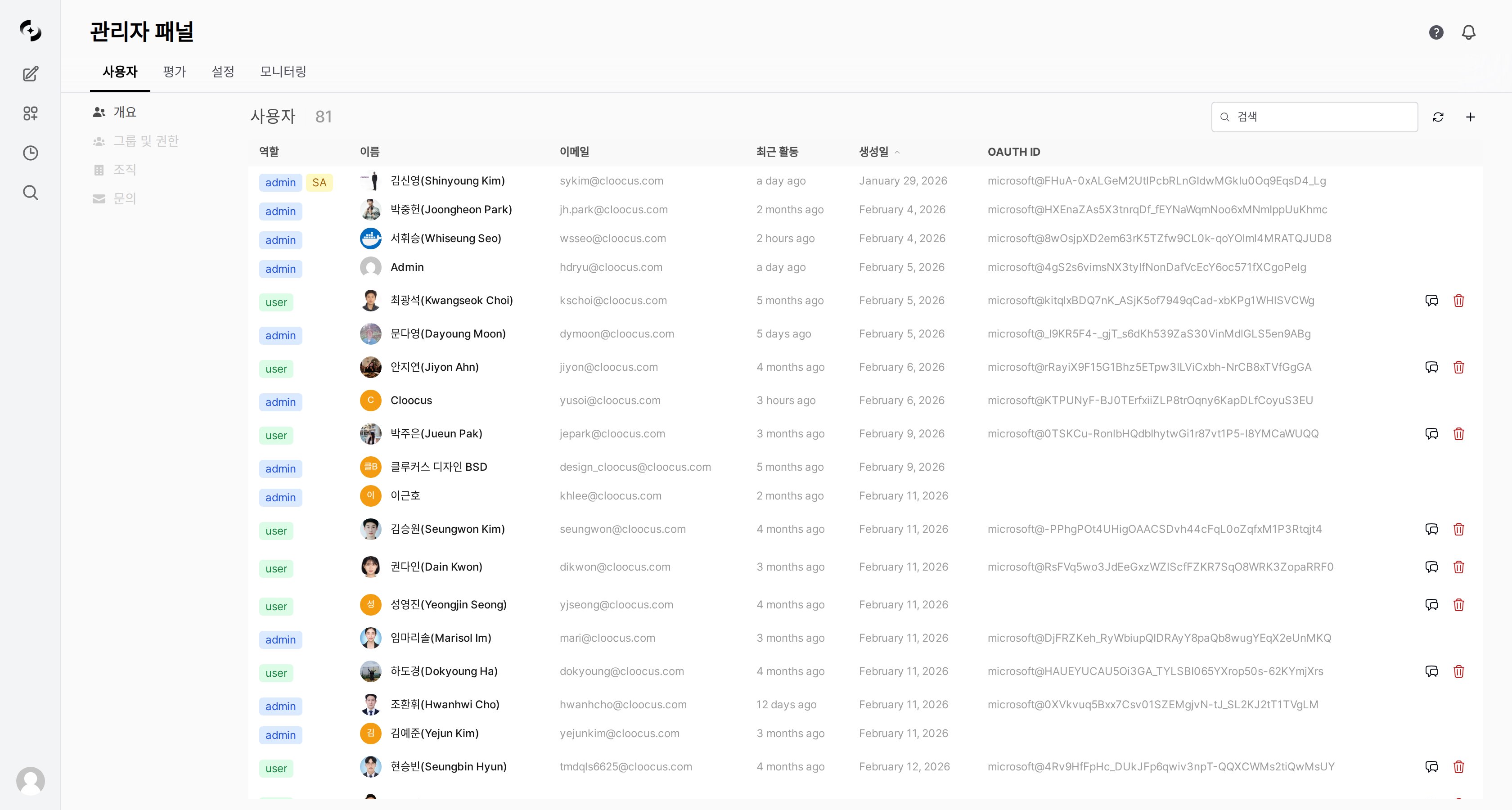 The user management screen has four tabs.
| Tab | Description |
| -------------------------------------------- | -------------------------------------------------- |
| **Overview** | View, add, edit, delete individual users |
| [**Groups & Permissions**](/en/admin/groups) | Create and manage permission groups |
| [**Organizations**](/en/admin/organizations) | Manage organizational units based on Entra ID sync |
| [**Inquiries**](/en/admin/inquiries) | Receive and respond to user inquiries |
***
## User List
### View and Search Users
Users appear as a table with these columns.
| Column | Description |
| ----------------- | ---------------------------------- |
| **Name** | User display name |
| **Email** | Sign-in email address |
| **Role** | Admin, User, Pending |
| **OAuth ID** | External authentication ID for SSO |
| **Last activity** | Most recent access time |
| **Created** | Account creation date |
**Search:**
* Real-time search by name or email
* Sort by name, created date, or last activity
### User Roles
Cloosphere has three roles.
| Role | Description | Admin Panel | Workspace | Chat |
| ----------- | -------------------------- | :---------: | :---------: | :---------: |
| **Admin** | Full management permission | Full access | Full access | Full access |
| **User** | Regular user | Per group | Per group | Per group |
| **Pending** | Awaiting approval | No access | No access | No access |
The **Admin** role can access all settings and data. Grant to minimum users only.
### Super Admin (SA)
**New feature** — Designate one Admin as **Super Admin (SA)**.
SA isn't a separate role but a feature to mark the **representative admin among Admins**.
* The SA's email is shown as contact info on the **account activation pending screen** after sign-up.
| Item | Description |
| ----------------- | ---------------------------------------------------------------------- |
| **Target** | Admin role users only |
| **How to assign** | Click **Set as SA** in the user edit modal (shown only for Admin role) |
| **Display** | SA badge shown in the user list |
| **Effect** | The admin's email is shown on the account activation pending screen |
Only 1 SA can be designated. Designating a new user as SA auto-removes the existing one. Only Admins can designate SA.
***
## Adding and Editing Users
### Adding a User
Click the **+** icon (tooltip: "Add user") to manually create a user.
| Field | Description | Required |
| ------------ | ---------------------- | :------: |
| **Email** | Sign-in email address | ✓ |
| **Name** | Display name | ✓ |
| **Password** | Initial password | ✓ |
| **Role** | Admin / User / Pending | ✓ |
To register many users at once, use **CSV file import**. Pick the CSV upload option in the user add modal.
### Editing a User
Click the user's **name or thumbnail**, or the edit button on the row, to open the edit modal.
The user management screen has four tabs.
| Tab | Description |
| -------------------------------------------- | -------------------------------------------------- |
| **Overview** | View, add, edit, delete individual users |
| [**Groups & Permissions**](/en/admin/groups) | Create and manage permission groups |
| [**Organizations**](/en/admin/organizations) | Manage organizational units based on Entra ID sync |
| [**Inquiries**](/en/admin/inquiries) | Receive and respond to user inquiries |
***
## User List
### View and Search Users
Users appear as a table with these columns.
| Column | Description |
| ----------------- | ---------------------------------- |
| **Name** | User display name |
| **Email** | Sign-in email address |
| **Role** | Admin, User, Pending |
| **OAuth ID** | External authentication ID for SSO |
| **Last activity** | Most recent access time |
| **Created** | Account creation date |
**Search:**
* Real-time search by name or email
* Sort by name, created date, or last activity
### User Roles
Cloosphere has three roles.
| Role | Description | Admin Panel | Workspace | Chat |
| ----------- | -------------------------- | :---------: | :---------: | :---------: |
| **Admin** | Full management permission | Full access | Full access | Full access |
| **User** | Regular user | Per group | Per group | Per group |
| **Pending** | Awaiting approval | No access | No access | No access |
The **Admin** role can access all settings and data. Grant to minimum users only.
### Super Admin (SA)
**New feature** — Designate one Admin as **Super Admin (SA)**.
SA isn't a separate role but a feature to mark the **representative admin among Admins**.
* The SA's email is shown as contact info on the **account activation pending screen** after sign-up.
| Item | Description |
| ----------------- | ---------------------------------------------------------------------- |
| **Target** | Admin role users only |
| **How to assign** | Click **Set as SA** in the user edit modal (shown only for Admin role) |
| **Display** | SA badge shown in the user list |
| **Effect** | The admin's email is shown on the account activation pending screen |
Only 1 SA can be designated. Designating a new user as SA auto-removes the existing one. Only Admins can designate SA.
***
## Adding and Editing Users
### Adding a User
Click the **+** icon (tooltip: "Add user") to manually create a user.
| Field | Description | Required |
| ------------ | ---------------------- | :------: |
| **Email** | Sign-in email address | ✓ |
| **Name** | Display name | ✓ |
| **Password** | Initial password | ✓ |
| **Role** | Admin / User / Pending | ✓ |
To register many users at once, use **CSV file import**. Pick the CSV upload option in the user add modal.
### Editing a User
Click the user's **name or thumbnail**, or the edit button on the row, to open the edit modal.
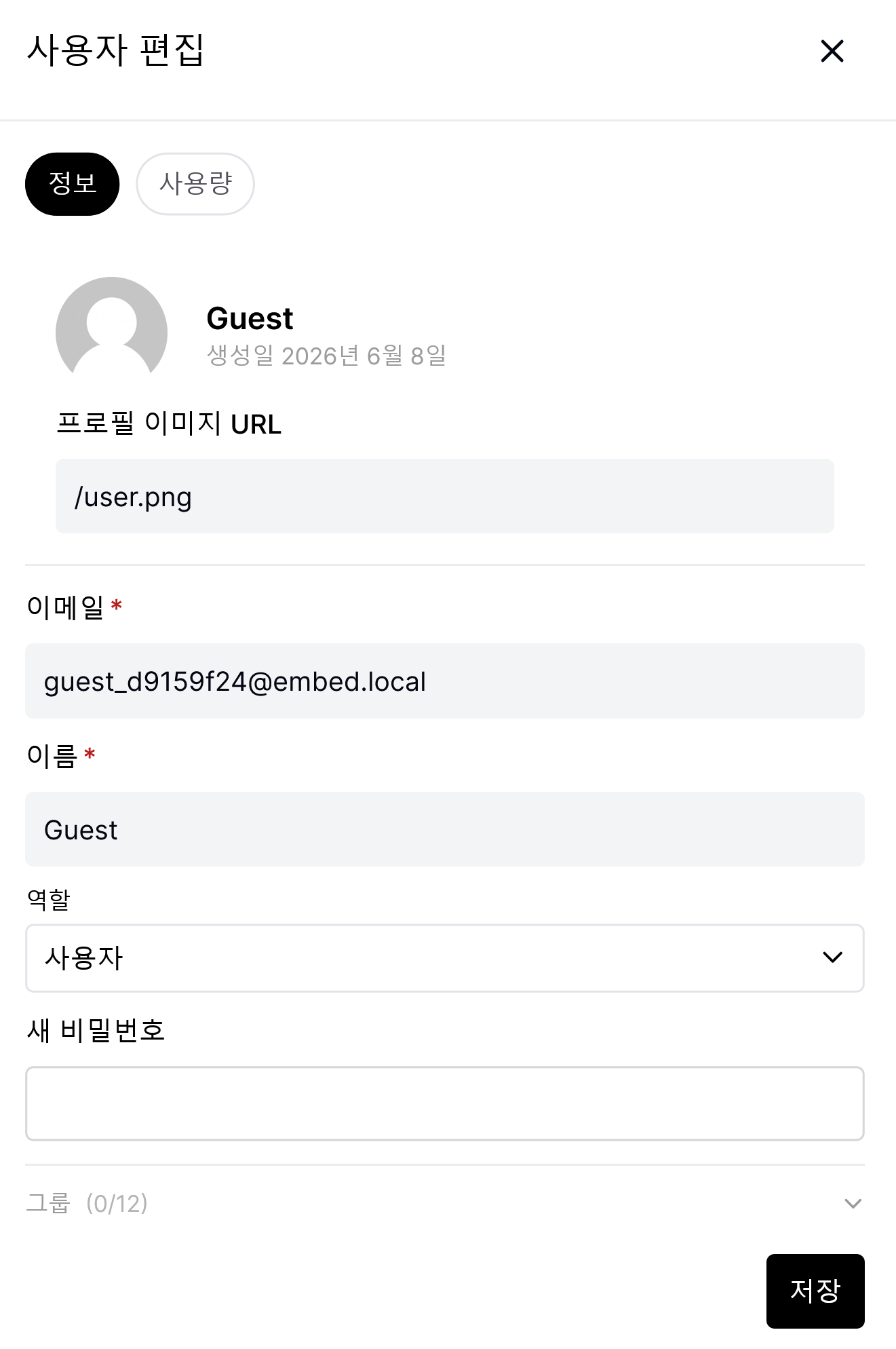 **Editable items:**
* Name
* Email
* Role — pick from Admin / User / Pending, then save
* Profile image URL
* New password
* **Member groups** — view groups the user belongs to and add/remove
* **Member organizational units (OU)** — read-only display of the user's OU tree (Entra/Google Workspace sync result)
Organizational units are shown **read-only** in the user edit screen. OU membership is determined by external IdP sync — to modify directly, change IdP sync settings in [Organization Management](/en/admin/organizations).
You can't change your own role, and the first user (First User)'s role also can't be changed.
User role changes are auto-recorded in the **audit log** (`ROLE_CHANGE` event). Track who changed whose role when and how in [Monitoring > Audit Logs](/en/monitoring/audit-logs).
### Deleting a User
Deleting a user permanently removes all the user's chat history, settings, and data. This action is irreversible.
### User Chats
Admins can view a user's chat list.
* Click the **Chats** button on the user row.
***
## Usage Limits
Per-user token usage and daily limits are shown **per model** under **User edit → Usage tab**.
* Switch the period between **Today · Last 7 days · Last 30 days**.
| Column | Description |
| --------------- | ------------------------------------------------------- |
| **Model** | Model the usage is aggregated for |
| **Usage** | Tokens used by that model in the selected period |
| **Daily limit** | Daily token limit applied to that model (0 = unlimited) |
| **Usage rate** | Usage percentage against the daily limit (%) |
If there's no usage record in the period, it shows *"No usage recorded for this period"*.
**Daily limit** and **usage rate** show values only when the period is **Today**. For Last 7 days / Last 30 days, only cumulative usage (Usage column) is shown — the limit and usage rate aren't displayed.
Usage limits can be set at four levels — global, user, group, organization — and when set at multiple levels, the **most permissive (highest)** value applies. Manage global defaults and per-model limits in [Model Settings — Token Limits](/en/admin/settings/models#token-limits).
***
## Best Practices
1. **Minimize Admins** — Designate only essential users as admins
2. **Use Pending** — Set new sign-ups to Pending and approve after review
3. **Periodic review** — Periodically delete or deactivate (Pending) departed user accounts
1. **Department-based** — Per-department groups (Marketing, Engineering, Sales, etc.)
2. **Role-based** — Per-rank groups (Manager, Senior, Junior, etc.)
3. **Project-based** — Project participant groups (temporary)
1. **Least privilege** — Grant only minimum permissions needed for the job
2. **Group-first** — Prefer group permissions over individual user permissions
3. **Periodic audit** — Periodically review permission settings and revoke unnecessary
***
## FAQ
Admin can set a new password in user edit. With SSO (Entra ID), contact your company's IT department.
In the agent edit screen's **Access** settings, specify the group or organization. Set visibility to "Private" and add the allowed groups.
Either delete the account or change the role to **Pending** to deactivate. Deletion also removes chat history — to preserve history, prefer Pending.
***
## Related Pages
Permission groups, 3-level tiers (None/Read/Write), OU mapping
Organization/OU hierarchy, Entra ID sync, organization-based access control
Receive and handle user inquiries
**Editable items:**
* Name
* Email
* Role — pick from Admin / User / Pending, then save
* Profile image URL
* New password
* **Member groups** — view groups the user belongs to and add/remove
* **Member organizational units (OU)** — read-only display of the user's OU tree (Entra/Google Workspace sync result)
Organizational units are shown **read-only** in the user edit screen. OU membership is determined by external IdP sync — to modify directly, change IdP sync settings in [Organization Management](/en/admin/organizations).
You can't change your own role, and the first user (First User)'s role also can't be changed.
User role changes are auto-recorded in the **audit log** (`ROLE_CHANGE` event). Track who changed whose role when and how in [Monitoring > Audit Logs](/en/monitoring/audit-logs).
### Deleting a User
Deleting a user permanently removes all the user's chat history, settings, and data. This action is irreversible.
### User Chats
Admins can view a user's chat list.
* Click the **Chats** button on the user row.
***
## Usage Limits
Per-user token usage and daily limits are shown **per model** under **User edit → Usage tab**.
* Switch the period between **Today · Last 7 days · Last 30 days**.
| Column | Description |
| --------------- | ------------------------------------------------------- |
| **Model** | Model the usage is aggregated for |
| **Usage** | Tokens used by that model in the selected period |
| **Daily limit** | Daily token limit applied to that model (0 = unlimited) |
| **Usage rate** | Usage percentage against the daily limit (%) |
If there's no usage record in the period, it shows *"No usage recorded for this period"*.
**Daily limit** and **usage rate** show values only when the period is **Today**. For Last 7 days / Last 30 days, only cumulative usage (Usage column) is shown — the limit and usage rate aren't displayed.
Usage limits can be set at four levels — global, user, group, organization — and when set at multiple levels, the **most permissive (highest)** value applies. Manage global defaults and per-model limits in [Model Settings — Token Limits](/en/admin/settings/models#token-limits).
***
## Best Practices
1. **Minimize Admins** — Designate only essential users as admins
2. **Use Pending** — Set new sign-ups to Pending and approve after review
3. **Periodic review** — Periodically delete or deactivate (Pending) departed user accounts
1. **Department-based** — Per-department groups (Marketing, Engineering, Sales, etc.)
2. **Role-based** — Per-rank groups (Manager, Senior, Junior, etc.)
3. **Project-based** — Project participant groups (temporary)
1. **Least privilege** — Grant only minimum permissions needed for the job
2. **Group-first** — Prefer group permissions over individual user permissions
3. **Periodic audit** — Periodically review permission settings and revoke unnecessary
***
## FAQ
Admin can set a new password in user edit. With SSO (Entra ID), contact your company's IT department.
In the agent edit screen's **Access** settings, specify the group or organization. Set visibility to "Private" and add the allowed groups.
Either delete the account or change the role to **Pending** to deactivate. Deletion also removes chat history — to preserve history, prefer Pending.
***
## Related Pages
Permission groups, 3-level tiers (None/Read/Write), OU mapping
Organization/OU hierarchy, Entra ID sync, organization-based access control
Receive and handle user inquiries