> ## Documentation Index
> Fetch the complete documentation index at: https://docs.cloosphere.ai/llms.txt
> Use this file to discover all available pages before exploring further.
# Automation Overview
> Automate AI work with scheduled tasks
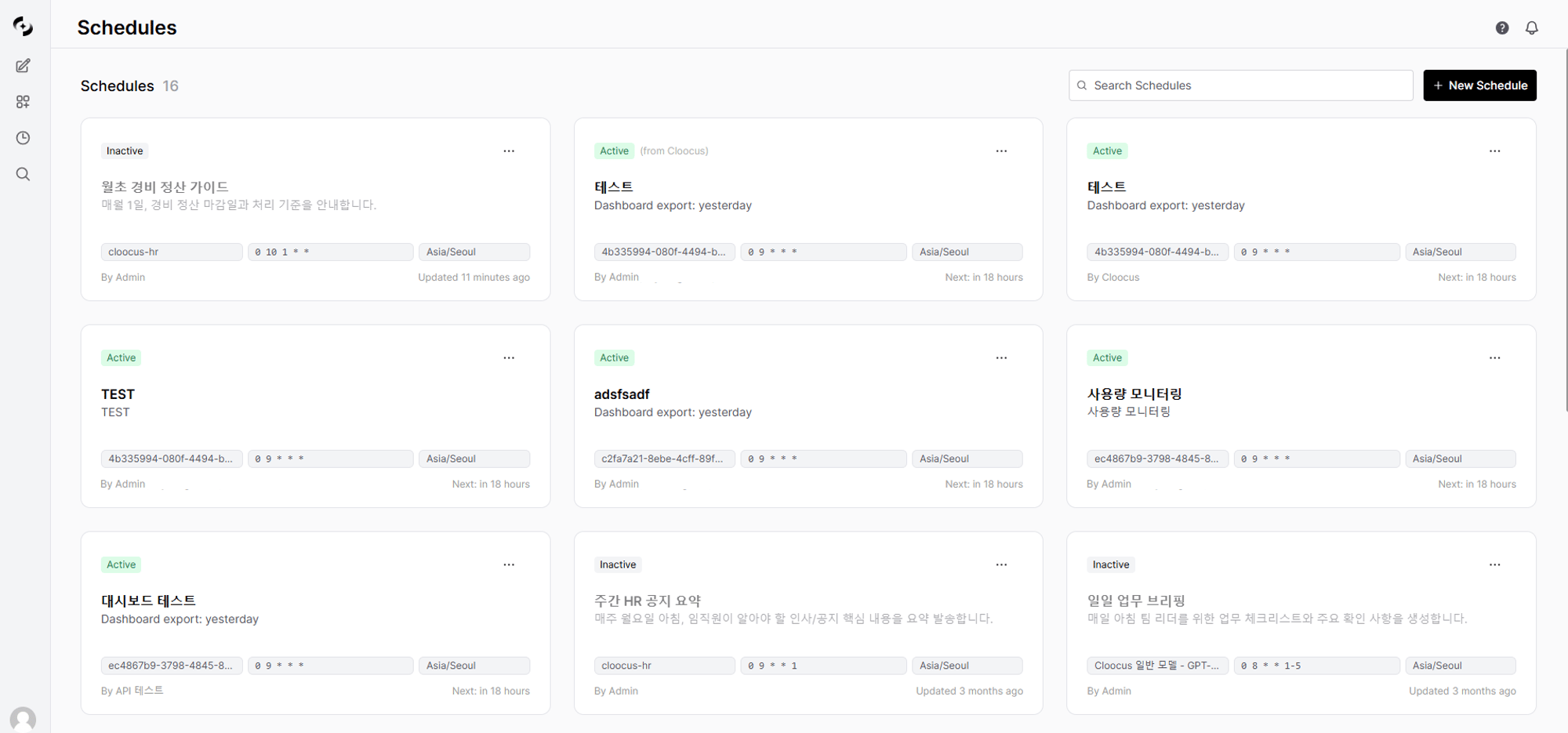
Cloosphere's automation runs repetitive AI tasks at scheduled times without human intervention. Use cron-based scheduled tasks to automate report generation, data analysis, status monitoring, and more — and receive results via email or webhooks.
 ***
## Automation Features
Auto-run agents, flows, and models on a cron-based scheduler. Receive results via email, Slack, Teams, etc.
Event-trigger-based automation, conditional workflows, and other features are planned.
***
## Automation Scenarios
| Scenario | Target | Frequency | Notification |
| ------------------------------- | ---------------- | -------------- | ------------------- |
| **Daily sales report** | Sales DB agent | Daily 9 AM | Email |
| **Weekly data analysis** | Analytics agent | Every Monday | Slack webhook |
| **System status check** | Monitoring agent | Hourly | Teams on failure |
| **Monthly KPI report** | KPI flow | First of month | Email + Slack |
| **Real-time anomaly detection** | Anomaly agent | Every 10 min | Webhook (immediate) |
***
## Automation Flow
```mermaid theme={null}
flowchart LR
subgraph Configuration
A[Pick target] --> B[Write prompt]
B --> C[Set frequency]
C --> D[Connect notification channel]
end
subgraph Execution
E[Cron trigger] --> F[Run agent/model]
F --> G[Generate result]
end
subgraph Delivery
G --> H[Save to chat]
G --> I[Send email]
G --> J[Send webhook]
end
D --> E
```
***
## Key Concepts
### Target
The resource to auto-run. Pick one of agent, flow, model, or dashboard.
| Target Type | Description | Best For |
| ------------- | ------------------------------------- | ------------------------------------- |
| **Agent** | AI with Knowledge Base/DB connections | Data analysis, document-based reports |
| **Flow** | Multi-step workflow | Complex multi-step automation |
| **Model** | Base LLM | Simple text generation, summarization |
| **Dashboard** | Dashboard HTML export | Periodic dashboard snapshots/reports |
### Cron Expression
Standard format defining the run frequency. `0 9 * * 1-5` means "weekdays at 9 AM". An intuitive cron editor is provided — you don't need to write it manually.
Cron expressions run in the **Timezone** field shown in the editor, not UTC. This defaults to your browser's local timezone, so you enter your local wall-clock time directly — no UTC offset conversion needed.
### Delivery Channel
Channels to receive run results. Supports email, Slack, Teams, Discord, and more.
***
## Prerequisites
To use scheduled tasks, the following must be in place:
* Admin must enable `features.scheduled_tasks` permission for the user's group
* To create schedules, admin must set the group's `workspace.schedules` level to **write** (default is read — view only)
* You must have access permission to the agent/flow/model being auto-run
* For email/webhook notifications, admin must pre-configure channels in **Admin > Settings > Channels**
***
## Get Started
First prepare the [agent](/en/workspace/agents), [flow](/en/workspace/flows), or model to auto-run. For data-analysis automation, create an agent connected to a [database](/en/workspace/database).
On the [Schedules](/en/automation/schedules) page, set target, prompt, run frequency, and notification channel.
Use the **Run Now** button to test settings. If the result isn't what you expected, edit the prompt and retest.
A schedule becomes **active as soon as it's created** and runs automatically per the configured frequency. If the test results look good, leave it as is; to pause it or change settings, deactivate it from the more menu (⋮) and then edit.
***
## Example Setup: Daily Sales Report Automation
```mermaid theme={null}
flowchart LR
A[Sales DB Agent] --> B[Run daily at 9 AM]
B --> C[Query sales data + generate chart]
C --> D[Save result to chat]
C --> E[Email to executives]
C --> F[Notify Slack #sales channel]
```
| Setting | Value |
| ------------------ | ------------------------------------------------------------------------- |
| **Target** | Sales analytics agent (DB-connected) |
| **Prompt** | "Analyze today's sales data and write a report including DoD growth rate" |
| **Frequency** | Daily 9 AM (`0 9 * * *`) |
| **Notification 1** | Email (on success) → executives |
| **Notification 2** | Slack webhook (always) → #sales |
Charts generated by DbSphere agents are server-side rendered to images and auto-included in emails and webhooks.
***
## Automation Features
Auto-run agents, flows, and models on a cron-based scheduler. Receive results via email, Slack, Teams, etc.
Event-trigger-based automation, conditional workflows, and other features are planned.
***
## Automation Scenarios
| Scenario | Target | Frequency | Notification |
| ------------------------------- | ---------------- | -------------- | ------------------- |
| **Daily sales report** | Sales DB agent | Daily 9 AM | Email |
| **Weekly data analysis** | Analytics agent | Every Monday | Slack webhook |
| **System status check** | Monitoring agent | Hourly | Teams on failure |
| **Monthly KPI report** | KPI flow | First of month | Email + Slack |
| **Real-time anomaly detection** | Anomaly agent | Every 10 min | Webhook (immediate) |
***
## Automation Flow
```mermaid theme={null}
flowchart LR
subgraph Configuration
A[Pick target] --> B[Write prompt]
B --> C[Set frequency]
C --> D[Connect notification channel]
end
subgraph Execution
E[Cron trigger] --> F[Run agent/model]
F --> G[Generate result]
end
subgraph Delivery
G --> H[Save to chat]
G --> I[Send email]
G --> J[Send webhook]
end
D --> E
```
***
## Key Concepts
### Target
The resource to auto-run. Pick one of agent, flow, model, or dashboard.
| Target Type | Description | Best For |
| ------------- | ------------------------------------- | ------------------------------------- |
| **Agent** | AI with Knowledge Base/DB connections | Data analysis, document-based reports |
| **Flow** | Multi-step workflow | Complex multi-step automation |
| **Model** | Base LLM | Simple text generation, summarization |
| **Dashboard** | Dashboard HTML export | Periodic dashboard snapshots/reports |
### Cron Expression
Standard format defining the run frequency. `0 9 * * 1-5` means "weekdays at 9 AM". An intuitive cron editor is provided — you don't need to write it manually.
Cron expressions run in the **Timezone** field shown in the editor, not UTC. This defaults to your browser's local timezone, so you enter your local wall-clock time directly — no UTC offset conversion needed.
### Delivery Channel
Channels to receive run results. Supports email, Slack, Teams, Discord, and more.
***
## Prerequisites
To use scheduled tasks, the following must be in place:
* Admin must enable `features.scheduled_tasks` permission for the user's group
* To create schedules, admin must set the group's `workspace.schedules` level to **write** (default is read — view only)
* You must have access permission to the agent/flow/model being auto-run
* For email/webhook notifications, admin must pre-configure channels in **Admin > Settings > Channels**
***
## Get Started
First prepare the [agent](/en/workspace/agents), [flow](/en/workspace/flows), or model to auto-run. For data-analysis automation, create an agent connected to a [database](/en/workspace/database).
On the [Schedules](/en/automation/schedules) page, set target, prompt, run frequency, and notification channel.
Use the **Run Now** button to test settings. If the result isn't what you expected, edit the prompt and retest.
A schedule becomes **active as soon as it's created** and runs automatically per the configured frequency. If the test results look good, leave it as is; to pause it or change settings, deactivate it from the more menu (⋮) and then edit.
***
## Example Setup: Daily Sales Report Automation
```mermaid theme={null}
flowchart LR
A[Sales DB Agent] --> B[Run daily at 9 AM]
B --> C[Query sales data + generate chart]
C --> D[Save result to chat]
C --> E[Email to executives]
C --> F[Notify Slack #sales channel]
```
| Setting | Value |
| ------------------ | ------------------------------------------------------------------------- |
| **Target** | Sales analytics agent (DB-connected) |
| **Prompt** | "Analyze today's sales data and write a report including DoD growth rate" |
| **Frequency** | Daily 9 AM (`0 9 * * *`) |
| **Notification 1** | Email (on success) → executives |
| **Notification 2** | Slack webhook (always) → #sales |
Charts generated by DbSphere agents are server-side rendered to images and auto-included in emails and webhooks.