> ## Documentation Index
> Fetch the complete documentation index at: https://docs.cloosphere.ai/llms.txt
> Use this file to discover all available pages before exploring further.
# Schedules
> Cron-based scheduler that auto-runs AI agents, flows, and models, delivering results via notifications
Tired of manually requesting daily sales reports or checking weekly system monitoring results?
Schedules **send the AI prompts at scheduled times automatically** and save the results to chat or deliver them via email/Slack/Teams.
### Example
> "Every day at 9 AM, analyze yesterday's sales and send the report by email"
| Method | Process | Time |
| -------------- | ---------------------------------------------------------- | :--------------: |
| Manual request | Open chat daily → enter prompt → copy result → write email | 10–20 min/day |
| Schedule | Configure once → auto-run daily + email send | **0 min** (auto) |
 ***
## Schedule Lifecycle
```mermaid theme={null}
flowchart LR
subgraph Schedule_Setup
A[Pick target] --> B[Write prompt]
B --> C[Set frequency]
C --> D[Connect notification channel]
end
subgraph Auto_Execution
E[Cron trigger] --> F[Run agent/model]
F --> G[Generate result]
G --> H[Render charts]
end
subgraph Result_Delivery
H --> I[Save to chat]
H --> J[Send email]
H --> K[Send webhook]
end
subgraph Error_Handling
F -->|Failure| L[Auto-retry]
L -->|Up to 2 times| F
L -->|Failed| M[Failure notification]
end
D --> E
```
***
## Schedule List
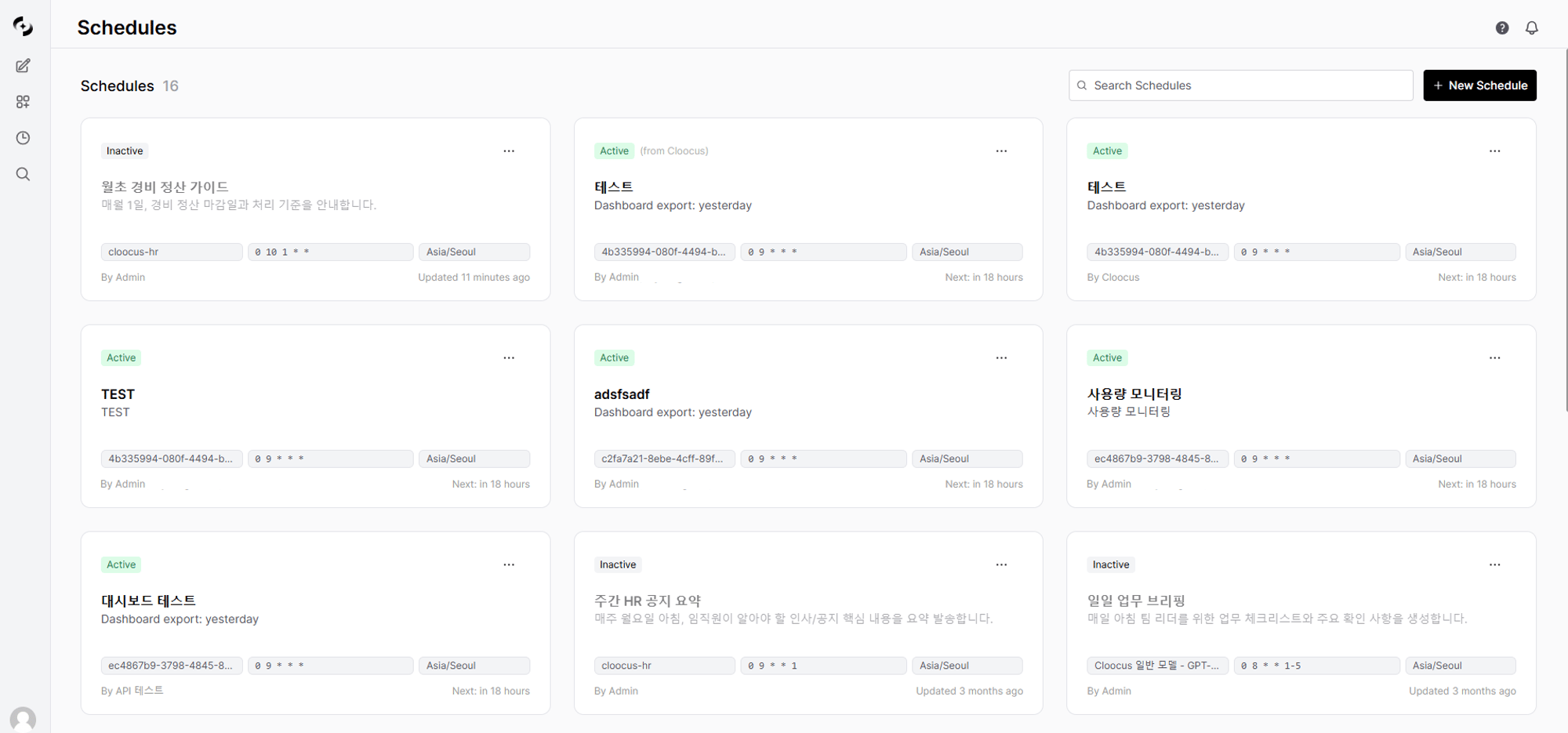
Schedules live in two places: the **sidebar Schedules section** (quick access) and the **Schedules list page** (full management).
**Sidebar Schedules section** — quick access to recent schedules.
| Feature | Description |
| ------------------- | ----------------------------------------------------------------------- |
| **Expand/collapse** | Open or close the section to show recent schedules |
| **New schedule** | Create via the **+** button in the section (requires create permission) |
| **Open** | Click an item to jump to its run chat or detail page |
| **Status dot** | Green (active) / gray (inactive) |
**Schedules list page** — reached via the sidebar **Schedules** menu; search and manage all schedules.
| Feature | Description |
| -------------------------- | ---------------------------------------------- |
| **Search** | Search by name, description, prompt |
| **Toggle active/inactive** | Toggle from each item's more menu (⋮) |
| **Run Now** | Run immediately without waiting for next cycle |
| **Delete** | Delete the schedule and execution history |
***
## Creating a Schedule
Click the **+ New Schedule** button to create a schedule.
Enter name and description.
***
## Schedule Lifecycle
```mermaid theme={null}
flowchart LR
subgraph Schedule_Setup
A[Pick target] --> B[Write prompt]
B --> C[Set frequency]
C --> D[Connect notification channel]
end
subgraph Auto_Execution
E[Cron trigger] --> F[Run agent/model]
F --> G[Generate result]
G --> H[Render charts]
end
subgraph Result_Delivery
H --> I[Save to chat]
H --> J[Send email]
H --> K[Send webhook]
end
subgraph Error_Handling
F -->|Failure| L[Auto-retry]
L -->|Up to 2 times| F
L -->|Failed| M[Failure notification]
end
D --> E
```
***
## Schedule List
Schedules live in two places: the **sidebar Schedules section** (quick access) and the **Schedules list page** (full management).
**Sidebar Schedules section** — quick access to recent schedules.
| Feature | Description |
| ------------------- | ----------------------------------------------------------------------- |
| **Expand/collapse** | Open or close the section to show recent schedules |
| **New schedule** | Create via the **+** button in the section (requires create permission) |
| **Open** | Click an item to jump to its run chat or detail page |
| **Status dot** | Green (active) / gray (inactive) |
**Schedules list page** — reached via the sidebar **Schedules** menu; search and manage all schedules.
| Feature | Description |
| -------------------------- | ---------------------------------------------- |
| **Search** | Search by name, description, prompt |
| **Toggle active/inactive** | Toggle from each item's more menu (⋮) |
| **Run Now** | Run immediately without waiting for next cycle |
| **Delete** | Delete the schedule and execution history |
***
## Creating a Schedule
Click the **+ New Schedule** button to create a schedule.
Enter name and description.
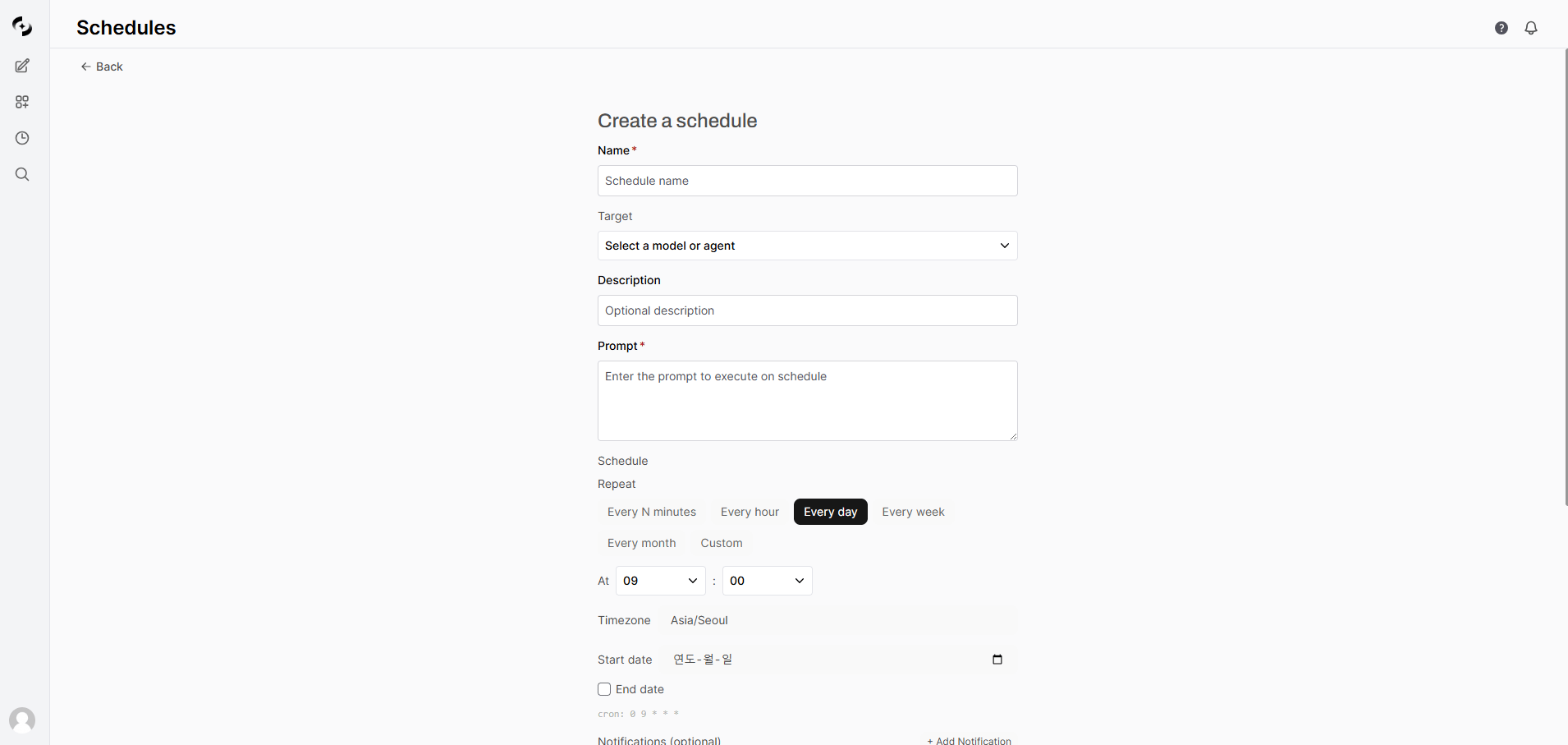 | Field | Description | Example |
| --------------- | ------------------ | --------------------------- |
| **Name** | Schedule name | "Daily Sales Report" |
| **Description** | Purpose (optional) | "Daily 9 AM sales analysis" |
Pick the agent, flow, or model to run.
| Target Type | Description |
| ------------- | ------------------------------------------------------- |
| **Agent** | AI agent connected to Knowledge Bases, databases, etc. |
| **Flow** | Multi-step workflow |
| **Model** | Base LLM model (direct prompt) |
| **Dashboard** | Export a dashboard to HTML (refreshed with latest data) |
You can only pick targets you have access permission to. Without permission, they don't appear in the list.
Enter the prompt to send when running.
**Tips:**
* Specify the desired output form
* When the agent has structured output (JSON Schema), result fields are accessible from notification templates
**Example:**
```
Analyze today's sales data and write a report including DoD growth rate
and key drivers. Visualize with charts and summarize 3 key insights.
```
Set the run frequency. An intuitive cron editor is provided.
| Field | Description | Example |
| --------------- | ------------------ | --------------------------- |
| **Name** | Schedule name | "Daily Sales Report" |
| **Description** | Purpose (optional) | "Daily 9 AM sales analysis" |
Pick the agent, flow, or model to run.
| Target Type | Description |
| ------------- | ------------------------------------------------------- |
| **Agent** | AI agent connected to Knowledge Bases, databases, etc. |
| **Flow** | Multi-step workflow |
| **Model** | Base LLM model (direct prompt) |
| **Dashboard** | Export a dashboard to HTML (refreshed with latest data) |
You can only pick targets you have access permission to. Without permission, they don't appear in the list.
Enter the prompt to send when running.
**Tips:**
* Specify the desired output form
* When the agent has structured output (JSON Schema), result fields are accessible from notification templates
**Example:**
```
Analyze today's sales data and write a report including DoD growth rate
and key drivers. Visualize with charts and summarize 3 key insights.
```
Set the run frequency. An intuitive cron editor is provided.
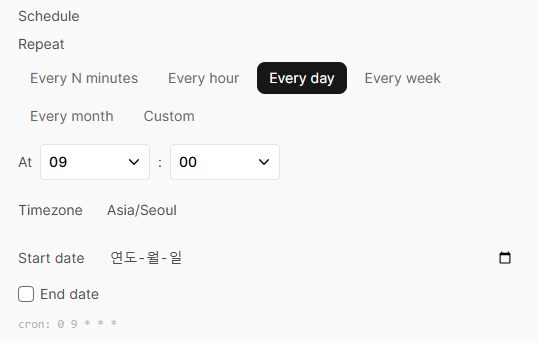 | Mode | Description | Example |
| ------------------- | ---------------------------------------------------- | -------------------- |
| **Every N minutes** | Run every N minutes (1, 2, 3, 5, 10, 15, 20, 30 min) | Every 10 min |
| **Every hour** | Every hour at a specific minute | Every hour at :30 |
| **Every day** | Daily at a specific time | Daily 9:00 AM |
| **Every week** | Specific weekday + time | Mon–Fri 9:00 AM |
| **Every month** | Specific day + time | 1st of month 8:00 AM |
| **Custom** | Direct cron expression | `0 9 * * 1-5` |
You can also set timezone and run period.
| Setting | Description |
| -------------- | ----------------------------------------------------------- |
| **Timezone** | Reference timezone for run time (default: browser timezone) |
| **Start date** | Schedule start date (optional) |
| **End date** | Schedule end date (optional, indefinite if unset) |
Set channels to receive run results. Add multiple notifications.
| Mode | Description | Example |
| ------------------- | ---------------------------------------------------- | -------------------- |
| **Every N minutes** | Run every N minutes (1, 2, 3, 5, 10, 15, 20, 30 min) | Every 10 min |
| **Every hour** | Every hour at a specific minute | Every hour at :30 |
| **Every day** | Daily at a specific time | Daily 9:00 AM |
| **Every week** | Specific weekday + time | Mon–Fri 9:00 AM |
| **Every month** | Specific day + time | 1st of month 8:00 AM |
| **Custom** | Direct cron expression | `0 9 * * 1-5` |
You can also set timezone and run period.
| Setting | Description |
| -------------- | ----------------------------------------------------------- |
| **Timezone** | Reference timezone for run time (default: browser timezone) |
| **Start date** | Schedule start date (optional) |
| **End date** | Schedule end date (optional, indefinite if unset) |
Set channels to receive run results. Add multiple notifications.
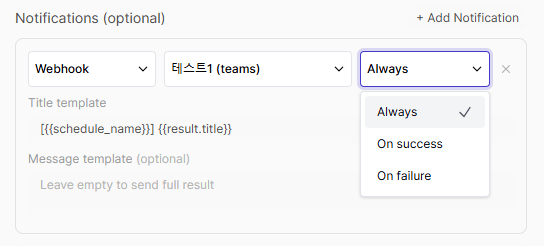 | Setting | Description |
| ------------------------- | ------------------------------------------------------------------------------------------------------------------ |
| **Channel type** | Email / Webhook / Direct URL |
| **Channel / URL** | Email and webhook types pick an admin-configured channel; Direct URL type enters the webhook URL directly |
| **Trigger** | Always / On success / On failure |
| **Title template** | Common to all channels — used for the notification and chat title (default `[{{schedule_name}}] {{result.title}}`) |
| **Recipients** | Email address list (email channel only) |
| **Subject/Body template** | Email subject and body (email channel only) |
| **Message template** | Webhook message (webhook and Direct URL channels only, optional — empty sends full result) |
The channel type list shows **only the types that have a registered channel**. If Email is missing, the admin has not registered an email channel yet — see [Email channel setup](/en/admin/notifications#email-channels). Slack, Teams, Telegram and others are not separate types; admins register them as providers of a webhook channel.
Add multiple notifications to a single schedule for conditional branching — e.g., email on success and Slack on failure.
Newly created schedules are saved as **active** (is\_active=True) by default. The next run is scheduled immediately upon creation.
***
## Cron Expression Guide
In Custom mode, enter a cron expression directly. A cron expression has **5 fields**.
```
┌─────────── minute (0-59)
│ ┌─────────── hour (0-23)
│ │ ┌─────────── day of month (1-31)
│ │ │ ┌─────────── month (1-12)
│ │ │ │ ┌─────────── day of week (0-6, 0=Sunday)
│ │ │ │ │
* * * * *
```
### Special Characters
| Character | Meaning | Example |
| --------- | -------------------- | ------------------------------ |
| `*` | All values | `* * * * *` = every minute |
| `,` | List multiple values | `0 9,18 * * *` = 9 AM and 6 PM |
| `-` | Range | `0 9 * * 1-5` = Mon–Fri |
| `/` | Step | `*/10 * * * *` = every 10 min |
### Day of Week Numbers
| Number | Day |
| ------ | --------- |
| 0 | Sunday |
| 1 | Monday |
| 2 | Tuesday |
| 3 | Wednesday |
| 4 | Thursday |
| 5 | Friday |
| 6 | Saturday |
### Common Expressions
| Cron Expression | Description |
| --------------- | ------------------------------------- |
| `0 9 * * *` | Daily 9 AM |
| `0 9 * * 1-5` | Weekdays (Mon–Fri) 9 AM |
| `0 9,18 * * *` | Daily 9 AM and 6 PM |
| `30 8 * * 1` | Mondays 8:30 AM |
| `0 0 1 * *` | First of every month, midnight |
| `0 0 1,15 * *` | 1st and 15th of every month, midnight |
| `*/30 * * * *` | Every 30 min |
| `0 */2 * * *` | Every 2 hours on the hour |
| `0 9 * * 1,3,5` | Mon/Wed/Fri 9 AM |
| `0 22 * * 0` | Sundays 10 PM |
When you set a preset mode (Every N minutes, Every hour, Every day, Every week, Every month), the cron expression is auto-generated. Use Custom mode only for complex schedules.
***
## Schedule Management
### Activate / Deactivate
Open the more menu (⋮) in the list and toggle active/inactive. When deactivated, the next run isn't scheduled.
### Run Now
Click **Run Now** to run immediately without waiting for the next cycle. Useful for manual result review or testing settings.
### Edit
Click a schedule card to open the detail page where you can edit all settings. Changes auto-recalculate the next run time.
### Delete
Deleting a schedule also removes related execution history.
Deleted schedules can't be recovered. Execution history and linked chat history may also be deleted, so proceed carefully.
### Copy to Users
Copy a schedule to other users. **Copy to Users** works as a **copy-based** share.
| Item | Description |
| --------------------- | ----------------------------------------------------------- |
| **Independent copy** | A separate schedule is created for the recipient |
| **Settings copy** | Target, prompt, frequency, and notifications all copied |
| **Independent edits** | After sharing, each user can edit their own schedule freely |
| **Origin tracking** | Copy metadata records the original owner and schedule info |
***
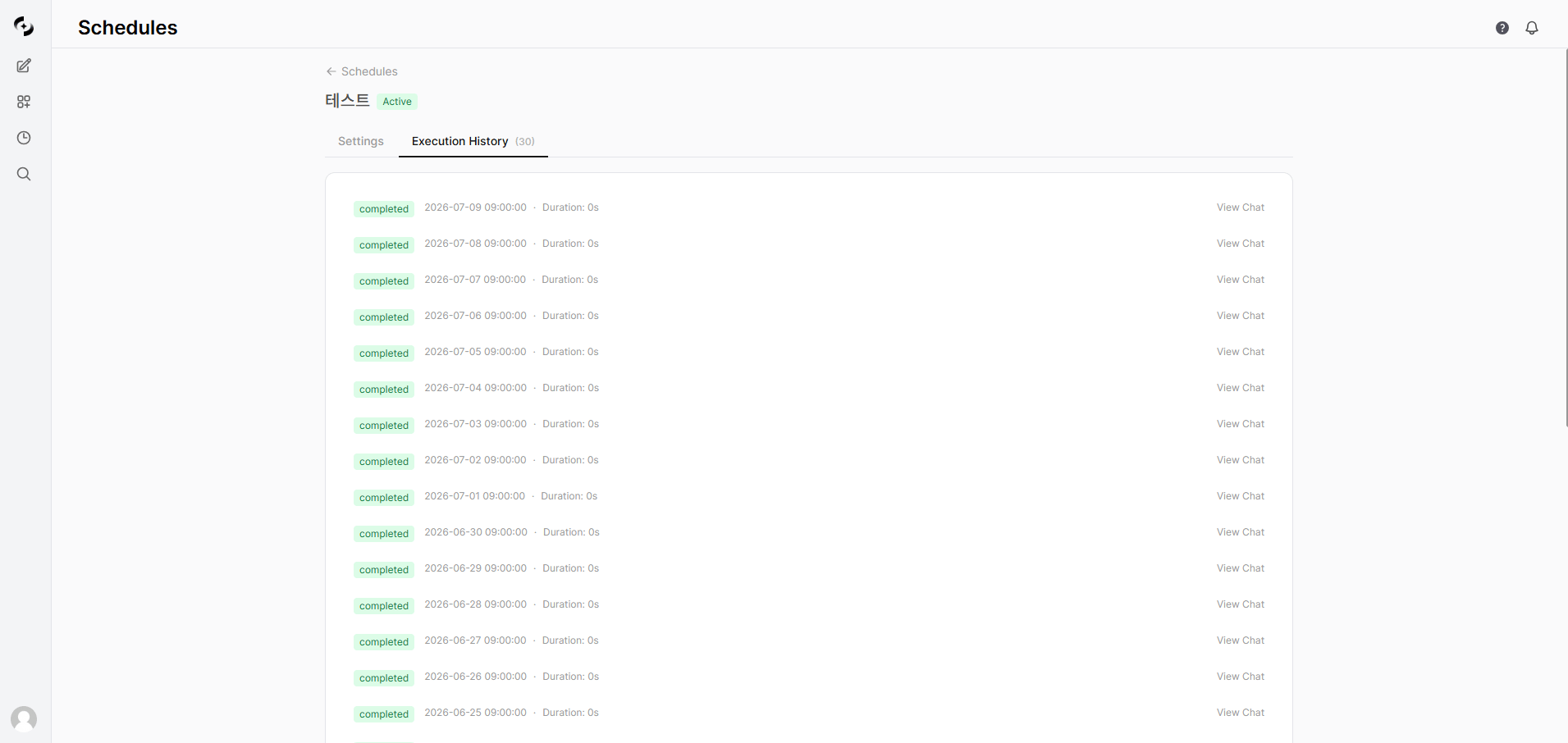
## Execution History
On the schedule detail page, view recent execution history.
| Setting | Description |
| ------------------------- | ------------------------------------------------------------------------------------------------------------------ |
| **Channel type** | Email / Webhook / Direct URL |
| **Channel / URL** | Email and webhook types pick an admin-configured channel; Direct URL type enters the webhook URL directly |
| **Trigger** | Always / On success / On failure |
| **Title template** | Common to all channels — used for the notification and chat title (default `[{{schedule_name}}] {{result.title}}`) |
| **Recipients** | Email address list (email channel only) |
| **Subject/Body template** | Email subject and body (email channel only) |
| **Message template** | Webhook message (webhook and Direct URL channels only, optional — empty sends full result) |
The channel type list shows **only the types that have a registered channel**. If Email is missing, the admin has not registered an email channel yet — see [Email channel setup](/en/admin/notifications#email-channels). Slack, Teams, Telegram and others are not separate types; admins register them as providers of a webhook channel.
Add multiple notifications to a single schedule for conditional branching — e.g., email on success and Slack on failure.
Newly created schedules are saved as **active** (is\_active=True) by default. The next run is scheduled immediately upon creation.
***
## Cron Expression Guide
In Custom mode, enter a cron expression directly. A cron expression has **5 fields**.
```
┌─────────── minute (0-59)
│ ┌─────────── hour (0-23)
│ │ ┌─────────── day of month (1-31)
│ │ │ ┌─────────── month (1-12)
│ │ │ │ ┌─────────── day of week (0-6, 0=Sunday)
│ │ │ │ │
* * * * *
```
### Special Characters
| Character | Meaning | Example |
| --------- | -------------------- | ------------------------------ |
| `*` | All values | `* * * * *` = every minute |
| `,` | List multiple values | `0 9,18 * * *` = 9 AM and 6 PM |
| `-` | Range | `0 9 * * 1-5` = Mon–Fri |
| `/` | Step | `*/10 * * * *` = every 10 min |
### Day of Week Numbers
| Number | Day |
| ------ | --------- |
| 0 | Sunday |
| 1 | Monday |
| 2 | Tuesday |
| 3 | Wednesday |
| 4 | Thursday |
| 5 | Friday |
| 6 | Saturday |
### Common Expressions
| Cron Expression | Description |
| --------------- | ------------------------------------- |
| `0 9 * * *` | Daily 9 AM |
| `0 9 * * 1-5` | Weekdays (Mon–Fri) 9 AM |
| `0 9,18 * * *` | Daily 9 AM and 6 PM |
| `30 8 * * 1` | Mondays 8:30 AM |
| `0 0 1 * *` | First of every month, midnight |
| `0 0 1,15 * *` | 1st and 15th of every month, midnight |
| `*/30 * * * *` | Every 30 min |
| `0 */2 * * *` | Every 2 hours on the hour |
| `0 9 * * 1,3,5` | Mon/Wed/Fri 9 AM |
| `0 22 * * 0` | Sundays 10 PM |
When you set a preset mode (Every N minutes, Every hour, Every day, Every week, Every month), the cron expression is auto-generated. Use Custom mode only for complex schedules.
***
## Schedule Management
### Activate / Deactivate
Open the more menu (⋮) in the list and toggle active/inactive. When deactivated, the next run isn't scheduled.
### Run Now
Click **Run Now** to run immediately without waiting for the next cycle. Useful for manual result review or testing settings.
### Edit
Click a schedule card to open the detail page where you can edit all settings. Changes auto-recalculate the next run time.
### Delete
Deleting a schedule also removes related execution history.
Deleted schedules can't be recovered. Execution history and linked chat history may also be deleted, so proceed carefully.
### Copy to Users
Copy a schedule to other users. **Copy to Users** works as a **copy-based** share.
| Item | Description |
| --------------------- | ----------------------------------------------------------- |
| **Independent copy** | A separate schedule is created for the recipient |
| **Settings copy** | Target, prompt, frequency, and notifications all copied |
| **Independent edits** | After sharing, each user can edit their own schedule freely |
| **Origin tracking** | Copy metadata records the original owner and schedule info |
***
## Execution History
On the schedule detail page, view recent execution history.
 ### Status
| State | Color | Description |
| ------------- | ------ | ---------------------- |
| **Pending** | Yellow | Awaiting execution |
| **Running** | Blue | Currently executing |
| **Completed** | Green | Completed successfully |
| **Failed** | Red | Error occurred |
The status reflects **the prompt execution only**. If notification delivery fails, the status still stays Completed. When a message never arrives but the history shows Completed, check the notification settings — see the Email & Notifications section in [Troubleshooting](/en/troubleshooting).
### History Details
| Item | Description |
| ----------------- | --------------------------------------------- |
| **Run time** | Scheduled run time |
| **Duration** | Time from start to completion |
| **Retry count** | Auto-retry count on errors (max 2) |
| **Error message** | Failure cause (on failure) |
| **View chat** | Navigate to the chat where results were saved |
### Auto-retry
**Transient errors** (timeouts, connection errors, rate limits, 502/503/504 server errors) are auto-retried up to 2 times. Other errors fail immediately with no retry and are recorded as failed — so rather than waiting for a retry, check the error message in the execution history. Tasks stuck in the running state for over 10 minutes are auto-recovered (re-queued for another run).
### History Retention
Completed and failed execution records are auto-deleted after 30 days.
***
## Chat Storage
Every execution result is saved to a dedicated chat.
| Item | Description |
| ------------------- | ------------------------------------------------------------------------------------------ |
| **First run** | A new chat is auto-created |
| **Subsequent runs** | Results accumulate in the same chat |
| **Chat title** | Set by the notification subject template (default: `[{{schedule_name}}] {{result.title}}`) |
| **Quick link** | Navigate via "View Chat" link in execution history |
***
## Chart Images
Charts generated by Database (DbSphere) agents are server-side rendered to images and included in notifications.
**Supported chart types:**
* Bar charts, line charts, pie charts, scatter plots
* Heatmaps, histograms, grouped bar charts
**Per-channel delivery:**
| Channel | Method |
| --------------- | ------------------------------- |
| **Email** | Inline images in the body |
| **Slack** | Image URL display |
| **Teams** | Image included in Adaptive Card |
| **Discord** | Image in Embed (first image) |
| **Telegram** | Sent as image messages |
| **Google Chat** | Image in Card |
***
## Template Variables
Variables you can use in notification subject, body, and message templates.
**Insert via button** — click at the bottom of the notification settings to insert into the template.
| Variable | Description | Example |
| ------------------- | --------------------- | --------------------- |
| `{{schedule_name}}` | Schedule name | Daily Sales Report |
| `{{prompt}}` | Executed prompt | Today's sales data... |
| `{{result}}` | Full execution result | (Full AI response) |
| `{{completed_at}}` | Completion time | 2025-02-27 09:00:45 |
**Type directly** — not offered as buttons, but work the same when typed into the template.
| Variable | Description | Example |
| ------------------- | ------------------------------------------------ | ---------------------------------------------------------------------------------- |
| `{{status}}` | Execution status | completed / failed |
| `{{result_raw}}` | Raw result before processing | (Raw AI response) |
| `{{chat_url}}` | Result chat URL | [https://cloosphere.example.com/c/abc123](https://cloosphere.example.com/c/abc123) |
| `{{target_type}}` | Target type (agent/flow/model/dashboard) | dashboard |
| `{{dashboard_url}}` | Dashboard share URL (when target is a dashboard) | [https://cloosphere.example.com/](https://cloosphere.example.com/)... |
| `{{time_range}}` | Dashboard time-range preset | yesterday |
### Accessing Structured Output
When the target agent has a JSON Schema response format, access individual fields with dot notation.
```
{{result.title}} → title field of the result JSON
{{result.data.count}} → nested field access
{{result.metrics.revenue}} → revenue data access
```
In the notification setup screen, structured output fields are auto-detected and shown as buttons. Click to insert into the template.
### Template Examples
```
[{{schedule_name}}] {{status}} - {{completed_at}}
```
```
Schedule "{{schedule_name}}" execution completed.
Prompt: {{prompt}}
Result:
{{result}}
```
```
*{{schedule_name}}* run result ({{status}})
> {{result}}
```
***
## Access Permissions
| Scope | Description |
| ------------------------ | --------------------------------------------------------------------------------------------------------------------------------------------------------------------------- |
| **Creation** | Requires both `features.scheduled_tasks` and `workspace.schedules` at **write** level (default is read, so an admin must raise the group level to write; admins always can) |
| **Edit/delete** | Owner, admin, or anyone granted write via `access_control` (includes toggle and run-now) |
| **Sharing (read/write)** | Grant view (read) or edit (write) permission to groups/org units via `access_control` |
| **Target access** | Read permission required for target agent/model (or it's hidden) |
If a schedule read **private data** (e.g., Google Workspace) into its results, only the **owner and admins** can view its execution history and results — even if it was shared with read access. This safeguard prevents already-captured private data from being exposed retroactively when access is later widened.
***
## FAQ
Check:
* Verify the schedule is **active**
* Verify start/end dates are correctly set
* Verify access permission to the target agent/model
* Verify `features.scheduled_tasks` permission is enabled for the user's group
The scheduler checks for run targets at **1-minute intervals**. Once queued, workers process at **5-second intervals**. So up to \~1 min delay can occur, which is normal.
Each schedule can have its own timezone. Example: Seoul office uses `Asia/Seoul`, NY office uses `America/New_York`. The default auto-detects the browser's timezone.
The execution may have failed. Check the status and error message in execution history.
Email and webhook channels are pre-configured by admins in **Admin > Settings > Channels**. The Direct URL method can be entered directly in the schedule without preconfiguration.
Picking a preset mode (Every N minutes, Every hour, Every day, Every week, Every month) auto-generates the cron expression. For Custom mode, see the [Cron Expression Guide](#cron-expression-guide) above.
Yes — click **Copy to Users** on the schedule detail page and select target users. An independent copy is created for each user, separate from the original and freely editable.
***
## Related Pages
Configure AI agents as schedule targets
Pre-configure email/webhook notification channels
Useful for chart-included sales report automation
### Status
| State | Color | Description |
| ------------- | ------ | ---------------------- |
| **Pending** | Yellow | Awaiting execution |
| **Running** | Blue | Currently executing |
| **Completed** | Green | Completed successfully |
| **Failed** | Red | Error occurred |
The status reflects **the prompt execution only**. If notification delivery fails, the status still stays Completed. When a message never arrives but the history shows Completed, check the notification settings — see the Email & Notifications section in [Troubleshooting](/en/troubleshooting).
### History Details
| Item | Description |
| ----------------- | --------------------------------------------- |
| **Run time** | Scheduled run time |
| **Duration** | Time from start to completion |
| **Retry count** | Auto-retry count on errors (max 2) |
| **Error message** | Failure cause (on failure) |
| **View chat** | Navigate to the chat where results were saved |
### Auto-retry
**Transient errors** (timeouts, connection errors, rate limits, 502/503/504 server errors) are auto-retried up to 2 times. Other errors fail immediately with no retry and are recorded as failed — so rather than waiting for a retry, check the error message in the execution history. Tasks stuck in the running state for over 10 minutes are auto-recovered (re-queued for another run).
### History Retention
Completed and failed execution records are auto-deleted after 30 days.
***
## Chat Storage
Every execution result is saved to a dedicated chat.
| Item | Description |
| ------------------- | ------------------------------------------------------------------------------------------ |
| **First run** | A new chat is auto-created |
| **Subsequent runs** | Results accumulate in the same chat |
| **Chat title** | Set by the notification subject template (default: `[{{schedule_name}}] {{result.title}}`) |
| **Quick link** | Navigate via "View Chat" link in execution history |
***
## Chart Images
Charts generated by Database (DbSphere) agents are server-side rendered to images and included in notifications.
**Supported chart types:**
* Bar charts, line charts, pie charts, scatter plots
* Heatmaps, histograms, grouped bar charts
**Per-channel delivery:**
| Channel | Method |
| --------------- | ------------------------------- |
| **Email** | Inline images in the body |
| **Slack** | Image URL display |
| **Teams** | Image included in Adaptive Card |
| **Discord** | Image in Embed (first image) |
| **Telegram** | Sent as image messages |
| **Google Chat** | Image in Card |
***
## Template Variables
Variables you can use in notification subject, body, and message templates.
**Insert via button** — click at the bottom of the notification settings to insert into the template.
| Variable | Description | Example |
| ------------------- | --------------------- | --------------------- |
| `{{schedule_name}}` | Schedule name | Daily Sales Report |
| `{{prompt}}` | Executed prompt | Today's sales data... |
| `{{result}}` | Full execution result | (Full AI response) |
| `{{completed_at}}` | Completion time | 2025-02-27 09:00:45 |
**Type directly** — not offered as buttons, but work the same when typed into the template.
| Variable | Description | Example |
| ------------------- | ------------------------------------------------ | ---------------------------------------------------------------------------------- |
| `{{status}}` | Execution status | completed / failed |
| `{{result_raw}}` | Raw result before processing | (Raw AI response) |
| `{{chat_url}}` | Result chat URL | [https://cloosphere.example.com/c/abc123](https://cloosphere.example.com/c/abc123) |
| `{{target_type}}` | Target type (agent/flow/model/dashboard) | dashboard |
| `{{dashboard_url}}` | Dashboard share URL (when target is a dashboard) | [https://cloosphere.example.com/](https://cloosphere.example.com/)... |
| `{{time_range}}` | Dashboard time-range preset | yesterday |
### Accessing Structured Output
When the target agent has a JSON Schema response format, access individual fields with dot notation.
```
{{result.title}} → title field of the result JSON
{{result.data.count}} → nested field access
{{result.metrics.revenue}} → revenue data access
```
In the notification setup screen, structured output fields are auto-detected and shown as buttons. Click to insert into the template.
### Template Examples
```
[{{schedule_name}}] {{status}} - {{completed_at}}
```
```
Schedule "{{schedule_name}}" execution completed.
Prompt: {{prompt}}
Result:
{{result}}
```
```
*{{schedule_name}}* run result ({{status}})
> {{result}}
```
***
## Access Permissions
| Scope | Description |
| ------------------------ | --------------------------------------------------------------------------------------------------------------------------------------------------------------------------- |
| **Creation** | Requires both `features.scheduled_tasks` and `workspace.schedules` at **write** level (default is read, so an admin must raise the group level to write; admins always can) |
| **Edit/delete** | Owner, admin, or anyone granted write via `access_control` (includes toggle and run-now) |
| **Sharing (read/write)** | Grant view (read) or edit (write) permission to groups/org units via `access_control` |
| **Target access** | Read permission required for target agent/model (or it's hidden) |
If a schedule read **private data** (e.g., Google Workspace) into its results, only the **owner and admins** can view its execution history and results — even if it was shared with read access. This safeguard prevents already-captured private data from being exposed retroactively when access is later widened.
***
## FAQ
Check:
* Verify the schedule is **active**
* Verify start/end dates are correctly set
* Verify access permission to the target agent/model
* Verify `features.scheduled_tasks` permission is enabled for the user's group
The scheduler checks for run targets at **1-minute intervals**. Once queued, workers process at **5-second intervals**. So up to \~1 min delay can occur, which is normal.
Each schedule can have its own timezone. Example: Seoul office uses `Asia/Seoul`, NY office uses `America/New_York`. The default auto-detects the browser's timezone.
The execution may have failed. Check the status and error message in execution history.
Email and webhook channels are pre-configured by admins in **Admin > Settings > Channels**. The Direct URL method can be entered directly in the schedule without preconfiguration.
Picking a preset mode (Every N minutes, Every hour, Every day, Every week, Every month) auto-generates the cron expression. For Custom mode, see the [Cron Expression Guide](#cron-expression-guide) above.
Yes — click **Copy to Users** on the schedule detail page and select target users. An independent copy is created for each user, separate from the original and freely editable.
***
## Related Pages
Configure AI agents as schedule targets
Pre-configure email/webhook notification channels
Useful for chart-included sales report automation