> ## Documentation Index
> Fetch the complete documentation index at: https://docs.cloosphere.ai/llms.txt
> Use this file to discover all available pages before exploring further.
# Conversation Management
> Managing chat history — create, search, edit, organize into folders, export
Cloosphere automatically saves every conversation. From the sidebar you can search chat history, organize chats into folders, and export them in various formats.
## Starting a New Conversation
Click the **New Chat** button at the top of the sidebar, or use the `Ctrl + Shift + O` shortcut.
Choose the AI model from the dropdown in the chat header. If you don't pick one, the default model is used.
Type your question or request in the input box and press `Enter` to start. The chat title is auto-generated from the first message.
Enable **Temporary Chat** mode to skip saving the conversation history. Useful for testing sensitive content or one-off questions.
## Searching Chat History
Use the search box at the top of the sidebar to find conversations.
* **Title search**: Search by auto-generated chat titles
* **Content search**: Full-text search of conversation content
* **Tag filter**: Use `tag:tagname` syntax to filter conversations with a specific tag
The chat list uses scroll-based pagination. Older conversations load automatically as you scroll down.
## Chat Menu
Hover over a chat item to reveal the **More (...)** button — clicking it opens action options.
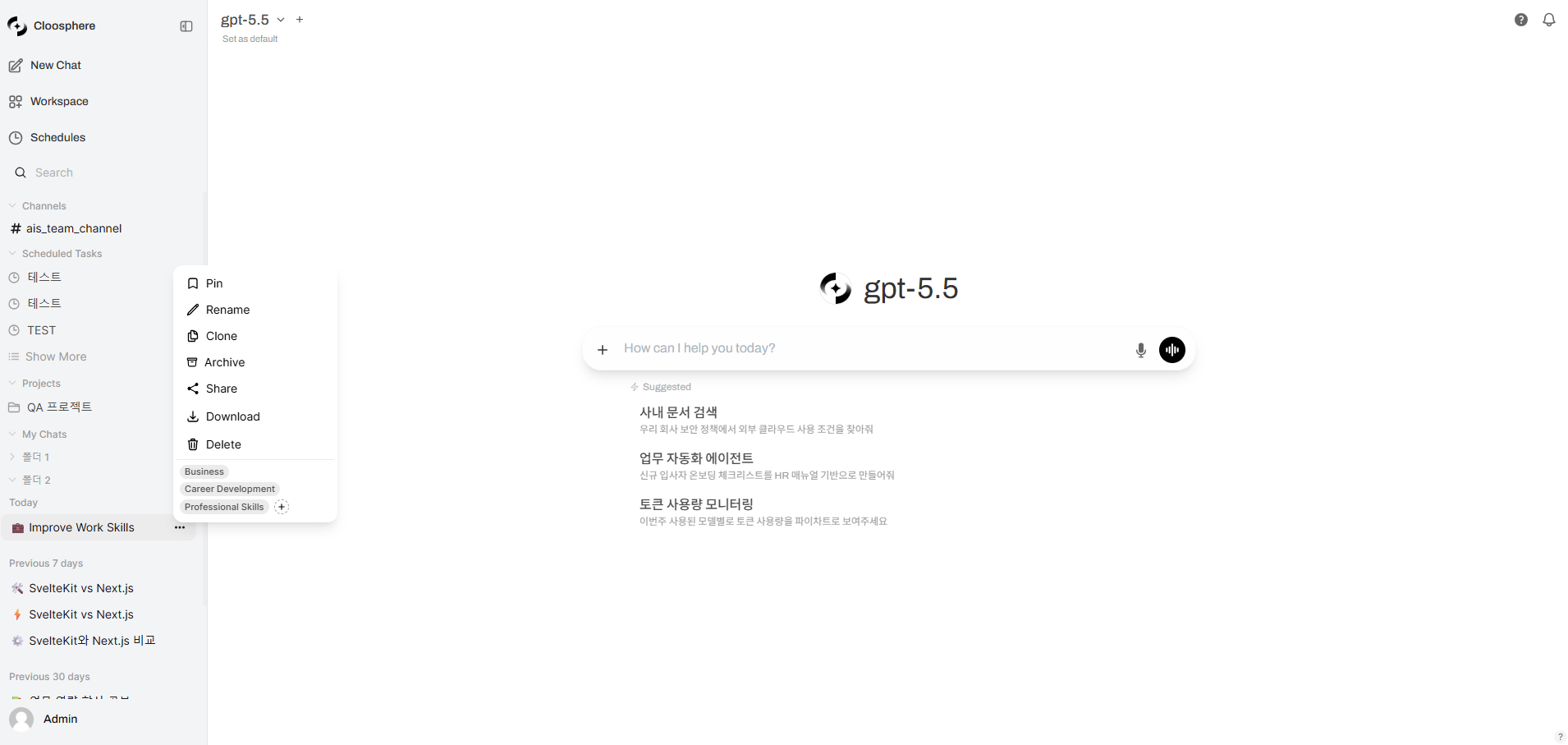 | Menu | Description |
| --------------- | ----------------------------------------------------------------- |
| **Pin / Unpin** | Pin important conversations to the top of the sidebar |
| **Rename** | Manually change the auto-generated chat title |
| **Clone** | Copy the current conversation into a new chat |
| **Archive** | Hide a conversation from the list without deleting it |
| **Share** | Generate a share link ([Sharing details](/en/chat/sharing)) |
| **Download** | Export the chat as JSON (.json), plain text (.txt), or PDF (.pdf) |
| **Delete** | Permanently delete the conversation |
| **Tag** | Add or remove category tags |
## Editing and Deleting Messages
### Editing User Messages
When you edit a sent user message, the **original message is preserved** and the AI generates a new response based on the edit. This creates a conversation branch.
| Menu | Description |
| --------------- | ----------------------------------------------------------------- |
| **Pin / Unpin** | Pin important conversations to the top of the sidebar |
| **Rename** | Manually change the auto-generated chat title |
| **Clone** | Copy the current conversation into a new chat |
| **Archive** | Hide a conversation from the list without deleting it |
| **Share** | Generate a share link ([Sharing details](/en/chat/sharing)) |
| **Download** | Export the chat as JSON (.json), plain text (.txt), or PDF (.pdf) |
| **Delete** | Permanently delete the conversation |
| **Tag** | Add or remove category tags |
## Editing and Deleting Messages
### Editing User Messages
When you edit a sent user message, the **original message is preserved** and the AI generates a new response based on the edit. This creates a conversation branch.
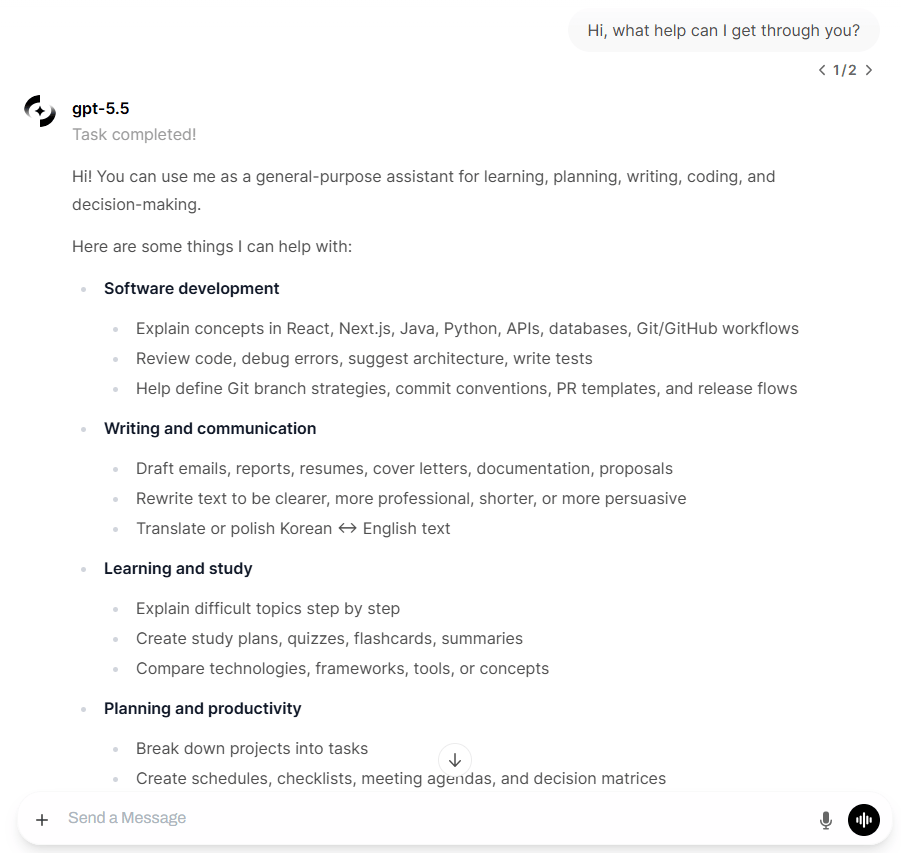
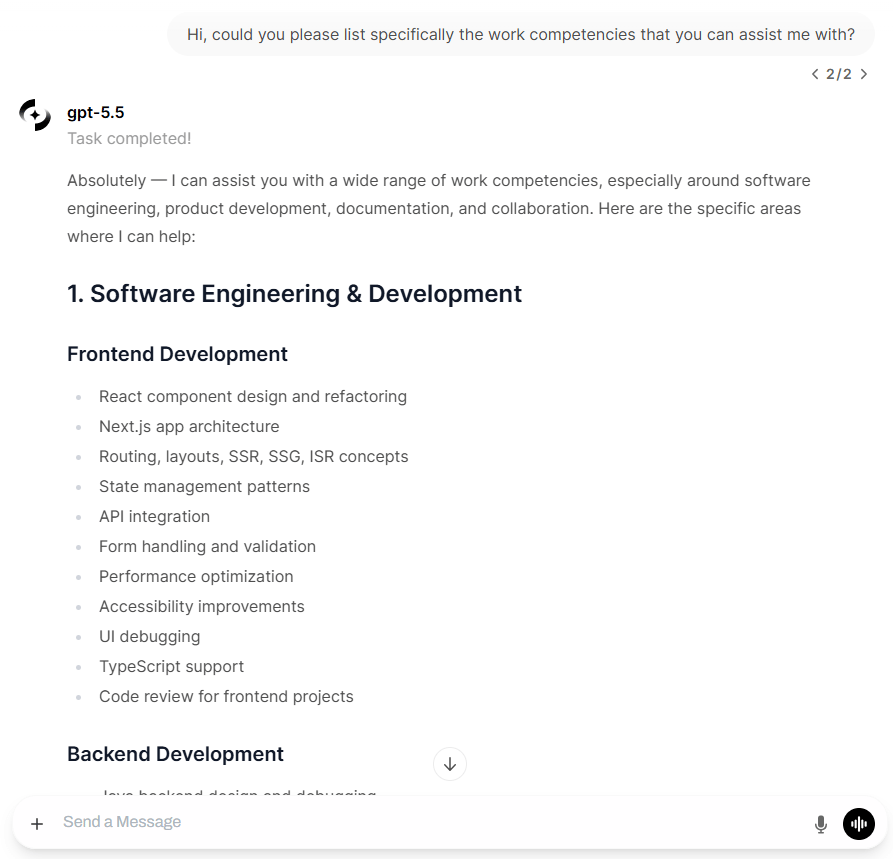 Hover over the message you want to edit.
Click the **Edit** icon that appears on the right side of the message.
Type your edits and click **Send** — the AI generates a new response.
Click **Save** to update the content only without generating a new response.
### Editing AI Responses
You can directly edit AI responses too. Editing preserves the original so you can revert at any time.
### Deleting Messages
When you delete a message, its child responses are reattached to the parent so the conversation flow stays intact.
### Branch Navigation
When a message has multiple branches, an indicator like `1/3` appears below it. Use the left/right arrows to navigate between branch responses.
```mermaid theme={null}
graph TD
U1[User question] --> A1[AI response 1/2]
U1 --> A2[AI response 2/2 - regenerated]
A1 --> U2[User follow-up]
U2 --> A3[AI response]
```
## Project Management
Projects are independent workspaces isolated from personal chats. Instead of dragging chats in, you create and manage chats inside a project.
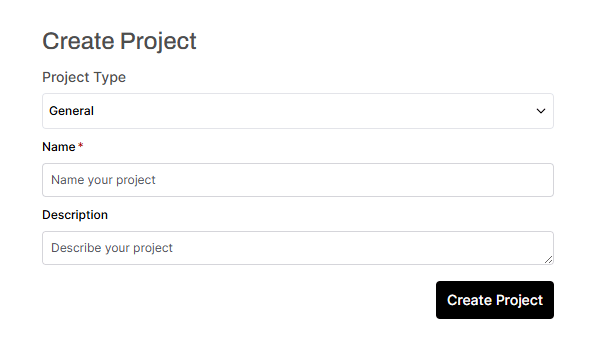
Hover over the **Projects** header in the sidebar — a **+** button (**Create Project**) appears on the right. Clicking it opens the project creation page.
Select a project type, enter a name and description, then click **Create Project**.
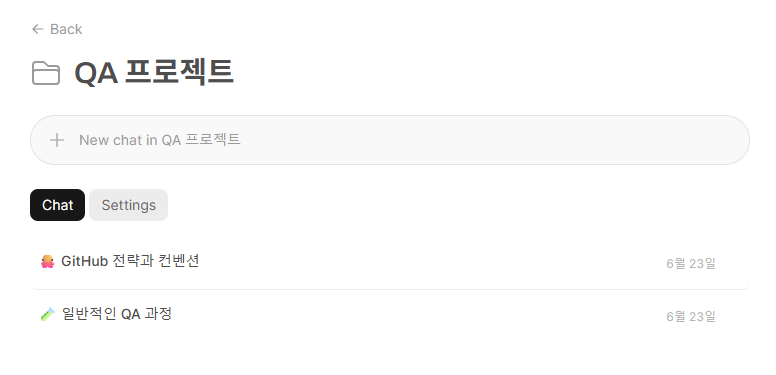
From the project page, start new chats and manage the project with the **Chat** and **Settings** tabs.
Hover over the message you want to edit.
Click the **Edit** icon that appears on the right side of the message.
Type your edits and click **Send** — the AI generates a new response.
Click **Save** to update the content only without generating a new response.
### Editing AI Responses
You can directly edit AI responses too. Editing preserves the original so you can revert at any time.
### Deleting Messages
When you delete a message, its child responses are reattached to the parent so the conversation flow stays intact.
### Branch Navigation
When a message has multiple branches, an indicator like `1/3` appears below it. Use the left/right arrows to navigate between branch responses.
```mermaid theme={null}
graph TD
U1[User question] --> A1[AI response 1/2]
U1 --> A2[AI response 2/2 - regenerated]
A1 --> U2[User follow-up]
U2 --> A3[AI response]
```
## Project Management
Projects are independent workspaces isolated from personal chats. Instead of dragging chats in, you create and manage chats inside a project.
Hover over the **Projects** header in the sidebar — a **+** button (**Create Project**) appears on the right. Clicking it opens the project creation page.
Select a project type, enter a name and description, then click **Create Project**.
From the project page, start new chats and manage the project with the **Chat** and **Settings** tabs.
 ## Folder Management
Alongside projects, you can also organize conversations into plain **folders**.
Hover over the **My Chats** header in the sidebar — a **+** button (**New Folder**) appears on the right. Clicking it creates a folder named **Untitled**; rename it via the folder's **More (...)** > **Rename** menu.
Drag a chat item into the folder you want.
Drag one folder into another to nest it as a sub-folder for hierarchical management.
## Folder Management
Alongside projects, you can also organize conversations into plain **folders**.
Hover over the **My Chats** header in the sidebar — a **+** button (**New Folder**) appears on the right. Clicking it creates a folder named **Untitled**; rename it via the folder's **More (...)** > **Rename** menu.
Drag a chat item into the folder you want.
Drag one folder into another to nest it as a sub-folder for hierarchical management.
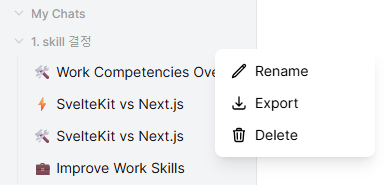 The folder's **More (...)** menu provides **Rename**, **Export**, and **Delete**. Deleting a folder removes the folder **and all its contents** after confirmation.
Collapse and expand folders to use sidebar space efficiently.
## Exporting Conversations
### Exporting Individual Chats
Choose the format from the **Download** sub-menu in the chat menu.
Complete format including message history, metadata, and branch structure.
Can be **imported** into another Cloosphere instance.
Plain-text format with only roles (USER/ASSISTANT) and message content.
Suitable for simple archival or external tools.
Exports as A4 PDF. The current theme (light/dark) is applied,
and long conversations are auto-paginated.
### Bulk Export / Import
Settings > **Chats** tab lets you manage all conversations at once.
The folder's **More (...)** menu provides **Rename**, **Export**, and **Delete**. Deleting a folder removes the folder **and all its contents** after confirmation.
Collapse and expand folders to use sidebar space efficiently.
## Exporting Conversations
### Exporting Individual Chats
Choose the format from the **Download** sub-menu in the chat menu.
Complete format including message history, metadata, and branch structure.
Can be **imported** into another Cloosphere instance.
Plain-text format with only roles (USER/ASSISTANT) and message content.
Suitable for simple archival or external tools.
Exports as A4 PDF. The current theme (light/dark) is applied,
and long conversations are auto-paginated.
### Bulk Export / Import
Settings > **Chats** tab lets you manage all conversations at once.
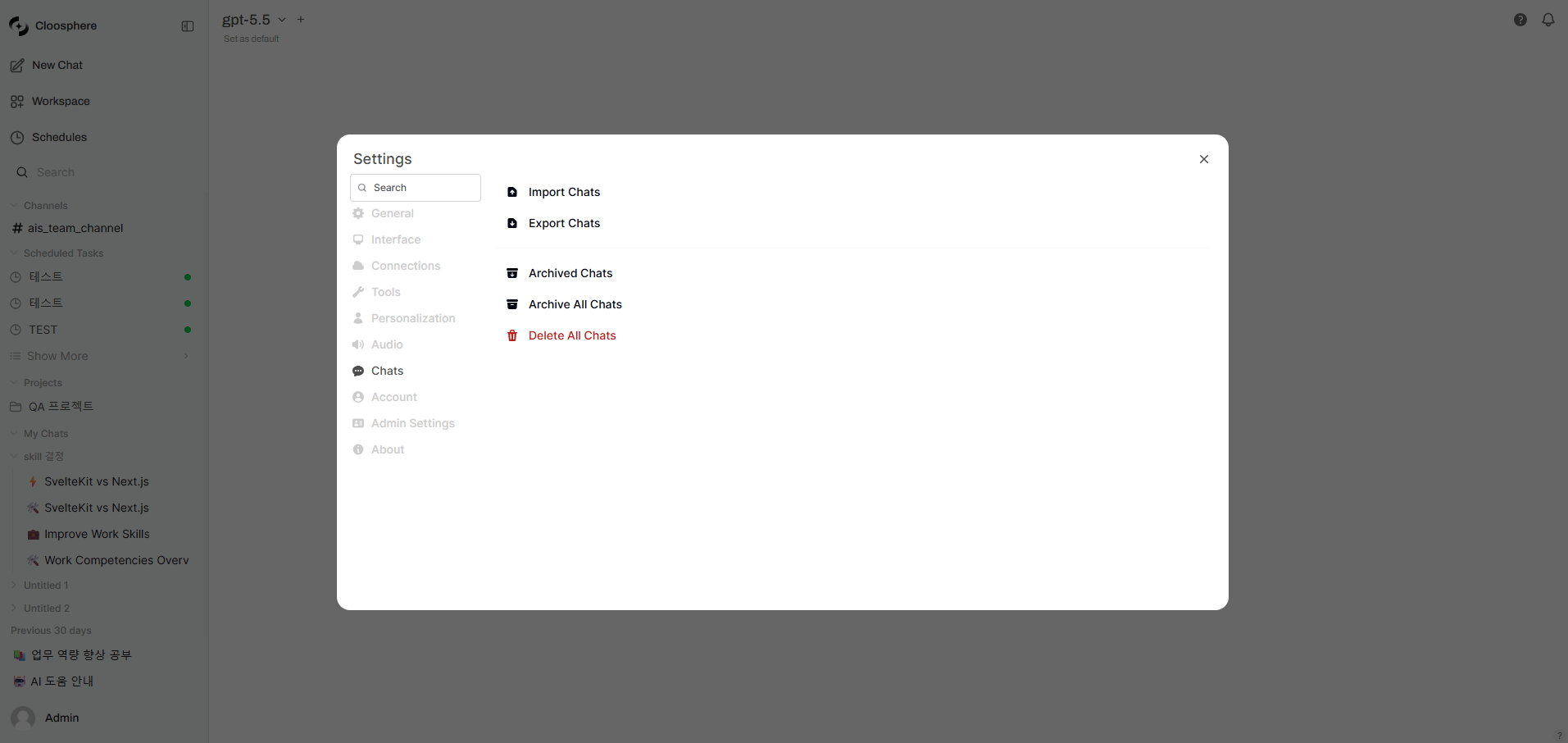 | Feature | Description |
| --------------------- | -------------------------------------------------------------------------------- |
| **Import Chats** | Import conversations from a JSON file (OpenAI export format also auto-converted) |
| **Export Chats** | Export all conversations as `chat-export-{timestamp}.json` |
| **Archived Chats** | View and restore archived conversations |
| **Archive All Chats** | Archive all conversations (with confirmation) |
| **Delete All Chats** | Permanently delete all conversations (with confirmation) |
**Delete All Chats** is irreversible. Export important conversations first.
## Bulk Actions
Hold Shift while hovering over a chat item to instantly show archive/delete buttons for fast per-item actions.
## Archive Management
Archived conversations are hidden from the sidebar list but not deleted.
Click Settings > Chats > **Archived Chats** to open the archive list.
Restore an individual conversation from the list back to the sidebar, or delete it permanently.
To bulk-restore all archived conversations, click the **Unarchive All Archived Chats** button and then select **Unarchive All** in the confirmation modal. You can also bulk-export them with the **Export All Archived Chats** button.
| Feature | Description |
| --------------------- | -------------------------------------------------------------------------------- |
| **Import Chats** | Import conversations from a JSON file (OpenAI export format also auto-converted) |
| **Export Chats** | Export all conversations as `chat-export-{timestamp}.json` |
| **Archived Chats** | View and restore archived conversations |
| **Archive All Chats** | Archive all conversations (with confirmation) |
| **Delete All Chats** | Permanently delete all conversations (with confirmation) |
**Delete All Chats** is irreversible. Export important conversations first.
## Bulk Actions
Hold Shift while hovering over a chat item to instantly show archive/delete buttons for fast per-item actions.
## Archive Management
Archived conversations are hidden from the sidebar list but not deleted.
Click Settings > Chats > **Archived Chats** to open the archive list.
Restore an individual conversation from the list back to the sidebar, or delete it permanently.
To bulk-restore all archived conversations, click the **Unarchive All Archived Chats** button and then select **Unarchive All** in the confirmation modal. You can also bulk-export them with the **Export All Archived Chats** button.