> ## Documentation Index
> Fetch the complete documentation index at: https://docs.cloosphere.ai/llms.txt
> Use this file to discover all available pages before exploring further.
# Memory
> Memory feature that lets the AI remember you — get more personalized responses as conversations accumulate
Tired of repeating the same context every time you talk to the AI?
When Memory is enabled, the AI **automatically remembers** information learned in past conversations and uses it in subsequent ones.
### Example
> "Our team uses Python 3.11 + FastAPI, and we deploy on Azure AKS"
| State | Behavior | Result |
| ---------- | --------------------------------------- | ------------------------------------------------------------------- |
| Memory OFF | Each conversation is fresh | Repeated questions like "Which framework do you use?" |
| Memory ON | Stack remembered from past conversation | FastAPI-based code suggestions, AKS deployment guidance immediately |
Memory is currently an **Experimental** feature. Behavior may change in the future.
***
## Enabling Memory
Click the **Settings** icon at the top-right or in the sidebar.
In the settings modal, go to the **Personalization** tab.
Enable the toggle switch in the Memory section.
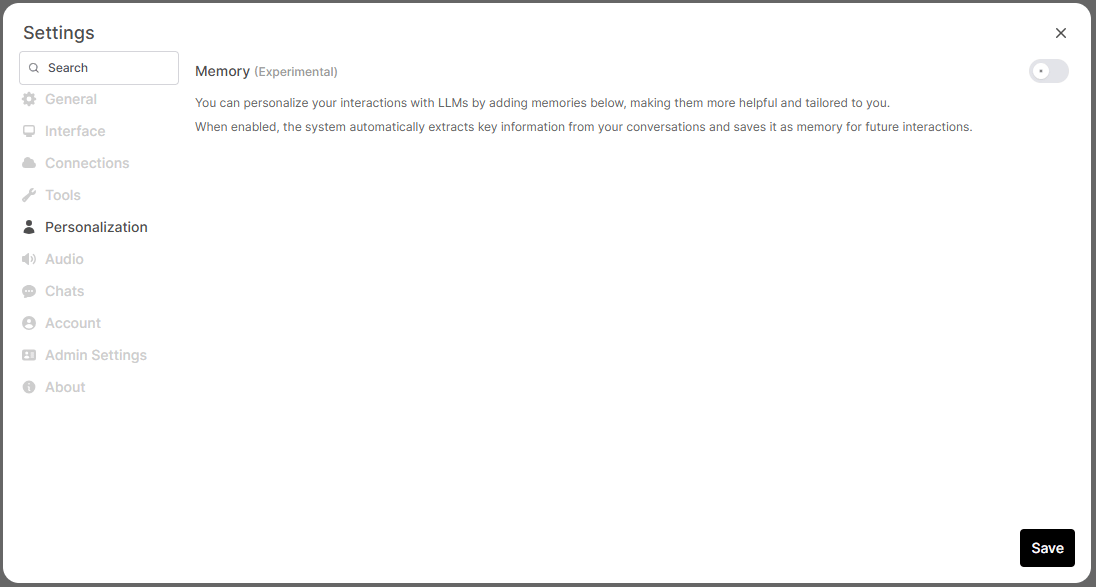
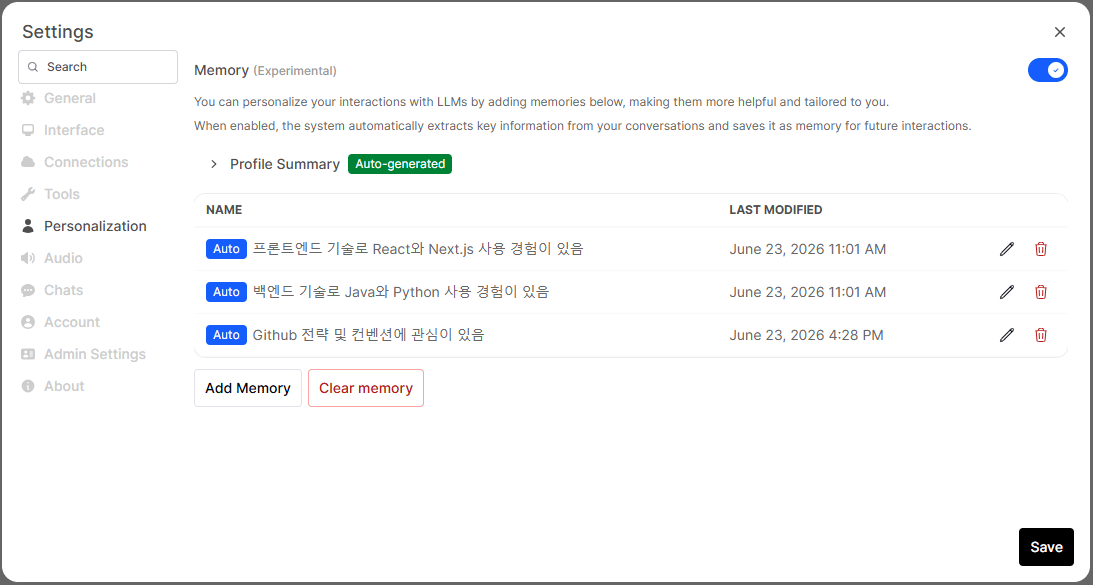 Turning Memory off disables **both** auto-extraction and conversation injection. Existing stored memories are preserved, not deleted.
***
## 3 Ways Memory is Stored
Memory is categorized into three types by source, each with different retention.
| Type | Created By | Retention | Display in List |
| ----------- | ------------------------------------- | --------- | :--------------------: |
| **Manual** | User input | 180 days | No badge |
| **Auto** | AI auto-extracts from conversation | 30 days | `Auto` badge |
| **Profile** | AI summarizes/integrates all memories | Permanent | `Auto-generated` badge |
### Manual Memory
Users directly enter information they want the AI to remember.
**Example inputs:**
* "User is a data engineer who primarily uses Snowflake"
* "User prefers camelCase for variable names in code reviews"
* "User's team holds sprint reviews every Wednesday"
Memory is more effective in third person. Use **"User..."** form instead of "I...".
### Auto Memory
When chatting with Memory enabled, the AI **auto-extracts** key facts in the background after a response and saves them.
```mermaid theme={null}
flowchart LR
A[Conversation done] --> B[AI analyzes recent messages]
B --> C{Confidence sufficient?}
C -->|Yes| D{Duplicates existing memory?}
C -->|No| E[Don't save]
D -->|Duplicate| F[Update existing]
D -->|New| G[Save new memory]
```
* Up to **100 auto-memories** stored per user
* Duplicate content is auto-merged to avoid bloat
* Consecutive messages within **5 minutes** in the same chat skip extraction
### Profile Summary
When a certain number of auto/manual memories accumulate, the AI integrates them into a **structured profile document**.
The profile includes:
* Role and work area
* Tech stack preferences
* Active projects
* Communication style
**Only 1 profile is kept** — auto-updated as new memories accumulate.
***
## How Memory is Reflected in Conversations
When you ask a question with Memory ON, the AI auto-references relevant memories before answering.
```mermaid theme={null}
flowchart LR
A[User question] --> B[Search relevant memories]
B --> C[Profile + relevant facts selection]
C --> D[Pass as context to AI]
D --> E[Personalized response]
```
The AI **auto-adjusts strategy** based on memory volume:
| Memory Count | Behavior |
| ------------ | -------------------------------------------------------------- |
| None | Standard conversation (no memory injection) |
| Few (\< 20) | Reference all memories |
| Many (≥ 20) | Reference profile + selected memories relevant to the question |
When 20+ memories accumulate, the AI **picks high-relevance memories** based on the question content.
For example, Python-related questions prioritize Python-related memories.
***
## Memory Management
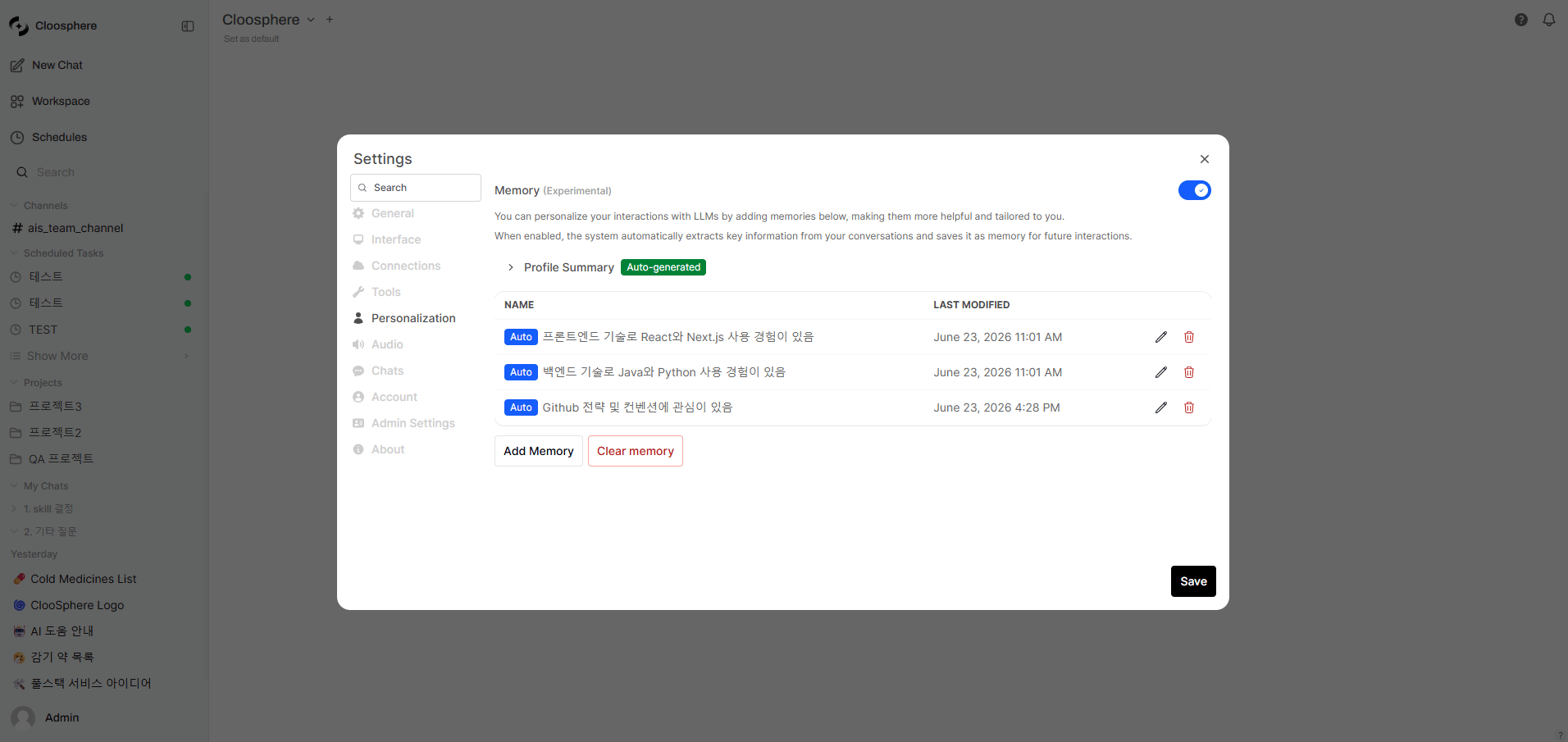
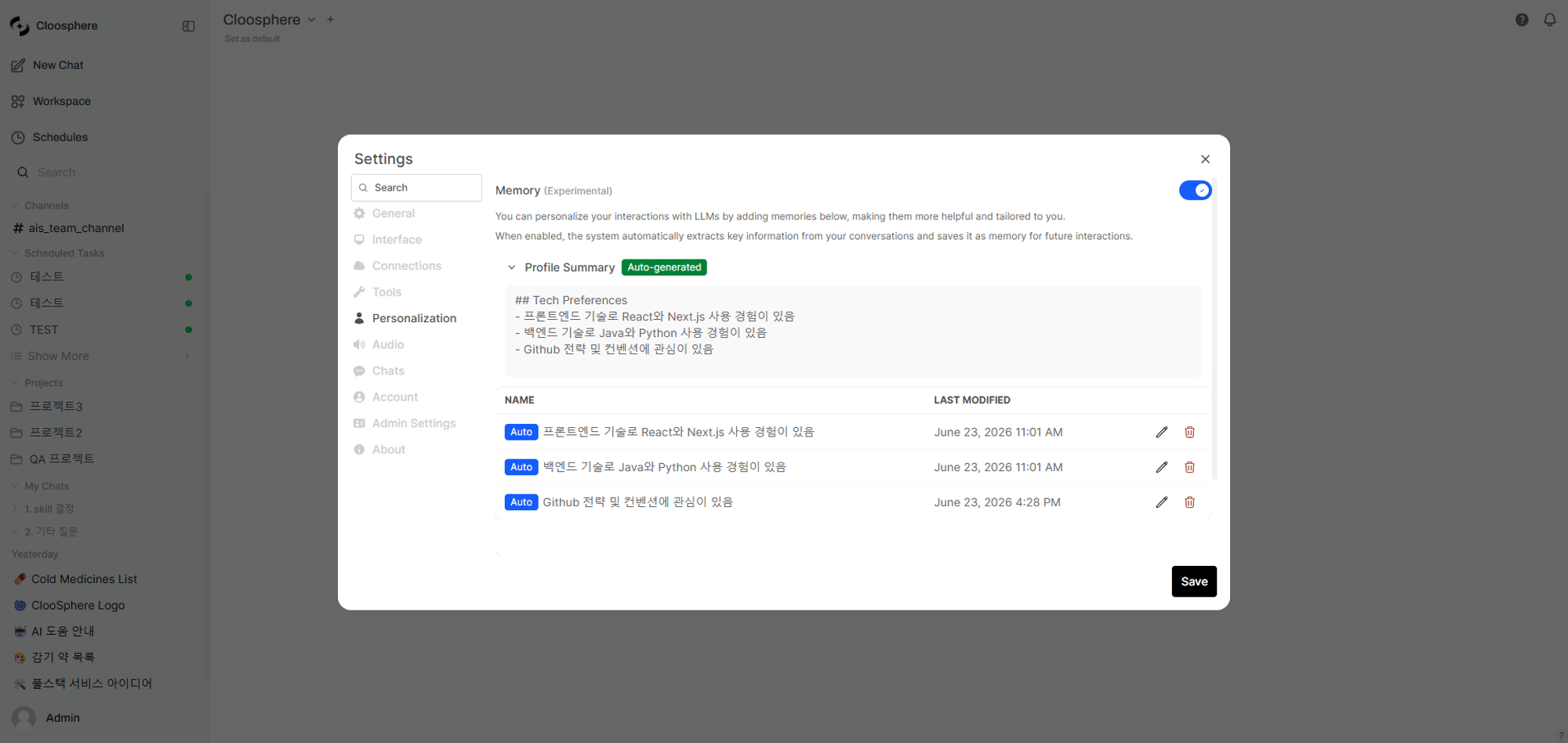
Click **Personalization** in Settings to open the memory management screen.
Turning Memory off disables **both** auto-extraction and conversation injection. Existing stored memories are preserved, not deleted.
***
## 3 Ways Memory is Stored
Memory is categorized into three types by source, each with different retention.
| Type | Created By | Retention | Display in List |
| ----------- | ------------------------------------- | --------- | :--------------------: |
| **Manual** | User input | 180 days | No badge |
| **Auto** | AI auto-extracts from conversation | 30 days | `Auto` badge |
| **Profile** | AI summarizes/integrates all memories | Permanent | `Auto-generated` badge |
### Manual Memory
Users directly enter information they want the AI to remember.
**Example inputs:**
* "User is a data engineer who primarily uses Snowflake"
* "User prefers camelCase for variable names in code reviews"
* "User's team holds sprint reviews every Wednesday"
Memory is more effective in third person. Use **"User..."** form instead of "I...".
### Auto Memory
When chatting with Memory enabled, the AI **auto-extracts** key facts in the background after a response and saves them.
```mermaid theme={null}
flowchart LR
A[Conversation done] --> B[AI analyzes recent messages]
B --> C{Confidence sufficient?}
C -->|Yes| D{Duplicates existing memory?}
C -->|No| E[Don't save]
D -->|Duplicate| F[Update existing]
D -->|New| G[Save new memory]
```
* Up to **100 auto-memories** stored per user
* Duplicate content is auto-merged to avoid bloat
* Consecutive messages within **5 minutes** in the same chat skip extraction
### Profile Summary
When a certain number of auto/manual memories accumulate, the AI integrates them into a **structured profile document**.
The profile includes:
* Role and work area
* Tech stack preferences
* Active projects
* Communication style
**Only 1 profile is kept** — auto-updated as new memories accumulate.
***
## How Memory is Reflected in Conversations
When you ask a question with Memory ON, the AI auto-references relevant memories before answering.
```mermaid theme={null}
flowchart LR
A[User question] --> B[Search relevant memories]
B --> C[Profile + relevant facts selection]
C --> D[Pass as context to AI]
D --> E[Personalized response]
```
The AI **auto-adjusts strategy** based on memory volume:
| Memory Count | Behavior |
| ------------ | -------------------------------------------------------------- |
| None | Standard conversation (no memory injection) |
| Few (\< 20) | Reference all memories |
| Many (≥ 20) | Reference profile + selected memories relevant to the question |
When 20+ memories accumulate, the AI **picks high-relevance memories** based on the question content.
For example, Python-related questions prioritize Python-related memories.
***
## Memory Management
Click **Personalization** in Settings to open the memory management screen.
 ### Add Memory
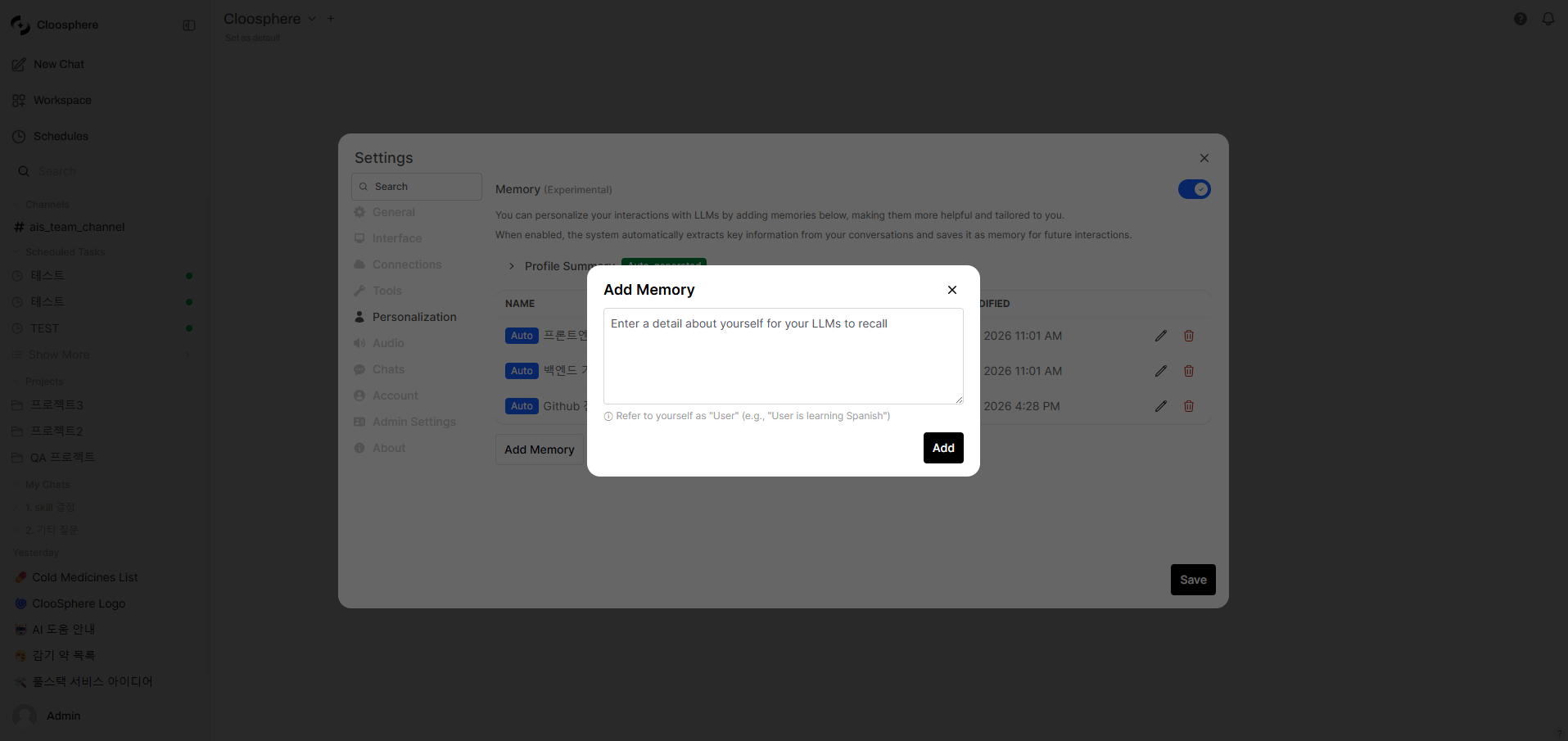 1. Click **Add Memory** button
2. Enter text (e.g., "User writes code comments in Korean")
3. Click **Add**
### Edit Memory
Click the **pencil icon** on each memory to edit content.
Auto-extracted memories can also be edited.
### Delete Memory
* **Per-item**: Click the **trash icon** on each item
* **Bulk**: **Clear memory** button at the bottom (with confirmation dialog)
Deleted memories don't disappear immediately — they're fully removed after a **30-day grace period**. During this time, they're not reflected in conversations.
### Profile Summary View
A **Profile Summary** section appears at the top of the memory management screen (when a profile exists).
Click to view the AI-generated user profile.
1. Click **Add Memory** button
2. Enter text (e.g., "User writes code comments in Korean")
3. Click **Add**
### Edit Memory
Click the **pencil icon** on each memory to edit content.
Auto-extracted memories can also be edited.
### Delete Memory
* **Per-item**: Click the **trash icon** on each item
* **Bulk**: **Clear memory** button at the bottom (with confirmation dialog)
Deleted memories don't disappear immediately — they're fully removed after a **30-day grace period**. During this time, they're not reflected in conversations.
### Profile Summary View
A **Profile Summary** section appears at the top of the memory management screen (when a profile exists).
Click to view the AI-generated user profile.
 ***
## Organization Memory (Admin-only)
Admins can configure **memory shared across the entire organization**.
**Path:** Admin Panel > Settings > Memory tab > Organization Memory
Organization memory is auto-injected into **all conversations of all users in the organization**.
### Use Cases
* "Our company must always comply with PIPA when handling customer data"
* "In internal terminology, 'Sprint' means a 2-week development cycle"
* "Use the company's official template (Template A) when writing reports"
Organization memory is included in **every member's conversation**, so enter only essential, concise info.
Too much organization memory can affect AI response quality.
***
## Admin Settings
***
## Organization Memory (Admin-only)
Admins can configure **memory shared across the entire organization**.
**Path:** Admin Panel > Settings > Memory tab > Organization Memory
Organization memory is auto-injected into **all conversations of all users in the organization**.
### Use Cases
* "Our company must always comply with PIPA when handling customer data"
* "In internal terminology, 'Sprint' means a 2-week development cycle"
* "Use the company's official template (Template A) when writing reports"
Organization memory is included in **every member's conversation**, so enter only essential, concise info.
Too much organization memory can affect AI response quality.
***
## Admin Settings
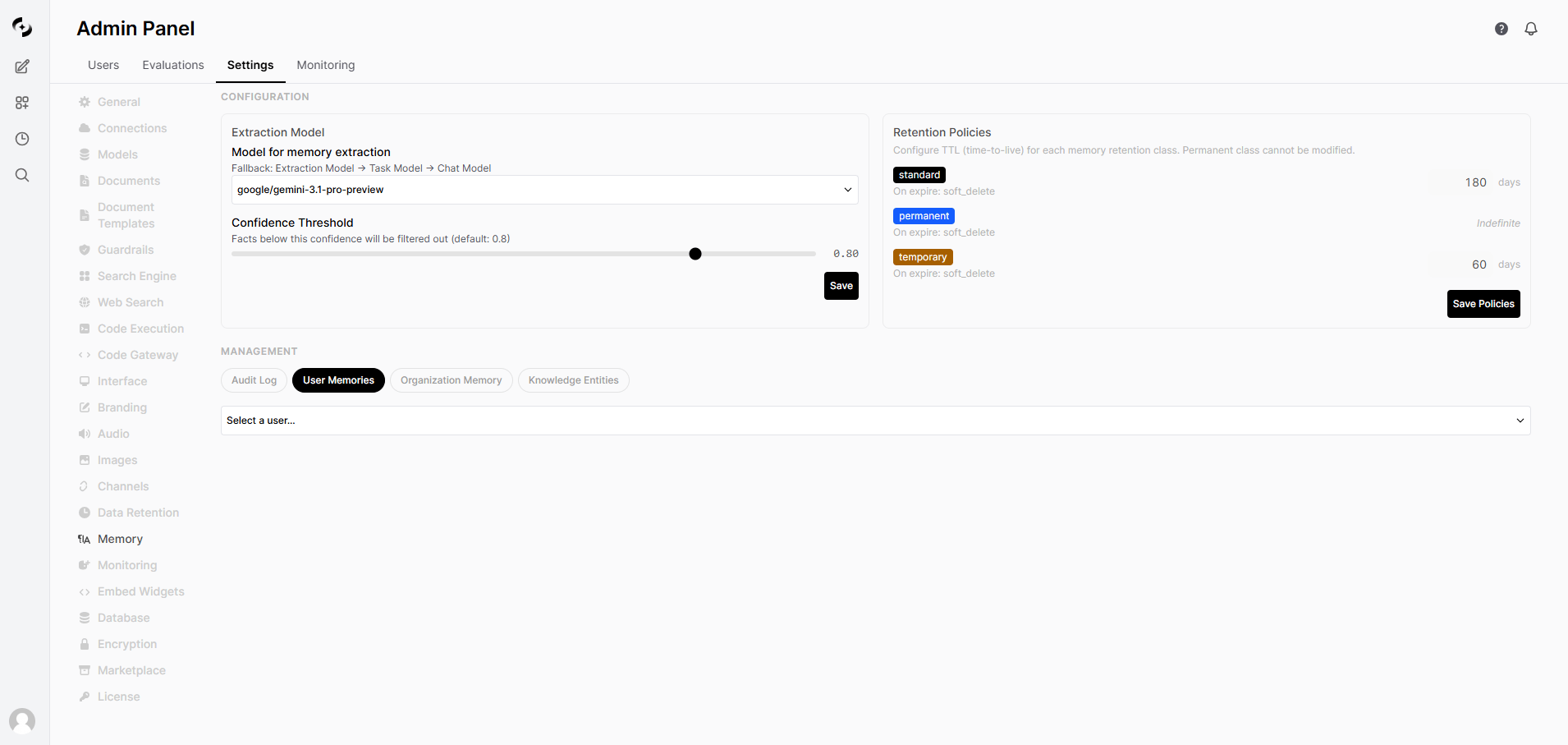 In Admin Panel > Settings > Memory tab, manage the entire memory system.
### Extraction Settings
| Setting | Default | Description |
| ------------------------ | -------------------- | -------------------------------------------------------------------------- |
| **Extraction Model** | System default model | LLM model for memory extraction. Uses system default if unset |
| **Confidence Threshold** | 0.8 | Confidence threshold for extracted facts (0–1). Lower stores more memories |
### Retention Policies
| Class | Default Retention | Editable |
| --------- | :---------------: | :------: |
| Standard | 180 days | ✓ |
| Permanent | Unlimited | ✗ |
| Temporary | 60 days | ✓ |
### Audit Log
All memory creation, modification, deletion, and setting change events are recorded.
Filter by event type and user.
### Per-User Memory Management
Pick a specific user to view their memory list and delete entries as needed.
***
## Tips for Effective Memory
**Effective memories:**
* Role and area of expertise ("User is a backend developer")
* Tech stack ("User's project uses Python + FastAPI")
* Preferred working style ("User requires type hints in code")
* Project context ("User is currently working on payment system migration")
**Less effective memories:**
* Temporary info ("Meeting at 3pm today") → leave to auto-memory
* Too generic info ("User does programming")
* Very long text → keep concise, only the essence
Auto-extracted memories are AI-generated by analyzing conversations, so occasional inaccuracies are possible.
* Periodically review items with the `Auto` badge in the **Manage** screen
* **Edit** or **delete** inaccurate memories
* Admins can raise the **Confidence Threshold** to make extraction stricter (default 0.8)
When Memory toggle is OFF:
* Auto-extraction is **stopped**
* Memories **aren't injected** into conversations
* Existing stored memories are **preserved**, not deleted
* Turning back ON immediately uses existing memories again
***
## Personal vs. Organization Memory
| | Personal Memory | Organization Memory |
| ------------- | ---------------------------------- | ---------------------------------------------- |
| **Scope** | Applied to your conversations only | Applied to all org users' conversations |
| **Creation** | User (manual/auto) | Admin only |
| **Retention** | 30 days to permanent by type | Permanent |
| **Use** | Personal preferences, work context | Company policy, common rules, term definitions |
In Admin Panel > Settings > Memory tab, manage the entire memory system.
### Extraction Settings
| Setting | Default | Description |
| ------------------------ | -------------------- | -------------------------------------------------------------------------- |
| **Extraction Model** | System default model | LLM model for memory extraction. Uses system default if unset |
| **Confidence Threshold** | 0.8 | Confidence threshold for extracted facts (0–1). Lower stores more memories |
### Retention Policies
| Class | Default Retention | Editable |
| --------- | :---------------: | :------: |
| Standard | 180 days | ✓ |
| Permanent | Unlimited | ✗ |
| Temporary | 60 days | ✓ |
### Audit Log
All memory creation, modification, deletion, and setting change events are recorded.
Filter by event type and user.
### Per-User Memory Management
Pick a specific user to view their memory list and delete entries as needed.
***
## Tips for Effective Memory
**Effective memories:**
* Role and area of expertise ("User is a backend developer")
* Tech stack ("User's project uses Python + FastAPI")
* Preferred working style ("User requires type hints in code")
* Project context ("User is currently working on payment system migration")
**Less effective memories:**
* Temporary info ("Meeting at 3pm today") → leave to auto-memory
* Too generic info ("User does programming")
* Very long text → keep concise, only the essence
Auto-extracted memories are AI-generated by analyzing conversations, so occasional inaccuracies are possible.
* Periodically review items with the `Auto` badge in the **Manage** screen
* **Edit** or **delete** inaccurate memories
* Admins can raise the **Confidence Threshold** to make extraction stricter (default 0.8)
When Memory toggle is OFF:
* Auto-extraction is **stopped**
* Memories **aren't injected** into conversations
* Existing stored memories are **preserved**, not deleted
* Turning back ON immediately uses existing memories again
***
## Personal vs. Organization Memory
| | Personal Memory | Organization Memory |
| ------------- | ---------------------------------- | ---------------------------------------------- |
| **Scope** | Applied to your conversations only | Applied to all org users' conversations |
| **Creation** | User (manual/auto) | Admin only |
| **Retention** | 30 days to permanent by type | Permanent |
| **Use** | Personal preferences, work context | Company policy, common rules, term definitions |