> ## Documentation Index
> Fetch the complete documentation index at: https://docs.cloosphere.ai/llms.txt
> Use this file to discover all available pages before exploring further.
# Model Selection
> Selecting AI models, comparing multiple models, and tuning parameters
Cloosphere supports a variety of AI models. Pick the right one for your goal and tune parameters in detail.
## How to Select a Model
Choose a model from the dropdown in the chat header.
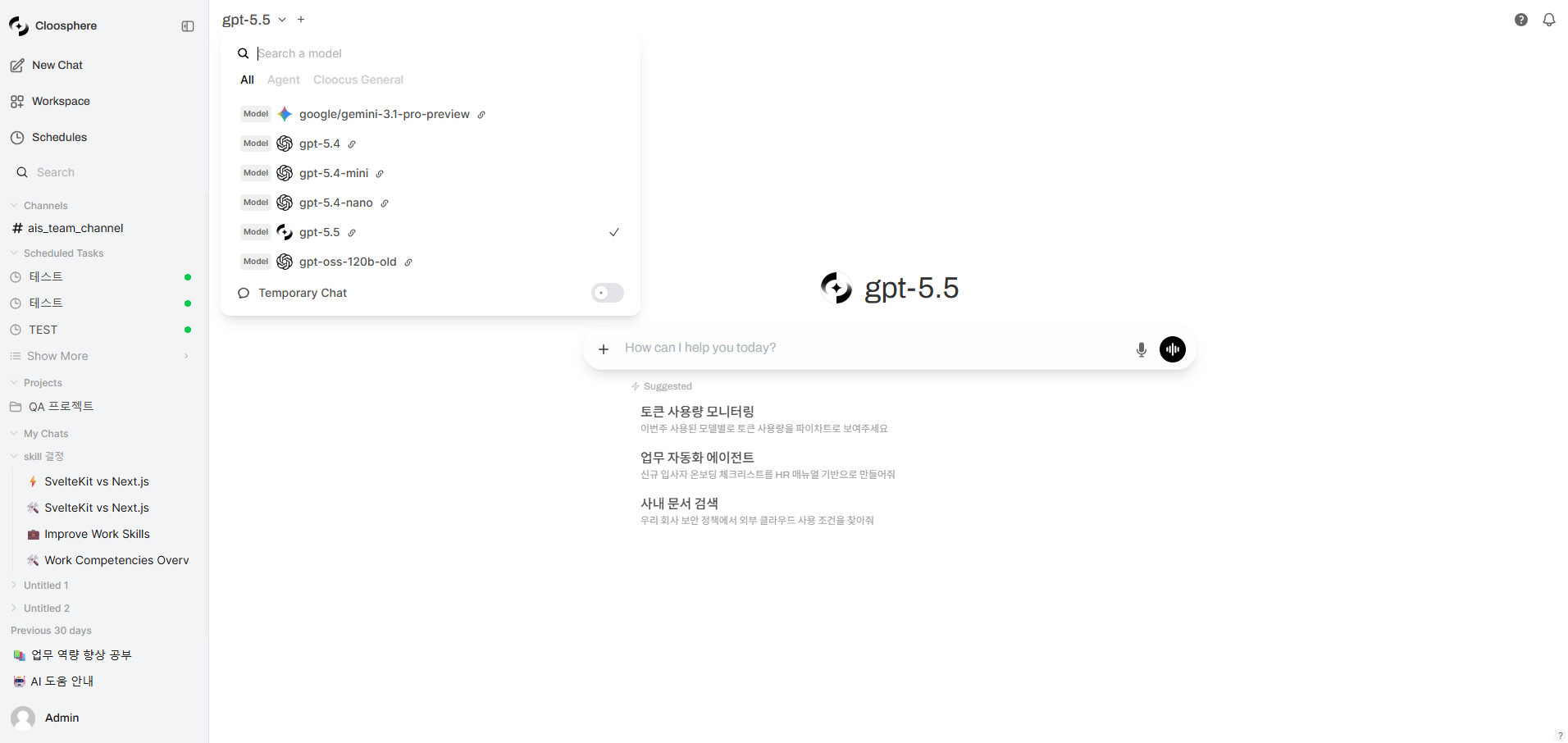 Click the model selection area at the top of the chat.
Pick a model from the list, or type a name in the search box to filter.
Click **"Set as default"** below the model selector to use this model as the default for new chats.
Type `@modelname` in the input box to ask a specific model directly, regardless of the currently selected model.
## Default Model
When you set a frequently used model as default, it's selected automatically every time you start a new chat.
Choose the model you want as default in the dropdown.
Click **"Set as default"** below the model selector. A "Default model updated" notification appears.
The default model is per-user. If multiple models are selected when you save the default, the multi-model selection is saved as default.
## Multi-model Conversations
Get answers from multiple models for the same question. Including the first one, you can select up to **4 models** simultaneously.
Click the model selection area at the top of the chat.
Pick a model from the list, or type a name in the search box to filter.
Click **"Set as default"** below the model selector to use this model as the default for new chats.
Type `@modelname` in the input box to ask a specific model directly, regardless of the currently selected model.
## Default Model
When you set a frequently used model as default, it's selected automatically every time you start a new chat.
Choose the model you want as default in the dropdown.
Click **"Set as default"** below the model selector. A "Default model updated" notification appears.
The default model is per-user. If multiple models are selected when you save the default, the multi-model selection is saved as default.
## Multi-model Conversations
Get answers from multiple models for the same question. Including the first one, you can select up to **4 models** simultaneously.
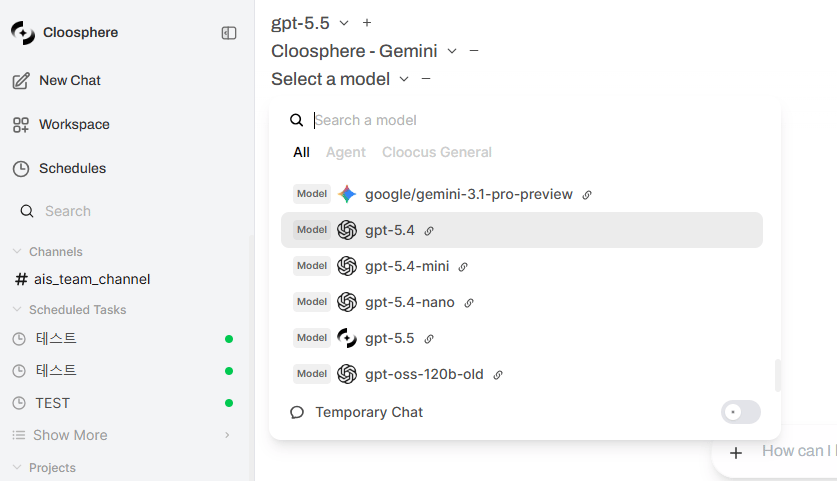 Click the **"+"** button to the right of the first model selector.
Choose models to compare from the new dropdown. Up to 4 total (including the first).
When you send the message, all selected models generate responses simultaneously.
Compare the responses, and use **Merge Responses** to combine the best answers if needed.
Click the **"+"** button to the right of the first model selector.
Choose models to compare from the new dropdown. Up to 4 total (including the first).
When you send the message, all selected models generate responses simultaneously.
Compare the responses, and use **Merge Responses** to combine the best answers if needed.
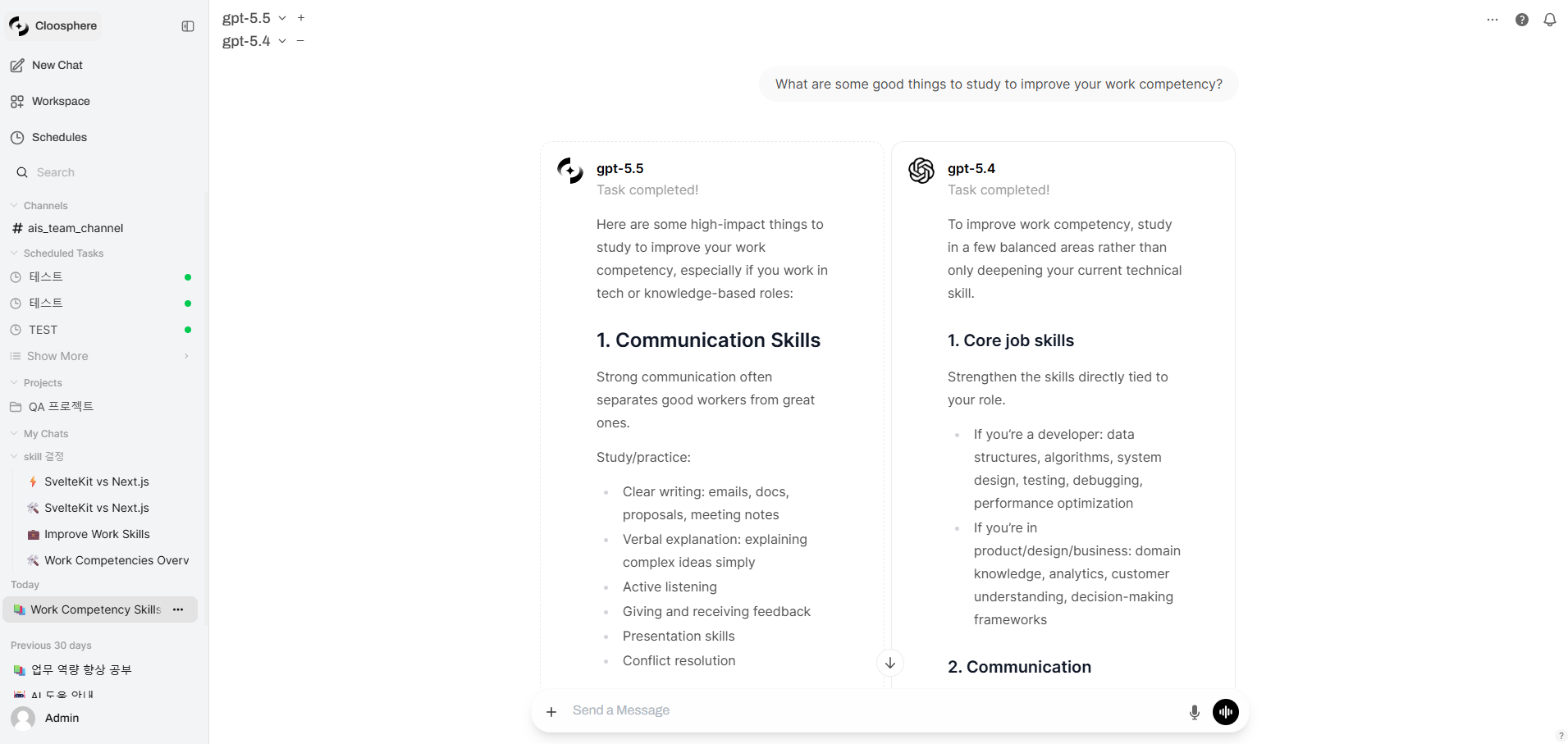 * **Quality comparison**: Compare model performance with the same question
* **Cross-validation**: Get multiple opinions before important decisions
* **Best-answer selection**: Combine each model's strengths into the best answer
* **Cost vs. performance**: Compare results from low-cost and high-performance models
The multi-model feature can be restricted for regular users by admin settings. If you don't have permission, the "+" button isn't shown.
## Tuning Model Parameters
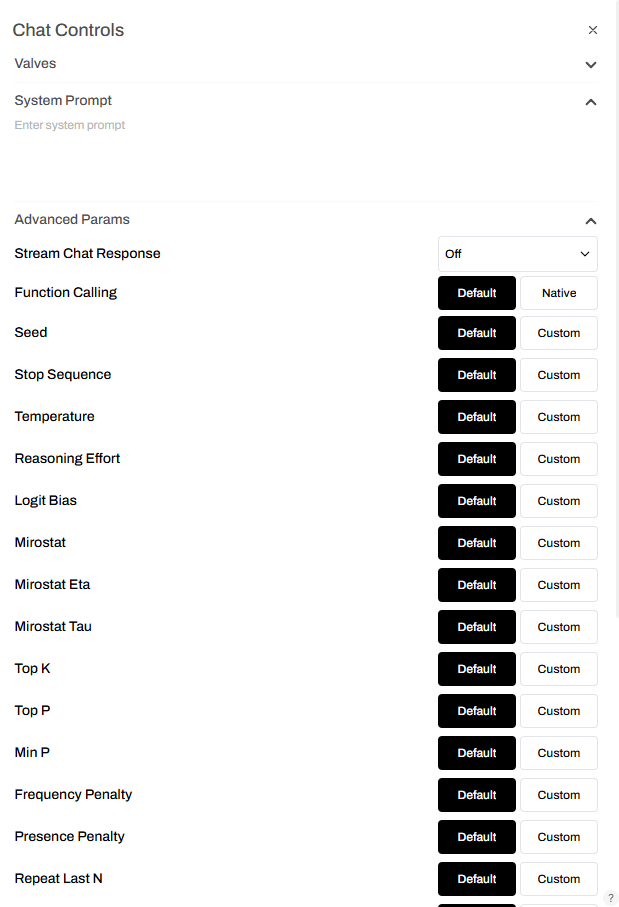
The **Chat Controls** panel lets you tune model parameters per conversation.
### Opening the Panel
| Environment | Path |
| ----------- | -------------------------------------------------------------------------------------- |
| **Desktop** | Top-right **More (⋯) menu** in the chat → select `Overview` or `Artifacts` |
| **Mobile** | Tap the **slider icon** on the right of the header, or open the More menu → `Controls` |
The desktop More (⋯) menu only appears **after sending the first message**.
In a fresh chat, send a prompt once to start the conversation, then tune parameters.
(Adjusted values apply to subsequent messages.)
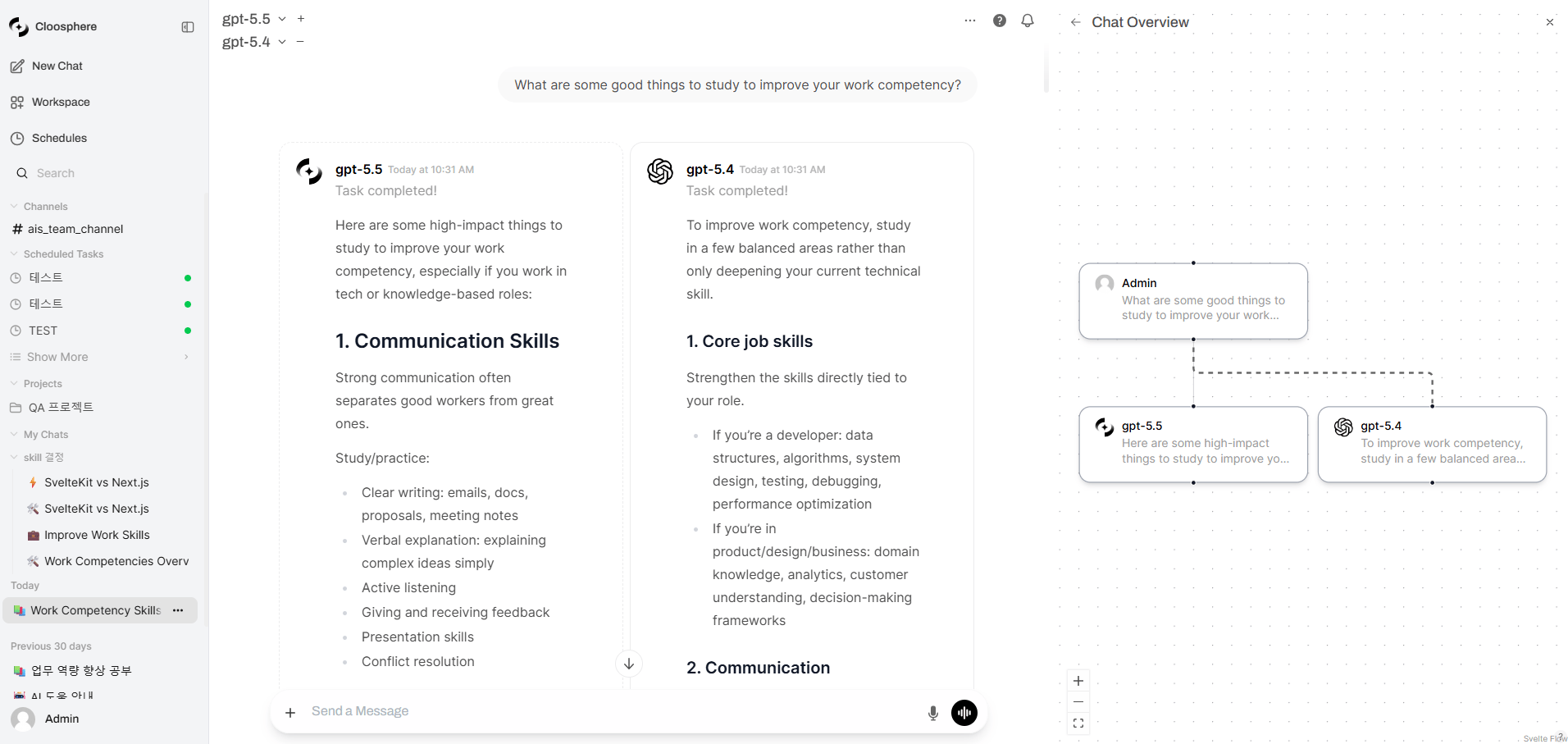
Opening the panel with **Overview** first shows the conversation flow diagram. Click the **← (back)** arrow at the top left of the panel to switch to the **Chat Controls** view, where you can adjust the system prompt and advanced parameters.
* **Quality comparison**: Compare model performance with the same question
* **Cross-validation**: Get multiple opinions before important decisions
* **Best-answer selection**: Combine each model's strengths into the best answer
* **Cost vs. performance**: Compare results from low-cost and high-performance models
The multi-model feature can be restricted for regular users by admin settings. If you don't have permission, the "+" button isn't shown.
## Tuning Model Parameters
The **Chat Controls** panel lets you tune model parameters per conversation.
### Opening the Panel
| Environment | Path |
| ----------- | -------------------------------------------------------------------------------------- |
| **Desktop** | Top-right **More (⋯) menu** in the chat → select `Overview` or `Artifacts` |
| **Mobile** | Tap the **slider icon** on the right of the header, or open the More menu → `Controls` |
The desktop More (⋯) menu only appears **after sending the first message**.
In a fresh chat, send a prompt once to start the conversation, then tune parameters.
(Adjusted values apply to subsequent messages.)
Opening the panel with **Overview** first shows the conversation flow diagram. Click the **← (back)** arrow at the top left of the panel to switch to the **Chat Controls** view, where you can adjust the system prompt and advanced parameters.
 ### System Prompt
Set a system prompt that applies to the entire conversation.
```
Example: "You are a Python expert. All code must include type hints
and follow PEP 8 style."
```
### Key Parameters
Setting a fixed seed produces (nearly) identical responses for the same prompt.
Useful when you need reproducible results.
When the specified string appears, the model stops generating.
Use it to control specific output formats.
Controls response creativity (randomness).
| Value | Behavior | Use Case |
| -------------- | --------------------------------- | ------------------------------------------------ |
| **0.0 \~ 0.3** | Deterministic, consistent answers | Code generation, fact-checking, data extraction |
| **0.4 \~ 0.7** | Balanced answers | General chat, summarization, translation |
| **0.8 \~ 2.0** | Creative, varied answers | Brainstorming, creative writing, idea generation |
Range: `0.0` \~ `2.0` (UI slider initial value: 0.8 — the value shown when switching to custom; this may differ from the model's actual default)
Applies only to reasoning models. Controls how much effort goes into reasoning.
* Use values like `low`, `medium`, `high`.
* Not supported by all models.
Limits the probability range the model considers when picking the next token.
* **0.1**: Considers only the top 10% probability tokens — very focused
* **0.9**: Considers the top 90% — diverse expression
* Generally used together with Temperature; we recommend tuning only one at a time.
Discourages reuse of tokens that already appeared. Higher values reduce repetition.
Range: `-2.0` \~ `2.0` (default: 0)
Limits the maximum length of the AI response in tokens. If unset, the model's default max applies.
Setting it too low can cause responses to be cut off mid-stream.
### Other Advanced Parameters
| Parameter | Description |
| ------------------------------------------------- | ------------------------------------------------------------------------------------------------- |
| **Stream Chat Response** | Real-time streaming response on/off |
| **Function Calling** | Tool calling mode (Default / Native) |
| **Logit Bias** | Direct adjustment of the appearance probability of specific tokens (-100 \~ 100) |
| **Mirostat** | Algorithm that auto-regulates response perplexity |
| **Mirostat Eta** | Learning rate of the Mirostat algorithm — controls how quickly feedback is applied |
| **Mirostat Tau** | Mirostat's target perplexity — balances output coherence and diversity |
| **Top K** | Considers only the top K tokens for sampling |
| **Min P** | Considers only tokens with at least the minimum probability |
| **Presence Penalty** | Applies a flat penalty to already-seen tokens to encourage new topics (range: `-2.0` \~ `2.0`) |
| **Repeat Last N** | Number of recent tokens checked for repetition |
| **Tfs Z** | Tail-Free Sampling strength — removes low-probability (tail) candidate tokens (`1.0` disables it) |
| **Tokens To Keep On Context Refresh (num\_keep)** | Number of tokens to retain when the context window is refreshed |
| **Repeat Penalty (Ollama)** | Penalty on repeated tokens (Ollama-only, range: `0.0` \~ `2.0`) |
| **Context Length (Ollama)** | Length of the context the model references (in tokens) |
| **Batch Size (num\_batch)** | Number of tokens processed in a single batch |
| **use\_mmap (Ollama)** | Whether to load the model file via memory mapping (mmap) |
| **use\_mlock (Ollama)** | Locks the model in memory (mlock) to prevent swapping |
| **num\_thread (Ollama)** | Number of CPU threads used for inference |
| **num\_gpu (Ollama)** | Number of layers to offload to the GPU |
The Chat Controls panel itself is visible to all users, but the **System Prompt** and **Advanced Params** sections are only shown to admins or users with the chat-controls permission (`permissions.chat.controls`).
## Model Capability Display
Agent models manage each capability (web search, image generation, code execution) individually.
| State | Description |
| -------- | -------------------------------------- |
| **on** | Enabled by default |
| **user** | User can enable manually (default off) |
| **off** | Disabled (not shown in the input menu) |
For base models (those without `base_model_id`), all capabilities enabled by the admin in system settings are shown.
### System Prompt
Set a system prompt that applies to the entire conversation.
```
Example: "You are a Python expert. All code must include type hints
and follow PEP 8 style."
```
### Key Parameters
Setting a fixed seed produces (nearly) identical responses for the same prompt.
Useful when you need reproducible results.
When the specified string appears, the model stops generating.
Use it to control specific output formats.
Controls response creativity (randomness).
| Value | Behavior | Use Case |
| -------------- | --------------------------------- | ------------------------------------------------ |
| **0.0 \~ 0.3** | Deterministic, consistent answers | Code generation, fact-checking, data extraction |
| **0.4 \~ 0.7** | Balanced answers | General chat, summarization, translation |
| **0.8 \~ 2.0** | Creative, varied answers | Brainstorming, creative writing, idea generation |
Range: `0.0` \~ `2.0` (UI slider initial value: 0.8 — the value shown when switching to custom; this may differ from the model's actual default)
Applies only to reasoning models. Controls how much effort goes into reasoning.
* Use values like `low`, `medium`, `high`.
* Not supported by all models.
Limits the probability range the model considers when picking the next token.
* **0.1**: Considers only the top 10% probability tokens — very focused
* **0.9**: Considers the top 90% — diverse expression
* Generally used together with Temperature; we recommend tuning only one at a time.
Discourages reuse of tokens that already appeared. Higher values reduce repetition.
Range: `-2.0` \~ `2.0` (default: 0)
Limits the maximum length of the AI response in tokens. If unset, the model's default max applies.
Setting it too low can cause responses to be cut off mid-stream.
### Other Advanced Parameters
| Parameter | Description |
| ------------------------------------------------- | ------------------------------------------------------------------------------------------------- |
| **Stream Chat Response** | Real-time streaming response on/off |
| **Function Calling** | Tool calling mode (Default / Native) |
| **Logit Bias** | Direct adjustment of the appearance probability of specific tokens (-100 \~ 100) |
| **Mirostat** | Algorithm that auto-regulates response perplexity |
| **Mirostat Eta** | Learning rate of the Mirostat algorithm — controls how quickly feedback is applied |
| **Mirostat Tau** | Mirostat's target perplexity — balances output coherence and diversity |
| **Top K** | Considers only the top K tokens for sampling |
| **Min P** | Considers only tokens with at least the minimum probability |
| **Presence Penalty** | Applies a flat penalty to already-seen tokens to encourage new topics (range: `-2.0` \~ `2.0`) |
| **Repeat Last N** | Number of recent tokens checked for repetition |
| **Tfs Z** | Tail-Free Sampling strength — removes low-probability (tail) candidate tokens (`1.0` disables it) |
| **Tokens To Keep On Context Refresh (num\_keep)** | Number of tokens to retain when the context window is refreshed |
| **Repeat Penalty (Ollama)** | Penalty on repeated tokens (Ollama-only, range: `0.0` \~ `2.0`) |
| **Context Length (Ollama)** | Length of the context the model references (in tokens) |
| **Batch Size (num\_batch)** | Number of tokens processed in a single batch |
| **use\_mmap (Ollama)** | Whether to load the model file via memory mapping (mmap) |
| **use\_mlock (Ollama)** | Locks the model in memory (mlock) to prevent swapping |
| **num\_thread (Ollama)** | Number of CPU threads used for inference |
| **num\_gpu (Ollama)** | Number of layers to offload to the GPU |
The Chat Controls panel itself is visible to all users, but the **System Prompt** and **Advanced Params** sections are only shown to admins or users with the chat-controls permission (`permissions.chat.controls`).
## Model Capability Display
Agent models manage each capability (web search, image generation, code execution) individually.
| State | Description |
| -------- | -------------------------------------- |
| **on** | Enabled by default |
| **user** | User can enable manually (default off) |
| **off** | Disabled (not shown in the input menu) |
For base models (those without `base_model_id`), all capabilities enabled by the admin in system settings are shown.