> ## Documentation Index
> Fetch the complete documentation index at: https://docs.cloosphere.ai/llms.txt
> Use this file to discover all available pages before exploring further.
# Chat Overview
> Complete guide to Cloosphere Chat — conversations, file analysis, code execution, and web search
Cloosphere Chat goes beyond simple conversation: it's a **comprehensive AI workspace** supporting file analysis, code execution, web search, and voice conversations.
 ## Chat Flow
When you send a message, it's processed through this flow.
```mermaid theme={null}
flowchart LR
subgraph Input
A[Text / File / Voice] --> B[Send message]
end
subgraph "AI Processing"
B --> C{Web search?}
C -->|Yes| D[Run web search]
C -->|No| E{Knowledge base?}
D --> E
E -->|Yes| F[Document RAG retrieval]
E -->|No| G[LLM response generation]
F --> G
end
subgraph Output
G --> H[Display response]
H --> I[Citations]
H --> J[Code execution]
H --> K[TTS playback]
end
```
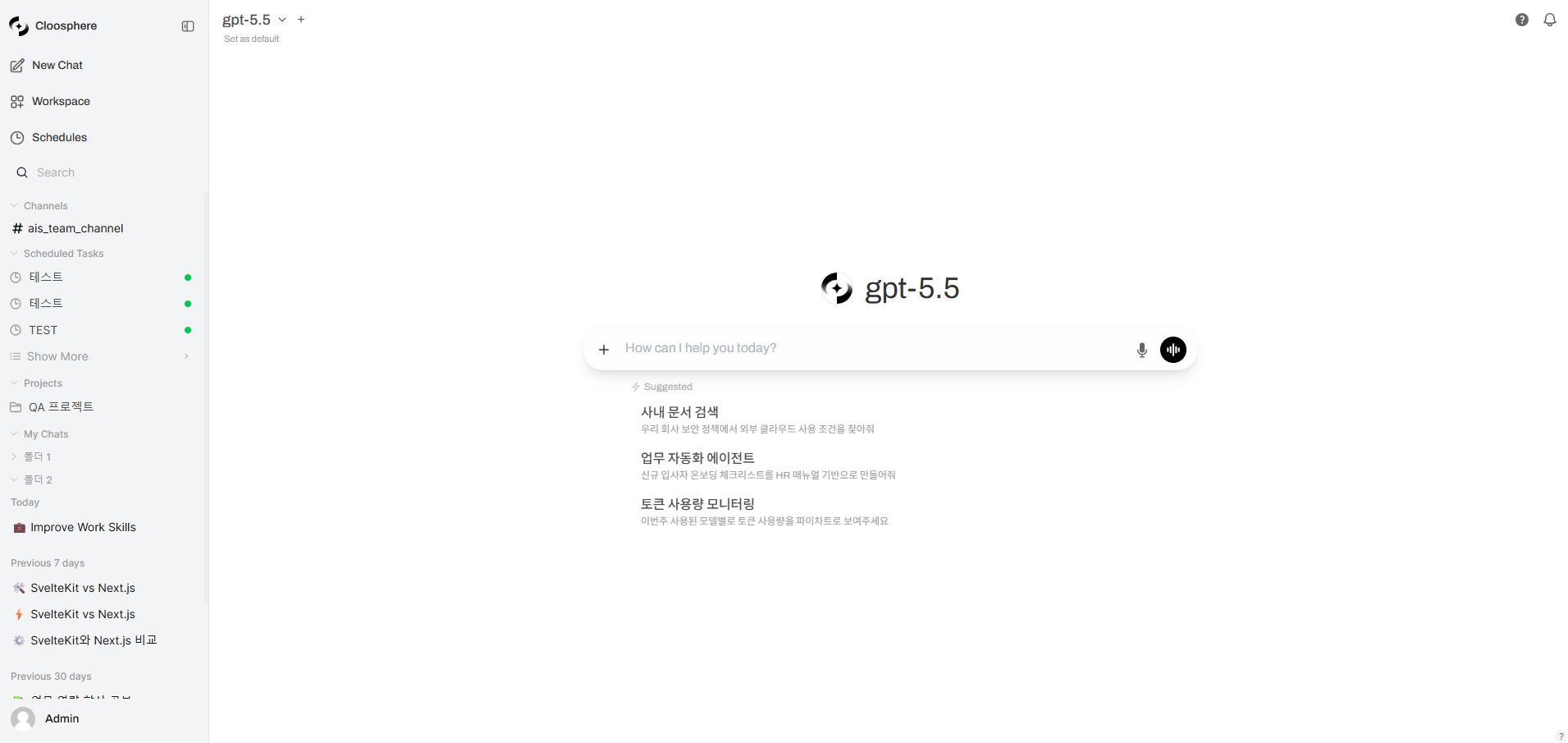
## Chat Screen Layout
| Area | Description |
| ----------------- | ----------------------------------------------------------------------------------- |
| **Sidebar** | Chat list, search, tag filter, folders, projects, Workspace access |
| **Chat Header** | Model selection, multi-model add, chat menu (Share, Overview, Download, Copy, Tags) |
| **Message Area** | Conversation display, response branch navigation, response toolbar |
| **Input Area** | Text input, file attachment, voice input, extended features |
| **Chat Controls** | System prompt, model parameters, conversation flow visualization |
The chat header appears in the top-right corner after you send your first message. It stays hidden until you enter a message in a new chat.
## Key Features
Manage chat history — create, search, organize into folders, archive, export
Choose models, compare multiple models, adjust parameters like Temperature
Enable and use web search, image generation, code execution
File attachment, knowledge base integration, citation review
Share links, tags, archives, folder management
## Command System
Use special-prefix commands in the input box to invoke features quickly.
| Command | Function | Example |
| ------------- | ----------------------------------- | -------------------------------------------------- |
| `@modelname` | Ask a specific model directly | `@gpt-4o review this code` |
| `/promptname` | Invoke a saved prompt template | `/email-draft project delay notice` |
| `#kbname` | Reference a specific Knowledge Base | `#hr-policy What's the leave application process?` |
Typing `@`, `/`, or `#` opens an autocomplete dropdown for selection.
## Keyboard Shortcuts
| Shortcut | Action |
| ----------------------- | -------------------- |
| `Enter` | Send message |
| `Shift + Enter` | Line break |
| `Shift + Esc` | Focus chat input |
| `Ctrl + Shift + O` | Open new chat |
| `Ctrl + Shift + S` | Toggle sidebar |
| `Ctrl + Shift + C` | Copy last response |
| `Ctrl + Shift + ;` | Copy last code block |
| `Ctrl + Shift + Enter` | Generate prompt pair |
| `Ctrl + Shift + Delete` | Delete chat |
| `Ctrl + .` | Toggle settings |
| `Ctrl + /` | Show shortcuts |
## AI Response Toolbar
A set of action buttons sits below each AI response.
## Chat Flow
When you send a message, it's processed through this flow.
```mermaid theme={null}
flowchart LR
subgraph Input
A[Text / File / Voice] --> B[Send message]
end
subgraph "AI Processing"
B --> C{Web search?}
C -->|Yes| D[Run web search]
C -->|No| E{Knowledge base?}
D --> E
E -->|Yes| F[Document RAG retrieval]
E -->|No| G[LLM response generation]
F --> G
end
subgraph Output
G --> H[Display response]
H --> I[Citations]
H --> J[Code execution]
H --> K[TTS playback]
end
```
## Chat Screen Layout
| Area | Description |
| ----------------- | ----------------------------------------------------------------------------------- |
| **Sidebar** | Chat list, search, tag filter, folders, projects, Workspace access |
| **Chat Header** | Model selection, multi-model add, chat menu (Share, Overview, Download, Copy, Tags) |
| **Message Area** | Conversation display, response branch navigation, response toolbar |
| **Input Area** | Text input, file attachment, voice input, extended features |
| **Chat Controls** | System prompt, model parameters, conversation flow visualization |
The chat header appears in the top-right corner after you send your first message. It stays hidden until you enter a message in a new chat.
## Key Features
Manage chat history — create, search, organize into folders, archive, export
Choose models, compare multiple models, adjust parameters like Temperature
Enable and use web search, image generation, code execution
File attachment, knowledge base integration, citation review
Share links, tags, archives, folder management
## Command System
Use special-prefix commands in the input box to invoke features quickly.
| Command | Function | Example |
| ------------- | ----------------------------------- | -------------------------------------------------- |
| `@modelname` | Ask a specific model directly | `@gpt-4o review this code` |
| `/promptname` | Invoke a saved prompt template | `/email-draft project delay notice` |
| `#kbname` | Reference a specific Knowledge Base | `#hr-policy What's the leave application process?` |
Typing `@`, `/`, or `#` opens an autocomplete dropdown for selection.
## Keyboard Shortcuts
| Shortcut | Action |
| ----------------------- | -------------------- |
| `Enter` | Send message |
| `Shift + Enter` | Line break |
| `Shift + Esc` | Focus chat input |
| `Ctrl + Shift + O` | Open new chat |
| `Ctrl + Shift + S` | Toggle sidebar |
| `Ctrl + Shift + C` | Copy last response |
| `Ctrl + Shift + ;` | Copy last code block |
| `Ctrl + Shift + Enter` | Generate prompt pair |
| `Ctrl + Shift + Delete` | Delete chat |
| `Ctrl + .` | Toggle settings |
| `Ctrl + /` | Show shortcuts |
## AI Response Toolbar
A set of action buttons sits below each AI response.
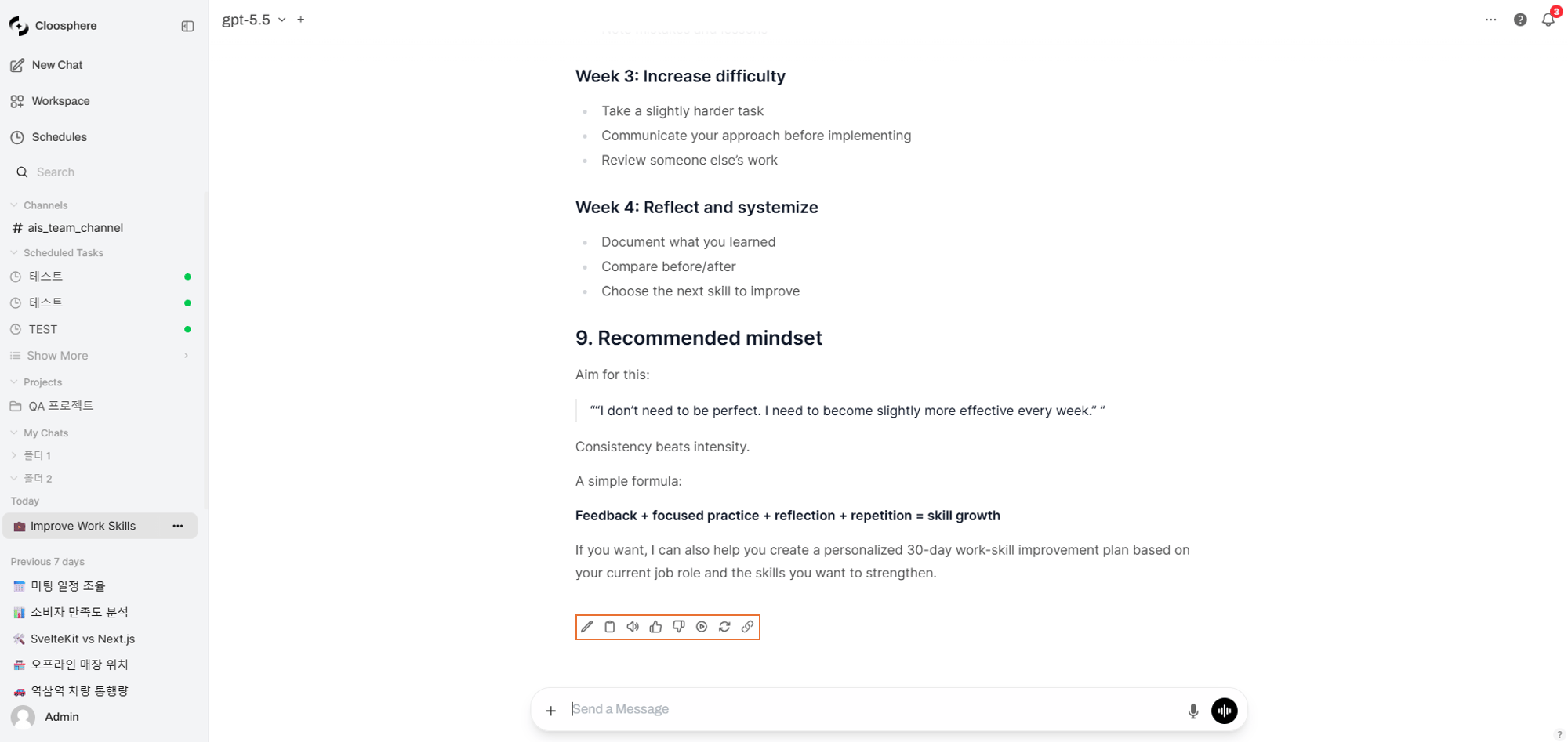 | Button | Action |
| --------------------- | ---------------------------------------------------------- |
| **Edit** | Edit the AI response content directly |
| **Copy** | Copy the full response to the clipboard |
| **Read Aloud** | Read the response aloud with TTS |
| **Good Response** | Response quality feedback — thumbs up |
| **Bad Response** | Response quality feedback — thumbs down (optional comment) |
| **Continue Response** | Continue generating a truncated response |
| **Regenerate** | Request a new response for the same prompt |
| **View Trace** | View tokens used and processing time |
Editing a user message preserves the original and creates a new branch.
Use the left/right arrows to navigate between branches.
## Next Steps
* See [Conversations](/en/chat/conversations) for organizing chat history.
* Visit [Model Selection](/en/chat/models) to pick the right model and tune parameters.
* Use [Advanced Features](/en/chat/capabilities) for web search, image generation, and code execution.
| Button | Action |
| --------------------- | ---------------------------------------------------------- |
| **Edit** | Edit the AI response content directly |
| **Copy** | Copy the full response to the clipboard |
| **Read Aloud** | Read the response aloud with TTS |
| **Good Response** | Response quality feedback — thumbs up |
| **Bad Response** | Response quality feedback — thumbs down (optional comment) |
| **Continue Response** | Continue generating a truncated response |
| **Regenerate** | Request a new response for the same prompt |
| **View Trace** | View tokens used and processing time |
Editing a user message preserves the original and creates a new branch.
Use the left/right arrows to navigate between branches.
## Next Steps
* See [Conversations](/en/chat/conversations) for organizing chat history.
* Visit [Model Selection](/en/chat/models) to pick the right model and tune parameters.
* Use [Advanced Features](/en/chat/capabilities) for web search, image generation, and code execution.