> ## Documentation Index
> Fetch the complete documentation index at: https://docs.cloosphere.ai/llms.txt
> Use this file to discover all available pages before exploring further.
# Playground
> Admin-only experimentation environment for quick LLM testing — **Chat** and **Completions** modes
The Playground is an **admin-only** experimentation environment for quickly testing LLM models without saving conversation history.
Use for prompt engineering, model comparison, System Instruction validation, etc.
Access directly via `/playground` URL. There's no separate sidebar link.
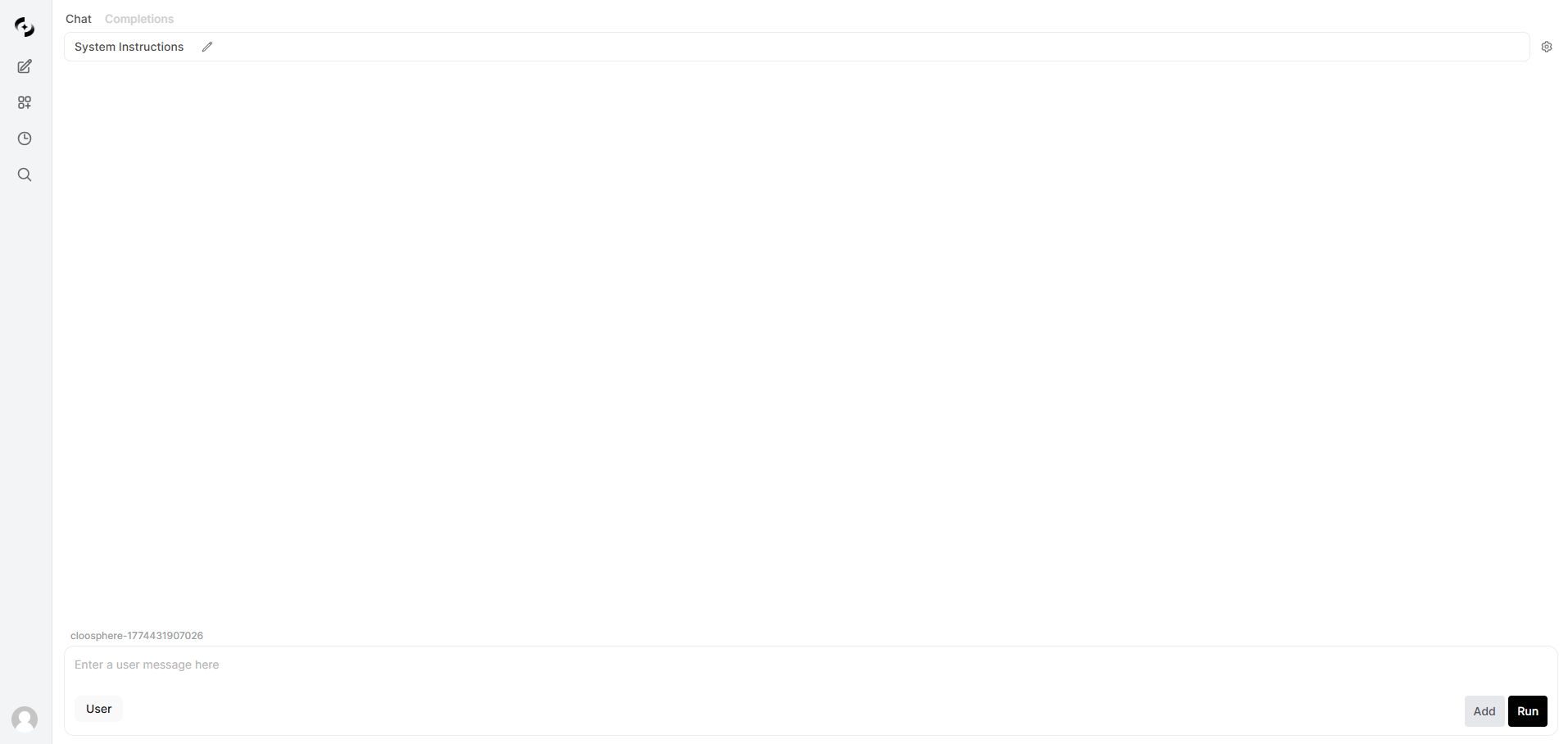 Only the admin role can access this. Regular users are redirected to home when accessing `/playground`.
All Playground conversations are **ephemeral**. Content disappears when you leave the page; not recorded in chat history or audit logs.
***
## Mode Switching
Top tabs offer two modes.
| Mode | Path | Use |
| --------------- | ------------------------- | -------------------------------------------------------------------------- |
| **Chat** | `/playground` | Multi-turn conversation testing (System Instruction + role-based messages) |
| **Completions** | `/playground/completions` | Single-text completion testing |
***
## Chat Mode
Compose multi-turn conversations to test model responses. Set System Instructions, switch message roles, and edit conversation history.
### Basic Usage
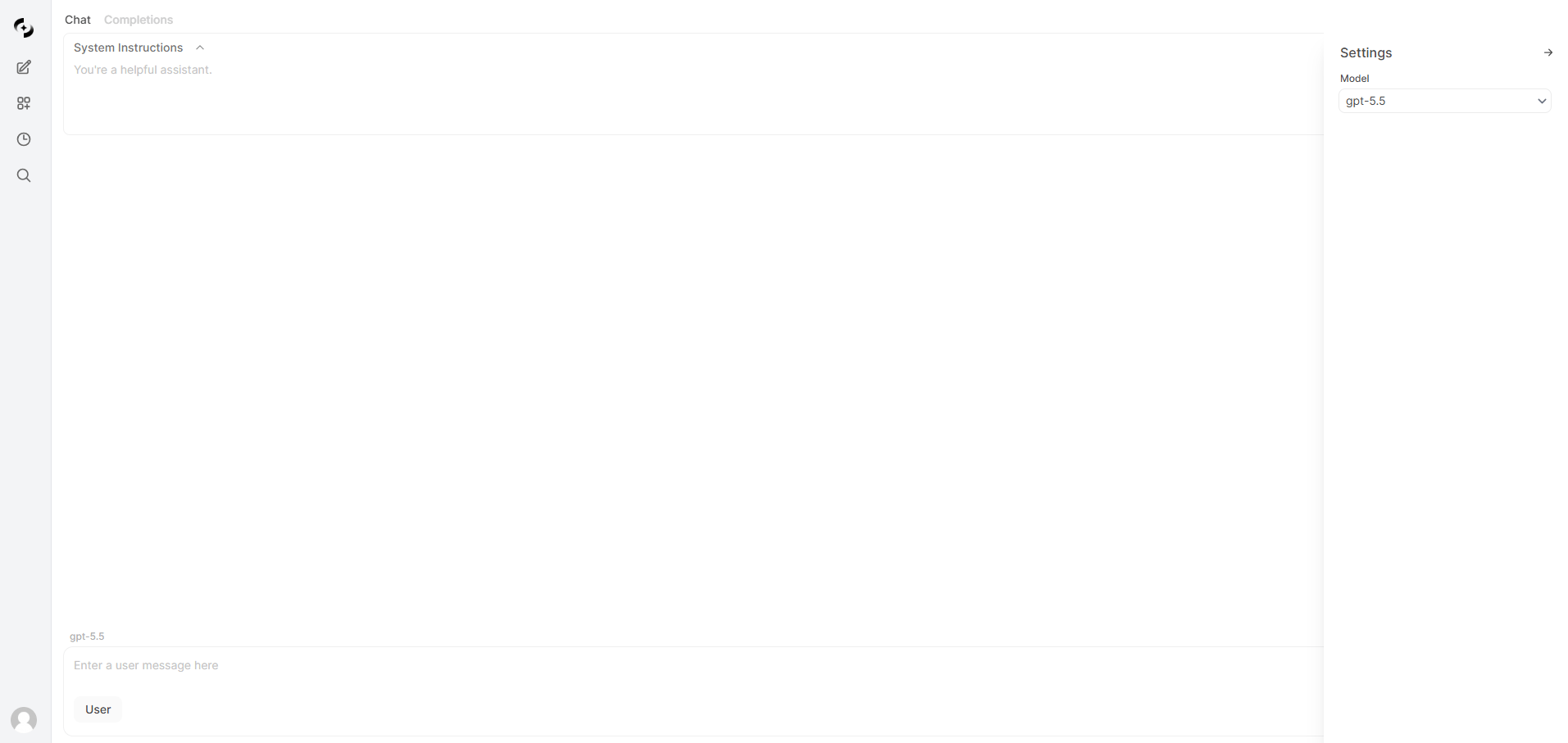
From the model selector dropdown in the right **Settings** sidebar (click the gear icon), pick a model to test. The user's default model is auto-selected. If no default is set, manual selection is needed.
Expand the **System Instructions** section at the top and enter a system prompt.
Specify the model's role, constraints, response style, etc.
Only the admin role can access this. Regular users are redirected to home when accessing `/playground`.
All Playground conversations are **ephemeral**. Content disappears when you leave the page; not recorded in chat history or audit logs.
***
## Mode Switching
Top tabs offer two modes.
| Mode | Path | Use |
| --------------- | ------------------------- | -------------------------------------------------------------------------- |
| **Chat** | `/playground` | Multi-turn conversation testing (System Instruction + role-based messages) |
| **Completions** | `/playground/completions` | Single-text completion testing |
***
## Chat Mode
Compose multi-turn conversations to test model responses. Set System Instructions, switch message roles, and edit conversation history.
### Basic Usage
From the model selector dropdown in the right **Settings** sidebar (click the gear icon), pick a model to test. The user's default model is auto-selected. If no default is set, manual selection is needed.
Expand the **System Instructions** section at the top and enter a system prompt.
Specify the model's role, constraints, response style, etc.
 Type a message in the bottom input and click **Run**.
The model generates a response with real-time streaming.
### Message Role Management
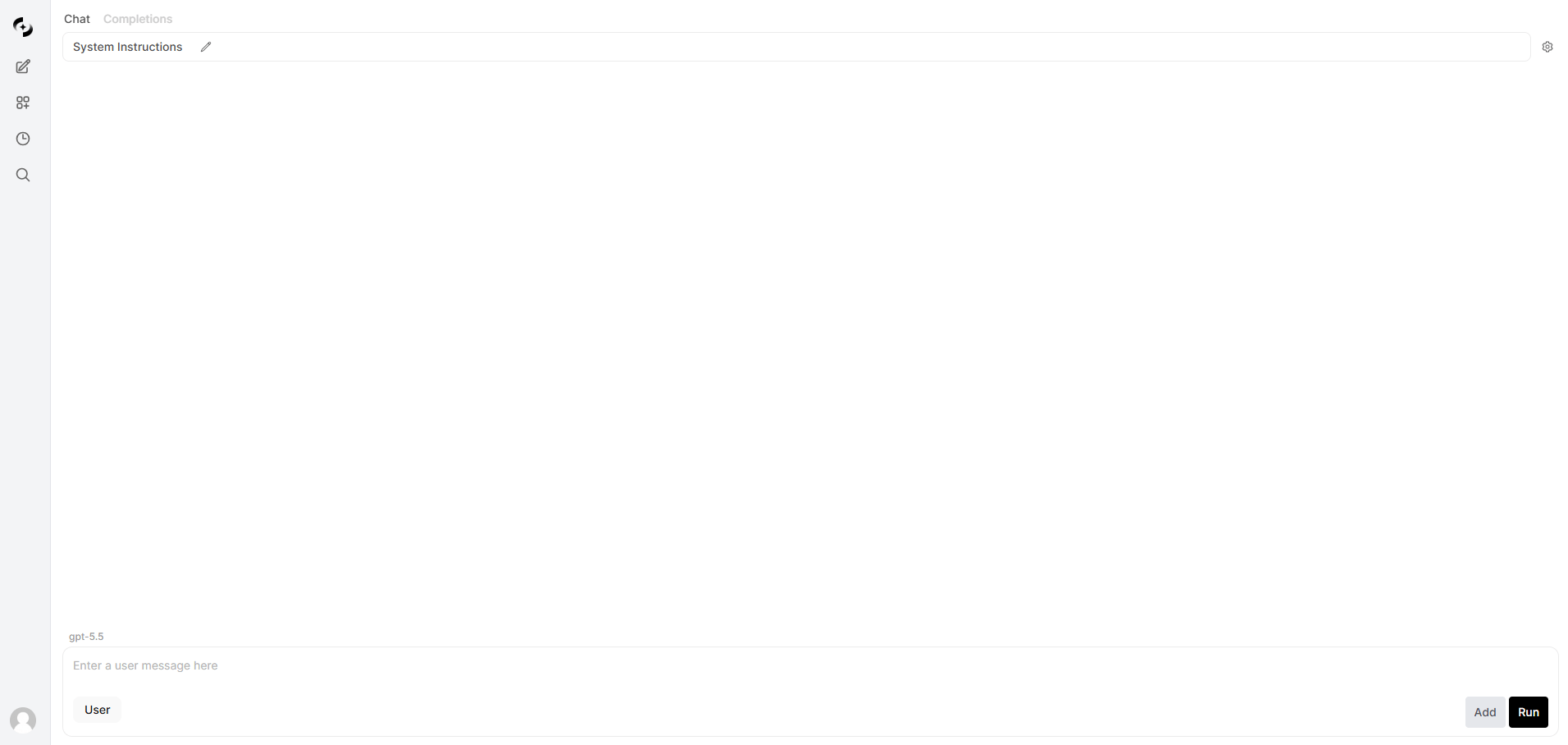
In Chat mode, you can freely structure each message's role (User/Assistant).
Type a message in the bottom input and click **Run**.
The model generates a response with real-time streaming.
### Message Role Management
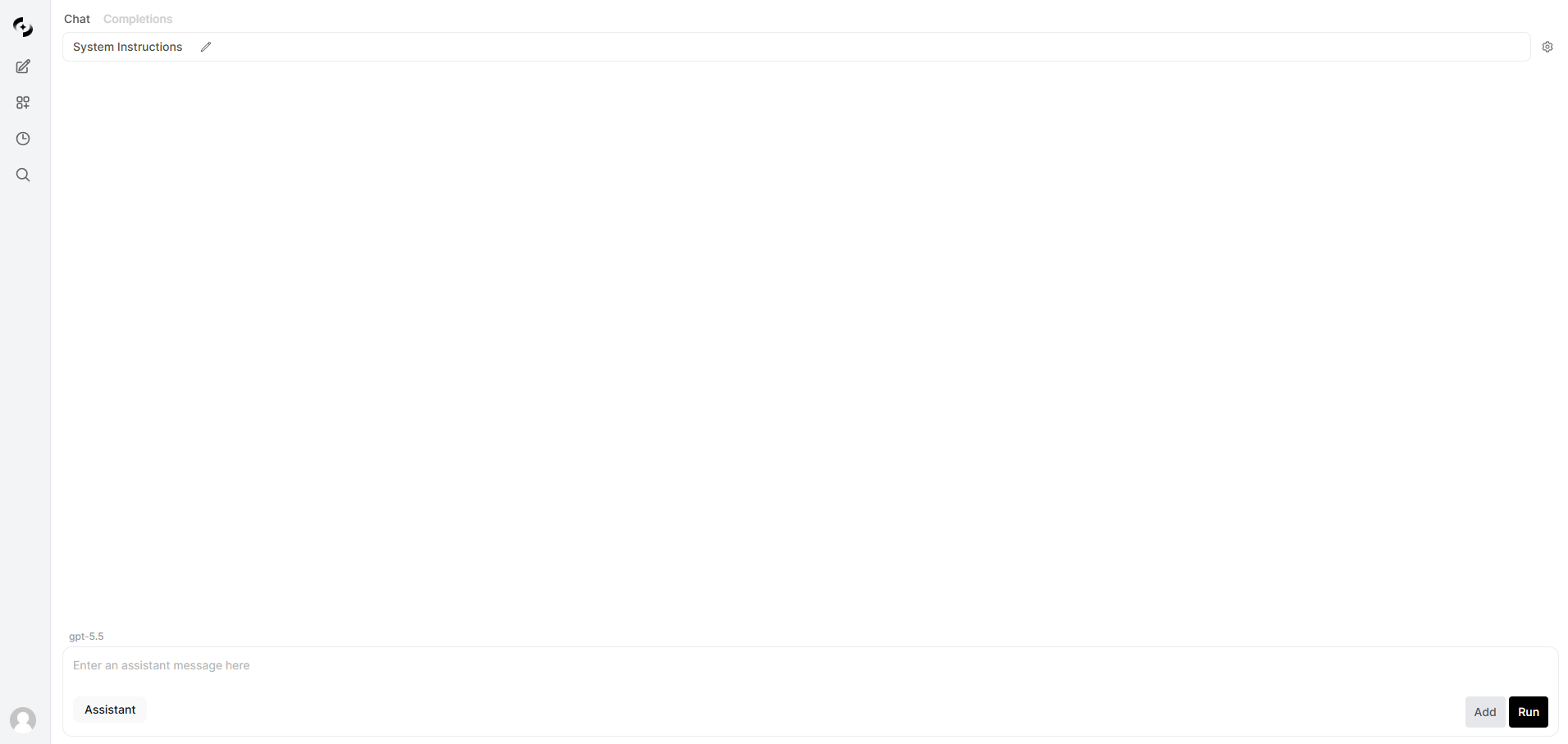
In Chat mode, you can freely structure each message's role (User/Assistant).
 | Feature | Description |
| ------------------ | ------------------------------------------------------------------------------------------------------ |
| **Role toggle** | Toggle User ↔ Assistant role with the button on the left of the input |
| **Add** | Add the message with the selected role to the current conversation without generating a model response |
| **Run** | Add the current message and generate a model response |
| **Edit message** | Click a message to edit its text directly |
| **Delete message** | Remove with the delete button (minus icon) on the right of the message |
Useful for **few-shot prompting** tests. Alternate User and Assistant messages to compose an example dialog, then **Run** on the final User message.
### System Instruction
* Collapsible header for efficient screen space
* Shows first-line preview when collapsed
* Edits apply from the next **Run** (no effect on previous responses)
```mermaid theme={null}
sequenceDiagram
participant U as User
participant P as Playground
participant API as Chat Completions API
U->>P: Enter System Instruction
U->>P: Add User message (Add)
U->>P: Add Assistant example (Add)
U->>P: Enter User question (Run)
P->>API: messages[system, user, assistant, user]
API-->>P: Streaming response
P-->>U: Live text display
```
***
## Completions Mode
Test the model's continuation of a single text input. Focus on pure text generation without conversation structure.
| Feature | Description |
| ------------------ | ------------------------------------------------------------------------------------------------------ |
| **Role toggle** | Toggle User ↔ Assistant role with the button on the left of the input |
| **Add** | Add the message with the selected role to the current conversation without generating a model response |
| **Run** | Add the current message and generate a model response |
| **Edit message** | Click a message to edit its text directly |
| **Delete message** | Remove with the delete button (minus icon) on the right of the message |
Useful for **few-shot prompting** tests. Alternate User and Assistant messages to compose an example dialog, then **Run** on the final User message.
### System Instruction
* Collapsible header for efficient screen space
* Shows first-line preview when collapsed
* Edits apply from the next **Run** (no effect on previous responses)
```mermaid theme={null}
sequenceDiagram
participant U as User
participant P as Playground
participant API as Chat Completions API
U->>P: Enter System Instruction
U->>P: Add User message (Add)
U->>P: Add Assistant example (Add)
U->>P: Enter User question (Run)
P->>API: messages[system, user, assistant, user]
API-->>P: Streaming response
P-->>U: Live text display
```
***
## Completions Mode
Test the model's continuation of a single text input. Focus on pure text generation without conversation structure.
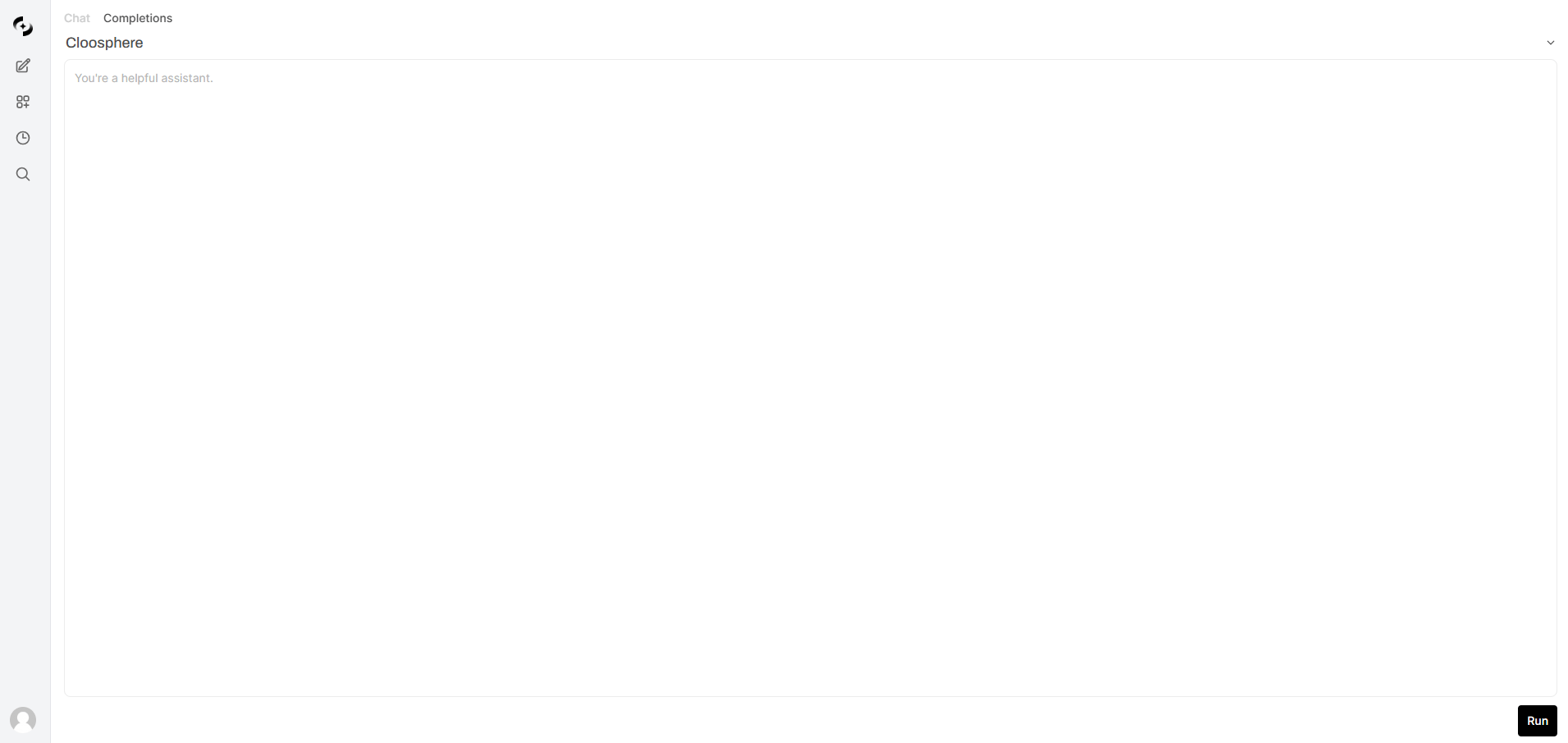 Click the model name at the top, then pick a model from the dropdown that opens.
Enter the starting text to complete in the text area.
Click **Run** — the model generates continuation text in real time.
Generated text appears appended to the input text.
Completions mode doesn't use **System Instructions**. The input text is passed to the model as-is.
***
## Common Features
### Streaming Response
Both modes support real-time streaming via Server-Sent Events (SSE).
* Response is displayed token by token in real time
* Click **Cancel** during generation to stop immediately
* Text area auto-expands to fit content
### Model Selection
* All models enabled in admin settings are available
* Auto-picks the user's default model
* Model name in the dropdown; model ID at the top of the input box
***
## Use Cases
Combine System Instruction and few-shot examples to iteratively test optimal prompts.
When satisfied, apply the prompt to an [Agent](/en/workspace/agents) or [Prompt](/en/workspace/prompts).
Sequentially test multiple models with the same prompt to compare response quality, speed, and cost.
Chat mode's easy model switching enables fast comparison.
Pre-test System Instructions before applying to agents.
Verify consistent responses across various user inputs.
In Completions mode, check text generation quality for document drafts, code snippets, translations, etc.
***
## Chat vs. Completions
| Item | Chat | Completions |
| ----------------------- | ----------------------------- | ---------------------------------- |
| System Instruction | ✓ | ✗ |
| Multi-turn conversation | ✓ | ✗ |
| Role specification | User / Assistant | None |
| Message edit/delete | ✓ | ✗ (edit full text) |
| Use | Conversational prompt testing | Text completion/generation testing |
Click the model name at the top, then pick a model from the dropdown that opens.
Enter the starting text to complete in the text area.
Click **Run** — the model generates continuation text in real time.
Generated text appears appended to the input text.
Completions mode doesn't use **System Instructions**. The input text is passed to the model as-is.
***
## Common Features
### Streaming Response
Both modes support real-time streaming via Server-Sent Events (SSE).
* Response is displayed token by token in real time
* Click **Cancel** during generation to stop immediately
* Text area auto-expands to fit content
### Model Selection
* All models enabled in admin settings are available
* Auto-picks the user's default model
* Model name in the dropdown; model ID at the top of the input box
***
## Use Cases
Combine System Instruction and few-shot examples to iteratively test optimal prompts.
When satisfied, apply the prompt to an [Agent](/en/workspace/agents) or [Prompt](/en/workspace/prompts).
Sequentially test multiple models with the same prompt to compare response quality, speed, and cost.
Chat mode's easy model switching enables fast comparison.
Pre-test System Instructions before applying to agents.
Verify consistent responses across various user inputs.
In Completions mode, check text generation quality for document drafts, code snippets, translations, etc.
***
## Chat vs. Completions
| Item | Chat | Completions |
| ----------------------- | ----------------------------- | ---------------------------------- |
| System Instruction | ✓ | ✗ |
| Multi-turn conversation | ✓ | ✗ |
| Role specification | User / Assistant | None |
| Message edit/delete | ✓ | ✗ (edit full text) |
| Use | Conversational prompt testing | Text completion/generation testing |