> ## Documentation Index
> Fetch the complete documentation index at: https://docs.cloosphere.ai/llms.txt
> Use this file to discover all available pages before exploring further.
# Sharing & Organization
> Manage conversations with chat share links, tags, archives, and folders
In Cloosphere, share conversations with colleagues and organize them with tags and folders.
## Sharing Chats
### Create a Share Link
Generate a share link so other users can view the conversation.
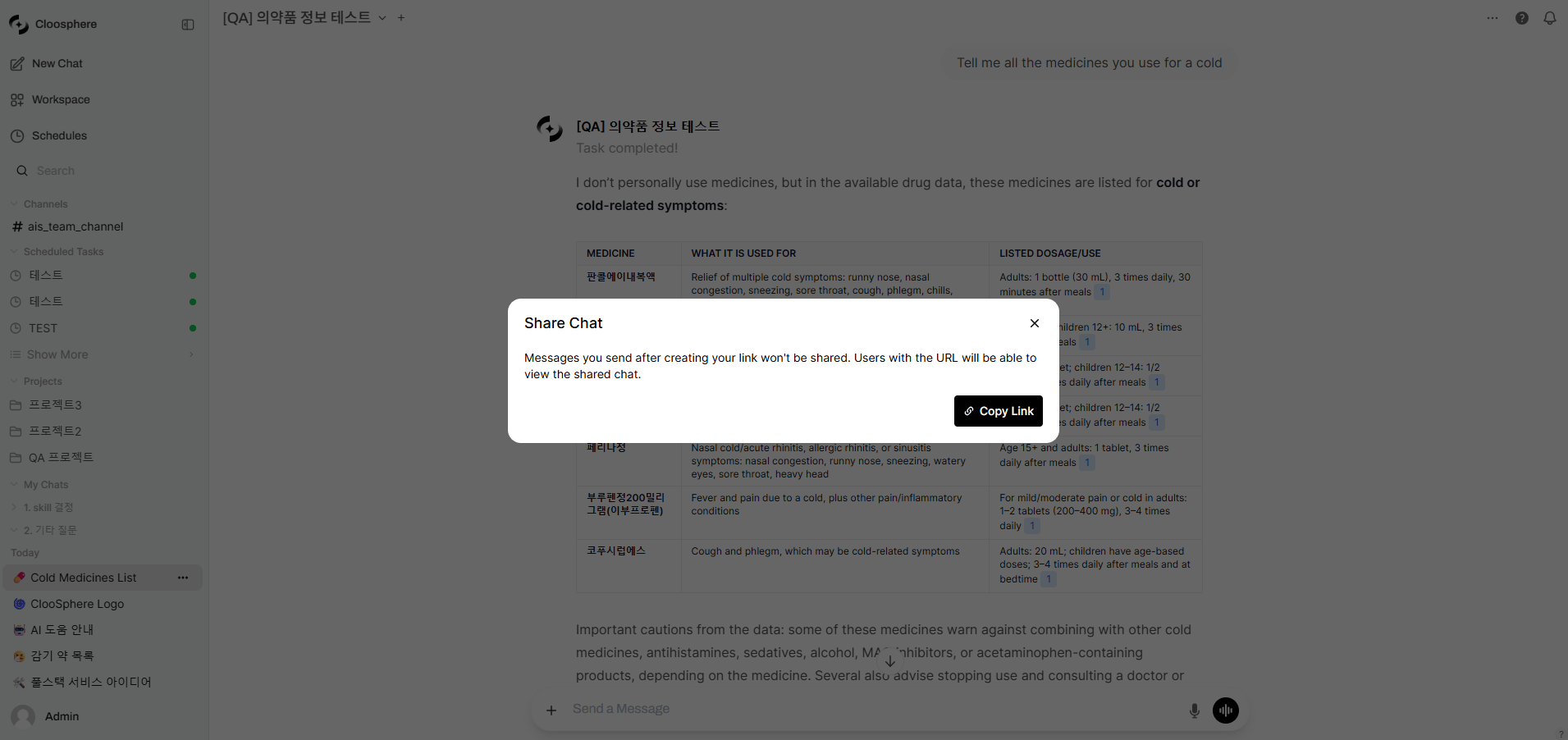 Click **Share** in the chat item's more menu, or click the more menu (⋮) > **Share** at the top of the chat screen.
Click **Copy Link** — a share link is generated and copied to the clipboard.
Share URL format: `https://{domain}/s/{share_id}`
Send the copied link to a colleague. Through the link, they can view the conversation read-only.
In the shared chat screen, click **Clone Chat** to copy the conversation into your own chat and continue.
### Managing Share Links
Re-opening the Share modal for a previously shared chat shows the existing share notice.
* **View the existing link**: In the "You have shared this chat **before**." message, click the **"before"** link to open the shared page (what recipients see).
* **Delete the link**: Click **"delete this link"** to remove the existing share link. If you need a new link, click **Copy Link** again.
* **Update and Copy Link**: Use the **Update and Copy Link** button to reflect the latest content.
Messages added **after** generating the share link are not included in the share.
To reflect the latest content, click **Update and Copy Link** again.
Only users signed in to the same Cloosphere can view the conversation via the share link. External users who are not signed in cannot access it.
Review content before sharing if it contains sensitive information.
## Tag Management
Use tags to classify conversations by category.
Click **Share** in the chat item's more menu, or click the more menu (⋮) > **Share** at the top of the chat screen.
Click **Copy Link** — a share link is generated and copied to the clipboard.
Share URL format: `https://{domain}/s/{share_id}`
Send the copied link to a colleague. Through the link, they can view the conversation read-only.
In the shared chat screen, click **Clone Chat** to copy the conversation into your own chat and continue.
### Managing Share Links
Re-opening the Share modal for a previously shared chat shows the existing share notice.
* **View the existing link**: In the "You have shared this chat **before**." message, click the **"before"** link to open the shared page (what recipients see).
* **Delete the link**: Click **"delete this link"** to remove the existing share link. If you need a new link, click **Copy Link** again.
* **Update and Copy Link**: Use the **Update and Copy Link** button to reflect the latest content.
Messages added **after** generating the share link are not included in the share.
To reflect the latest content, click **Update and Copy Link** again.
Only users signed in to the same Cloosphere can view the conversation via the share link. External users who are not signed in cannot access it.
Review content before sharing if it contains sensitive information.
## Tag Management
Use tags to classify conversations by category.
 ### Add Tags
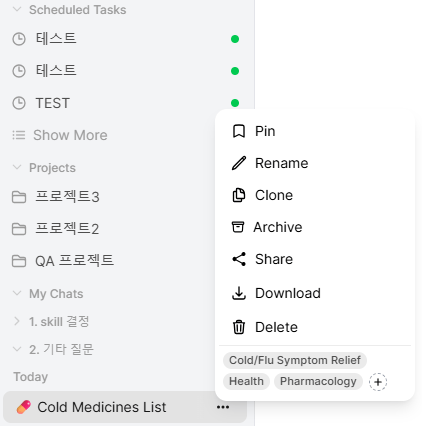
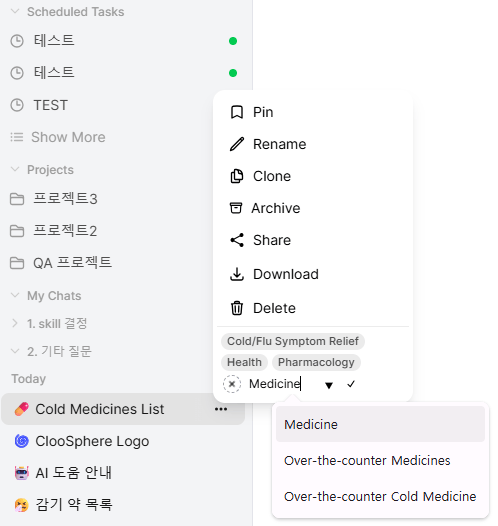
The tag input area is at the bottom of the chat item's more menu.
Type a tag name and press Enter. You can also pick from the existing tag list.
### Remove Tags
Click the **X** button next to a tag to remove it individually.
### Tag-based Filtering
Click a tag in the sidebar to filter and display only conversations with that tag.
Classifying tags by work type makes conversation management efficient.
| Tag | Use |
| --------------- | ------------------------------------ |
| `data-analysis` | Data analysis conversations |
| `report` | Report writing conversations |
| `coding` | Programming conversations |
| `email` | Email writing conversations |
| `research` | Research/investigation conversations |
| `meeting` | Meeting prep/notes conversations |
## Pinning
Pin important conversations to the top of the sidebar for quick access.
Click **Pin** in the chat item's more menu.
Click **Unpin** in the pinned chat's menu.
Pinned conversations appear in a dedicated section at the top of the sidebar, always accessible regardless of the time-ordered list.
## Archiving
Archive conversations no longer in active use but worth keeping.
### Archive Individually
Click **Archive** in the chat item's more menu.
The conversation disappears from the sidebar list but is not deleted.
See all archived conversations in Settings > Chats > **Archived Chats**.
Quick access via **Archived Chats** in the user menu at the bottom of the sidebar.
Click the **Unarchive Chat** button (up-arrow icon) in the archive list to restore — it reappears in the sidebar.
### Archive All
Click Settings > Chats > **Archive All Chats** to archive all conversations at once.
Inline confirmation is displayed when running Archive All.
After running, you can still restore individually from Archived Chats.
## Cloning Chats
Copy an existing conversation to start a new direction with the same context.
Click **Clone** in the chat item's more menu.
A new chat with the entire history of the original is created.
Cloning doesn't affect the original conversation.
Useful when you want to take a conversation in a different direction from a specific point.
## Folder-based Organization
Use folders to hierarchically organize conversations. See [Conversations > Folder Management](/en/chat/conversations#folder-management) for details.
### Drag and Drop
Easily move chat items by dragging into folders.
| Action | Description |
| ------------------- | --------------------------------- |
| **Chat → Folder** | Move a chat into a folder |
| **Folder → Folder** | Move a folder into another folder |
| **Chat → Root** | Move a chat out of a folder |
## Organization Strategy
As conversations grow, combine these strategies:
1. **Pin**: Currently active major conversations (3–5)
2. **Folders**: Classify by work unit
3. **Tags**: Mark conversation type (coding, analysis, report, etc.)
4. **Archive**: Store completed work conversations
5. **Periodic cleanup**: Delete or archive unnecessary conversations monthly
```mermaid theme={null}
graph TD
A[New conversation] --> B{Actively used?}
B -->|Yes| C[Pin]
B -->|No| D{Need to keep?}
D -->|Yes| E[Archive]
D -->|No| F[Delete]
C --> G[Classify with folders + tags]
```
### Add Tags
The tag input area is at the bottom of the chat item's more menu.
Type a tag name and press Enter. You can also pick from the existing tag list.
### Remove Tags
Click the **X** button next to a tag to remove it individually.
### Tag-based Filtering
Click a tag in the sidebar to filter and display only conversations with that tag.
Classifying tags by work type makes conversation management efficient.
| Tag | Use |
| --------------- | ------------------------------------ |
| `data-analysis` | Data analysis conversations |
| `report` | Report writing conversations |
| `coding` | Programming conversations |
| `email` | Email writing conversations |
| `research` | Research/investigation conversations |
| `meeting` | Meeting prep/notes conversations |
## Pinning
Pin important conversations to the top of the sidebar for quick access.
Click **Pin** in the chat item's more menu.
Click **Unpin** in the pinned chat's menu.
Pinned conversations appear in a dedicated section at the top of the sidebar, always accessible regardless of the time-ordered list.
## Archiving
Archive conversations no longer in active use but worth keeping.
### Archive Individually
Click **Archive** in the chat item's more menu.
The conversation disappears from the sidebar list but is not deleted.
See all archived conversations in Settings > Chats > **Archived Chats**.
Quick access via **Archived Chats** in the user menu at the bottom of the sidebar.
Click the **Unarchive Chat** button (up-arrow icon) in the archive list to restore — it reappears in the sidebar.
### Archive All
Click Settings > Chats > **Archive All Chats** to archive all conversations at once.
Inline confirmation is displayed when running Archive All.
After running, you can still restore individually from Archived Chats.
## Cloning Chats
Copy an existing conversation to start a new direction with the same context.
Click **Clone** in the chat item's more menu.
A new chat with the entire history of the original is created.
Cloning doesn't affect the original conversation.
Useful when you want to take a conversation in a different direction from a specific point.
## Folder-based Organization
Use folders to hierarchically organize conversations. See [Conversations > Folder Management](/en/chat/conversations#folder-management) for details.
### Drag and Drop
Easily move chat items by dragging into folders.
| Action | Description |
| ------------------- | --------------------------------- |
| **Chat → Folder** | Move a chat into a folder |
| **Folder → Folder** | Move a folder into another folder |
| **Chat → Root** | Move a chat out of a folder |
## Organization Strategy
As conversations grow, combine these strategies:
1. **Pin**: Currently active major conversations (3–5)
2. **Folders**: Classify by work unit
3. **Tags**: Mark conversation type (coding, analysis, report, etc.)
4. **Archive**: Store completed work conversations
5. **Periodic cleanup**: Delete or archive unnecessary conversations monthly
```mermaid theme={null}
graph TD
A[New conversation] --> B{Actively used?}
B -->|Yes| C[Pin]
B -->|No| D{Need to keep?}
D -->|Yes| E[Archive]
D -->|No| F[Delete]
C --> G[Classify with folders + tags]
```