> ## Documentation Index
> Fetch the complete documentation index at: https://docs.cloosphere.ai/llms.txt
> Use this file to discover all available pages before exploring further.
# Channels
> Real-time team messaging with threads, reactions, and live updates
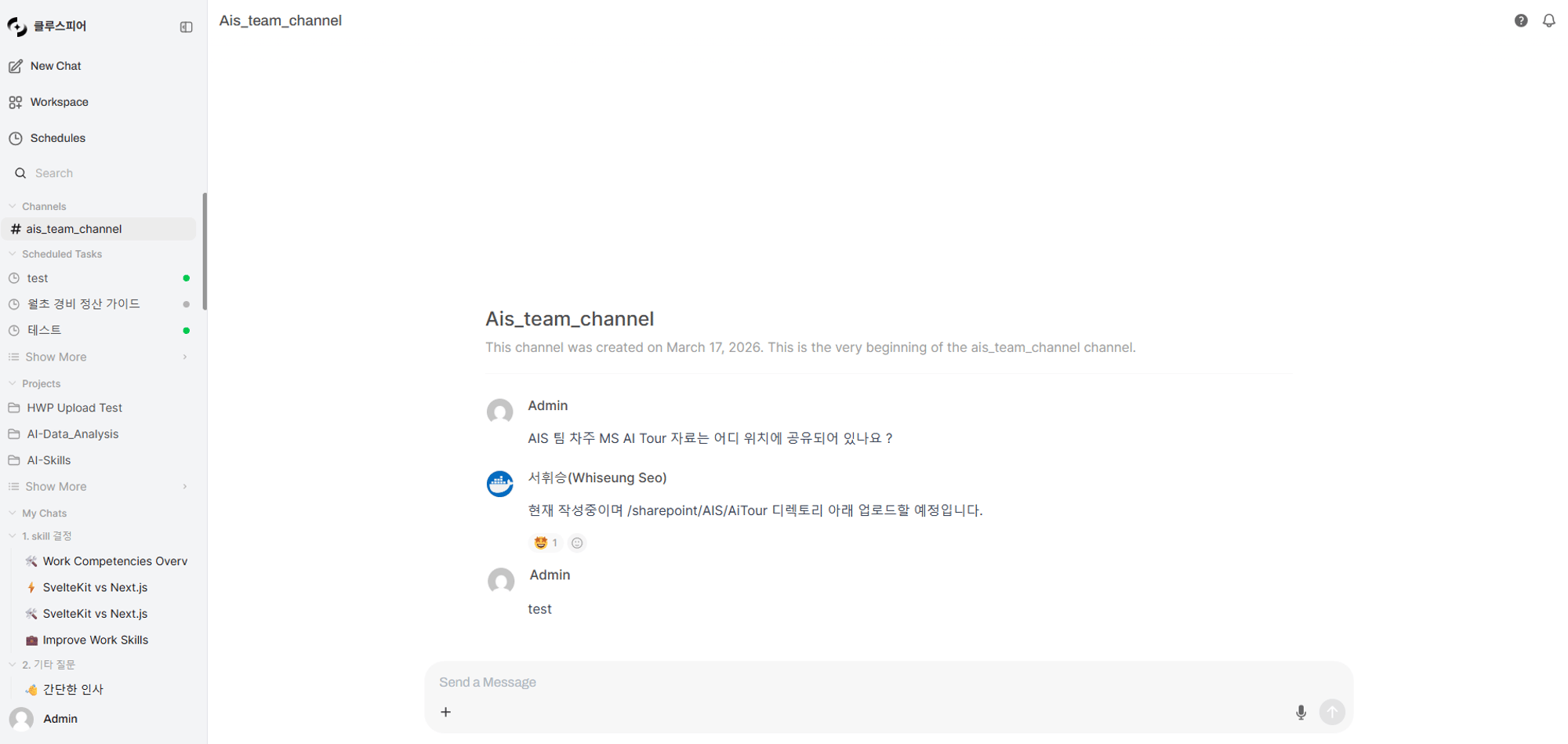
Channels are **real-time messaging spaces** for teammates. Slack-like exchanges, threaded discussions on specific topics, and reactions for quick acknowledgment. Backed by Socket.IO for instant message delivery.
 ***
## Channel Flow
```mermaid theme={null}
flowchart LR
subgraph Channel_Management
A[Admin: create channel] --> B[Set name/permissions]
B --> C[Activate channel]
end
subgraph Real_Time_Messaging
D[User: write message] --> E[Send via Socket.IO]
E --> F[Broadcast to channel members]
F --> G[Live display]
end
subgraph Interactions
G --> H[Reply in thread]
G --> I[Add reaction]
G --> J[Edit/delete message]
end
subgraph Notifications
F --> K{User online?}
K -->|No| L[Send webhook notification]
K -->|Yes| G
end
C --> D
```
***
## Creating a Channel
Channels can only be created by **admins**.
The Channels feature only appears in the sidebar when the `enable_channels` feature flag is enabled in admin settings.
In the sidebar **Channels** section, click the **"+"** button.
| Field | Description | Example |
| -------------- | ---------------------------------------------------------- | --------------------------- |
| **Name** | Channel name (spaces auto-converted to hyphens, lowercase) | "dev-team" |
| **Permission** | Who can reach the channel. Defaults to **Public** | Private + Engineering group |
***
## Channel Flow
```mermaid theme={null}
flowchart LR
subgraph Channel_Management
A[Admin: create channel] --> B[Set name/permissions]
B --> C[Activate channel]
end
subgraph Real_Time_Messaging
D[User: write message] --> E[Send via Socket.IO]
E --> F[Broadcast to channel members]
F --> G[Live display]
end
subgraph Interactions
G --> H[Reply in thread]
G --> I[Add reaction]
G --> J[Edit/delete message]
end
subgraph Notifications
F --> K{User online?}
K -->|No| L[Send webhook notification]
K -->|Yes| G
end
C --> D
```
***
## Creating a Channel
Channels can only be created by **admins**.
The Channels feature only appears in the sidebar when the `enable_channels` feature flag is enabled in admin settings.
In the sidebar **Channels** section, click the **"+"** button.
| Field | Description | Example |
| -------------- | ---------------------------------------------------------- | --------------------------- |
| **Name** | Channel name (spaces auto-converted to hyphens, lowercase) | "dev-team" |
| **Permission** | Who can reach the channel. Defaults to **Public** | Private + Engineering group |
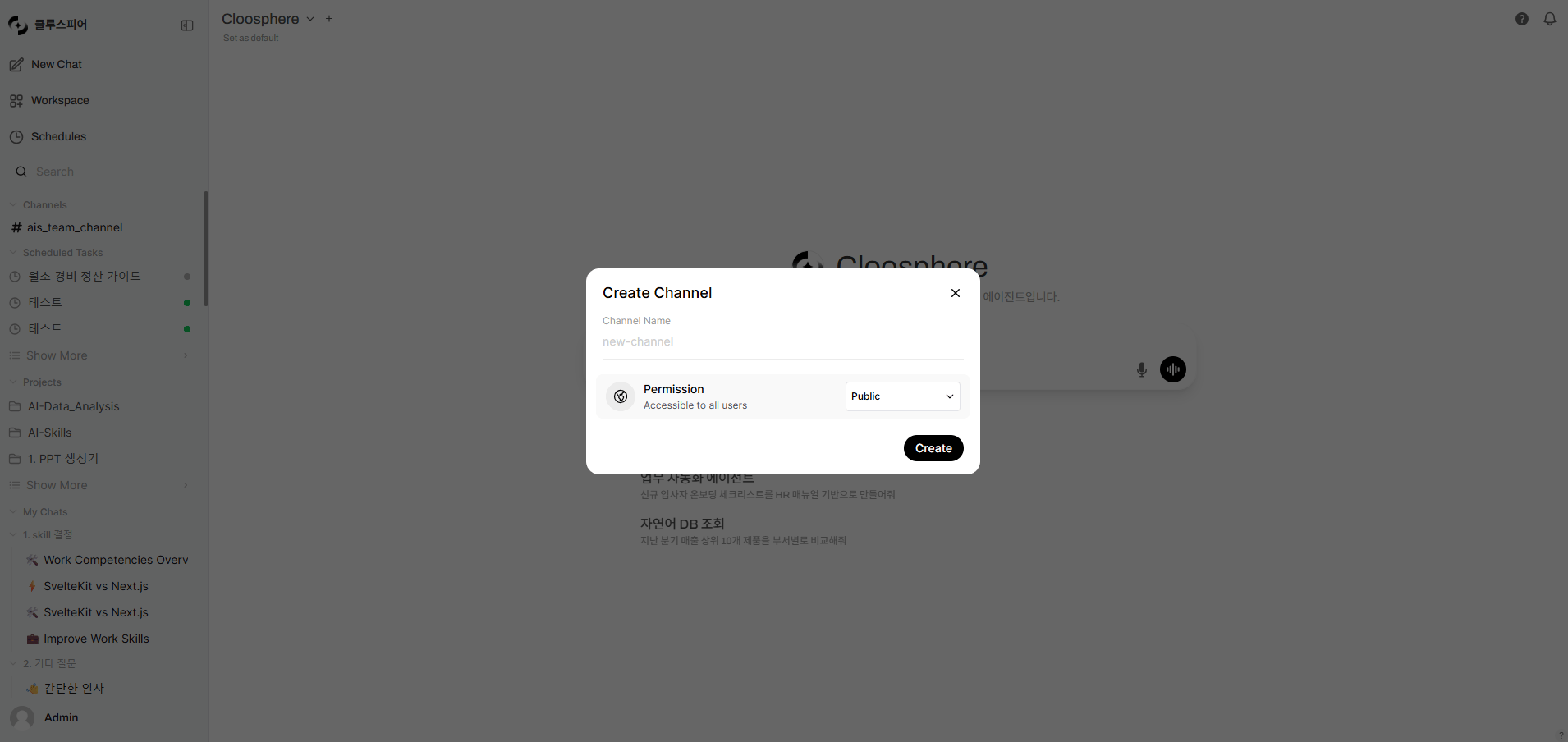 On creation, channel names auto-convert spaces to hyphens and uppercase to lowercase. Example: "Dev Team" → "dev-team"
Click **"Create"** — the channel is created and appears in the sidebar.
***
## Editing and Deleting Channels
Channel edits and deletions are **admin-only**. Hover over a channel name in the sidebar and click the gear icon to access settings.
| Action | Method | Notes |
| --------------------- | ----------------------------------- | --------------------------------------- |
| **Rename** | Edit name in channel settings | Auto-converts spaces→hyphens, lowercase |
| **Change permission** | Edit permission in channel settings | Group/organization level |
| **Delete** | Click delete in channel settings | Channel itself is deleted |
Deleting a channel removes the channel only — message data may be handled separately. Cannot be recovered after deletion, so proceed carefully.
***
## Sending Messages
### Basic Messaging
Type a message in the input at the bottom of the channel and send.
On creation, channel names auto-convert spaces to hyphens and uppercase to lowercase. Example: "Dev Team" → "dev-team"
Click **"Create"** — the channel is created and appears in the sidebar.
***
## Editing and Deleting Channels
Channel edits and deletions are **admin-only**. Hover over a channel name in the sidebar and click the gear icon to access settings.
| Action | Method | Notes |
| --------------------- | ----------------------------------- | --------------------------------------- |
| **Rename** | Edit name in channel settings | Auto-converts spaces→hyphens, lowercase |
| **Change permission** | Edit permission in channel settings | Group/organization level |
| **Delete** | Click delete in channel settings | Channel itself is deleted |
Deleting a channel removes the channel only — message data may be handled separately. Cannot be recovered after deletion, so proceed carefully.
***
## Sending Messages
### Basic Messaging
Type a message in the input at the bottom of the channel and send.
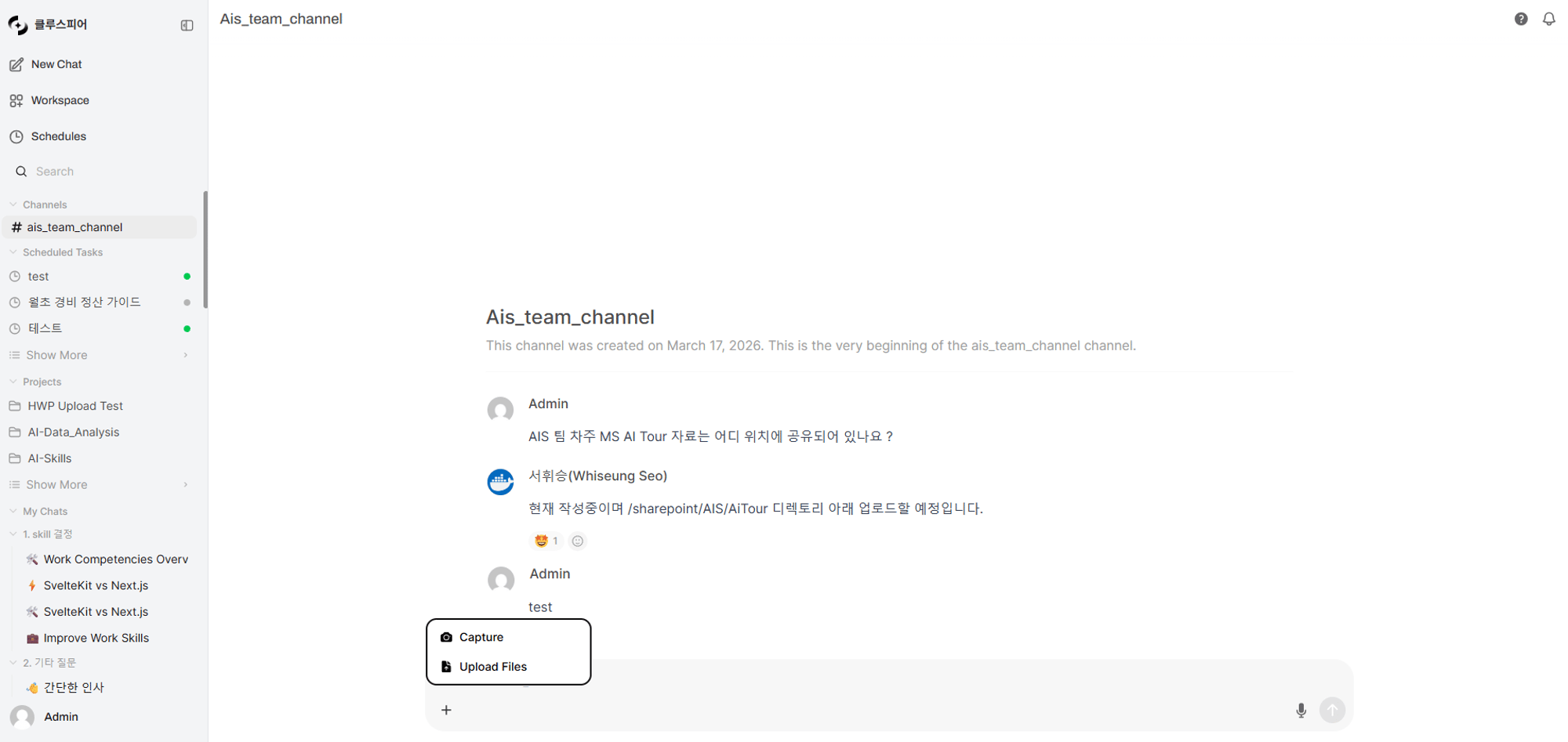 | Feature | Description |
| ------------------- | ------------------------------------------- |
| **Text messages** | Rich text input (formatting, links, etc.) |
| **File attachment** | Upload images, documents, etc. |
| **Screen capture** | Browser-native screen capture |
| **Voice recording** | Record voice, transcribe to text, then send |
### Live Typing Indicator
When other users are typing, an indicator shows above the input. Auto-disappears after 5 seconds of inactivity.
***
## Threads
Group replies to a message into a thread. Have in-depth discussion on a specific topic without disrupting the main channel flow.
Hover over a message and click the **Reply in thread** icon button.
A thread panel opens on the right of the screen. Write and send the reply.
Below the original message, the reply count and last reply time are shown.
### Thread Display
| Screen Size | Behavior |
| --------------------- | ------------------------------------------------------------------------ |
| **Desktop (1024px+)** | Side-by-side split panels showing channel and thread together. Resizable |
| **Mobile/Tablet** | Thread panel overlays as a Drawer |
On desktop, you can view channel messages and the thread side by side, keeping context while discussing.
***
## Reactions
Add emoji reactions to messages for quick acknowledgment.
| Feature | Description |
| ------------------- | ---------------------------------------------------------- |
| **Add reaction** | Hover over a message and pick an emoji |
| **Remove reaction** | Click your own reaction to remove |
| **Count display** | Each reaction shows the user count |
| **Real-time sync** | Reaction add/remove instantly reflects to all participants |
***
## Editing and Deleting Messages
### Edit
Only the author can edit their own message.
Message editing is restricted to the author. Even admins cannot edit others' messages.
### Delete
| Role | Delete Scope |
| ---------------- | --------------------------------------------------- |
| **Regular user** | Can delete only own messages |
| **Admin** | Can delete any user's messages (channel moderation) |
Deleting a message also removes all its reactions. Deleting a parent message keeps thread replies intact.
***
## Channel Member Management
Use the **Permission** area in channel edit to set who can join the channel.
| Permission | Description |
| ---------------------------------- | --------------------------------------------------- |
| **Public** | All authenticated users can join |
| **Private + groups** | Only specified group members can join |
| **Private + organizational units** | Only specified organizational unit members can join |
Groups and organizational units added to a channel get **Read** only. The badge is fixed at Read and does not toggle to Write. In a channel **Read means participation**, so Read alone lets a user both read and post messages.
A new channel defaults to **Public**. To limit it to specific groups, switch it to **Private** at creation or in channel edit, then add groups and organizational units.
Creating, editing, and deleting channels is restricted to admins. For the full access control model, see [Sharing & Permissions](/en/collaboration/sharing-permissions).
***
## Notifications
Webhook notifications are sent to users not currently in the channel.
```mermaid theme={null}
flowchart LR
A[New message] --> B{In channel?}
B -->|Yes| C[Live display]
B -->|No| D{Webhook URL set?}
D -->|Yes| E[Send webhook notification]
D -->|No| F[No notification]
```
| Item | Description |
| ------------------------ | ----------------------------------------------------- |
| **Notification target** | Users with channel access who aren't currently online |
| **Notification content** | Channel name, message content, channel URL |
| **Configuration** | User personal settings > Notifications > Webhook URL |
Set webhook URLs for Slack, Teams, Discord Incoming Webhooks to forward channel messages to external tools.
***
## Channel Access Paths
| Method | Description |
| -------------- | ------------------------------------------ |
| **Sidebar** | Click channel name in the Channels section |
| **Direct URL** | URL format `/channels/{channel_id}` |
Accessing the channel page initializes the chat session (`chatId`) and switches to the channel-only view.
***
## FAQ
No — channel creation/modification/deletion is admin-only. Ask your admin if you need a channel.
Channels are user-to-user messaging only. Use the Chat feature for AI conversations.
Yes — image and document files can be attached. Use the attach button in the input or drag and drop.
By default, there's no per-thread reply limit. Replies load 50 at a time via pagination.
In permission-restricted channels, admins manage membership. Disable webhook notifications in personal settings to silence notifications.
Currently, no dedicated @mention feature. Mention users by name directly in the message body.
| Feature | Description |
| ------------------- | ------------------------------------------- |
| **Text messages** | Rich text input (formatting, links, etc.) |
| **File attachment** | Upload images, documents, etc. |
| **Screen capture** | Browser-native screen capture |
| **Voice recording** | Record voice, transcribe to text, then send |
### Live Typing Indicator
When other users are typing, an indicator shows above the input. Auto-disappears after 5 seconds of inactivity.
***
## Threads
Group replies to a message into a thread. Have in-depth discussion on a specific topic without disrupting the main channel flow.
Hover over a message and click the **Reply in thread** icon button.
A thread panel opens on the right of the screen. Write and send the reply.
Below the original message, the reply count and last reply time are shown.
### Thread Display
| Screen Size | Behavior |
| --------------------- | ------------------------------------------------------------------------ |
| **Desktop (1024px+)** | Side-by-side split panels showing channel and thread together. Resizable |
| **Mobile/Tablet** | Thread panel overlays as a Drawer |
On desktop, you can view channel messages and the thread side by side, keeping context while discussing.
***
## Reactions
Add emoji reactions to messages for quick acknowledgment.
| Feature | Description |
| ------------------- | ---------------------------------------------------------- |
| **Add reaction** | Hover over a message and pick an emoji |
| **Remove reaction** | Click your own reaction to remove |
| **Count display** | Each reaction shows the user count |
| **Real-time sync** | Reaction add/remove instantly reflects to all participants |
***
## Editing and Deleting Messages
### Edit
Only the author can edit their own message.
Message editing is restricted to the author. Even admins cannot edit others' messages.
### Delete
| Role | Delete Scope |
| ---------------- | --------------------------------------------------- |
| **Regular user** | Can delete only own messages |
| **Admin** | Can delete any user's messages (channel moderation) |
Deleting a message also removes all its reactions. Deleting a parent message keeps thread replies intact.
***
## Channel Member Management
Use the **Permission** area in channel edit to set who can join the channel.
| Permission | Description |
| ---------------------------------- | --------------------------------------------------- |
| **Public** | All authenticated users can join |
| **Private + groups** | Only specified group members can join |
| **Private + organizational units** | Only specified organizational unit members can join |
Groups and organizational units added to a channel get **Read** only. The badge is fixed at Read and does not toggle to Write. In a channel **Read means participation**, so Read alone lets a user both read and post messages.
A new channel defaults to **Public**. To limit it to specific groups, switch it to **Private** at creation or in channel edit, then add groups and organizational units.
Creating, editing, and deleting channels is restricted to admins. For the full access control model, see [Sharing & Permissions](/en/collaboration/sharing-permissions).
***
## Notifications
Webhook notifications are sent to users not currently in the channel.
```mermaid theme={null}
flowchart LR
A[New message] --> B{In channel?}
B -->|Yes| C[Live display]
B -->|No| D{Webhook URL set?}
D -->|Yes| E[Send webhook notification]
D -->|No| F[No notification]
```
| Item | Description |
| ------------------------ | ----------------------------------------------------- |
| **Notification target** | Users with channel access who aren't currently online |
| **Notification content** | Channel name, message content, channel URL |
| **Configuration** | User personal settings > Notifications > Webhook URL |
Set webhook URLs for Slack, Teams, Discord Incoming Webhooks to forward channel messages to external tools.
***
## Channel Access Paths
| Method | Description |
| -------------- | ------------------------------------------ |
| **Sidebar** | Click channel name in the Channels section |
| **Direct URL** | URL format `/channels/{channel_id}` |
Accessing the channel page initializes the chat session (`chatId`) and switches to the channel-only view.
***
## FAQ
No — channel creation/modification/deletion is admin-only. Ask your admin if you need a channel.
Channels are user-to-user messaging only. Use the Chat feature for AI conversations.
Yes — image and document files can be attached. Use the attach button in the input or drag and drop.
By default, there's no per-thread reply limit. Replies load 50 at a time via pagination.
In permission-restricted channels, admins manage membership. Disable webhook notifications in personal settings to silence notifications.
Currently, no dedicated @mention feature. Mention users by name directly in the message body.