> ## Documentation Index
> Fetch the complete documentation index at: https://docs.cloosphere.ai/llms.txt
> Use this file to discover all available pages before exploring further.
# Auto-Evaluations
> A judge LLM asynchronously scores agent responses — evaluating retrieval quality, faithfulness, and response quality, plus enabling, results, statistics, and export
Admin › Evaluation › Auto-Evaluations
When you enable auto-evaluation on an agent, after each response a **judge LLM** asynchronously evaluates quality and records the result.
 Auto-evaluation is a licensed feature. Requires a license with the `evaluation` feature enabled.
***
## Evaluation Types
| Type | Description |
| --------------------- | ------------------------------------------------------------------------------------------- |
| **Retrieval Quality** | Evaluates whether retrieved documents are relevant to the question |
| **Faithfulness** | Evaluates whether the answer is grounded in the retrieved content (hallucination detection) |
| **Response Quality** | Evaluates overall usefulness and accuracy |
***
## Evaluation Process
```mermaid theme={null}
flowchart LR
A[Agent response] --> B{Auto-evaluation enabled?}
B -->|Yes| C[Sampling]
B -->|No| D[End]
C --> E[Pass to judge LLM]
E --> F[Generate score + reasoning]
F --> G[Save result]
G --> H[Reflect to dashboard]
```
***
## Enabling Auto-Evaluation (Activate on the Agent)
Auto-evaluation is enabled per agent. Results only start accumulating once it's turned on.
Auto-evaluation is a licensed feature. Requires a license with the `evaluation` feature enabled.
***
## Evaluation Types
| Type | Description |
| --------------------- | ------------------------------------------------------------------------------------------- |
| **Retrieval Quality** | Evaluates whether retrieved documents are relevant to the question |
| **Faithfulness** | Evaluates whether the answer is grounded in the retrieved content (hallucination detection) |
| **Response Quality** | Evaluates overall usefulness and accuracy |
***
## Evaluation Process
```mermaid theme={null}
flowchart LR
A[Agent response] --> B{Auto-evaluation enabled?}
B -->|Yes| C[Sampling]
B -->|No| D[End]
C --> E[Pass to judge LLM]
E --> F[Generate score + reasoning]
F --> G[Save result]
G --> H[Reflect to dashboard]
```
***
## Enabling Auto-Evaluation (Activate on the Agent)
Auto-evaluation is enabled per agent. Results only start accumulating once it's turned on.
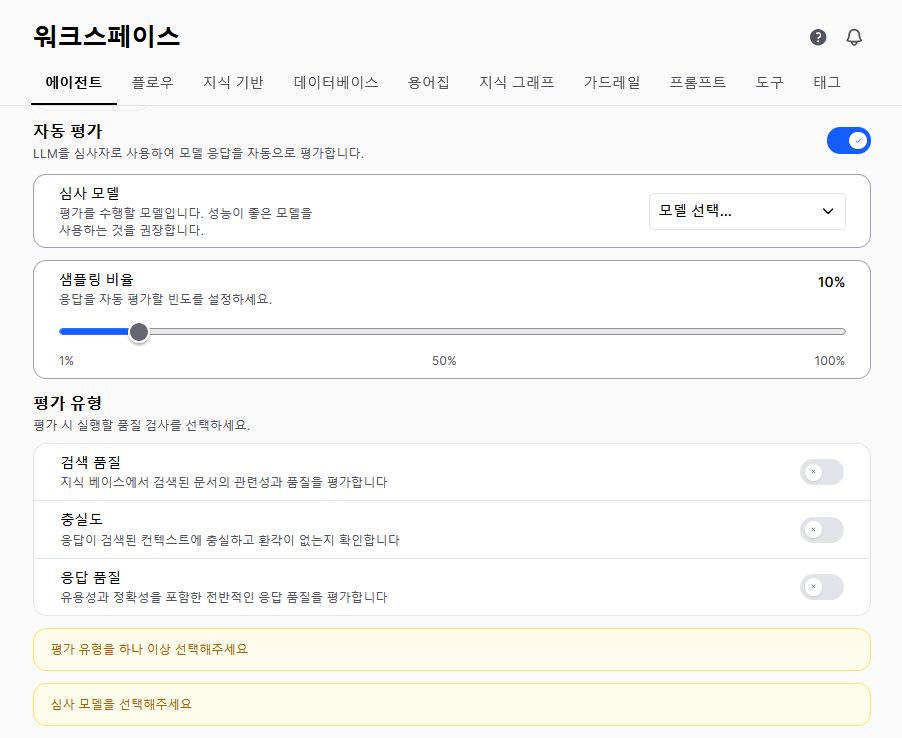 Open the target agent's edit screen in **Workspace > Agents**.
Activate it in the **Auto-evaluation** section of the agent settings.
| Setting | Description |
| -------------------- | ------------------------------------------------------ |
| **Enabled** | Whether auto-evaluation is used |
| **Sampling rate** | Share of responses to evaluate (1%\~100%, default 10%) |
| **Judge model** | LLM model used for evaluation |
| **Evaluation types** | Select which evaluation types to enable |
**Sampling rate guidance:**
| Situation | Recommended | Reason |
| ------------------- | :---------: | ------------------------------ |
| New agent | 50–100% | Quickly assess initial quality |
| After stabilization | 5–10% | Cost saving + monitoring |
| Critical business | 20–30% | Quality assurance |
Once you save the agent, auto-evaluation runs on that agent's subsequent responses.
Use a judge model that is equal to or higher in caliber than the model being evaluated. For example, evaluating GPT-4o responses with GPT-4o-mini may reduce accuracy.
***
## Evaluation Result Fields
| Field | Description |
| ------------------- | ----------------------------------- |
| **Chat/Message ID** | Evaluated message |
| **Model ID** | Model that generated the response |
| **Judge Model ID** | LLM used for evaluation |
| **Evaluation type** | retrieval, faithfulness, quality |
| **Score** | 0.0 \~ 1.0 (1.0 is best) |
| **Reasoning** | LLM's explanation of the score |
| **Status** | pending, completed, failed |
| **Error message** | Error content on evaluation failure |
***
## Score Trend Chart
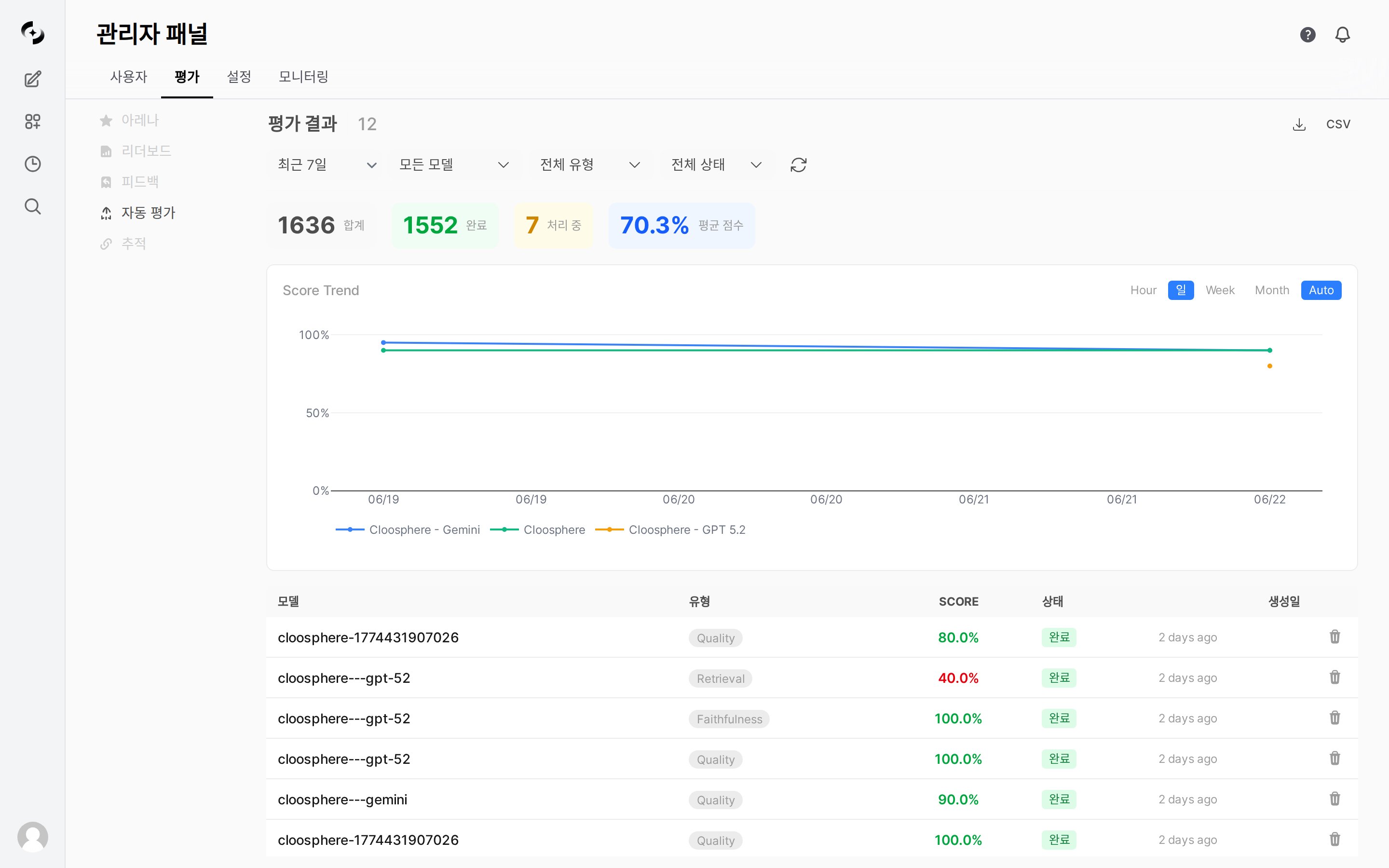
Shows the trend of average scores by date as a line chart. Use the toggle at the top right of the chart to change the aggregation unit.
| Aggregation Unit | Description |
| ----------------------------- | ------------------------------------------------------------------------- |
| **Hour / Day / Week / Month** | Aggregate average scores by hour, day, week, or month |
| **Auto** | Automatically determine the aggregation unit based on the selected period |
To narrow down by model or evaluation type, use the top filters (model / type).
***
## Filter Options
Filter using the dropdowns at the top of the results.
| Filter | Description |
| ------------------- | ------------------------------------------------- |
| **Date range** | Select the evaluation period (e.g., last 7 days) |
| **Model** | Filter by a specific model |
| **Evaluation type** | Retrieval Quality, Faithfulness, Response Quality |
| **Status** | All / Completed / Processing / Failed |
***
## Auto-Evaluation Statistics
Summary cards appear at the top of the results screen.
| Card | Description |
| ----------------- | -------------------------------------------- |
| **Total** | Total number of auto-evaluations |
| **Completed** | Number of successfully completed evaluations |
| **Processing** | Number of evaluations still processing |
| **Average score** | Overall average score (%) |
***
## Export
Use the **CSV** button at the top right of the results screen to export the evaluation results matching the current filter as CSV (id, chat\_id, message\_id, model\_id, score, reasoning, etc.).
***
## Use Cases
1. Check daily/weekly score trends in the Score Trend chart
2. When a specific model's score drops, check that period's traces
3. Click a low-scoring individual evaluation to review its reasoning
4. Adjust prompt, Knowledge Base, and tool settings
***
## Troubleshooting
When auto-evaluation is in the failed state:
* **Check the error message**: Review the error content for that item in the results table
* **Common causes**: Judge model API errors, timeouts, token limit exceeded
* **Re-run**: Automatic re-run is not currently supported. Re-enabling auto-evaluation in the agent settings resumes evaluation from subsequent responses.
***
## Related Pages
Full overview of evaluation — manual feedback, Arena, Leaderboard, and more
Trace the cause of low evaluation scores
Configure auto-evaluation on an agent
Open the target agent's edit screen in **Workspace > Agents**.
Activate it in the **Auto-evaluation** section of the agent settings.
| Setting | Description |
| -------------------- | ------------------------------------------------------ |
| **Enabled** | Whether auto-evaluation is used |
| **Sampling rate** | Share of responses to evaluate (1%\~100%, default 10%) |
| **Judge model** | LLM model used for evaluation |
| **Evaluation types** | Select which evaluation types to enable |
**Sampling rate guidance:**
| Situation | Recommended | Reason |
| ------------------- | :---------: | ------------------------------ |
| New agent | 50–100% | Quickly assess initial quality |
| After stabilization | 5–10% | Cost saving + monitoring |
| Critical business | 20–30% | Quality assurance |
Once you save the agent, auto-evaluation runs on that agent's subsequent responses.
Use a judge model that is equal to or higher in caliber than the model being evaluated. For example, evaluating GPT-4o responses with GPT-4o-mini may reduce accuracy.
***
## Evaluation Result Fields
| Field | Description |
| ------------------- | ----------------------------------- |
| **Chat/Message ID** | Evaluated message |
| **Model ID** | Model that generated the response |
| **Judge Model ID** | LLM used for evaluation |
| **Evaluation type** | retrieval, faithfulness, quality |
| **Score** | 0.0 \~ 1.0 (1.0 is best) |
| **Reasoning** | LLM's explanation of the score |
| **Status** | pending, completed, failed |
| **Error message** | Error content on evaluation failure |
***
## Score Trend Chart
Shows the trend of average scores by date as a line chart. Use the toggle at the top right of the chart to change the aggregation unit.
| Aggregation Unit | Description |
| ----------------------------- | ------------------------------------------------------------------------- |
| **Hour / Day / Week / Month** | Aggregate average scores by hour, day, week, or month |
| **Auto** | Automatically determine the aggregation unit based on the selected period |
To narrow down by model or evaluation type, use the top filters (model / type).
***
## Filter Options
Filter using the dropdowns at the top of the results.
| Filter | Description |
| ------------------- | ------------------------------------------------- |
| **Date range** | Select the evaluation period (e.g., last 7 days) |
| **Model** | Filter by a specific model |
| **Evaluation type** | Retrieval Quality, Faithfulness, Response Quality |
| **Status** | All / Completed / Processing / Failed |
***
## Auto-Evaluation Statistics
Summary cards appear at the top of the results screen.
| Card | Description |
| ----------------- | -------------------------------------------- |
| **Total** | Total number of auto-evaluations |
| **Completed** | Number of successfully completed evaluations |
| **Processing** | Number of evaluations still processing |
| **Average score** | Overall average score (%) |
***
## Export
Use the **CSV** button at the top right of the results screen to export the evaluation results matching the current filter as CSV (id, chat\_id, message\_id, model\_id, score, reasoning, etc.).
***
## Use Cases
1. Check daily/weekly score trends in the Score Trend chart
2. When a specific model's score drops, check that period's traces
3. Click a low-scoring individual evaluation to review its reasoning
4. Adjust prompt, Knowledge Base, and tool settings
***
## Troubleshooting
When auto-evaluation is in the failed state:
* **Check the error message**: Review the error content for that item in the results table
* **Common causes**: Judge model API errors, timeouts, token limit exceeded
* **Re-run**: Automatic re-run is not currently supported. Re-enabling auto-evaluation in the agent settings resumes evaluation from subsequent responses.
***
## Related Pages
Full overview of evaluation — manual feedback, Arena, Leaderboard, and more
Trace the cause of low evaluation scores
Configure auto-evaluation on an agent