> ## Documentation Index
> Fetch the complete documentation index at: https://docs.cloosphere.ai/llms.txt
> Use this file to discover all available pages before exploring further.
# File Logs
> File upload security monitoring — guardrail classification results, blocked/flagged file tracking
Admin › Monitoring › File Logs
File Logs is a security monitoring feature for **files with guardrail analysis results**.
* Admins get a unified view of uploaded file sensitivity classification, blocking status, and security check results.
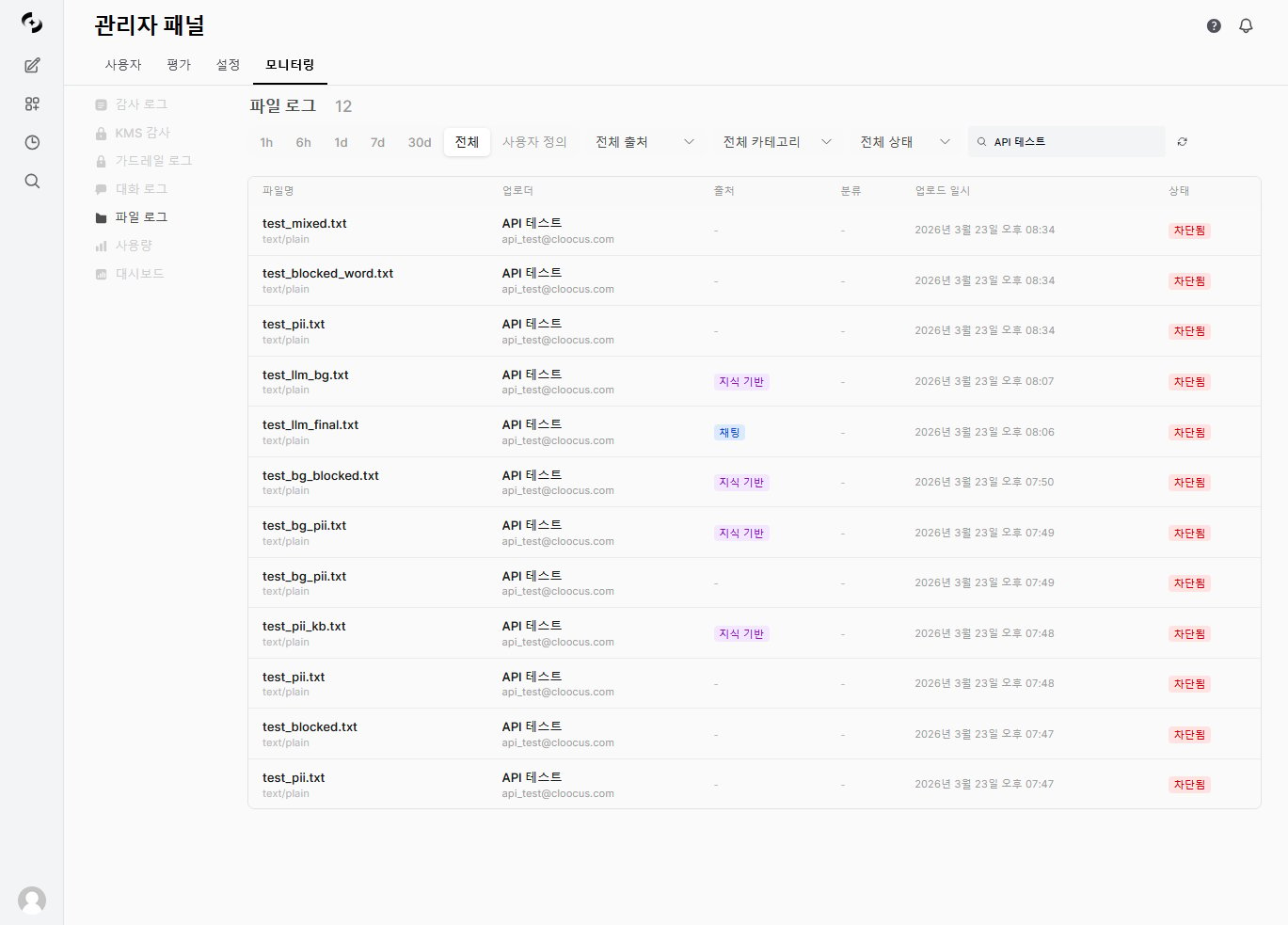 Not all uploaded files appear here. Only files with **classification results or guardrail blocks** are shown in the log.
***
## Document Sensitivity Classification
On file upload, an LLM-based classifier auto-determines document sensitivity.
| Classification | Description | Action |
| ---------------- | ------------------------------- | --------------------- |
| **PUBLIC** | Generally shareable documents | Allow |
| **INTERNAL** | Internal-use documents | Allow |
| **CONFIDENTIAL** | Sensitive — PII, financial info | Flag (warn) |
| **RESTRICTED** | Top secret, regulated | Block (reject upload) |
Each classification result includes a **confidence** score (0–100%) and the classification reason.
***
## Guardrail Check Types
Multiple security checks apply automatically per file type.
LLM-based sensitivity classification. Analyzes document text to assign PUBLIC \~ RESTRICTED grade.
* **Target**: All files with extractable text (PDF, DOCX, TXT, etc.)
* **Result**: Classification grade + confidence + reason
* **Action**: CONFIDENTIAL → flag, RESTRICTED → block
Detect VBA macros in Office files.
* **Target**: `.doc`, `.docm`, `.xls`, `.xlsm`, `.ppt`, `.pptm`
* **Result**: Macro count, code preview
* **Action**: Block when macros are found
Auto-remove EXIF metadata (location, device info) from image files.
* **Target**: `.jpg`, `.jpeg`, `.tiff`, `.tif`, `.webp`
* **Result**: EXIF presence + removal completion
* **Action**: Allowed after removal (no block)
LLM-based image inappropriate content check.
* **Target**: All image files
* **Result**: PASS or BLOCK
* **Action**: Block when inappropriate content found
***
## Viewing Logs
| Filter | Options | Description |
| ------------ | --------------------------------------------- | --------------------------------------- |
| **Period** | `1h` / `6h` / `1d` / `7d` / `30d` / All | Date range by upload time |
| **Search** | Text input | Search by filename, uploader name/email |
| **Source** | Chat / Knowledge / Project | Filter by upload path |
| **Category** | PUBLIC / INTERNAL / CONFIDENTIAL / RESTRICTED | Filter by sensitivity grade |
| **Status** | Flagged / Blocked | Filter by processing result |
| Column | Description |
| ------------------ | -------------------------------------------------------------------------------------------------- |
| **Filename** | Original filename + content type |
| **Uploader** | User name (email subtitle) |
| **Source** | Upload path (color badges: Chat=blue, Knowledge=purple, Project=green) |
| **Classification** | Sensitivity grade (color badges: PUBLIC=green, INTERNAL=blue, CONFIDENTIAL=yellow, RESTRICTED=red) |
| **Upload time** | Upload timestamp |
| **Status** | Blocked (red) or Flagged (yellow) badge |
* 20 entries per page
* Total file count shown at top
* Page navigation controls when over 20
***
## Detail View
Click a table row to see the file's guardrail analysis in a modal.
Not all uploaded files appear here. Only files with **classification results or guardrail blocks** are shown in the log.
***
## Document Sensitivity Classification
On file upload, an LLM-based classifier auto-determines document sensitivity.
| Classification | Description | Action |
| ---------------- | ------------------------------- | --------------------- |
| **PUBLIC** | Generally shareable documents | Allow |
| **INTERNAL** | Internal-use documents | Allow |
| **CONFIDENTIAL** | Sensitive — PII, financial info | Flag (warn) |
| **RESTRICTED** | Top secret, regulated | Block (reject upload) |
Each classification result includes a **confidence** score (0–100%) and the classification reason.
***
## Guardrail Check Types
Multiple security checks apply automatically per file type.
LLM-based sensitivity classification. Analyzes document text to assign PUBLIC \~ RESTRICTED grade.
* **Target**: All files with extractable text (PDF, DOCX, TXT, etc.)
* **Result**: Classification grade + confidence + reason
* **Action**: CONFIDENTIAL → flag, RESTRICTED → block
Detect VBA macros in Office files.
* **Target**: `.doc`, `.docm`, `.xls`, `.xlsm`, `.ppt`, `.pptm`
* **Result**: Macro count, code preview
* **Action**: Block when macros are found
Auto-remove EXIF metadata (location, device info) from image files.
* **Target**: `.jpg`, `.jpeg`, `.tiff`, `.tif`, `.webp`
* **Result**: EXIF presence + removal completion
* **Action**: Allowed after removal (no block)
LLM-based image inappropriate content check.
* **Target**: All image files
* **Result**: PASS or BLOCK
* **Action**: Block when inappropriate content found
***
## Viewing Logs
| Filter | Options | Description |
| ------------ | --------------------------------------------- | --------------------------------------- |
| **Period** | `1h` / `6h` / `1d` / `7d` / `30d` / All | Date range by upload time |
| **Search** | Text input | Search by filename, uploader name/email |
| **Source** | Chat / Knowledge / Project | Filter by upload path |
| **Category** | PUBLIC / INTERNAL / CONFIDENTIAL / RESTRICTED | Filter by sensitivity grade |
| **Status** | Flagged / Blocked | Filter by processing result |
| Column | Description |
| ------------------ | -------------------------------------------------------------------------------------------------- |
| **Filename** | Original filename + content type |
| **Uploader** | User name (email subtitle) |
| **Source** | Upload path (color badges: Chat=blue, Knowledge=purple, Project=green) |
| **Classification** | Sensitivity grade (color badges: PUBLIC=green, INTERNAL=blue, CONFIDENTIAL=yellow, RESTRICTED=red) |
| **Upload time** | Upload timestamp |
| **Status** | Blocked (red) or Flagged (yellow) badge |
* 20 entries per page
* Total file count shown at top
* Page navigation controls when over 20
***
## Detail View
Click a table row to see the file's guardrail analysis in a modal.
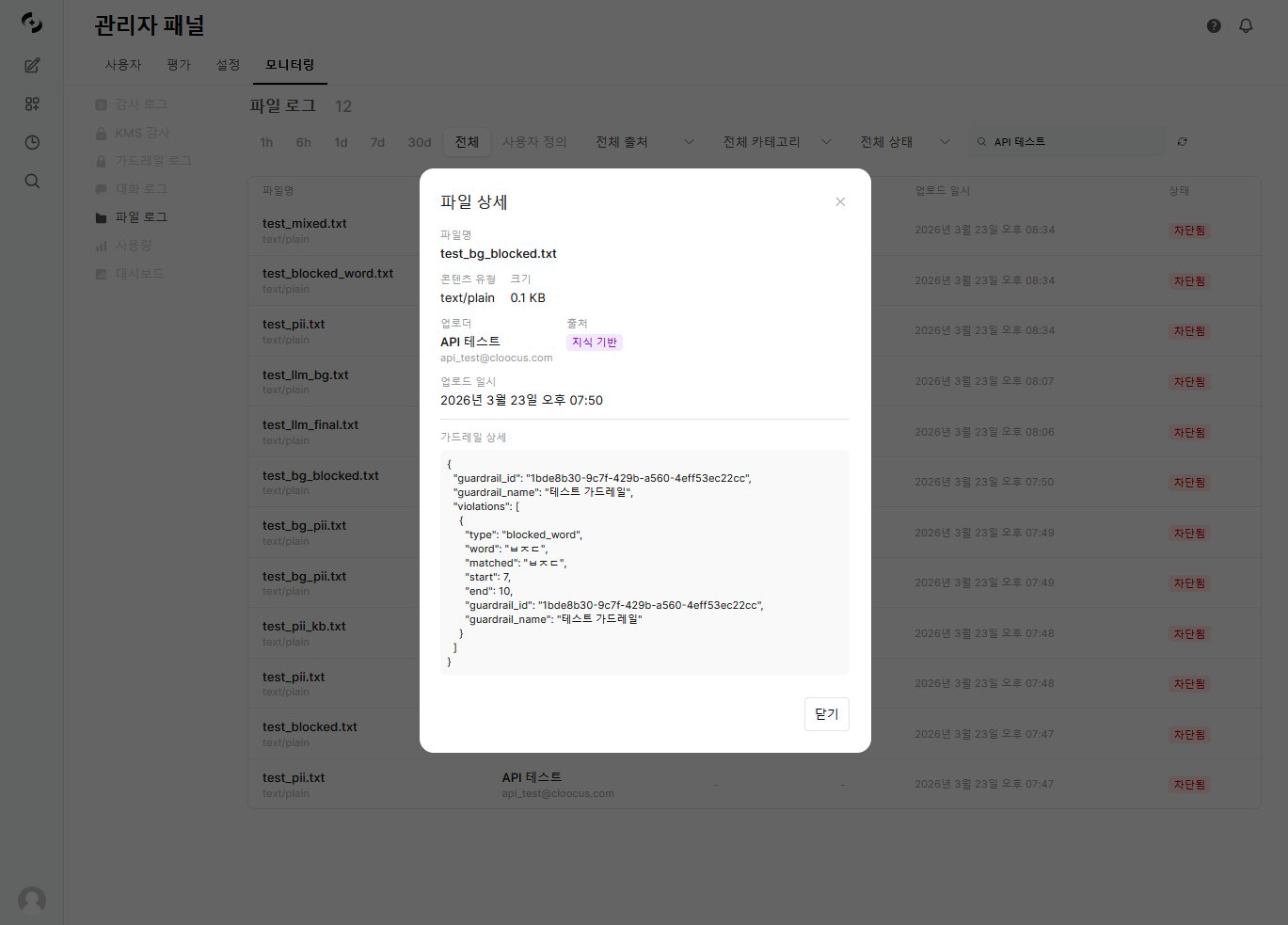 **Items shown:**
* **File info**: Filename, content type, size (KB)
* **Uploader info**: Name, email, upload time
* **Source**: Upload path badge
* **Classification result**:
* Sensitivity grade + confidence (%)
* Classification reason
* Classification model used
* Error message on errors
* **Guardrail details** (when applicable):
* Block reason and detail JSON
* EXIF removal result
* NSFW detection result
***
## File Processing Flow
```mermaid theme={null}
flowchart LR
Upload[File upload] --> Guard{Guardrail check}
Guard -->|Macro detection| Macro{Macro?}
Macro -->|Yes| Block[Block]
Macro -->|No| Allow
Guard -->|NSFW detection| NSFW{Inappropriate?}
NSFW -->|BLOCK| Block
NSFW -->|PASS| Allow
Guard -->|EXIF check| EXIF[Remove metadata]
EXIF --> Allow[Allow]
Guard -->|Document classification| Class{Grade?}
Class -->|PUBLIC/INTERNAL| Allow
Class -->|CONFIDENTIAL| Flag[Flag warning]
Class -->|RESTRICTED| Block
Block --> Log[Log to File Logs]
Flag --> Log
Allow --> |Has classification| Log
```
***
## Use Cases
1. Set **Classification** filter to `CONFIDENTIAL`
2. Review the flagged file list
3. Confirm classification reason and confidence in the detail modal
4. Adjust policy in [Guardrail Settings](/en/workspace/guardrails) as needed
1. Use the **Source** filter to view upload status by Chat / Knowledge / Project
2. If a source has many blocks, inspect that workflow
3. Review Knowledge upload classification results to manage RAG data quality
1. Set **Status** filter to `Blocked`
2. Confirm uploader and reason for blocked files
3. Review guardrail detail JSON in the detail modal
4. Consider revising guardrail rules if false positives
***
## Best Practices
* **Periodic monitoring**: Review file logs at least weekly to detect anomaly patterns
* **Guardrail integration**: When blocks/flags occur frequently, review [Guardrail Settings](/en/workspace/guardrails)
* **False positive management**: When CONFIDENTIAL/RESTRICTED classification confidence is low, consider changing the classification model
* **Source analysis**: Watch for patterns where sensitive files concentrate in a specific source
**Items shown:**
* **File info**: Filename, content type, size (KB)
* **Uploader info**: Name, email, upload time
* **Source**: Upload path badge
* **Classification result**:
* Sensitivity grade + confidence (%)
* Classification reason
* Classification model used
* Error message on errors
* **Guardrail details** (when applicable):
* Block reason and detail JSON
* EXIF removal result
* NSFW detection result
***
## File Processing Flow
```mermaid theme={null}
flowchart LR
Upload[File upload] --> Guard{Guardrail check}
Guard -->|Macro detection| Macro{Macro?}
Macro -->|Yes| Block[Block]
Macro -->|No| Allow
Guard -->|NSFW detection| NSFW{Inappropriate?}
NSFW -->|BLOCK| Block
NSFW -->|PASS| Allow
Guard -->|EXIF check| EXIF[Remove metadata]
EXIF --> Allow[Allow]
Guard -->|Document classification| Class{Grade?}
Class -->|PUBLIC/INTERNAL| Allow
Class -->|CONFIDENTIAL| Flag[Flag warning]
Class -->|RESTRICTED| Block
Block --> Log[Log to File Logs]
Flag --> Log
Allow --> |Has classification| Log
```
***
## Use Cases
1. Set **Classification** filter to `CONFIDENTIAL`
2. Review the flagged file list
3. Confirm classification reason and confidence in the detail modal
4. Adjust policy in [Guardrail Settings](/en/workspace/guardrails) as needed
1. Use the **Source** filter to view upload status by Chat / Knowledge / Project
2. If a source has many blocks, inspect that workflow
3. Review Knowledge upload classification results to manage RAG data quality
1. Set **Status** filter to `Blocked`
2. Confirm uploader and reason for blocked files
3. Review guardrail detail JSON in the detail modal
4. Consider revising guardrail rules if false positives
***
## Best Practices
* **Periodic monitoring**: Review file logs at least weekly to detect anomaly patterns
* **Guardrail integration**: When blocks/flags occur frequently, review [Guardrail Settings](/en/workspace/guardrails)
* **False positive management**: When CONFIDENTIAL/RESTRICTED classification confidence is low, consider changing the classification model
* **Source analysis**: Watch for patterns where sensitive files concentrate in a specific source