> ## Documentation Index
> Fetch the complete documentation index at: https://docs.cloosphere.ai/llms.txt
> Use this file to discover all available pages before exploring further.
# KMS Audit
> Tamper-evident hash-chain record of encryption key (KMS) operations — track and verify the integrity of every crypto operation such as wrap/unwrap/rotate
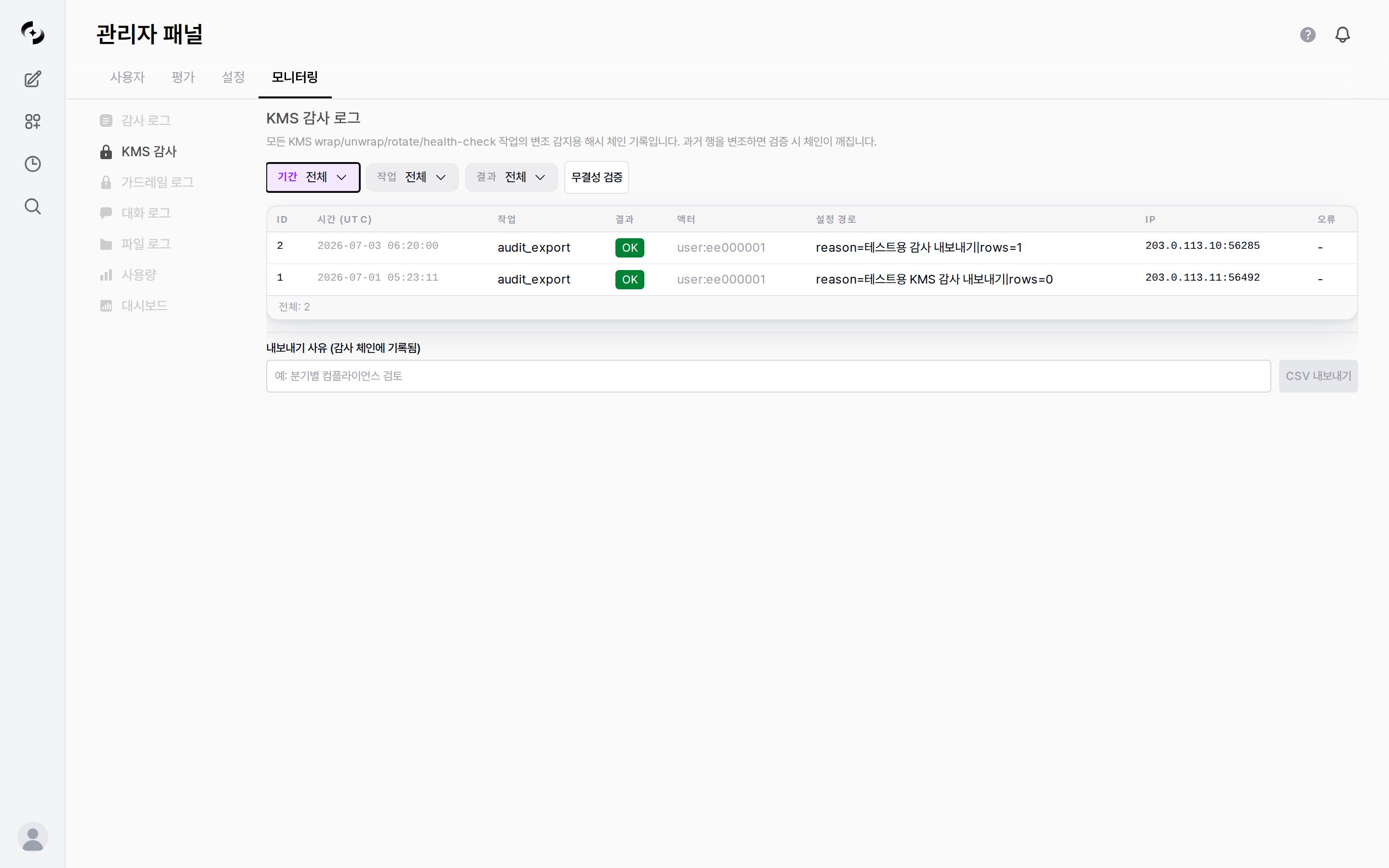
Admin › Monitoring › KMS Audit
KMS Audit is a **record of every operation the system performs with encryption keys** (wrap · unwrap · rotate, etc.).
* Each entry is **chained to the previous one via a hash chain**, so altering or deleting even a single past entry breaks the chain and is exposed immediately by an **integrity check**.
* Where the [Audit Log](/en/monitoring/audit-logs) tracks "who changed which resource", KMS Audit records "what operations happened on encryption keys".
 KMS Audit is a licensed feature. Requires a license with `encryption` feature enabled.
KMS Audit pairs with the KMS provider in [Admin › Settings › Encryption](/en/admin/settings/encryption).
On the default **Local (Fernet)** provider, rows appear only when you run a provider switch (`provider_change`), a migration (`migrate`), or a CSV export (`audit_export`).
In such environments `Total: 0` is normal and does not mean no encryption work took place.
***
## Audit Log Structure
Two views of the KMS audit log: **which operations are recorded** and **what fields make up each row**.
Which operations get recorded depends on the KMS provider in use. `wrap` · `unwrap` · `rotate` · `health_check` are recorded only on the **Azure Key Vault (envelope)** provider, and not on the default **Local (Fernet)** provider.
| Operation | What it does |
| -------------------- | ----------------------------------------------------------------------------------------------------------------------------------------------------------- |
| **wrap** | **Encrypts and locks** a secret value (Azure Key Vault provider only) |
| **unwrap** | **Unlocks and reads** (decrypts) a locked value (Azure Key Vault provider only) |
| **rotate** | **Replaces the encryption key** with a new one (Azure Key Vault provider only) |
| **health\_check** | Checks whether the KMS is **operating normally** (Azure Key Vault provider only) |
| **provider\_change** | **Switches** the encryption method (KMS provider) (e.g., local ↔ external) |
| **migrate** | **Re-locks** values locked with an older method using the current method ([Migrating existing data](/en/admin/settings/encryption#migrating-existing-data)) |
| **audit\_export** | **Exports the KMS audit log to CSV** — the export action itself is also recorded |
The target secrets are the system's **sensitive values** — config secrets, DbSphere database connection details, tool connection keys, and **user API keys**.
License and feature tokens are intentionally excluded from KMS encryption because their authenticity is already guaranteed by their signature.
The encrypted values themselves are never recorded; only "which operation happened on which configuration path's value" is kept.
Each KMS audit row includes the following:
| Field | Description |
| ------------------- | --------------------------------------------------------------------------------------------------------------------------------------------------------------------------------------------------------------------------------------------------------- |
| **id** | Sequential record identifier |
| **Timestamp (UTC)** | When the operation occurred (in UTC) |
| **Operation** | The KMS operation performed (wrap, unwrap, rotate, etc.) |
| **Result** | Shown as an `OK` badge on success, `FAIL` on failure |
| **Actor** | Type of entity that performed the operation — `user` (an admin acting from the screen) · `system` (internal encrypt/decrypt) · `scheduled` (automatic key rotation). When an actor ID exists, its first 8 characters are appended (e.g., `user:a1b2c3d4`) |
| **Config path** | Path of the configuration value the operation targeted. On `rotate`, `migrate`, and `audit_export` rows this column shows an operation summary instead (export reason and row count, keys before/after rotation, per-target migration counts) |
| **IP** | Source IP of the request |
| **Error** | Short error code on failure (e.g., `AAD_MISMATCH`); `-` on success |
Timestamps are shown in **UTC**. Adjust to your local timezone as needed (e.g., KST = UTC+9).
***
## Integrity Check
Clicking the **Integrity Check** button walks the records in order to confirm **no link is broken**. It checks up to **100,000 rows** per run, and the number of rows actually checked appears in the result message.
Click the **Integrity Check** button at the top of the screen.
If the chain is intact, a success message appears with the number of rows checked, like `Chain OK (N rows checked)`.
If someone altered or deleted an entry in the middle, the chain breaks at that point and verification fails.
A failed integrity check means the audit records may have been tampered with.
This is the first thing to verify during compliance or security incident investigations.
In environments with more than 100,000 audit rows, compare N in the `Chain OK (N rows checked)` message with `Total: N` at the bottom of the screen to confirm every row was checked.
***
## Viewing Logs
### Filter Options
| Filter | Description |
| ------------- | ------------------------------------------------------------------------------------------------------------------------- |
| **Period** | Last 1 Hour · 6 Hours · 1 Day · 7 Days · 30 Days · All · Custom (default **Last 7 Days**) |
| **Operation** | Filter to a specific KMS operation (wrap · unwrap · rotate, etc. — see [Recorded operations](#audit-log-structure) above) |
| **Result** | `All` / `Success only` / `Failure only` |
This differs from the Audit Log tab's default (last 1 hour), so widen the period first when looking for older records.
Once there are more than 25 rows, page number buttons and left/right arrow buttons appear at the bottom; click them to move between pages.
* The bottom of the screen shows `Total: N`, the total count matching the current filter. The current page is the highlighted page number button.
***
## CSV Export
You can export audit records for external retention or analysis.
* Unlike a normal download, you **must enter an export reason**.
Type a reason in the **Export reason (recorded in the audit chain)** field at the bottom. (e.g., `Quarterly compliance review`)
Click the **CSV Export** button to download the records matching the current filter as CSV.
Up to **100,000 rows** are exported per run; split the period into several exports beyond that.
The export action itself is **added to the chain as a new entry** with the `audit_export` operation.
The reason you typed and the row count appear in that row's **Config path** column as `reason=your reason|rows=count`, so you can confirm "who exported the audit log, when, and for what reason".
***
## Difference from the Audit Log
KMS Audit is a separate tab from the [Audit Log](/en/monitoring/audit-logs).
* They differ in what they track and how they guarantee it.
| Aspect | Audit Log | KMS Audit |
| ----------------------- | ------------------------------------------------------------------------ | ---------------------------------------------------------------------------------------- |
| **Tracks** | User/resource activity (CRUD, login, permission changes) | Encryption key operations (wrap/unwrap/rotate, etc.) |
| **Primary users** | Security officers, compliance | Security officers, infrastructure admins |
| **Integrity guarantee** | No dedicated integrity mechanism (can be pruned by the retention policy) | Records are **chained together so tampering is detectable** + **Integrity Check** button |
| **Export** | Filter-based viewing | CSV after entering a reason (export is also recorded in the chain) |
***
## Use Cases
1. Select `rotate` in the **Operation** filter
2. Set a time range to confirm key rotation ran on the policy cycle
3. Narrow the **Result** filter to `Failure only` to check for any failed rotations
1. Set the **Result** filter to `Failure only`
2. Use the **Config path** and **Error** columns to identify which secret had the problem — the Error column is a short code rather than a full explanation, so check the server logs for details
3. Verify KMS status with the provider **connection test** in [Encryption settings](/en/admin/settings/encryption)
1. Run **Integrity Check** first to confirm the chain is intact
2. Filter to the reporting period
3. State your review purpose in the **export reason** and export to CSV
4. Confirm the export entry (`audit_export`) was added to the chain to evidence the extraction history
***
## Best Practices
* **Regular integrity checks**: During compliance reviews, run **Integrity Check** first to confirm the chain is intact
* **Failure monitoring**: Periodically check for encryption operation errors with the `Failure only` filter — an early signal of KMS connection problems
* **Clear reasons**: Write specific CSV export reasons, since they are used for later audit trails
* **Provider transition review**: Use `provider_change` and `migrate` records to confirm encryption provider switches and re-encryption completed as intended
KMS Audit is a licensed feature. Requires a license with `encryption` feature enabled.
KMS Audit pairs with the KMS provider in [Admin › Settings › Encryption](/en/admin/settings/encryption).
On the default **Local (Fernet)** provider, rows appear only when you run a provider switch (`provider_change`), a migration (`migrate`), or a CSV export (`audit_export`).
In such environments `Total: 0` is normal and does not mean no encryption work took place.
***
## Audit Log Structure
Two views of the KMS audit log: **which operations are recorded** and **what fields make up each row**.
Which operations get recorded depends on the KMS provider in use. `wrap` · `unwrap` · `rotate` · `health_check` are recorded only on the **Azure Key Vault (envelope)** provider, and not on the default **Local (Fernet)** provider.
| Operation | What it does |
| -------------------- | ----------------------------------------------------------------------------------------------------------------------------------------------------------- |
| **wrap** | **Encrypts and locks** a secret value (Azure Key Vault provider only) |
| **unwrap** | **Unlocks and reads** (decrypts) a locked value (Azure Key Vault provider only) |
| **rotate** | **Replaces the encryption key** with a new one (Azure Key Vault provider only) |
| **health\_check** | Checks whether the KMS is **operating normally** (Azure Key Vault provider only) |
| **provider\_change** | **Switches** the encryption method (KMS provider) (e.g., local ↔ external) |
| **migrate** | **Re-locks** values locked with an older method using the current method ([Migrating existing data](/en/admin/settings/encryption#migrating-existing-data)) |
| **audit\_export** | **Exports the KMS audit log to CSV** — the export action itself is also recorded |
The target secrets are the system's **sensitive values** — config secrets, DbSphere database connection details, tool connection keys, and **user API keys**.
License and feature tokens are intentionally excluded from KMS encryption because their authenticity is already guaranteed by their signature.
The encrypted values themselves are never recorded; only "which operation happened on which configuration path's value" is kept.
Each KMS audit row includes the following:
| Field | Description |
| ------------------- | --------------------------------------------------------------------------------------------------------------------------------------------------------------------------------------------------------------------------------------------------------- |
| **id** | Sequential record identifier |
| **Timestamp (UTC)** | When the operation occurred (in UTC) |
| **Operation** | The KMS operation performed (wrap, unwrap, rotate, etc.) |
| **Result** | Shown as an `OK` badge on success, `FAIL` on failure |
| **Actor** | Type of entity that performed the operation — `user` (an admin acting from the screen) · `system` (internal encrypt/decrypt) · `scheduled` (automatic key rotation). When an actor ID exists, its first 8 characters are appended (e.g., `user:a1b2c3d4`) |
| **Config path** | Path of the configuration value the operation targeted. On `rotate`, `migrate`, and `audit_export` rows this column shows an operation summary instead (export reason and row count, keys before/after rotation, per-target migration counts) |
| **IP** | Source IP of the request |
| **Error** | Short error code on failure (e.g., `AAD_MISMATCH`); `-` on success |
Timestamps are shown in **UTC**. Adjust to your local timezone as needed (e.g., KST = UTC+9).
***
## Integrity Check
Clicking the **Integrity Check** button walks the records in order to confirm **no link is broken**. It checks up to **100,000 rows** per run, and the number of rows actually checked appears in the result message.
Click the **Integrity Check** button at the top of the screen.
If the chain is intact, a success message appears with the number of rows checked, like `Chain OK (N rows checked)`.
If someone altered or deleted an entry in the middle, the chain breaks at that point and verification fails.
A failed integrity check means the audit records may have been tampered with.
This is the first thing to verify during compliance or security incident investigations.
In environments with more than 100,000 audit rows, compare N in the `Chain OK (N rows checked)` message with `Total: N` at the bottom of the screen to confirm every row was checked.
***
## Viewing Logs
### Filter Options
| Filter | Description |
| ------------- | ------------------------------------------------------------------------------------------------------------------------- |
| **Period** | Last 1 Hour · 6 Hours · 1 Day · 7 Days · 30 Days · All · Custom (default **Last 7 Days**) |
| **Operation** | Filter to a specific KMS operation (wrap · unwrap · rotate, etc. — see [Recorded operations](#audit-log-structure) above) |
| **Result** | `All` / `Success only` / `Failure only` |
This differs from the Audit Log tab's default (last 1 hour), so widen the period first when looking for older records.
Once there are more than 25 rows, page number buttons and left/right arrow buttons appear at the bottom; click them to move between pages.
* The bottom of the screen shows `Total: N`, the total count matching the current filter. The current page is the highlighted page number button.
***
## CSV Export
You can export audit records for external retention or analysis.
* Unlike a normal download, you **must enter an export reason**.
Type a reason in the **Export reason (recorded in the audit chain)** field at the bottom. (e.g., `Quarterly compliance review`)
Click the **CSV Export** button to download the records matching the current filter as CSV.
Up to **100,000 rows** are exported per run; split the period into several exports beyond that.
The export action itself is **added to the chain as a new entry** with the `audit_export` operation.
The reason you typed and the row count appear in that row's **Config path** column as `reason=your reason|rows=count`, so you can confirm "who exported the audit log, when, and for what reason".
***
## Difference from the Audit Log
KMS Audit is a separate tab from the [Audit Log](/en/monitoring/audit-logs).
* They differ in what they track and how they guarantee it.
| Aspect | Audit Log | KMS Audit |
| ----------------------- | ------------------------------------------------------------------------ | ---------------------------------------------------------------------------------------- |
| **Tracks** | User/resource activity (CRUD, login, permission changes) | Encryption key operations (wrap/unwrap/rotate, etc.) |
| **Primary users** | Security officers, compliance | Security officers, infrastructure admins |
| **Integrity guarantee** | No dedicated integrity mechanism (can be pruned by the retention policy) | Records are **chained together so tampering is detectable** + **Integrity Check** button |
| **Export** | Filter-based viewing | CSV after entering a reason (export is also recorded in the chain) |
***
## Use Cases
1. Select `rotate` in the **Operation** filter
2. Set a time range to confirm key rotation ran on the policy cycle
3. Narrow the **Result** filter to `Failure only` to check for any failed rotations
1. Set the **Result** filter to `Failure only`
2. Use the **Config path** and **Error** columns to identify which secret had the problem — the Error column is a short code rather than a full explanation, so check the server logs for details
3. Verify KMS status with the provider **connection test** in [Encryption settings](/en/admin/settings/encryption)
1. Run **Integrity Check** first to confirm the chain is intact
2. Filter to the reporting period
3. State your review purpose in the **export reason** and export to CSV
4. Confirm the export entry (`audit_export`) was added to the chain to evidence the extraction history
***
## Best Practices
* **Regular integrity checks**: During compliance reviews, run **Integrity Check** first to confirm the chain is intact
* **Failure monitoring**: Periodically check for encryption operation errors with the `Failure only` filter — an early signal of KMS connection problems
* **Clear reasons**: Write specific CSV export reasons, since they are used for later audit trails
* **Provider transition review**: Use `provider_change` and `migrate` records to confirm encryption provider switches and re-encryption completed as intended