> ## Documentation Index
> Fetch the complete documentation index at: https://docs.cloosphere.ai/llms.txt
> Use this file to discover all available pages before exploring further.
# Glossary
> Manage domain-specific terminology and synonyms to improve AI answer accuracy
The Glossary feature systematically manages **domain-specific terms, abbreviations, and business rules** used within your organization.
It enables AI to accurately understand company-specific terminology and provide consistent answers.
```mermaid theme={null}
flowchart LR
subgraph Term_Management
A[Create Glossary] --> B[Add Terms]
B --> C[Register Synonyms]
C --> D[Categorize]
D --> E[Sync]
end
subgraph Auto_Extraction
F2[DB Value Extraction] --> G2[Inline Review]
G2 --> E
end
subgraph Term_Usage
F[Connect to Agent] --> G[User Question]
G --> H[Auto-recognize Term]
E --> H
H --> I[Reference Definition]
I --> J[Accurate AI Response]
end
```
***
## What is a Glossary?
A glossary stores domain-specific terms and their definitions, and the system references them automatically during AI conversations.
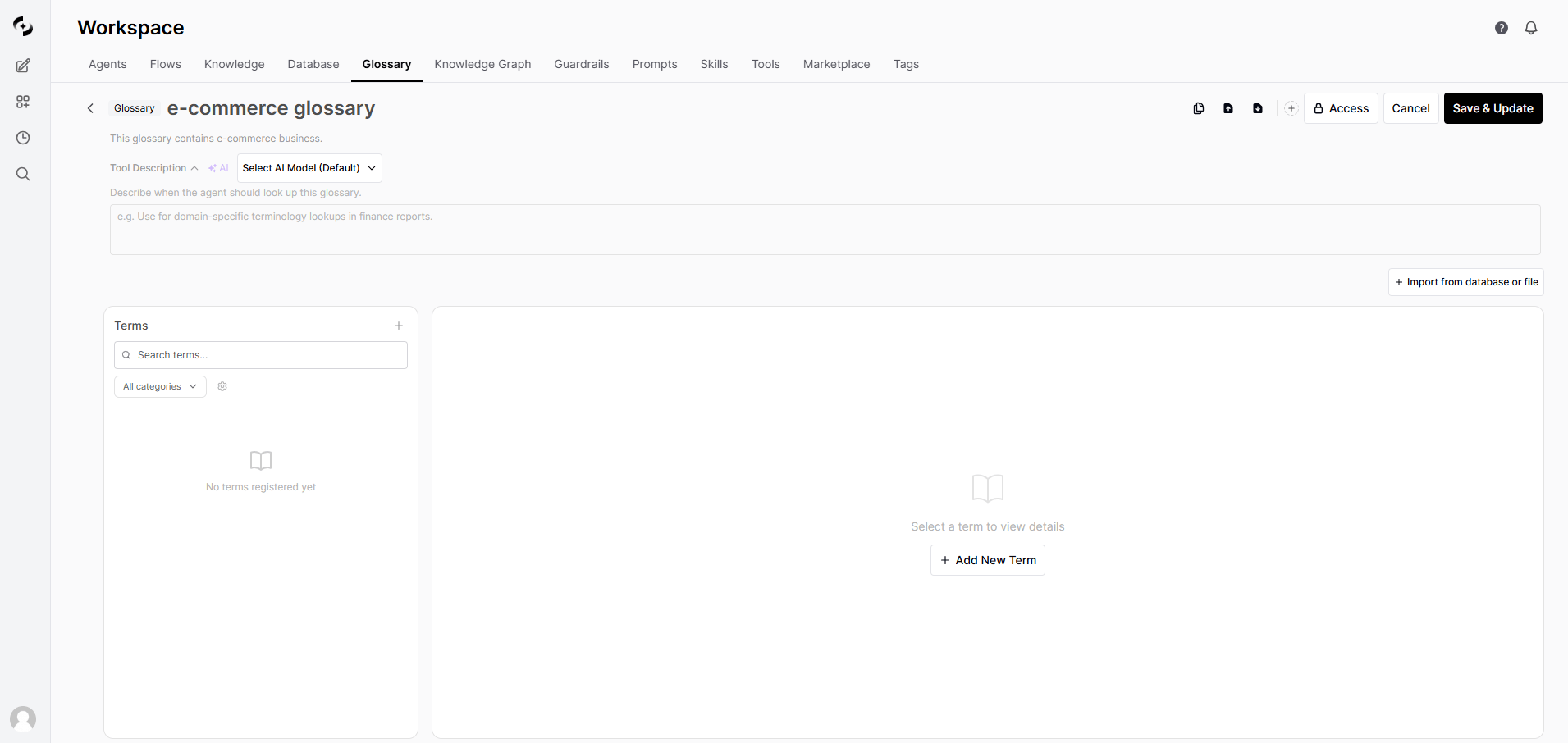 ### Why You Need a Glossary
| Problem | After Using a Glossary |
| ----------------------------------- | ----------------------------------------- |
| "What's MRR?" → AI doesn't know | "MRR is Monthly Recurring Revenue" |
| Different teams use different terms | Standardized terms and definitions |
| New employee onboarding is hard | Instant term lookup |
| Inconsistent AI answers | Consistent answers based on defined terms |
### Key Features
| Feature | Description |
| --------------------------- | ------------------------------------------------ |
| **Term definition** | Clear definitions and usage examples |
| **Synonym support** | Multiple expressions linked to a single term |
| **Category classification** | Group terms by domain for organized management |
| **DB value extraction** | Auto-convert DB column values into terms |
| **Auto search** | AI auto-references related terms when asked |
| **Search engine sync** | Index terms in the search engine for fast lookup |
***
## Glossary List
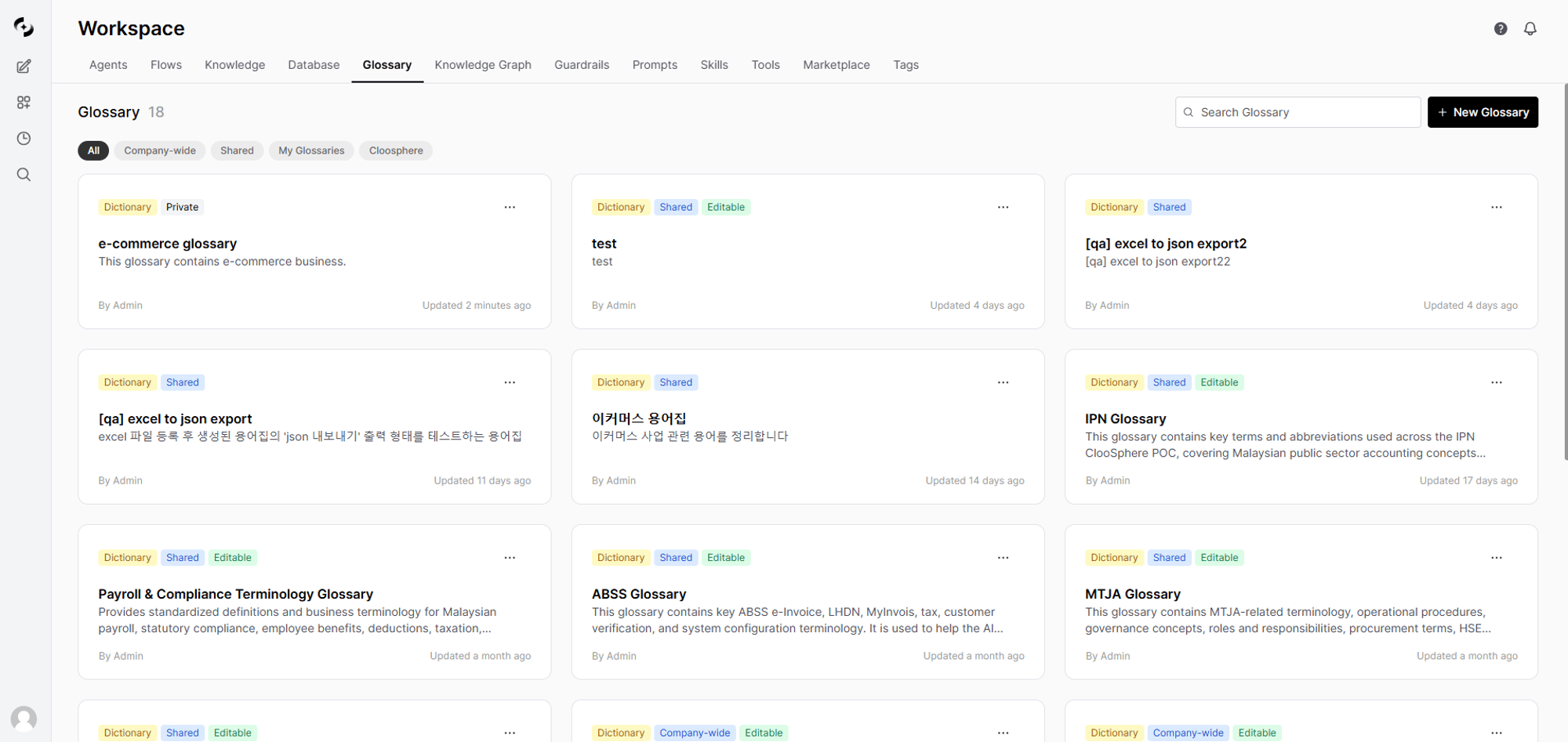
In **Workspace > Glossary**, view all glossaries. The list shows name, description, author, and modified date.
### Why You Need a Glossary
| Problem | After Using a Glossary |
| ----------------------------------- | ----------------------------------------- |
| "What's MRR?" → AI doesn't know | "MRR is Monthly Recurring Revenue" |
| Different teams use different terms | Standardized terms and definitions |
| New employee onboarding is hard | Instant term lookup |
| Inconsistent AI answers | Consistent answers based on defined terms |
### Key Features
| Feature | Description |
| --------------------------- | ------------------------------------------------ |
| **Term definition** | Clear definitions and usage examples |
| **Synonym support** | Multiple expressions linked to a single term |
| **Category classification** | Group terms by domain for organized management |
| **DB value extraction** | Auto-convert DB column values into terms |
| **Auto search** | AI auto-references related terms when asked |
| **Search engine sync** | Index terms in the search engine for fast lookup |
***
## Glossary List
In **Workspace > Glossary**, view all glossaries. The list shows name, description, author, and modified date.
 ***
## Creating a Glossary
In **Workspace > Glossary**, click the **"+ New Glossary"** button at the top-right.
***
## Creating a Glossary
In **Workspace > Glossary**, click the **"+ New Glossary"** button at the top-right.
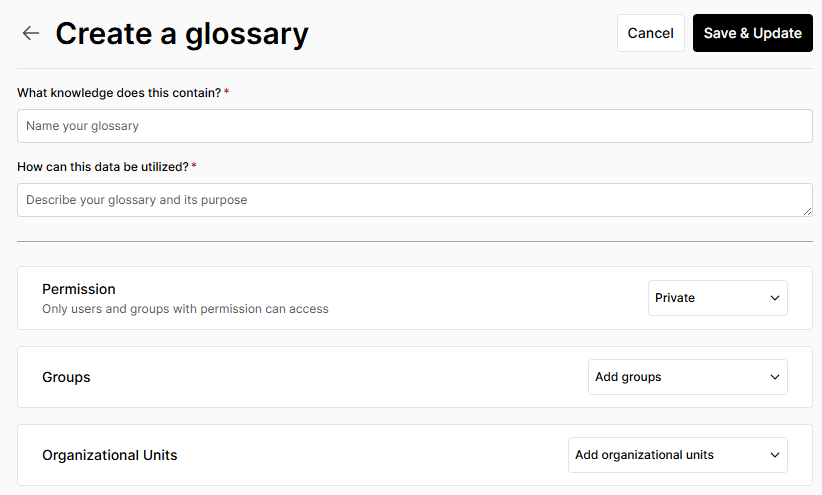 | Field | Description | Example |
| --------------- | -------------------- | ------------------------------------------------ |
| **Name** | Glossary name | "Marketing Glossary" |
| **Description** | Glossary description | "Marketing team terminology and KPI definitions" |
Set the sharing scope for the glossary.
| Option | Description |
| ----------- | ------------------------------------------------------------------------------------------------------ |
| **Public** | Available to all users |
| **Private** | Available only to selected groups or organizational units. If unspecified, only the creator can access |
Click **Save & Update** to create the glossary.
***
## Adding Terms
### Adding a Single Term
In the **Term** panel on the left of the glossary detail page, click the **+** button to add a term. After entering the term info, click **"+ Add"** to save.
| Field | Description | Example |
| --------------- | ------------------------------------- | --------------------------------------------------- |
| **Term** | Term to define | MRR |
| **Synonyms** | Other expressions (comma-separated) | Monthly Recurring Revenue |
| **Category** | Group to classify the term (optional) | Revenue Metrics |
| **Description** | Term description | Recurring subscription revenue generated each month |
| **Example** | Real usage example | "This month's MRR is ₩1B" |
When entering a category, existing categories appear as tag chips. Click to select one, or type a new category name directly.
### Example of a Good Description
```markdown theme={null}
## MRR (Monthly Recurring Revenue)
### Description
Refers to the recurring subscription-based revenue generated each month.
Net recurring revenue reflecting new contracts, upgrades, downgrades, and churn.
### Calculation
MRR = Monthly subscription fee x Active subscribers
### Related Metrics
- ARR (Annual Recurring Revenue) = MRR x 12
- Net MRR = New MRR + Expansion MRR - Contraction MRR - Churn MRR
### Examples
- "MRR grew 5% MoM this month"
- "MRR increased ₩200M from new customer acquisition"
```
Keep the description to 1-2 sentences for the core, and include examples and related terms so the AI references it more accurately.
### Bulk Import
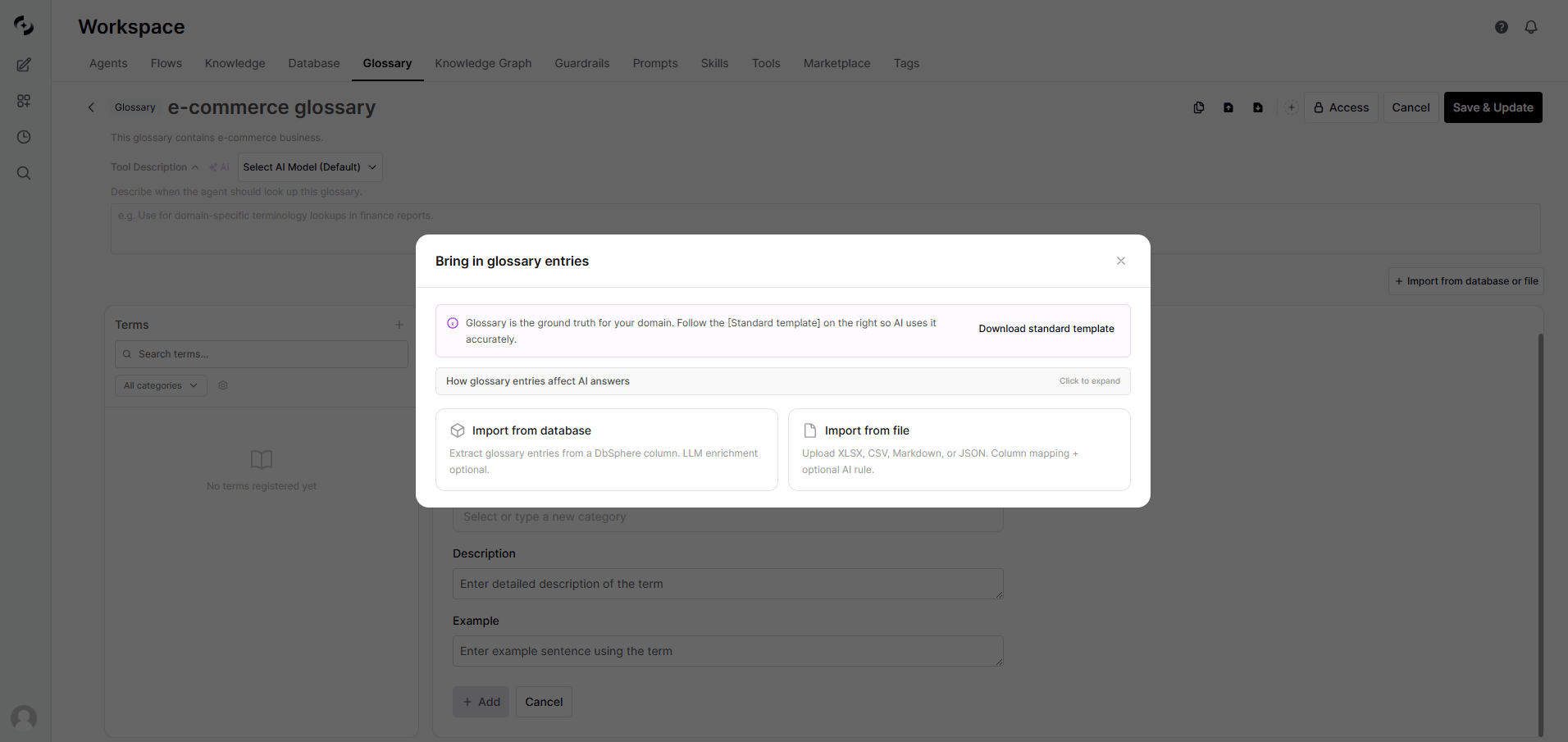
Click **"+ Import from database or file"** to import multiple terms at once from files in various formats.
| Field | Description | Example |
| --------------- | -------------------- | ------------------------------------------------ |
| **Name** | Glossary name | "Marketing Glossary" |
| **Description** | Glossary description | "Marketing team terminology and KPI definitions" |
Set the sharing scope for the glossary.
| Option | Description |
| ----------- | ------------------------------------------------------------------------------------------------------ |
| **Public** | Available to all users |
| **Private** | Available only to selected groups or organizational units. If unspecified, only the creator can access |
Click **Save & Update** to create the glossary.
***
## Adding Terms
### Adding a Single Term
In the **Term** panel on the left of the glossary detail page, click the **+** button to add a term. After entering the term info, click **"+ Add"** to save.
| Field | Description | Example |
| --------------- | ------------------------------------- | --------------------------------------------------- |
| **Term** | Term to define | MRR |
| **Synonyms** | Other expressions (comma-separated) | Monthly Recurring Revenue |
| **Category** | Group to classify the term (optional) | Revenue Metrics |
| **Description** | Term description | Recurring subscription revenue generated each month |
| **Example** | Real usage example | "This month's MRR is ₩1B" |
When entering a category, existing categories appear as tag chips. Click to select one, or type a new category name directly.
### Example of a Good Description
```markdown theme={null}
## MRR (Monthly Recurring Revenue)
### Description
Refers to the recurring subscription-based revenue generated each month.
Net recurring revenue reflecting new contracts, upgrades, downgrades, and churn.
### Calculation
MRR = Monthly subscription fee x Active subscribers
### Related Metrics
- ARR (Annual Recurring Revenue) = MRR x 12
- Net MRR = New MRR + Expansion MRR - Contraction MRR - Churn MRR
### Examples
- "MRR grew 5% MoM this month"
- "MRR increased ₩200M from new customer acquisition"
```
Keep the description to 1-2 sentences for the core, and include examples and related terms so the AI references it more accurately.
### Bulk Import
Click **"+ Import from database or file"** to import multiple terms at once from files in various formats.
 ```json theme={null}
[
{
"term": "MRR",
"synonyms": ["Monthly Recurring Revenue"],
"description": "Recurring subscription revenue generated each month",
"example": "This month's MRR is ₩1B"
},
{
"term": "CAC",
"synonyms": ["Customer Acquisition Cost"],
"description": "Cost of acquiring a new customer",
"example": "Marketing optimization reduced CAC by 20%"
}
]
```
Re-importing an existing term (by name, case-insensitive) updates the existing term. No duplicates are created.
***
## Term Management
### Search and Filter
* **Search**: Search by term, synonym, or description content in the search bar
* **Category filter**: Click category chips at the top to show only a specific category.
```json theme={null}
[
{
"term": "MRR",
"synonyms": ["Monthly Recurring Revenue"],
"description": "Recurring subscription revenue generated each month",
"example": "This month's MRR is ₩1B"
},
{
"term": "CAC",
"synonyms": ["Customer Acquisition Cost"],
"description": "Cost of acquiring a new customer",
"example": "Marketing optimization reduced CAC by 20%"
}
]
```
Re-importing an existing term (by name, case-insensitive) updates the existing term. No duplicates are created.
***
## Term Management
### Search and Filter
* **Search**: Search by term, synonym, or description content in the search bar
* **Category filter**: Click category chips at the top to show only a specific category.
Filter options: "All Categories" / "Uncategorized" / per-category filter
* The term list uses **infinite scroll** (50 entries at a time)
### Edit and Delete
Click a term to edit its content or delete it. Scroll position is preserved during edit/delete, and changes auto-sync with the search index.
### Export
Export all terms as a JSON file. Use for backup, team sharing, or migration to another environment.
### Sync and Reindex
Adding/editing/deleting terms **auto-syncs** to the search index.
If the search index becomes broken, **manual reindex** is possible:
* Click the **kebab menu (⋮) → Rebuild search index** on the glossary card in the list
* Re-pushes all terms to the search engine
Sync only works when a search engine is configured. Without a search engine, sync is ignored.
***
## Category Management
Categories let you systematically classify terms by domain.
### Category Management Screen
Click the **gear icon** to the right of the category filter on the detail page to open the category management modal.
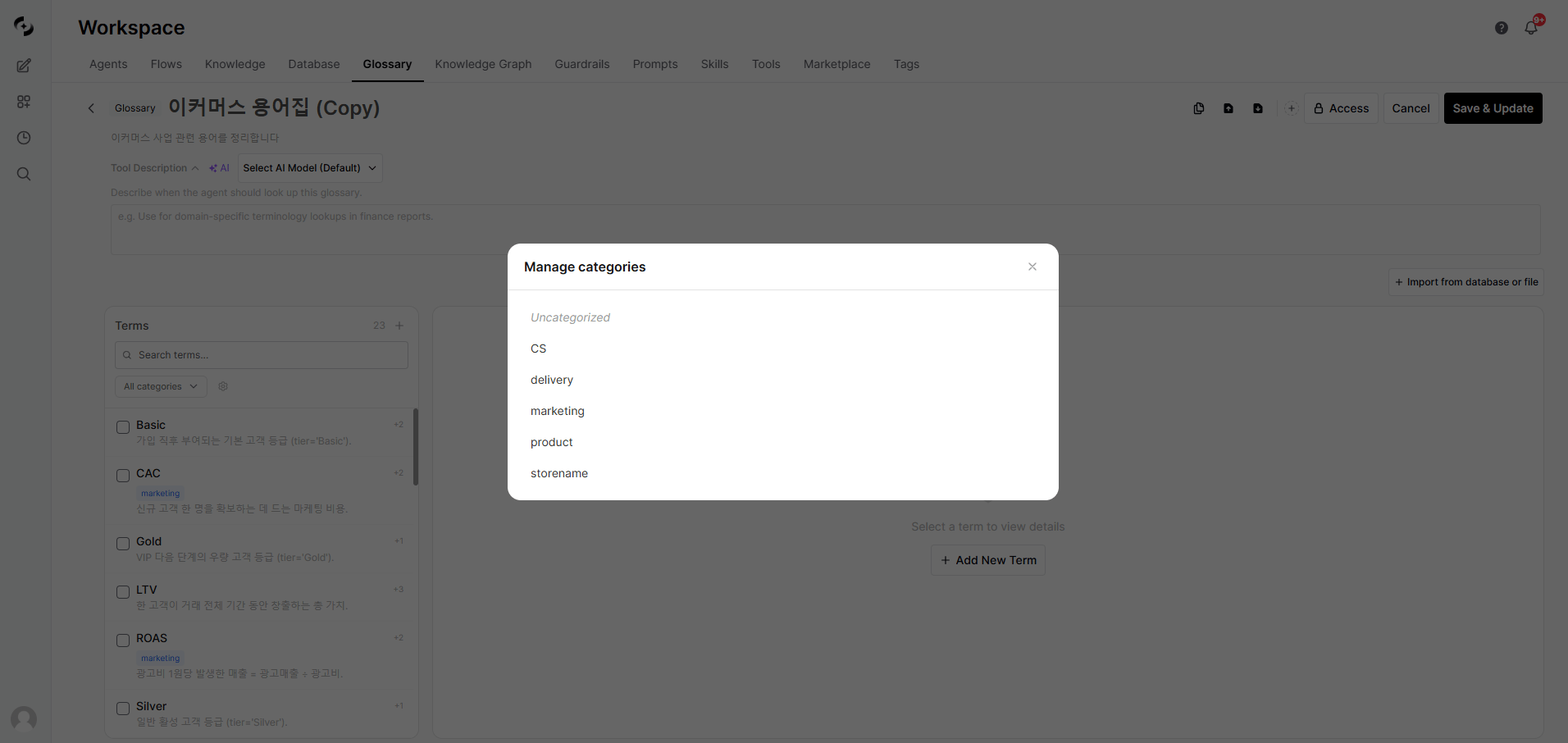 | Action | Method |
| :------------------ | :--------------------------------------------------------------------------- |
| **Rename category** | Hover over category → pencil icon → edit inline → Enter or Save |
| **Delete category** | Hover over category → delete icon → select delete option → confirm or cancel |
Deleting a category also deletes **all terms in that category**. Confirm carefully before deleting.
### Categories and the Knowledge Graph
When **extraction sources** are configured for a category, Knowledge Graph sync auto-generates `maps_to` edges from the category to DB columns. This lets the agent map business terms to actual data columns.
***
## DB Value Extraction
This feature auto-converts distinct DB column values into glossary terms. Instead of manually entering hundreds or thousands of data values, build the glossary quickly by extracting directly from the DB.
### Extraction Flow
```mermaid theme={null}
flowchart LR
A["Pick DB column"] --> B["Extract DISTINCT values"]
B --> C{"LLM enrichment?"}
C -->|Yes| D["Auto-generate synonyms/descriptions"]
C -->|No| E["Raw values only"]
D --> F["Inline review"]
E --> F
F -->|Accept| G["Add to glossary"]
F -->|Reject| H["Discard"]
```
### Run Extraction
Click **"+ Import from database or file"** at the top-right of the glossary detail page, then click **"Import from database"** in the modal
| Field | Description |
| :------------------------------- | :----------------------------------------- |
| **Database** | DbSphere connection to extract values from |
| **Table** | Target table |
| **Term column** | Column to extract DISTINCT values from |
| **Synonym column** | Column to read as synonyms |
| **Description column** | Column to read as descriptions |
| **Reference columns (LLM hint)** | Additional columns to pass as LLM context |
| **Category (required)** | Category to assign to extracted terms |
| **LLM enrichment** | Toggle whether to use LLM enrichment |
Category is **required**. It must be specified to track extraction sources and auto-generate mapping edges in the Knowledge Graph.
Toggle on **LLM enrichment** to auto-generate synonyms, descriptions, and examples for each value.
| Option | Description |
| :----------------------- | :--------------------------------------------------------- |
| Synonyms | Enter guidance for auto-generating synonyms |
| Description | Enter guidance for auto-generating descriptions |
| Example | Enter guidance for auto-generating examples |
| LLM selection | Pick the LLM model to use from the dropdown |
| Batch size · Concurrency | Performance and parallel-processing options for efficiency |
Checking each item (Synonyms / Description / Example) reveals **per-item instruction fields**. Provide different domain/tone/length guidance per item.
Examples:
* **Synonyms instruction**: "Prioritize internal abbreviations and English acronyms"
* **Description instruction**: "One sentence, understandable by non-technical readers"
* **Example instruction**: "Format usable in finance team reports"
If empty, the system default prompt is used (same as before).
If you've specified synonym/description columns from the DB, LLM generation for those items is auto-disabled.
Click **"Extract"** → Confirm the count of values found → Click **OK**
Extraction runs in the background with a progress banner at the top. Identical terms already in the glossary are auto-skipped.
### Inline Review
Once extraction completes, new term candidates appear at the top of the list with a **green background + "NEW" badge**.
| Action | Method |
| :------------------ | :--------------------------------------------------------------------------- |
| **Rename category** | Hover over category → pencil icon → edit inline → Enter or Save |
| **Delete category** | Hover over category → delete icon → select delete option → confirm or cancel |
Deleting a category also deletes **all terms in that category**. Confirm carefully before deleting.
### Categories and the Knowledge Graph
When **extraction sources** are configured for a category, Knowledge Graph sync auto-generates `maps_to` edges from the category to DB columns. This lets the agent map business terms to actual data columns.
***
## DB Value Extraction
This feature auto-converts distinct DB column values into glossary terms. Instead of manually entering hundreds or thousands of data values, build the glossary quickly by extracting directly from the DB.
### Extraction Flow
```mermaid theme={null}
flowchart LR
A["Pick DB column"] --> B["Extract DISTINCT values"]
B --> C{"LLM enrichment?"}
C -->|Yes| D["Auto-generate synonyms/descriptions"]
C -->|No| E["Raw values only"]
D --> F["Inline review"]
E --> F
F -->|Accept| G["Add to glossary"]
F -->|Reject| H["Discard"]
```
### Run Extraction
Click **"+ Import from database or file"** at the top-right of the glossary detail page, then click **"Import from database"** in the modal
| Field | Description |
| :------------------------------- | :----------------------------------------- |
| **Database** | DbSphere connection to extract values from |
| **Table** | Target table |
| **Term column** | Column to extract DISTINCT values from |
| **Synonym column** | Column to read as synonyms |
| **Description column** | Column to read as descriptions |
| **Reference columns (LLM hint)** | Additional columns to pass as LLM context |
| **Category (required)** | Category to assign to extracted terms |
| **LLM enrichment** | Toggle whether to use LLM enrichment |
Category is **required**. It must be specified to track extraction sources and auto-generate mapping edges in the Knowledge Graph.
Toggle on **LLM enrichment** to auto-generate synonyms, descriptions, and examples for each value.
| Option | Description |
| :----------------------- | :--------------------------------------------------------- |
| Synonyms | Enter guidance for auto-generating synonyms |
| Description | Enter guidance for auto-generating descriptions |
| Example | Enter guidance for auto-generating examples |
| LLM selection | Pick the LLM model to use from the dropdown |
| Batch size · Concurrency | Performance and parallel-processing options for efficiency |
Checking each item (Synonyms / Description / Example) reveals **per-item instruction fields**. Provide different domain/tone/length guidance per item.
Examples:
* **Synonyms instruction**: "Prioritize internal abbreviations and English acronyms"
* **Description instruction**: "One sentence, understandable by non-technical readers"
* **Example instruction**: "Format usable in finance team reports"
If empty, the system default prompt is used (same as before).
If you've specified synonym/description columns from the DB, LLM generation for those items is auto-disabled.
Click **"Extract"** → Confirm the count of values found → Click **OK**
Extraction runs in the background with a progress banner at the top. Identical terms already in the glossary are auto-skipped.
### Inline Review
Once extraction completes, new term candidates appear at the top of the list with a **green background + "NEW" badge**.
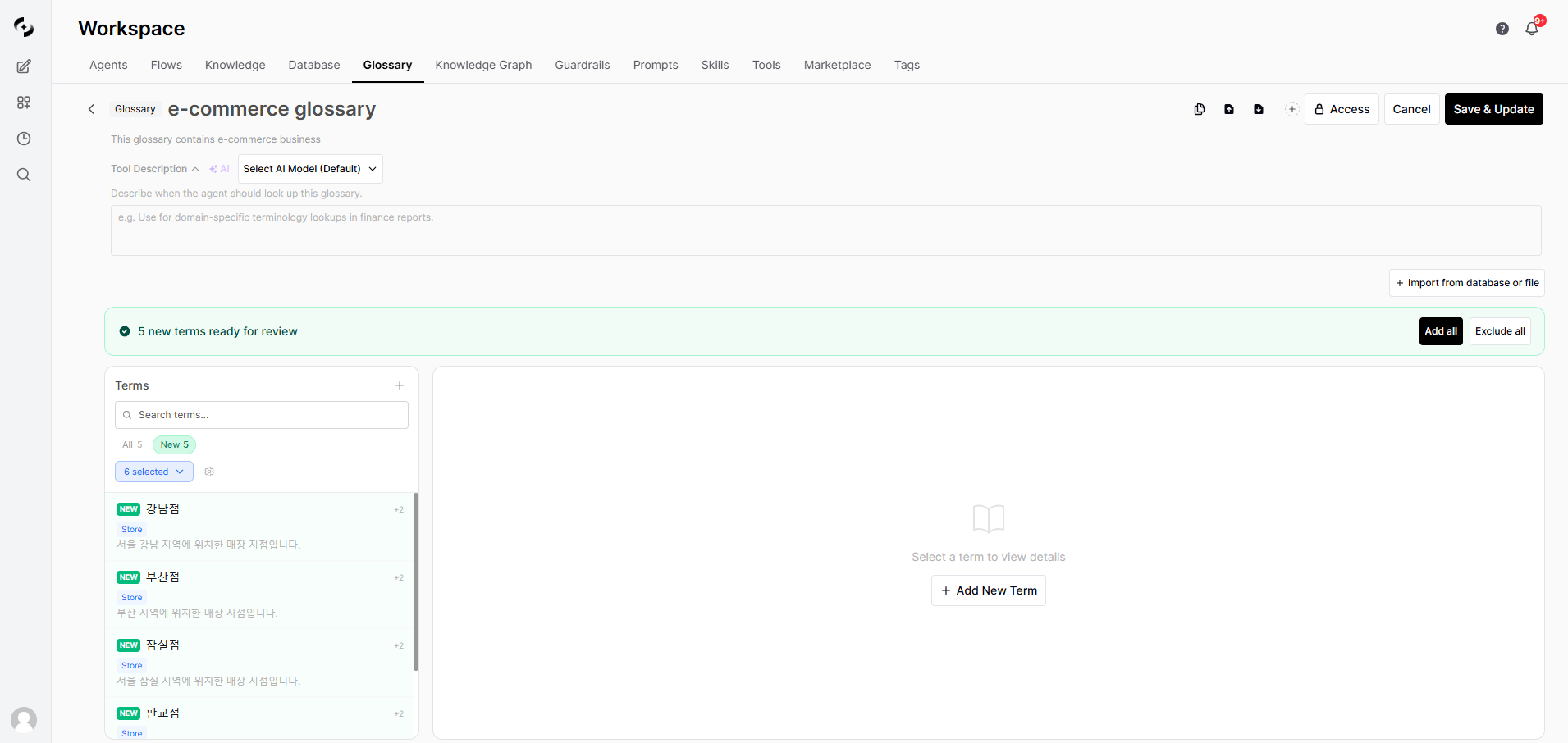 **Review methods:**
| Method | Description |
| :------------------ | :------------------------------------------------------------- |
| **Per-item review** | Click a term → Accept / Edit / Reject |
| **Bulk accept** | Click **"Add all"** in the top banner → accept everything |
| **Bulk reject** | Click **"Exclude all"** in the top banner → discard everything |
Use the "New" tab filter to view only extracted candidates.
***
## Using a Glossary
### Connect to an Agent
In **Workspace > Agents**, open the target agent's edit screen.
In the **Glossary** section, choose the glossaries to connect.
You can connect multiple glossaries to one agent.
Click **Apply** to save the selected glossaries.
### Auto-reference in Chat
When you chat with an agent that has glossaries connected, the AI auto-recognizes related terms and references their definitions.
```
User: What's MRR?
AI: MRR (Monthly Recurring Revenue) refers to monthly recurring revenue.
Description:
Recurring subscription-based revenue generated each month.
Net recurring revenue reflecting new contracts, upgrades, downgrades, and churn.
Calculation:
MRR = Monthly subscription fee x Active subscribers
Related Metrics:
- ARR (Annual Recurring Revenue) = MRR x 12
- Net MRR Growth: Net MRR growth rate
[Source: Marketing Glossary]
```
The AI auto-recognizes terms in the conversation without you asking explicitly.
```
User: What's a healthy LTV-to-CAC ratio?
AI: Generally, an LTV/CAC ratio of 3:1 or higher is considered healthy.
Term definitions:
- CAC (Customer Acquisition Cost): Cost of acquiring a customer
- LTV (Customer Lifetime Value): Lifetime value of a customer
```
***
## Glossary Examples
| Term | Synonyms | Description |
| ---------- | ---------------------------- | ------------------------------------------- |
| MRR | Monthly Recurring Revenue | Monthly recurring revenue |
| CAC | Customer Acquisition Cost | Cost to acquire a new customer |
| LTV | Customer Lifetime Value, CLV | Value a customer brings over their lifetime |
| ARPU | Average Revenue Per User | Average revenue per user |
| Churn Rate | — | Customer churn percentage |
| NPS | Net Promoter Score | Customer recommendation indicator |
| Term | Synonyms | Description |
| ----- | ----------------------- | -------------------------------------------- |
| API | — | Application Programming Interface |
| CI/CD | — | Continuous Integration / Continuous Delivery |
| SLA | Service Level Agreement | Service quality guarantee contract |
| MSA | Microservices | Microservices Architecture |
| K8s | Kubernetes | Container orchestration platform |
| Term | Synonyms | Description |
| ------ | -------------------- | --------------------------------------------------------------- |
| EBITDA | — | Earnings Before Interest, Taxes, Depreciation, and Amortization |
| ROI | Return on Investment | Return ratio relative to investment |
| P\&L | Profit and Loss | Statement of revenue and expenses |
| CAPEX | Capital Expenditure | Capital expenditures |
| OPEX | Operating Expenses | Operating expenses |
| Term | Synonyms | Description |
| ---- | ---------------------------- | ------------------------------- |
| OKR | Objectives and Key Results | Goals and key result metrics |
| KPI | Key Performance Indicator | Key performance indicator |
| 1:1 | One-on-One | Regular check-in with manager |
| PIP | Performance Improvement Plan | Performance improvement program |
***
## Best Practices
1. **Be concise**: Core explanation in 1–2 sentences
2. **Include examples**: Add real usage examples
3. **Link related terms**: Explain related concepts together
4. **Keep current**: Update immediately when descriptions change
* Register the various commonly used expressions
* Include both English and Korean spellings
* Register both abbreviation and full name
* Example: MRR, Monthly Recurring Revenue
* **Separate by domain**: Run separate glossaries for marketing, IT, finance, HR, etc.
* **Set access permissions**: Expose only the glossaries each department needs
* **Periodic review**: Quarterly term updates and cleanup of unused terms
***
## FAQ
The AI understands common terminology, but may not accurately know company-specific terms (internal project codes, internal metric names) or recent domain-specific terms.
Use a glossary to provide accurate descriptions to the AI.
Yes — connect multiple glossaries to a single agent.
Connecting a marketing + finance glossary together lets the agent reference terms from both domains.
* **Knowledge Base**: Stores entire document content and finds related content via vector search (RAG)
* **Glossary**: Stores only individual terms and definitions for fast reference
Use Knowledge Bases for document-based Q\&A and glossaries for term reference.
No limit. The more expressions you register, the better the AI recognizes terms.
Turn off LLM enrichment to extract only DB values without LLM cost. If synonym/description columns are already in the DB, specifying those columns is the most economical.
The glossary manages **term definitions**, while the Knowledge Graph **connects terms to DB columns and documents**. When extraction sources are configured on a category, the KG auto-generates term-to-column mapping edges.
***
## Next Steps
Connect a glossary to an agent to improve AI answer quality
Connect glossary + DB + documents into one unified graph
Connect a database as the source for DB value extraction
**Review methods:**
| Method | Description |
| :------------------ | :------------------------------------------------------------- |
| **Per-item review** | Click a term → Accept / Edit / Reject |
| **Bulk accept** | Click **"Add all"** in the top banner → accept everything |
| **Bulk reject** | Click **"Exclude all"** in the top banner → discard everything |
Use the "New" tab filter to view only extracted candidates.
***
## Using a Glossary
### Connect to an Agent
In **Workspace > Agents**, open the target agent's edit screen.
In the **Glossary** section, choose the glossaries to connect.
You can connect multiple glossaries to one agent.
Click **Apply** to save the selected glossaries.
### Auto-reference in Chat
When you chat with an agent that has glossaries connected, the AI auto-recognizes related terms and references their definitions.
```
User: What's MRR?
AI: MRR (Monthly Recurring Revenue) refers to monthly recurring revenue.
Description:
Recurring subscription-based revenue generated each month.
Net recurring revenue reflecting new contracts, upgrades, downgrades, and churn.
Calculation:
MRR = Monthly subscription fee x Active subscribers
Related Metrics:
- ARR (Annual Recurring Revenue) = MRR x 12
- Net MRR Growth: Net MRR growth rate
[Source: Marketing Glossary]
```
The AI auto-recognizes terms in the conversation without you asking explicitly.
```
User: What's a healthy LTV-to-CAC ratio?
AI: Generally, an LTV/CAC ratio of 3:1 or higher is considered healthy.
Term definitions:
- CAC (Customer Acquisition Cost): Cost of acquiring a customer
- LTV (Customer Lifetime Value): Lifetime value of a customer
```
***
## Glossary Examples
| Term | Synonyms | Description |
| ---------- | ---------------------------- | ------------------------------------------- |
| MRR | Monthly Recurring Revenue | Monthly recurring revenue |
| CAC | Customer Acquisition Cost | Cost to acquire a new customer |
| LTV | Customer Lifetime Value, CLV | Value a customer brings over their lifetime |
| ARPU | Average Revenue Per User | Average revenue per user |
| Churn Rate | — | Customer churn percentage |
| NPS | Net Promoter Score | Customer recommendation indicator |
| Term | Synonyms | Description |
| ----- | ----------------------- | -------------------------------------------- |
| API | — | Application Programming Interface |
| CI/CD | — | Continuous Integration / Continuous Delivery |
| SLA | Service Level Agreement | Service quality guarantee contract |
| MSA | Microservices | Microservices Architecture |
| K8s | Kubernetes | Container orchestration platform |
| Term | Synonyms | Description |
| ------ | -------------------- | --------------------------------------------------------------- |
| EBITDA | — | Earnings Before Interest, Taxes, Depreciation, and Amortization |
| ROI | Return on Investment | Return ratio relative to investment |
| P\&L | Profit and Loss | Statement of revenue and expenses |
| CAPEX | Capital Expenditure | Capital expenditures |
| OPEX | Operating Expenses | Operating expenses |
| Term | Synonyms | Description |
| ---- | ---------------------------- | ------------------------------- |
| OKR | Objectives and Key Results | Goals and key result metrics |
| KPI | Key Performance Indicator | Key performance indicator |
| 1:1 | One-on-One | Regular check-in with manager |
| PIP | Performance Improvement Plan | Performance improvement program |
***
## Best Practices
1. **Be concise**: Core explanation in 1–2 sentences
2. **Include examples**: Add real usage examples
3. **Link related terms**: Explain related concepts together
4. **Keep current**: Update immediately when descriptions change
* Register the various commonly used expressions
* Include both English and Korean spellings
* Register both abbreviation and full name
* Example: MRR, Monthly Recurring Revenue
* **Separate by domain**: Run separate glossaries for marketing, IT, finance, HR, etc.
* **Set access permissions**: Expose only the glossaries each department needs
* **Periodic review**: Quarterly term updates and cleanup of unused terms
***
## FAQ
The AI understands common terminology, but may not accurately know company-specific terms (internal project codes, internal metric names) or recent domain-specific terms.
Use a glossary to provide accurate descriptions to the AI.
Yes — connect multiple glossaries to a single agent.
Connecting a marketing + finance glossary together lets the agent reference terms from both domains.
* **Knowledge Base**: Stores entire document content and finds related content via vector search (RAG)
* **Glossary**: Stores only individual terms and definitions for fast reference
Use Knowledge Bases for document-based Q\&A and glossaries for term reference.
No limit. The more expressions you register, the better the AI recognizes terms.
Turn off LLM enrichment to extract only DB values without LLM cost. If synonym/description columns are already in the DB, specifying those columns is the most economical.
The glossary manages **term definitions**, while the Knowledge Graph **connects terms to DB columns and documents**. When extraction sources are configured on a category, the KG auto-generates term-to-column mapping edges.
***
## Next Steps
Connect a glossary to an agent to improve AI answer quality
Connect glossary + DB + documents into one unified graph
Connect a database as the source for DB value extraction