> ## Documentation Index
> Fetch the complete documentation index at: https://docs.cloosphere.ai/llms.txt
> Use this file to discover all available pages before exploring further.
# Guardrails
> AI I/O security validation — PII detection, content filtering, LLM-based judgment
When you ask the AI to "organize the customer email list", there's a real risk of personal information being exposed or leaked. Guardrails **automatically validate AI conversation inputs and outputs** to prevent these risks.
### Example
> "The customer's inquiry email is [hong@company.com](mailto:hong@company.com) and the card number is 1234-5678-9012-3456"
| State | Behavior | Result |
| --------------------------- | -------------------------- | --------------------------------------------- |
| No guardrail | AI processes as-is | PII may be included in the response |
| Guardrail applied (masking) | Sensitive info auto-masked | Becomes `h***@***.com`, `****-****-****-3456` |
```mermaid theme={null}
flowchart LR
A[User input] --> B[PII detection]
B --> C{Detected?}
C -->|No| D[Pass to LLM]
C -->|Yes| E{Strategy}
E -->|Block| F[Block]
E -->|Redact/Mask| G[Mask]
G --> H{LLM Judge?}
H -->|No| D
H -->|Yes| I[LLM judgment]
I -->|PASS| D
I -->|BLOCK| F
D --> J[AI response]
J --> K[Output validation]
K --> L[Final response]
```
***
## What is a Guardrail?
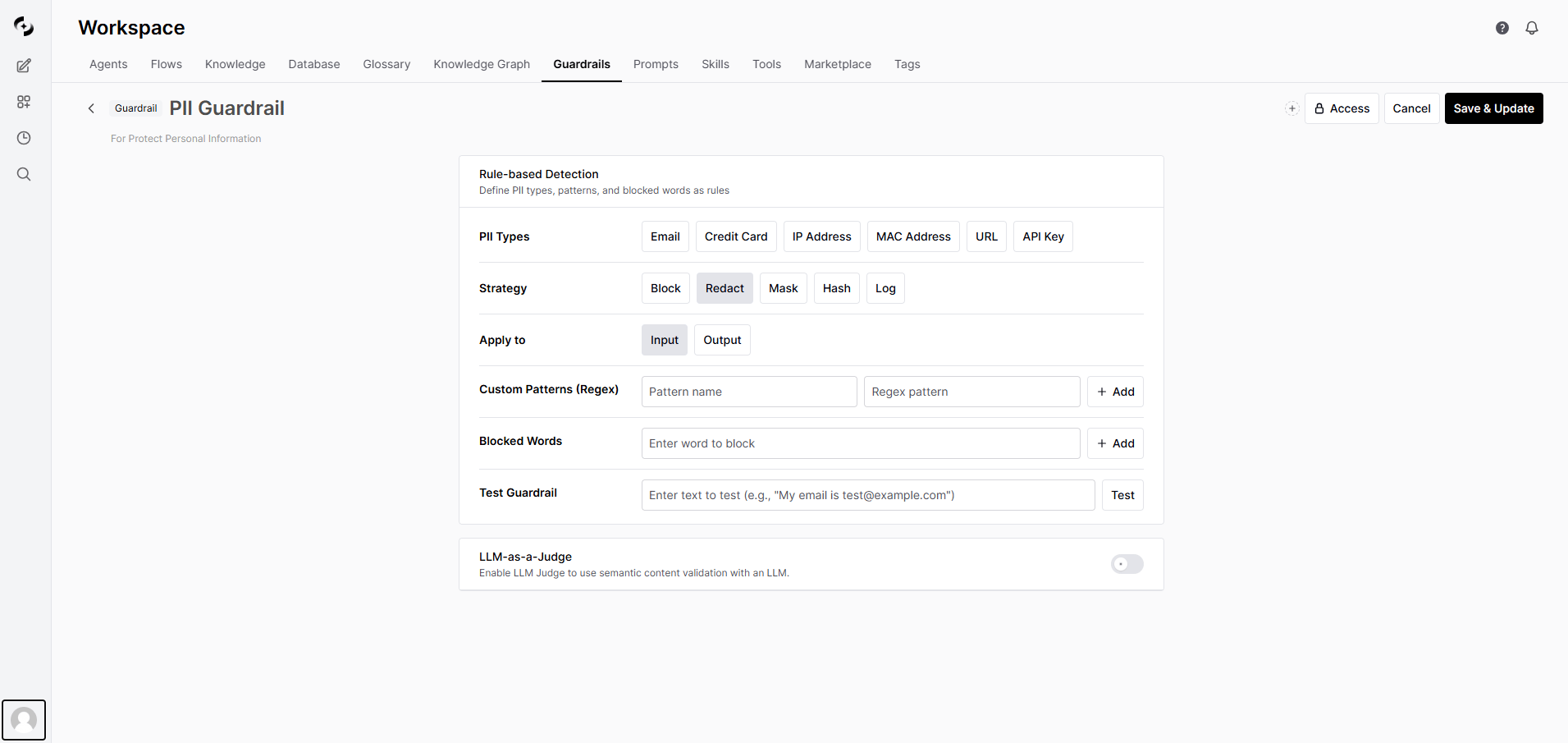
A guardrail combines rule-based detection and LLM-based judgment to ensure conversation safety.
 ### Key Features
| Feature | Description |
| ---------------------- | ---------------------------------------------------------------------------- |
| **PII detection** | Detects PII like email, credit card, IP address, MAC address, URL, API key |
| **Custom patterns** | Detects user-defined patterns via regex (employee ID, document number, etc.) |
| **Banned words** | Filters messages containing specific words/phrases |
| **LLM-based judgment** | Semantic content validation using AI (LLM-as-a-Judge) |
### Use Cases
* **PII protection**: Prevent customer emails, phone numbers, and credit card info from being exposed to the AI
* **Security hardening**: Detect sensitive credentials like API keys, passwords, auth tokens
* **Content filtering**: Block inappropriate expressions or prohibited topics
* **Compliance**: Industry-specific regulations like GDPR, PIPA
***
## Guardrail List
In **Workspace > Guardrails**, view all guardrails.
### Key Features
| Feature | Description |
| ---------------------- | ---------------------------------------------------------------------------- |
| **PII detection** | Detects PII like email, credit card, IP address, MAC address, URL, API key |
| **Custom patterns** | Detects user-defined patterns via regex (employee ID, document number, etc.) |
| **Banned words** | Filters messages containing specific words/phrases |
| **LLM-based judgment** | Semantic content validation using AI (LLM-as-a-Judge) |
### Use Cases
* **PII protection**: Prevent customer emails, phone numbers, and credit card info from being exposed to the AI
* **Security hardening**: Detect sensitive credentials like API keys, passwords, auth tokens
* **Content filtering**: Block inappropriate expressions or prohibited topics
* **Compliance**: Industry-specific regulations like GDPR, PIPA
***
## Guardrail List
In **Workspace > Guardrails**, view all guardrails.
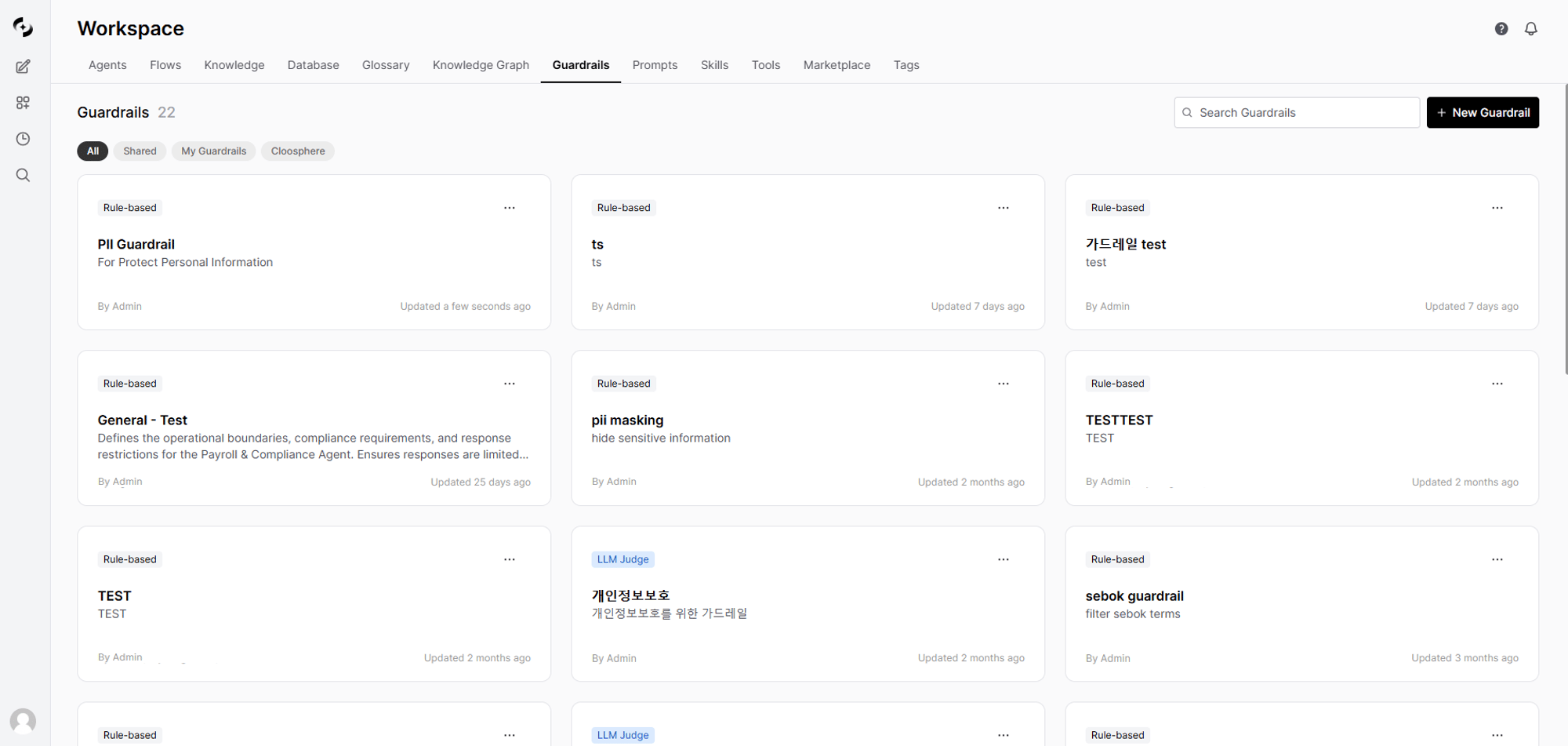 | Element | Description |
| --------------- | ---------------------------------------- |
| **Name** | Guardrail identifier name |
| **Description** | Guardrail purpose |
| **LLM badge** | Indicates LLM-based detection is enabled |
| **Author** | User who created the guardrail |
| **Modified** | Last modified time |
***
## Creating a Guardrail
In **Workspace > Guardrails**, click the **+ New Guardrail** button at the top-right.
| Element | Description |
| --------------- | ---------------------------------------- |
| **Name** | Guardrail identifier name |
| **Description** | Guardrail purpose |
| **LLM badge** | Indicates LLM-based detection is enabled |
| **Author** | User who created the guardrail |
| **Modified** | Last modified time |
***
## Creating a Guardrail
In **Workspace > Guardrails**, click the **+ New Guardrail** button at the top-right.
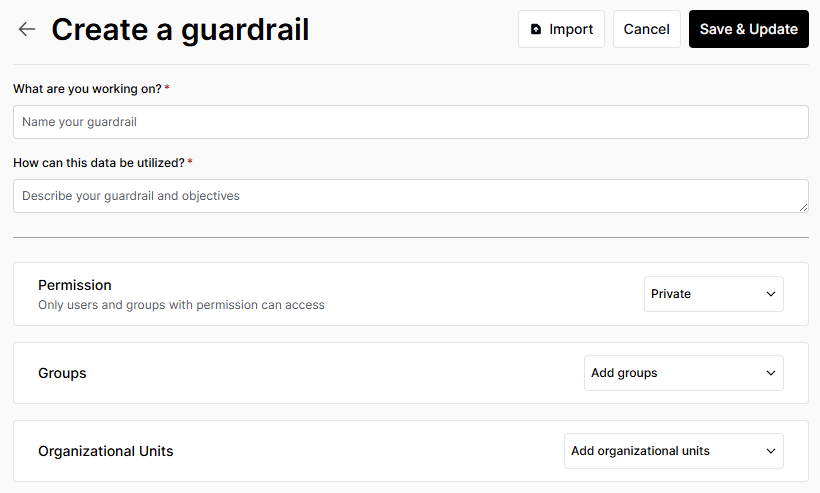 | Field | Description | Example |
| --------------- | ------------------ | ------------------------------ |
| **Name** | Guardrail name | "Customer Info Protection" |
| **Description** | Purpose | "Prevent customer PII leakage" |
| **Visibility** | Access permissions | Private / Shared with team |
Clicking **Save & Update** takes you to the guardrail edit screen.
Select pre-defined PII types in the edit screen.
| PII Type | Description | Example |
| --------------- | ------------------------------------------ | --------------------- |
| **Email** | Detect email addresses | `user@example.com` |
| **Credit card** | Credit card numbers (with Luhn validation) | `1234-5678-9012-3456` |
| **IP address** | IPv4 address detection | `192.168.1.1` |
| **MAC address** | MAC address detection | `00:1A:2B:3C:4D:5E` |
| **URL** | Web address detection | `https://example.com` |
| **API key** | API key pattern detection | `sk-xxxxxxxx` |
Pick how to handle detected sensitive info.
| Strategy | Description | Example Result |
| ---------- | ----------------------------------- | ------------------------------------------ |
| **Block** | Block the entire message | "Sensitive info detected — cannot process" |
| **Redact** | Replace sensitive info with a label | "Contact: `[REDACTED_EMAIL]`" |
| **Mask** | Show only some characters | "`j***@***.com`", "`****-****-****-1234`" |
| **Hash** | Convert to a hash value | "Contact: ``" |
| **Log** | Log without blocking | Original passed through |
**Recommended strategies by situation:**
| Situation | Recommended | Reason |
| ---------------------------- | ------------- | --------------------------------------------------- |
| Initial deployment / testing | Log | Identify false positives, then adjust |
| Customer-facing service | Mask or Block | Prevent PII exposure at the source |
| Internal analysis tool | Hash | Keep identifiers without originals (stats possible) |
| Compliance required | Block | Prevent processing of sensitive info entirely |
| Standard business | Redact | Preserve flow + protect info |
Choose when the guardrail applies.
| Option | Description |
| ---------- | ------------------------ |
| **Input** | Applied to user messages |
| **Output** | Applied to AI responses |
Security-first: validate both input and output. Performance-first: validate input only (minimizes latency).
Add user-defined patterns via regex.
| Name | Pattern | Use |
| ------------------- | -------------------- | ------------------------- |
| Employee ID | `EMP-\d{6}` | Detect employee numbers |
| Internal doc number | `DOC-[A-Z]{2}-\d{4}` | Document number detection |
| Project code | `PRJ-\d{4}` | Project code detection |
Filter messages containing specific words or phrases.
Example: register competitor names, secret project names, internal codenames.
Click the **Test** button to verify that the applied guardrail works as expected. See the [Testing Guardrails](#testing-guardrails) section for details.
Click **Save & Update** to save the settings.
***
## Guardrail Execution Flow
When connected to an agent, the guardrail runs automatically in this order during a conversation.
```mermaid theme={null}
flowchart TD
A[User message input] --> B[Run input guardrail]
B --> C{Rule-based detection}
C -->|Violation| D{Strategy}
D -->|Block| E[Block message — return error to user]
D -->|Redact/Mask/Hash| F[Process text and continue]
D -->|Log| G[Log and pass original]
C -->|Pass| H{LLM Judge enabled?}
F --> H
G --> H
H -->|Yes| I[LLM judgment]
I -->|BLOCK| E
I -->|PASS| J[AI model processing]
H -->|No| J
J --> K[Generate AI response]
K --> L[Run output guardrail]
L -->|Violation| M[Modify or block response]
L -->|Pass| N[Deliver final response]
```
### Internal Behaviors Worth Knowing
If the LLM Judge fails to make a decision or returns an unclear response, it **defaults to PASS**. This is by design to prevent excessive blocking from disrupting normal conversations.
After the AI response **finishes streaming**, the entire response is re-checked. When a violation is detected, the frontend message is **automatically replaced** with the processed content.
When multiple guardrails are connected to an agent, **all must pass sequentially**. If any one blocks, the message is blocked.
No. SQL query results, Knowledge Base search results, etc. — **tool execution results are excluded from guardrail scanning**. This is by design to prevent false positives on internal data IP addresses or numeric patterns.
***
## LLM-based Detection
The AI judges complex patterns difficult to detect with rules. Using **LLM-as-a-Judge**, a separate LLM model judges message appropriateness.
### Settings
| Item | Description |
| ---------------------- | ------------------------------------------------------------------------------------------------- |
| **Enabled** | Toggle LLM-based detection |
| **Model** | LLM model used for judgment |
| **Judge Prompt** | Prompt defining judgment criteria |
| **Apply LLM Judge to** | Apply LLM-based detection to input (user input) and/or output (AI response); both can be selected |
| **Pass Examples** | Examples that should be judged PASS |
| **Block Examples** | Examples that should be judged BLOCK |
### Example Prompt
```markdown theme={null}
You are a content reviewer. Determine whether the following message complies with corporate security policy.
## Block when
- Requests for confidential info (financial data, personnel info, etc.)
- Questions about system hacking or security bypass
- Requests for illegal or unethical actions
## Allow when
- General work questions
- Inquiries about public info
- Product/service questions
Return "PASS" if appropriate, "BLOCK" if not.
```
LLM Judge introduces additional LLM calls, increasing response time. For performance-sensitive cases, use rule-based detection only or pick a fast model as the Judge.
***
## Testing Guardrails
You can test directly with text in the guardrail settings screen.
| Field | Description | Example |
| --------------- | ------------------ | ------------------------------ |
| **Name** | Guardrail name | "Customer Info Protection" |
| **Description** | Purpose | "Prevent customer PII leakage" |
| **Visibility** | Access permissions | Private / Shared with team |
Clicking **Save & Update** takes you to the guardrail edit screen.
Select pre-defined PII types in the edit screen.
| PII Type | Description | Example |
| --------------- | ------------------------------------------ | --------------------- |
| **Email** | Detect email addresses | `user@example.com` |
| **Credit card** | Credit card numbers (with Luhn validation) | `1234-5678-9012-3456` |
| **IP address** | IPv4 address detection | `192.168.1.1` |
| **MAC address** | MAC address detection | `00:1A:2B:3C:4D:5E` |
| **URL** | Web address detection | `https://example.com` |
| **API key** | API key pattern detection | `sk-xxxxxxxx` |
Pick how to handle detected sensitive info.
| Strategy | Description | Example Result |
| ---------- | ----------------------------------- | ------------------------------------------ |
| **Block** | Block the entire message | "Sensitive info detected — cannot process" |
| **Redact** | Replace sensitive info with a label | "Contact: `[REDACTED_EMAIL]`" |
| **Mask** | Show only some characters | "`j***@***.com`", "`****-****-****-1234`" |
| **Hash** | Convert to a hash value | "Contact: ``" |
| **Log** | Log without blocking | Original passed through |
**Recommended strategies by situation:**
| Situation | Recommended | Reason |
| ---------------------------- | ------------- | --------------------------------------------------- |
| Initial deployment / testing | Log | Identify false positives, then adjust |
| Customer-facing service | Mask or Block | Prevent PII exposure at the source |
| Internal analysis tool | Hash | Keep identifiers without originals (stats possible) |
| Compliance required | Block | Prevent processing of sensitive info entirely |
| Standard business | Redact | Preserve flow + protect info |
Choose when the guardrail applies.
| Option | Description |
| ---------- | ------------------------ |
| **Input** | Applied to user messages |
| **Output** | Applied to AI responses |
Security-first: validate both input and output. Performance-first: validate input only (minimizes latency).
Add user-defined patterns via regex.
| Name | Pattern | Use |
| ------------------- | -------------------- | ------------------------- |
| Employee ID | `EMP-\d{6}` | Detect employee numbers |
| Internal doc number | `DOC-[A-Z]{2}-\d{4}` | Document number detection |
| Project code | `PRJ-\d{4}` | Project code detection |
Filter messages containing specific words or phrases.
Example: register competitor names, secret project names, internal codenames.
Click the **Test** button to verify that the applied guardrail works as expected. See the [Testing Guardrails](#testing-guardrails) section for details.
Click **Save & Update** to save the settings.
***
## Guardrail Execution Flow
When connected to an agent, the guardrail runs automatically in this order during a conversation.
```mermaid theme={null}
flowchart TD
A[User message input] --> B[Run input guardrail]
B --> C{Rule-based detection}
C -->|Violation| D{Strategy}
D -->|Block| E[Block message — return error to user]
D -->|Redact/Mask/Hash| F[Process text and continue]
D -->|Log| G[Log and pass original]
C -->|Pass| H{LLM Judge enabled?}
F --> H
G --> H
H -->|Yes| I[LLM judgment]
I -->|BLOCK| E
I -->|PASS| J[AI model processing]
H -->|No| J
J --> K[Generate AI response]
K --> L[Run output guardrail]
L -->|Violation| M[Modify or block response]
L -->|Pass| N[Deliver final response]
```
### Internal Behaviors Worth Knowing
If the LLM Judge fails to make a decision or returns an unclear response, it **defaults to PASS**. This is by design to prevent excessive blocking from disrupting normal conversations.
After the AI response **finishes streaming**, the entire response is re-checked. When a violation is detected, the frontend message is **automatically replaced** with the processed content.
When multiple guardrails are connected to an agent, **all must pass sequentially**. If any one blocks, the message is blocked.
No. SQL query results, Knowledge Base search results, etc. — **tool execution results are excluded from guardrail scanning**. This is by design to prevent false positives on internal data IP addresses or numeric patterns.
***
## LLM-based Detection
The AI judges complex patterns difficult to detect with rules. Using **LLM-as-a-Judge**, a separate LLM model judges message appropriateness.
### Settings
| Item | Description |
| ---------------------- | ------------------------------------------------------------------------------------------------- |
| **Enabled** | Toggle LLM-based detection |
| **Model** | LLM model used for judgment |
| **Judge Prompt** | Prompt defining judgment criteria |
| **Apply LLM Judge to** | Apply LLM-based detection to input (user input) and/or output (AI response); both can be selected |
| **Pass Examples** | Examples that should be judged PASS |
| **Block Examples** | Examples that should be judged BLOCK |
### Example Prompt
```markdown theme={null}
You are a content reviewer. Determine whether the following message complies with corporate security policy.
## Block when
- Requests for confidential info (financial data, personnel info, etc.)
- Questions about system hacking or security bypass
- Requests for illegal or unethical actions
## Allow when
- General work questions
- Inquiries about public info
- Product/service questions
Return "PASS" if appropriate, "BLOCK" if not.
```
LLM Judge introduces additional LLM calls, increasing response time. For performance-sensitive cases, use rule-based detection only or pick a fast model as the Judge.
***
## Testing Guardrails
You can test directly with text in the guardrail settings screen.
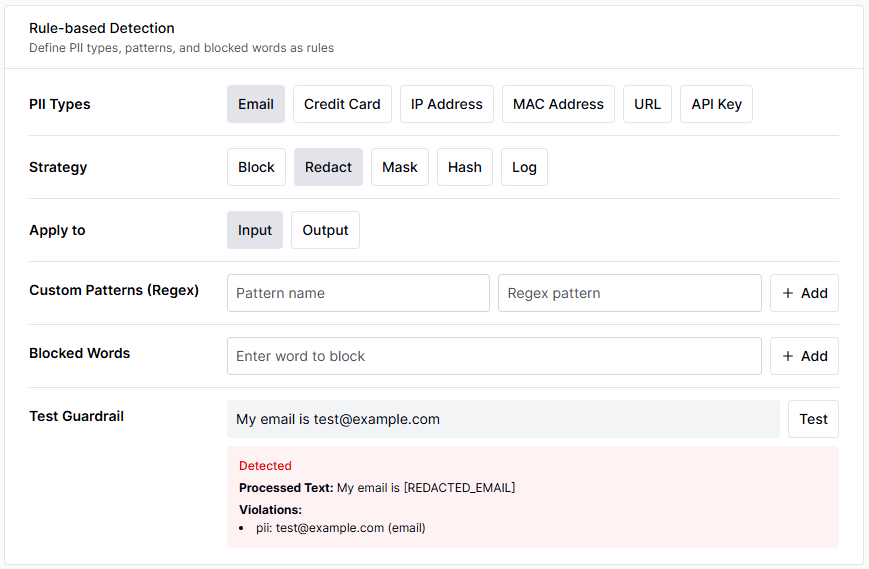 1. Enter test text
2. Click the **Test** button
3. Review results: detected items, processed text, blocked or not
| Input | Strategy | Result |
| --------------------------------------------------------- | -------- | ------------------------------------------ |
| "My email is [test@example.com](mailto:test@example.com)" | Redact | "My email is `[REDACTED_EMAIL]`" |
| "Card number: 1234-5678-9012-3456" | Mask | "Card number: `****-****-****-3456`" |
| "API key: sk-abc123def456" | Hash | "API key: `a1b2c3d4...`" |
| "Analyze CompetitorX internal docs" | Block | "Sensitive info detected — cannot process" |
***
## Applying Guardrails
Guardrails can be directly connected via two paths — the **agent level** and **group level** — and together with the admin-configured **global guardrails**, all applied guardrails are merged and run sequentially.
### Connect to an Agent
In **Workspace > Agents**, open the target agent's edit screen.
In the **Guardrails** section, choose guardrails to apply.
You can apply multiple guardrails to one agent — all must pass sequentially before the message is processed.
Save the agent settings. The guardrails apply to all conversations with this agent thereafter.
### Connect to a Group
**New feature** — Setting a guardrail at the group level auto-applies to **all conversations** of users in that group, even when the agent has no guardrail.
In the **Admin Panel > Users > Groups and Permissions** tab, select the group to edit. When the **Edit User Group** modal opens, pick the guardrail to apply under **Chat Guardrail**.
| Item | Description |
| ------------------- | ------------------------------------------------------ |
| **Applied to** | All users in the group |
| **Scope** | All conversations of those users (regardless of agent) |
| **Guardrail count** | One per group |
### Application Priority
When a user chats, guardrails from these 3 paths are **all merged** and applied:
```
1. Agent level — Guardrails directly connected to the agent
2. Group level — Guardrails of groups the user belongs to
3. Global — Guardrails set in admin settings
```
When the same guardrail is set in multiple paths, it is **not executed twice** (auto-deduplication). Guardrails selected at group level are removed from the global guardrail selection list to prevent duplicate setup.
**The LLM-based guardrail's detection model selector does not include agents or flows** — guardrails can only use plain LLM models. To build guardrail detection with an agent, implement it via separate guardrail patterns (keyword/regex/LLM prompt).
***
## File Upload Guardrails
A separate security check on uploaded files. **Independent from chat guardrails** — automatically runs 4 stages of checks when a file is uploaded.
Configure in the **Admin Panel > Settings > Guardrails** tab.
```mermaid theme={null}
flowchart LR
A[File upload] --> B[1. Macro detection]
B --> C[2. EXIF removal / NSFW detection]
C --> D[3. Text guardrail]
D --> E[4. Document sensitivity classification]
E --> F[Upload complete]
```
| Stage | Feature | Target Files | On Violation |
| :---: | --------------------------- | ------------------------------------- | ------------------------------------------------------- |
| 1 | **Macro Detection** | .doc, .docm, .xls, .xlsm, .ppt, .pptm | Block or warn |
| 2 | **EXIF Metadata Stripping** | .jpg, .jpeg, .tiff, .webp | Auto-removed (not blocked) |
| 2 | **NSFW Image Detection** | All images | Block after Vision LLM judgment |
| 3 | **Text Content Guardrails** | Entire document | Apply specified guardrail rules (always Block strategy) |
| 4 | **Document Classification** | Entire document | Allow/warn/block per classification |
### Document Classification
The LLM analyzes document content and auto-classifies sensitivity. Default categories:
| Classification | Default Action | Description |
| ---------------- | :------------: | ----------------------------------- |
| **PUBLIC** | Allow | Documents that can be public |
| **INTERNAL** | Allow | Internal documents |
| **CONFIDENTIAL** | Warn (Flag) | Confidential — allow upload but log |
| **RESTRICTED** | Block | Top secret — block upload |
For large documents, only beginning/middle/end portions are sampled (max 8,000 characters) and passed to the LLM. Since the entire document isn't analyzed, classification can be inaccurate if key sensitive info is concentrated in a specific section.
***
## Monitoring Integration
### Auto-recorded in Tracing
When a guardrail detects sensitive info, the event is **auto-recorded in the message trace**.
| Field | Description |
| ------------ | ------------------------------------------- |
| **Run type** | `guardrail` |
| **Run name** | `guardrail:guardrail-name` |
| **Inputs** | Detection type, original content (partial) |
| **Outputs** | Strategy, detection details, guardrail name |
### Guardrail Logs
In **Admin Panel > Monitoring > Guardrail Logs**, view all detection events as a dedicated log.
| Filter | Description |
| ---------------- | ------------------------------------------------------------------------ |
| **Time range** | 1 hour \~ 30 days, all time, custom |
| **All Actions** | Action type filter (Block, Redact, Mask, Hash, Log etc..) |
| **All Patterns** | Detection source filter (rules (PII, banned words), LLM-based detection) |
| **All Sources** | Detection origin filter (chat, gateway etc..) |
| **User** | Filter by specific user |
| **Chat ID** | Filter by specific chat |
Click a log entry to view details (original content, processed content, detection time, etc.). Use the **Trace** button to see the full processing context for that message.
For details on guardrail logs, see [Guardrail Logs](/en/monitoring/guardrail-logs).
***
## Best Practices
1. Start with **Log** to gauge detection frequency
2. Identify and adjust false-positive patterns
3. Switch to **Redact** strategy
4. After stabilizing, apply **Block** to required items
| Role | Recommended |
| ---------------------- | --------------------------- |
| Customer support bot | All PII + Mask |
| Internal analysis tool | API keys only + Hash |
| HR assistant | All PII + LLM Judge + Block |
| General work bot | Default PII + Redact |
* Add new sensitive-info patterns
* Exclude false-positive patterns or narrow regex scope
* Update LLM Judge allow/block examples
* Improve policy based on guardrail logs
***
## Troubleshooting
1. Narrow the regex scope of custom patterns
2. Refine the banned-words list (case-insensitive exact match)
3. Add **allow-case examples** to the LLM Judge
4. Identify false-positive patterns in guardrail logs and adjust rules
1. Add missing PII types
2. Register a new regex as a custom pattern
3. Enable LLM Judge and add **block examples**
4. Specify semantic patterns hard to catch with rules in the LLM Judge prompt
1. Disable LLM Judge and use rule-based only (rule-based has near-zero latency)
2. Disable output validation (input only)
3. Choose a faster model as the Judge model
Guardrails connected to agents can't be deleted. First disconnect from agents using the guardrail, then delete.
***
## Next Steps
Connect created guardrails to agents
View and analyze detection event logs
See guardrail execution within the full conversation context
1. Enter test text
2. Click the **Test** button
3. Review results: detected items, processed text, blocked or not
| Input | Strategy | Result |
| --------------------------------------------------------- | -------- | ------------------------------------------ |
| "My email is [test@example.com](mailto:test@example.com)" | Redact | "My email is `[REDACTED_EMAIL]`" |
| "Card number: 1234-5678-9012-3456" | Mask | "Card number: `****-****-****-3456`" |
| "API key: sk-abc123def456" | Hash | "API key: `a1b2c3d4...`" |
| "Analyze CompetitorX internal docs" | Block | "Sensitive info detected — cannot process" |
***
## Applying Guardrails
Guardrails can be directly connected via two paths — the **agent level** and **group level** — and together with the admin-configured **global guardrails**, all applied guardrails are merged and run sequentially.
### Connect to an Agent
In **Workspace > Agents**, open the target agent's edit screen.
In the **Guardrails** section, choose guardrails to apply.
You can apply multiple guardrails to one agent — all must pass sequentially before the message is processed.
Save the agent settings. The guardrails apply to all conversations with this agent thereafter.
### Connect to a Group
**New feature** — Setting a guardrail at the group level auto-applies to **all conversations** of users in that group, even when the agent has no guardrail.
In the **Admin Panel > Users > Groups and Permissions** tab, select the group to edit. When the **Edit User Group** modal opens, pick the guardrail to apply under **Chat Guardrail**.
| Item | Description |
| ------------------- | ------------------------------------------------------ |
| **Applied to** | All users in the group |
| **Scope** | All conversations of those users (regardless of agent) |
| **Guardrail count** | One per group |
### Application Priority
When a user chats, guardrails from these 3 paths are **all merged** and applied:
```
1. Agent level — Guardrails directly connected to the agent
2. Group level — Guardrails of groups the user belongs to
3. Global — Guardrails set in admin settings
```
When the same guardrail is set in multiple paths, it is **not executed twice** (auto-deduplication). Guardrails selected at group level are removed from the global guardrail selection list to prevent duplicate setup.
**The LLM-based guardrail's detection model selector does not include agents or flows** — guardrails can only use plain LLM models. To build guardrail detection with an agent, implement it via separate guardrail patterns (keyword/regex/LLM prompt).
***
## File Upload Guardrails
A separate security check on uploaded files. **Independent from chat guardrails** — automatically runs 4 stages of checks when a file is uploaded.
Configure in the **Admin Panel > Settings > Guardrails** tab.
```mermaid theme={null}
flowchart LR
A[File upload] --> B[1. Macro detection]
B --> C[2. EXIF removal / NSFW detection]
C --> D[3. Text guardrail]
D --> E[4. Document sensitivity classification]
E --> F[Upload complete]
```
| Stage | Feature | Target Files | On Violation |
| :---: | --------------------------- | ------------------------------------- | ------------------------------------------------------- |
| 1 | **Macro Detection** | .doc, .docm, .xls, .xlsm, .ppt, .pptm | Block or warn |
| 2 | **EXIF Metadata Stripping** | .jpg, .jpeg, .tiff, .webp | Auto-removed (not blocked) |
| 2 | **NSFW Image Detection** | All images | Block after Vision LLM judgment |
| 3 | **Text Content Guardrails** | Entire document | Apply specified guardrail rules (always Block strategy) |
| 4 | **Document Classification** | Entire document | Allow/warn/block per classification |
### Document Classification
The LLM analyzes document content and auto-classifies sensitivity. Default categories:
| Classification | Default Action | Description |
| ---------------- | :------------: | ----------------------------------- |
| **PUBLIC** | Allow | Documents that can be public |
| **INTERNAL** | Allow | Internal documents |
| **CONFIDENTIAL** | Warn (Flag) | Confidential — allow upload but log |
| **RESTRICTED** | Block | Top secret — block upload |
For large documents, only beginning/middle/end portions are sampled (max 8,000 characters) and passed to the LLM. Since the entire document isn't analyzed, classification can be inaccurate if key sensitive info is concentrated in a specific section.
***
## Monitoring Integration
### Auto-recorded in Tracing
When a guardrail detects sensitive info, the event is **auto-recorded in the message trace**.
| Field | Description |
| ------------ | ------------------------------------------- |
| **Run type** | `guardrail` |
| **Run name** | `guardrail:guardrail-name` |
| **Inputs** | Detection type, original content (partial) |
| **Outputs** | Strategy, detection details, guardrail name |
### Guardrail Logs
In **Admin Panel > Monitoring > Guardrail Logs**, view all detection events as a dedicated log.
| Filter | Description |
| ---------------- | ------------------------------------------------------------------------ |
| **Time range** | 1 hour \~ 30 days, all time, custom |
| **All Actions** | Action type filter (Block, Redact, Mask, Hash, Log etc..) |
| **All Patterns** | Detection source filter (rules (PII, banned words), LLM-based detection) |
| **All Sources** | Detection origin filter (chat, gateway etc..) |
| **User** | Filter by specific user |
| **Chat ID** | Filter by specific chat |
Click a log entry to view details (original content, processed content, detection time, etc.). Use the **Trace** button to see the full processing context for that message.
For details on guardrail logs, see [Guardrail Logs](/en/monitoring/guardrail-logs).
***
## Best Practices
1. Start with **Log** to gauge detection frequency
2. Identify and adjust false-positive patterns
3. Switch to **Redact** strategy
4. After stabilizing, apply **Block** to required items
| Role | Recommended |
| ---------------------- | --------------------------- |
| Customer support bot | All PII + Mask |
| Internal analysis tool | API keys only + Hash |
| HR assistant | All PII + LLM Judge + Block |
| General work bot | Default PII + Redact |
* Add new sensitive-info patterns
* Exclude false-positive patterns or narrow regex scope
* Update LLM Judge allow/block examples
* Improve policy based on guardrail logs
***
## Troubleshooting
1. Narrow the regex scope of custom patterns
2. Refine the banned-words list (case-insensitive exact match)
3. Add **allow-case examples** to the LLM Judge
4. Identify false-positive patterns in guardrail logs and adjust rules
1. Add missing PII types
2. Register a new regex as a custom pattern
3. Enable LLM Judge and add **block examples**
4. Specify semantic patterns hard to catch with rules in the LLM Judge prompt
1. Disable LLM Judge and use rule-based only (rule-based has near-zero latency)
2. Disable output validation (input only)
3. Choose a faster model as the Judge model
Guardrails connected to agents can't be deleted. First disconnect from agents using the guardrail, then delete.
***
## Next Steps
Connect created guardrails to agents
View and analyze detection event logs
See guardrail execution within the full conversation context