> ## Documentation Index
> Fetch the complete documentation index at: https://docs.cloosphere.ai/llms.txt
> Use this file to discover all available pages before exploring further.
# Knowledge Graph
> A unified knowledge structure that connects glossaries, databases, and documents into a single graph to deepen AI agent understanding
## Overview
Knowledge Graph is a unified knowledge structure that connects **glossaries, databases, and Knowledge Bases** into a single graph.
It lets AI agents automatically understand which table column maps to a business term, and which document context relates to it.
### Problems Knowledge Graph Solves
When you use glossaries, databases, and Knowledge Bases separately, the agent **can't connect meanings**.
| Using only one | Limitation |
| :------------------------ | :------------------------------------------------------------------- |
| Glossary only | Knows what "VIP customer" means but not which table it lives in |
| Database only | Knows the table schema but not that "VIP" is the `tier='VIP'` filter |
| Knowledge Base only | Finds document content but can't connect to actual data |
| **Using Knowledge Graph** | **Connects term → column/filter → related document in one step** |
### Use Case
```
User: What are the TOP 3 products bought most by VIP customers at the Gangnam branch?
Agent behavior:
1. resolve_term("VIP customer")
→ Found mapping: users.tier = 'VIP'
2. resolve_term("Gangnam branch")
→ Found mapping: stores.region = 'Gangnam'
3. find_related_tables("users")
→ Found connected tables: orders, products
4. Auto-generate and execute SQL
Response: Gangnam VIP customer sales TOP 3:
1. Wireless Earbuds Pro — 1,523 units
2. Smart Watch X — 1,287 units
3. Noise-cancelling Headphones — 892 units
```
### Three Information Sources
```mermaid theme={null}
flowchart LR
G["Glossary"] --> KG["Knowledge Graph"]
D["Database\nDbSphere"] --> KG
K["Knowledge Base"] --> KG
KG --> A["Agent"]
```
| Source | Contains | Role in Knowledge Graph |
| :----------------- | :--------------------------------------------------------- | :-------------------------------------------------- |
| **Glossary** | Business term definitions (VIP, MRR, Gangnam branch, etc.) | Term / Concept nodes + synonym/category edges |
| **Database** | Tables/column schema + FK relationships | Table / Column nodes + structural edges |
| **Knowledge Base** | Documents (policies, strategies, manuals) | Doc Entity nodes + LLM-extracted relationship edges |
***
## Creating a Knowledge Graph
In **Workspace → Knowledge Graph** list, click **"+ New Knowledge Graph"**.
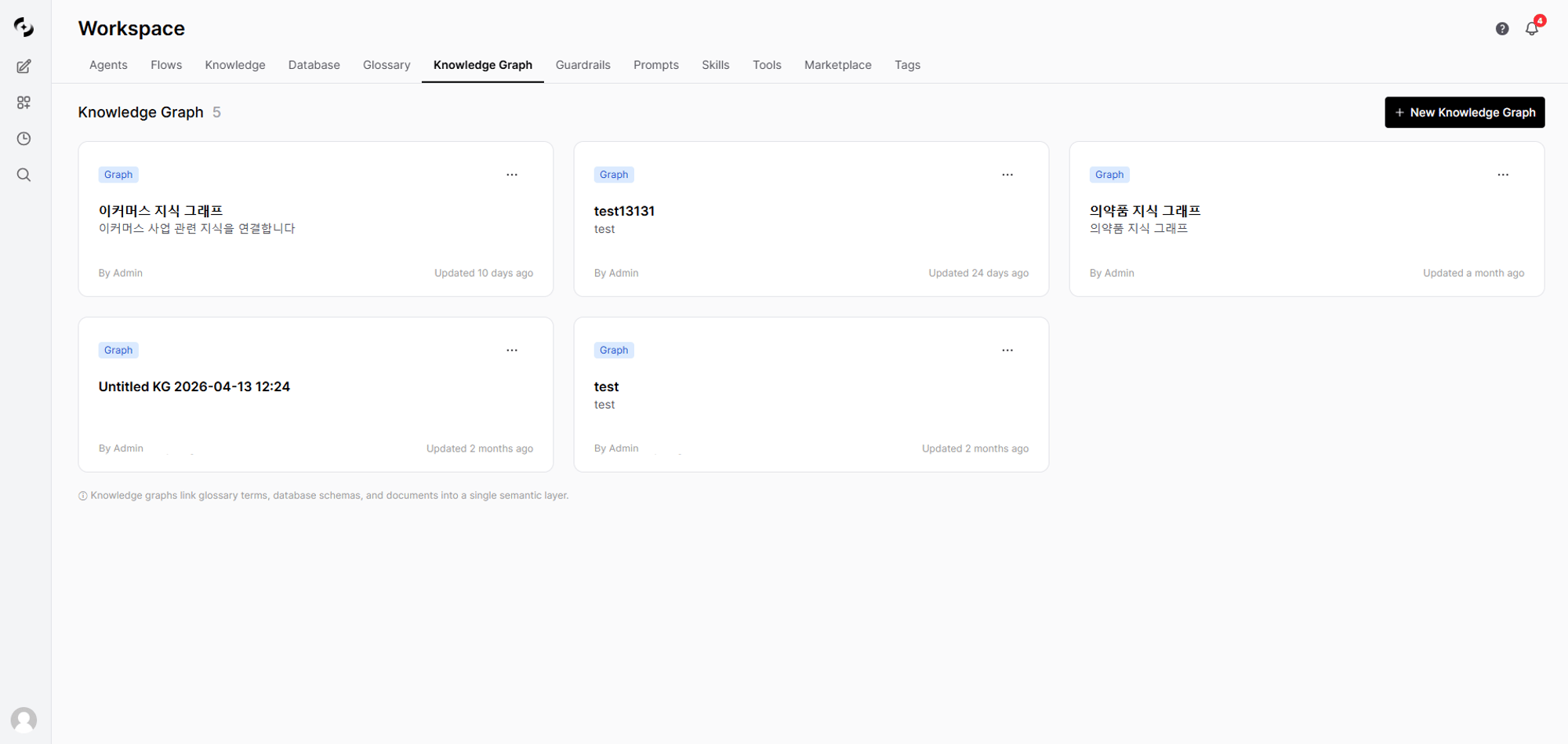 | Field | Description | Example |
| :-------------- | :---------------------------------------------- | :-------------------------------------------- |
| **Name** | Knowledge Graph identifier name (max 200 chars) | "Company-wide Knowledge Graph" |
| **Description** | Purpose and goals | "Unified analysis for sales/customer/product" |
Use the access control options to set read/write permissions per group, organization, or user.
After creation you're auto-redirected to the Knowledge Graph detail page. Now connect information sources.
***
## Knowledge Graph Detail Page
| Field | Description | Example |
| :-------------- | :---------------------------------------------- | :-------------------------------------------- |
| **Name** | Knowledge Graph identifier name (max 200 chars) | "Company-wide Knowledge Graph" |
| **Description** | Purpose and goals | "Unified analysis for sales/customer/product" |
Use the access control options to set read/write permissions per group, organization, or user.
After creation you're auto-redirected to the Knowledge Graph detail page. Now connect information sources.
***
## Knowledge Graph Detail Page
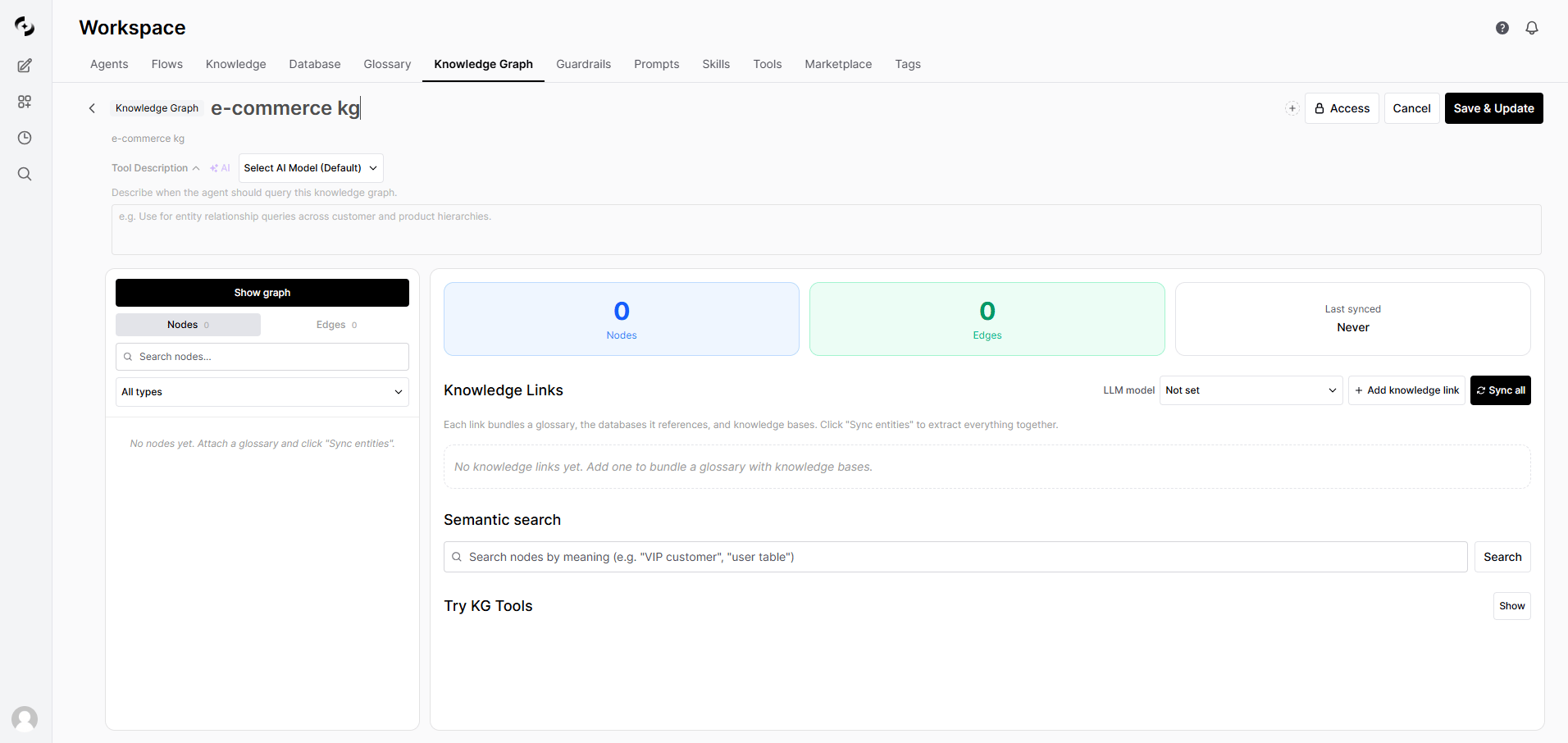 The Knowledge Graph detail page consists of a **left node list** and a **right config/exploration area**.
### Statistics Cards
Three statistics cards appear at the top.
| Item | Meaning |
| :-------------- | :---------------------------- |
| **Nodes** | Total node count in the graph |
| **Edges** | Total edge count in the graph |
| **Last synced** | Timestamp of the last sync |
### LLM Model Setting
Use the **"LLM Model"** dropdown at the bottom right of the card area to pick the LLM model used to build the Knowledge Graph. It's used for category definition generation, Knowledge Base document matching, AI tool description auto-generation, and more.
***
## Knowledge Links
A Knowledge Link is the core structure of a Knowledge Graph. Bundles **1 glossary + N Knowledge Bases** into one link to automatically connect meanings between terms and documents.
### Link Structure
```mermaid theme={null}
flowchart TB
subgraph Link["Knowledge Link"]
GL["Glossary\n(Source)"]
KB1["Knowledge Base 1"]
KB2["Knowledge Base 2"]
end
GL --> |"Create term nodes"| KG["Knowledge Graph"]
GL -.-> |"extraction sources reference"| DB["DB schema\nauto-included"]
DB --> |"Table/Column nodes"| KG
KB1 --> |"LLM entity extraction"| KG
KB2 --> |"LLM entity extraction"| KG
```
When **extraction sources** are configured on a glossary's category, the corresponding DB schema is automatically included in the Knowledge Link. No need to add the DB separately.
### Add a Link
In the **Knowledge Links** section of the Knowledge Graph detail page, click **"+ Add knowledge link"**.
Select the glossary to connect. Already-connected glossaries are excluded from the list.
With checkboxes, select the **sources to actually sync to this Knowledge Link**. Choose only some of the auto-detected candidates, or add additional ones.
| Source | Effect |
| ------------------ | ---------------------------------------------------------------------------------------------- |
| **Database** | Tables, columns, and foreign keys of the selected DB are extracted as graph nodes |
| **Knowledge Base** | The LLM extracts entities and relationships from the selected Knowledge Base's document chunks |
Unchecked sources are **not included in this Knowledge Link** even if auto-detected. Unlike older versions, sources aren't force-connected automatically — explicitly select only what you need to control sync cost and time.
If you selected a Knowledge Base, you can choose whether to promote its dynamic filters (department/year/document-type) into Knowledge Graph nodes. For details, see the [Promoting Knowledge Base Filters to Knowledge Graph Nodes](#promoting-knowledge-base-filters-to-knowledge-graph-nodes) section below.
After creation, click the **"Sync entities"** button to sync the link. Only the selected databases and Knowledge Bases are processed, and the sync target list is auto-updated.
### Nodes and Edges Created by a Link
| Source | Node Created | Connecting Edge |
| :--------------------------- | :------------- | :------------------ |
| Each term (entry) | `Term` node | — |
| Synonyms | — | `synonym_of` edge |
| Category | `Concept` node | `broader_than` edge |
| Category → DB column mapping | — | `maps_to` edge |
Performs only structural transformation without LLM calls — completes quickly.
| Source | Node Created | Connecting Edge |
| :----------- | :------------ | :---------------------------- |
| Table | `Table` node | — |
| Column | `Column` node | `belongs_to` (column → table) |
| Foreign keys | — | `foreign_key` edge |
To create DB schema nodes, you must **run schema extraction in DbSphere first**. Without it, nodes show as 0.
| Source | Node Created | Connecting Edge |
| :------------------------------------------------- | :------------------- | :------------------------------------------- |
| Entities in document chunks | `Doc Entity` node | LLM-extracted relationship edges |
| Knowledge Base filter values (selected slots only) | `Doc Attribute` node | Filter-name edge (document → attribute node) |
`Doc Entity` is the result of an LLM analyzing each document chunk to extract entities and relationships. `Doc Attribute` is a non-LLM path that lifts Knowledge Base filter values directly into the graph — see [Promoting Knowledge Base Filters to Knowledge Graph Nodes](#promoting-knowledge-base-filters-to-knowledge-graph-nodes) below.
`Doc Entity` extraction **incurs LLM call costs**. Only connect Knowledge Bases you need. `Doc Attribute` does not call the LLM, so it has no cost.
### Promoting Knowledge Base Filters to Knowledge Graph Nodes
Knowledge Base filter values (country, category, department, etc.) can be lifted directly into the graph as nodes for use in retrieval, exploration, and agent routing. Because **no LLM call is made**, structured metadata flows into the graph at zero cost.
Example: if your Knowledge Base has a "department" filter and you promote it to a Knowledge Graph node, the agent automatically translates queries like "find from finance team docs" into a department filter.
In the Knowledge Links on the right side of the screen, click the **"Node Settings"** button on a connected Knowledge Base card to open the modal.
The connected Knowledge Base's filter values are shown. Pick the filters to promote into nodes via checkboxes.
| Filter Kind | Promotable | Note |
| :---------------------------------------------------------- | :--------: | :------------------------------------------------------------------------------------------------------ |
| Text/categorical (department, country, document type, etc.) | ✓ | A moderate number of distinct values makes them a good fit for nodes |
| Numeric/date | ✓ | Very many distinct values can cause the node count to explode — choose carefully |
| Glossary-linked | — | Auto-connected to glossary terms, so no separate promotion is needed (existing `Term` nodes are reused) |
Saving stores the selected slots on the Knowledge Graph link. On the next sync, the selected slots' values become `Doc Attribute` nodes, and each document is connected to the values it holds via edges.
#### How It Works
| Step | Behavior |
| -------------------- | ----------------------------------------------------------------------------------------------------------------------------------------------------------------------------------------------------------------------- |
| 1. Slot registration | The selected filters are recorded on the Knowledge Graph link. **The original Knowledge Base filter settings are not changed**, so Knowledge Bases keep working the same in environments that don't use Knowledge Graph |
| 2. Value collection | The distinct values the selected filters actually take across documents are collected |
| 3. Glossary match | If a collected value matches a term in a linked glossary, **the existing Term node is reused** to prevent graph duplication and fragmentation |
| 4. Node creation | Only values not found in the glossary become new `Doc Attribute` nodes |
| 5. Edge wiring | Each document is connected to the value nodes it holds (e.g., a document with the value "Finance team" → Finance team node) |
The connecting edge name uses the filter name directly (e.g., department, country). If a more natural name is suggested during routing, that name is used instead.
`Doc Attribute` is a lightweight path that brings Knowledge Base filters into the graph without LLM calls. If chunk-level entity extraction (`Doc Entity`) is cost-prohibitive, start with `Doc Attribute` only, then enable LLM extraction selectively on Knowledge Bases that warrant it.
### Link Detail View
Expand each Knowledge Link card to see column-mapping status per DB table.
* **Table groups**: Grouped by table within the connected DB
* **Column mappings**: Column name, data type, PK/FK indicators, mapped category, term count
* **Matched documents**: Count of documents matched with the Knowledge Base
***
## Sync
After connecting resources, you must run **sync** to actually create the nodes and edges.
### Sync Methods
| Method | Button | Scope |
| :---------------- | :------------------------------ | :----------------------------------------------- |
| **Full sync** | Top **"Sync all"** | Rebuild everything across all sources |
| **Per-link sync** | Each link's **"Sync entities"** | Only that link's glossary + DB + Knowledge Bases |
### Full Sync Flow
```mermaid theme={null}
flowchart TB
A["Click Sync all"] --> B["Clean up deleted sources"]
B --> C["Glossary sync\n(fast, no LLM)"]
C --> D["DB schema sync\n(fast)"]
D --> E{"Knowledge Base auto-extract\nenabled?"}
E -->|"Yes"| F["Knowledge Base entity extraction\n(LLM calls, takes time)"]
E -->|"No"| G["Update search index"]
F --> G
G --> H["Statistics updated"]
```
### Tracking Progress
* When sync starts, the button changes to **"Syncing..."**
* Real-time toast notifications appear on completion/failure
* Duplicate runs are blocked when sync is already in progress
On re-sync, **only newly added or changed documents** are reprocessed. Already-processed documents are skipped, so syncs after the first are much faster.
### Sync Time
| Source | Time | Cost |
| :------------------------------- | :-------------------------------------------- | :------------- |
| Glossary | Seconds | None |
| DB schema | Seconds to minutes | None |
| Knowledge Base entity extraction | Minutes to hours (proportional to doc volume) | LLM call costs |
***
## Graph Exploration
### Graph Visualization
On the Knowledge Graph detail page, toggle **"Show graph"** to display an interactive graph view.
The Knowledge Graph detail page consists of a **left node list** and a **right config/exploration area**.
### Statistics Cards
Three statistics cards appear at the top.
| Item | Meaning |
| :-------------- | :---------------------------- |
| **Nodes** | Total node count in the graph |
| **Edges** | Total edge count in the graph |
| **Last synced** | Timestamp of the last sync |
### LLM Model Setting
Use the **"LLM Model"** dropdown at the bottom right of the card area to pick the LLM model used to build the Knowledge Graph. It's used for category definition generation, Knowledge Base document matching, AI tool description auto-generation, and more.
***
## Knowledge Links
A Knowledge Link is the core structure of a Knowledge Graph. Bundles **1 glossary + N Knowledge Bases** into one link to automatically connect meanings between terms and documents.
### Link Structure
```mermaid theme={null}
flowchart TB
subgraph Link["Knowledge Link"]
GL["Glossary\n(Source)"]
KB1["Knowledge Base 1"]
KB2["Knowledge Base 2"]
end
GL --> |"Create term nodes"| KG["Knowledge Graph"]
GL -.-> |"extraction sources reference"| DB["DB schema\nauto-included"]
DB --> |"Table/Column nodes"| KG
KB1 --> |"LLM entity extraction"| KG
KB2 --> |"LLM entity extraction"| KG
```
When **extraction sources** are configured on a glossary's category, the corresponding DB schema is automatically included in the Knowledge Link. No need to add the DB separately.
### Add a Link
In the **Knowledge Links** section of the Knowledge Graph detail page, click **"+ Add knowledge link"**.
Select the glossary to connect. Already-connected glossaries are excluded from the list.
With checkboxes, select the **sources to actually sync to this Knowledge Link**. Choose only some of the auto-detected candidates, or add additional ones.
| Source | Effect |
| ------------------ | ---------------------------------------------------------------------------------------------- |
| **Database** | Tables, columns, and foreign keys of the selected DB are extracted as graph nodes |
| **Knowledge Base** | The LLM extracts entities and relationships from the selected Knowledge Base's document chunks |
Unchecked sources are **not included in this Knowledge Link** even if auto-detected. Unlike older versions, sources aren't force-connected automatically — explicitly select only what you need to control sync cost and time.
If you selected a Knowledge Base, you can choose whether to promote its dynamic filters (department/year/document-type) into Knowledge Graph nodes. For details, see the [Promoting Knowledge Base Filters to Knowledge Graph Nodes](#promoting-knowledge-base-filters-to-knowledge-graph-nodes) section below.
After creation, click the **"Sync entities"** button to sync the link. Only the selected databases and Knowledge Bases are processed, and the sync target list is auto-updated.
### Nodes and Edges Created by a Link
| Source | Node Created | Connecting Edge |
| :--------------------------- | :------------- | :------------------ |
| Each term (entry) | `Term` node | — |
| Synonyms | — | `synonym_of` edge |
| Category | `Concept` node | `broader_than` edge |
| Category → DB column mapping | — | `maps_to` edge |
Performs only structural transformation without LLM calls — completes quickly.
| Source | Node Created | Connecting Edge |
| :----------- | :------------ | :---------------------------- |
| Table | `Table` node | — |
| Column | `Column` node | `belongs_to` (column → table) |
| Foreign keys | — | `foreign_key` edge |
To create DB schema nodes, you must **run schema extraction in DbSphere first**. Without it, nodes show as 0.
| Source | Node Created | Connecting Edge |
| :------------------------------------------------- | :------------------- | :------------------------------------------- |
| Entities in document chunks | `Doc Entity` node | LLM-extracted relationship edges |
| Knowledge Base filter values (selected slots only) | `Doc Attribute` node | Filter-name edge (document → attribute node) |
`Doc Entity` is the result of an LLM analyzing each document chunk to extract entities and relationships. `Doc Attribute` is a non-LLM path that lifts Knowledge Base filter values directly into the graph — see [Promoting Knowledge Base Filters to Knowledge Graph Nodes](#promoting-knowledge-base-filters-to-knowledge-graph-nodes) below.
`Doc Entity` extraction **incurs LLM call costs**. Only connect Knowledge Bases you need. `Doc Attribute` does not call the LLM, so it has no cost.
### Promoting Knowledge Base Filters to Knowledge Graph Nodes
Knowledge Base filter values (country, category, department, etc.) can be lifted directly into the graph as nodes for use in retrieval, exploration, and agent routing. Because **no LLM call is made**, structured metadata flows into the graph at zero cost.
Example: if your Knowledge Base has a "department" filter and you promote it to a Knowledge Graph node, the agent automatically translates queries like "find from finance team docs" into a department filter.
In the Knowledge Links on the right side of the screen, click the **"Node Settings"** button on a connected Knowledge Base card to open the modal.
The connected Knowledge Base's filter values are shown. Pick the filters to promote into nodes via checkboxes.
| Filter Kind | Promotable | Note |
| :---------------------------------------------------------- | :--------: | :------------------------------------------------------------------------------------------------------ |
| Text/categorical (department, country, document type, etc.) | ✓ | A moderate number of distinct values makes them a good fit for nodes |
| Numeric/date | ✓ | Very many distinct values can cause the node count to explode — choose carefully |
| Glossary-linked | — | Auto-connected to glossary terms, so no separate promotion is needed (existing `Term` nodes are reused) |
Saving stores the selected slots on the Knowledge Graph link. On the next sync, the selected slots' values become `Doc Attribute` nodes, and each document is connected to the values it holds via edges.
#### How It Works
| Step | Behavior |
| -------------------- | ----------------------------------------------------------------------------------------------------------------------------------------------------------------------------------------------------------------------- |
| 1. Slot registration | The selected filters are recorded on the Knowledge Graph link. **The original Knowledge Base filter settings are not changed**, so Knowledge Bases keep working the same in environments that don't use Knowledge Graph |
| 2. Value collection | The distinct values the selected filters actually take across documents are collected |
| 3. Glossary match | If a collected value matches a term in a linked glossary, **the existing Term node is reused** to prevent graph duplication and fragmentation |
| 4. Node creation | Only values not found in the glossary become new `Doc Attribute` nodes |
| 5. Edge wiring | Each document is connected to the value nodes it holds (e.g., a document with the value "Finance team" → Finance team node) |
The connecting edge name uses the filter name directly (e.g., department, country). If a more natural name is suggested during routing, that name is used instead.
`Doc Attribute` is a lightweight path that brings Knowledge Base filters into the graph without LLM calls. If chunk-level entity extraction (`Doc Entity`) is cost-prohibitive, start with `Doc Attribute` only, then enable LLM extraction selectively on Knowledge Bases that warrant it.
### Link Detail View
Expand each Knowledge Link card to see column-mapping status per DB table.
* **Table groups**: Grouped by table within the connected DB
* **Column mappings**: Column name, data type, PK/FK indicators, mapped category, term count
* **Matched documents**: Count of documents matched with the Knowledge Base
***
## Sync
After connecting resources, you must run **sync** to actually create the nodes and edges.
### Sync Methods
| Method | Button | Scope |
| :---------------- | :------------------------------ | :----------------------------------------------- |
| **Full sync** | Top **"Sync all"** | Rebuild everything across all sources |
| **Per-link sync** | Each link's **"Sync entities"** | Only that link's glossary + DB + Knowledge Bases |
### Full Sync Flow
```mermaid theme={null}
flowchart TB
A["Click Sync all"] --> B["Clean up deleted sources"]
B --> C["Glossary sync\n(fast, no LLM)"]
C --> D["DB schema sync\n(fast)"]
D --> E{"Knowledge Base auto-extract\nenabled?"}
E -->|"Yes"| F["Knowledge Base entity extraction\n(LLM calls, takes time)"]
E -->|"No"| G["Update search index"]
F --> G
G --> H["Statistics updated"]
```
### Tracking Progress
* When sync starts, the button changes to **"Syncing..."**
* Real-time toast notifications appear on completion/failure
* Duplicate runs are blocked when sync is already in progress
On re-sync, **only newly added or changed documents** are reprocessed. Already-processed documents are skipped, so syncs after the first are much faster.
### Sync Time
| Source | Time | Cost |
| :------------------------------- | :-------------------------------------------- | :------------- |
| Glossary | Seconds | None |
| DB schema | Seconds to minutes | None |
| Knowledge Base entity extraction | Minutes to hours (proportional to doc volume) | LLM call costs |
***
## Graph Exploration
### Graph Visualization
On the Knowledge Graph detail page, toggle **"Show graph"** to display an interactive graph view.
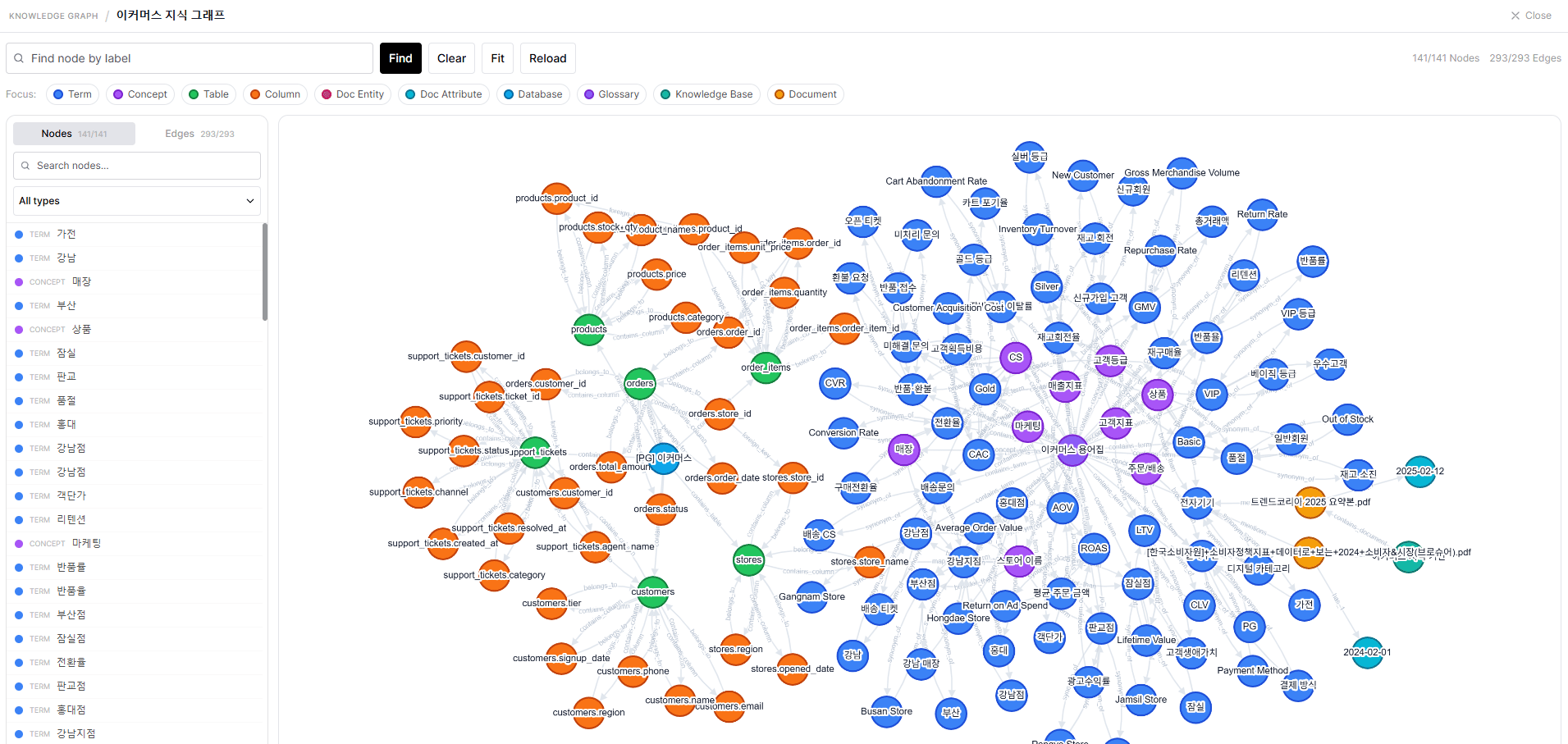 #### How to Interact
| Action | Method |
| :------------ | :---------------------------------------------------------------------------------------------------- |
| Zoom | Mouse wheel or trackpad |
| Pan | Drag background |
| Select node | Click node → highlights neighbors + shows detail panel |
| Select edge | Click edge → shows connection info panel |
| Fit to view | Toolbar **Fit** button |
| Focus by type | Click type buttons at top (Term, Concept, Table, etc.) → shows that type and directly connected items |
#### Node Types and Colors
| Type | Color | Meaning |
| :----------------- | :------------------ | :-------------------------------------------------------- |
| **Glossary** | Indigo `#735CD9` | Connected glossary (source) |
| **Term** | Blue `#4A71D8` | Business terms from glossary |
| **Concept** | Purple `#8761CE` | Term parent category |
| **Database** | Sky blue `#3589B0` | Connected database (source) |
| **Table** | Green `#228F5E` | DB table |
| **Column** | Orange `#C26754` | DB column |
| **Knowledge Base** | Teal-gray `#5F8C8B` | Connected Knowledge Base (source) |
| **Document** | Brown `#B4754E` | Knowledge Base document |
| **Doc Entity** | Pink `#C64886` | Entities extracted from documents by LLM |
| **Doc Attribute** | Blue-gray `#4E8CA6` | Attribute node promoted from Knowledge Base filter values |
When nodes exceed 500, a **"Truncated"** warning appears. Use type-focus to view only the area you care about.
#### Node Detail Panel
Click a node to show the detail panel on the right.
* **Property table**: Node properties (label, type, description)
* **Connections list**: Neighbor nodes connected to this node (direction arrow + edge type + neighbor info)
* Click a neighbor node to navigate to it
### Node List
Browse all nodes as a list in the left panel.
* **Search**: Search by node label (server-side, fast even on large graphs)
* **Type filter**: All types / Column / Concept / Database / Doc Attribute / Document / Glossary / Knowledge Base / Table / Term
* **Pagination**: Navigate 20 at a time
### Semantic Search
In the **Semantic Search** section of the Knowledge Graph detail page, search nodes in natural language.
* Returns the most relevant nodes by vector similarity, with scores
* Each result shows a node-type badge and similarity score
Semantic search requires a system admin to configure the **Search Engine**. Without it, a warning banner appears.
***
## Agent Integration
The real power of the Knowledge Graph comes when **connected to an agent**.
### Connect a Knowledge Graph to an Agent
In the agent edit page's **Knowledge Graph** section, pick the Knowledge Graph to use.
#### How to Interact
| Action | Method |
| :------------ | :---------------------------------------------------------------------------------------------------- |
| Zoom | Mouse wheel or trackpad |
| Pan | Drag background |
| Select node | Click node → highlights neighbors + shows detail panel |
| Select edge | Click edge → shows connection info panel |
| Fit to view | Toolbar **Fit** button |
| Focus by type | Click type buttons at top (Term, Concept, Table, etc.) → shows that type and directly connected items |
#### Node Types and Colors
| Type | Color | Meaning |
| :----------------- | :------------------ | :-------------------------------------------------------- |
| **Glossary** | Indigo `#735CD9` | Connected glossary (source) |
| **Term** | Blue `#4A71D8` | Business terms from glossary |
| **Concept** | Purple `#8761CE` | Term parent category |
| **Database** | Sky blue `#3589B0` | Connected database (source) |
| **Table** | Green `#228F5E` | DB table |
| **Column** | Orange `#C26754` | DB column |
| **Knowledge Base** | Teal-gray `#5F8C8B` | Connected Knowledge Base (source) |
| **Document** | Brown `#B4754E` | Knowledge Base document |
| **Doc Entity** | Pink `#C64886` | Entities extracted from documents by LLM |
| **Doc Attribute** | Blue-gray `#4E8CA6` | Attribute node promoted from Knowledge Base filter values |
When nodes exceed 500, a **"Truncated"** warning appears. Use type-focus to view only the area you care about.
#### Node Detail Panel
Click a node to show the detail panel on the right.
* **Property table**: Node properties (label, type, description)
* **Connections list**: Neighbor nodes connected to this node (direction arrow + edge type + neighbor info)
* Click a neighbor node to navigate to it
### Node List
Browse all nodes as a list in the left panel.
* **Search**: Search by node label (server-side, fast even on large graphs)
* **Type filter**: All types / Column / Concept / Database / Doc Attribute / Document / Glossary / Knowledge Base / Table / Term
* **Pagination**: Navigate 20 at a time
### Semantic Search
In the **Semantic Search** section of the Knowledge Graph detail page, search nodes in natural language.
* Returns the most relevant nodes by vector similarity, with scores
* Each result shows a node-type badge and similarity score
Semantic search requires a system admin to configure the **Search Engine**. Without it, a warning banner appears.
***
## Agent Integration
The real power of the Knowledge Graph comes when **connected to an agent**.
### Connect a Knowledge Graph to an Agent
In the agent edit page's **Knowledge Graph** section, pick the Knowledge Graph to use.
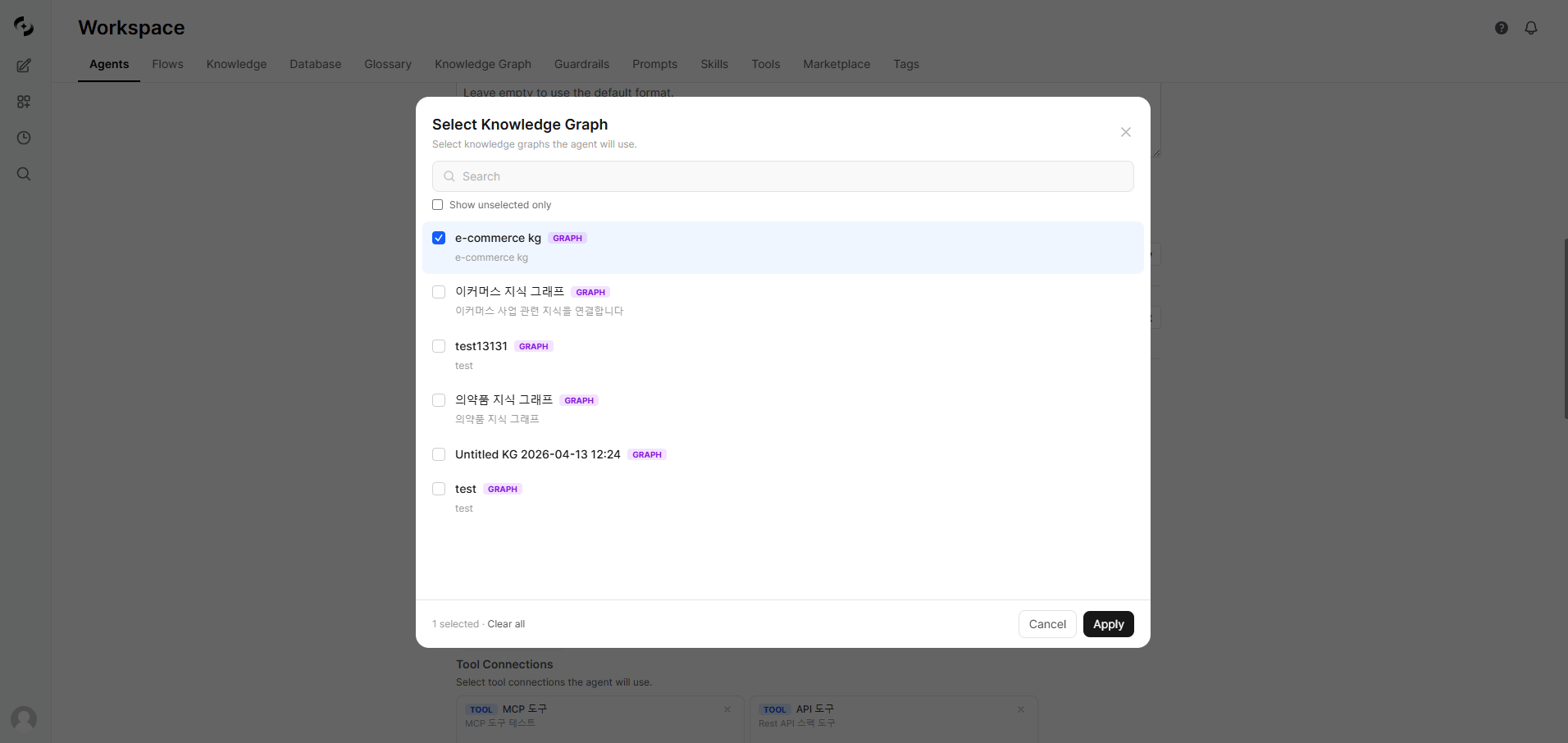 When you connect a Knowledge Graph, the **glossaries, databases, and Knowledge Bases** included in that Knowledge Graph are auto-inherited by the agent. No need to add the same resources separately.
### 7 Knowledge Graph Tools
Agents with a Knowledge Graph connected automatically gain access to these 7 tools.
| Tool | Use | Example |
| :------------------------ | :------------------------------------------------------------------ | :------------------------------------------------- |
| **resolve\_term** | Map business term → DB column/filter | "VIP customer" → `tier='VIP'` |
| **explore\_context** | Explore subgraph around seed entities | Understand context of complex multi-step questions |
| **search\_concepts** | Semantic node search + neighbor expansion | "Find sales-related terms" |
| **find\_related\_tables** | FK-connected tables + JOIN hints | "Tables joinable with users" |
| **neighbors** | Explore N-hop neighbors of a node | All terms connected to a specific table |
| **fetch\_data** | Run SQL + return actual data (max 100 rows) | `SELECT * FROM orders LIMIT 10` |
| **fetch\_document** | Search document chunks in Knowledge Graph-connected Knowledge Bases | "Find VIP policy docs" |
`fetch_data` automatically falls back to related document search when 0 rows are returned. Combines data and document lookup into one tool.
### Tool Tester
Before connecting to an agent, test each tool directly in the **"Try KG Tools"** section.
Click the **"Show"** toggle at the bottom of the Knowledge Graph detail page
Choose a tool from the dropdown, fill in inputs, and click **"Run"**
Results appear at the bottom as JSON. Verify sync results and term-mapping accuracy.
***
## Node Management
### Node Type Summary
| Type | Source | Description |
| :------------- | :------------- | :-------------------------------------------------------- |
| Glossary | Glossary | Connected glossary (source) node |
| Term | Glossary | Business term (e.g., VIP, MRR) |
| Concept | Glossary | Term parent category (e.g., customer tier, revenue type) |
| Database | Database | Connected database (source) node |
| Table | Database | Database table |
| Column | Database | Table column |
| Knowledge Base | Knowledge Base | Connected Knowledge Base (source) node |
| Document | Knowledge Base | Knowledge Base document |
| Doc Entity | Knowledge Base | Entity extracted from documents by LLM |
| Doc Attribute | Knowledge Base | Attribute node promoted from Knowledge Base filter values |
***
## FAQ
A glossary manages **term definitions** only. Knowledge Graph connects glossaries to **database columns and document entities** so agents can answer with actual data.
DbSphere specializes in **schema-based SQL generation**. Knowledge Graph adds **business terminology and document context** so it understands non-schema expressions like "VIP customer".
* **Glossary/DB sync**: Seconds to minutes (fast)
* **Knowledge Base entity extraction**: Minutes to hours, proportional to document count
Knowledge Bases only reprocess newly added or changed documents and skip already-processed ones. So even large Knowledge Bases only take long the first time, and later syncs are fast.
* **DB-related errors**: Check that DbSphere schema extraction succeeded first
* **Knowledge Base extraction errors**: Verify LLM model setting and API key
* Duplicate runs are blocked while sync is in progress — retry shortly
Only **Knowledge Base entity extraction** uses the LLM. To control cost:
* Connect only the Knowledge Bases you need
* Even with just glossaries and DBs, `resolve_term` and `find_related_tables` work fine
Yes. With multiple Knowledge Graphs connected, tools work over the **unified** nodes and edges from all Knowledge Graphs. Run separate Knowledge Graphs per domain while querying them together from the agent.
***
## Related Guides
Business term definitions, synonyms, category management
DB connection, schema extraction, SQL execution
AI agent configuration, tool integration, workflows
When you connect a Knowledge Graph, the **glossaries, databases, and Knowledge Bases** included in that Knowledge Graph are auto-inherited by the agent. No need to add the same resources separately.
### 7 Knowledge Graph Tools
Agents with a Knowledge Graph connected automatically gain access to these 7 tools.
| Tool | Use | Example |
| :------------------------ | :------------------------------------------------------------------ | :------------------------------------------------- |
| **resolve\_term** | Map business term → DB column/filter | "VIP customer" → `tier='VIP'` |
| **explore\_context** | Explore subgraph around seed entities | Understand context of complex multi-step questions |
| **search\_concepts** | Semantic node search + neighbor expansion | "Find sales-related terms" |
| **find\_related\_tables** | FK-connected tables + JOIN hints | "Tables joinable with users" |
| **neighbors** | Explore N-hop neighbors of a node | All terms connected to a specific table |
| **fetch\_data** | Run SQL + return actual data (max 100 rows) | `SELECT * FROM orders LIMIT 10` |
| **fetch\_document** | Search document chunks in Knowledge Graph-connected Knowledge Bases | "Find VIP policy docs" |
`fetch_data` automatically falls back to related document search when 0 rows are returned. Combines data and document lookup into one tool.
### Tool Tester
Before connecting to an agent, test each tool directly in the **"Try KG Tools"** section.
Click the **"Show"** toggle at the bottom of the Knowledge Graph detail page
Choose a tool from the dropdown, fill in inputs, and click **"Run"**
Results appear at the bottom as JSON. Verify sync results and term-mapping accuracy.
***
## Node Management
### Node Type Summary
| Type | Source | Description |
| :------------- | :------------- | :-------------------------------------------------------- |
| Glossary | Glossary | Connected glossary (source) node |
| Term | Glossary | Business term (e.g., VIP, MRR) |
| Concept | Glossary | Term parent category (e.g., customer tier, revenue type) |
| Database | Database | Connected database (source) node |
| Table | Database | Database table |
| Column | Database | Table column |
| Knowledge Base | Knowledge Base | Connected Knowledge Base (source) node |
| Document | Knowledge Base | Knowledge Base document |
| Doc Entity | Knowledge Base | Entity extracted from documents by LLM |
| Doc Attribute | Knowledge Base | Attribute node promoted from Knowledge Base filter values |
***
## FAQ
A glossary manages **term definitions** only. Knowledge Graph connects glossaries to **database columns and document entities** so agents can answer with actual data.
DbSphere specializes in **schema-based SQL generation**. Knowledge Graph adds **business terminology and document context** so it understands non-schema expressions like "VIP customer".
* **Glossary/DB sync**: Seconds to minutes (fast)
* **Knowledge Base entity extraction**: Minutes to hours, proportional to document count
Knowledge Bases only reprocess newly added or changed documents and skip already-processed ones. So even large Knowledge Bases only take long the first time, and later syncs are fast.
* **DB-related errors**: Check that DbSphere schema extraction succeeded first
* **Knowledge Base extraction errors**: Verify LLM model setting and API key
* Duplicate runs are blocked while sync is in progress — retry shortly
Only **Knowledge Base entity extraction** uses the LLM. To control cost:
* Connect only the Knowledge Bases you need
* Even with just glossaries and DBs, `resolve_term` and `find_related_tables` work fine
Yes. With multiple Knowledge Graphs connected, tools work over the **unified** nodes and edges from all Knowledge Graphs. Run separate Knowledge Graphs per domain while querying them together from the agent.
***
## Related Guides
Business term definitions, synonyms, category management
DB connection, schema extraction, SQL execution
AI agent configuration, tool integration, workflows