> ## Documentation Index
> Fetch the complete documentation index at: https://docs.cloosphere.ai/llms.txt
> Use this file to discover all available pages before exploring further.
# Prompts
> Create reusable prompt templates with variable substitution and team sharing
Prompts let you **save frequently used question patterns or instructions as templates** and invoke them quickly with `/` commands.
Sharing validated prompts with your team yields consistent-quality AI responses.
```mermaid theme={null}
flowchart LR
A["Type / command"] --> B[Pick a prompt]
B --> C[Enter variable values]
C --> D[Expand template]
D --> E[AI processing]
E --> F[Generate response]
```
***
## What is a Prompt?
In a normal chat, getting the result you want means typing long instructions from scratch every time. A prompt turns those instructions into a template once, so you can **reuse it repeatedly** by only changing the values in the `{{variable}}` parts. A well-crafted prompt can be shared across the whole team so that **anyone reproduces the same quality** of results.
### Why Use Prompts?
| Benefit | Description |
| ---------------------- | --------------------------------------------- |
| **Time saving** | No need to retype long instructions each time |
| **Consistency** | Repeatedly produce same-format outputs |
| **Team collaboration** | Share effective prompts with teammates |
| **Quality** | Drive better answers with validated prompts |
***
## Prompt List
In **Workspace > Prompts**, view all prompts.
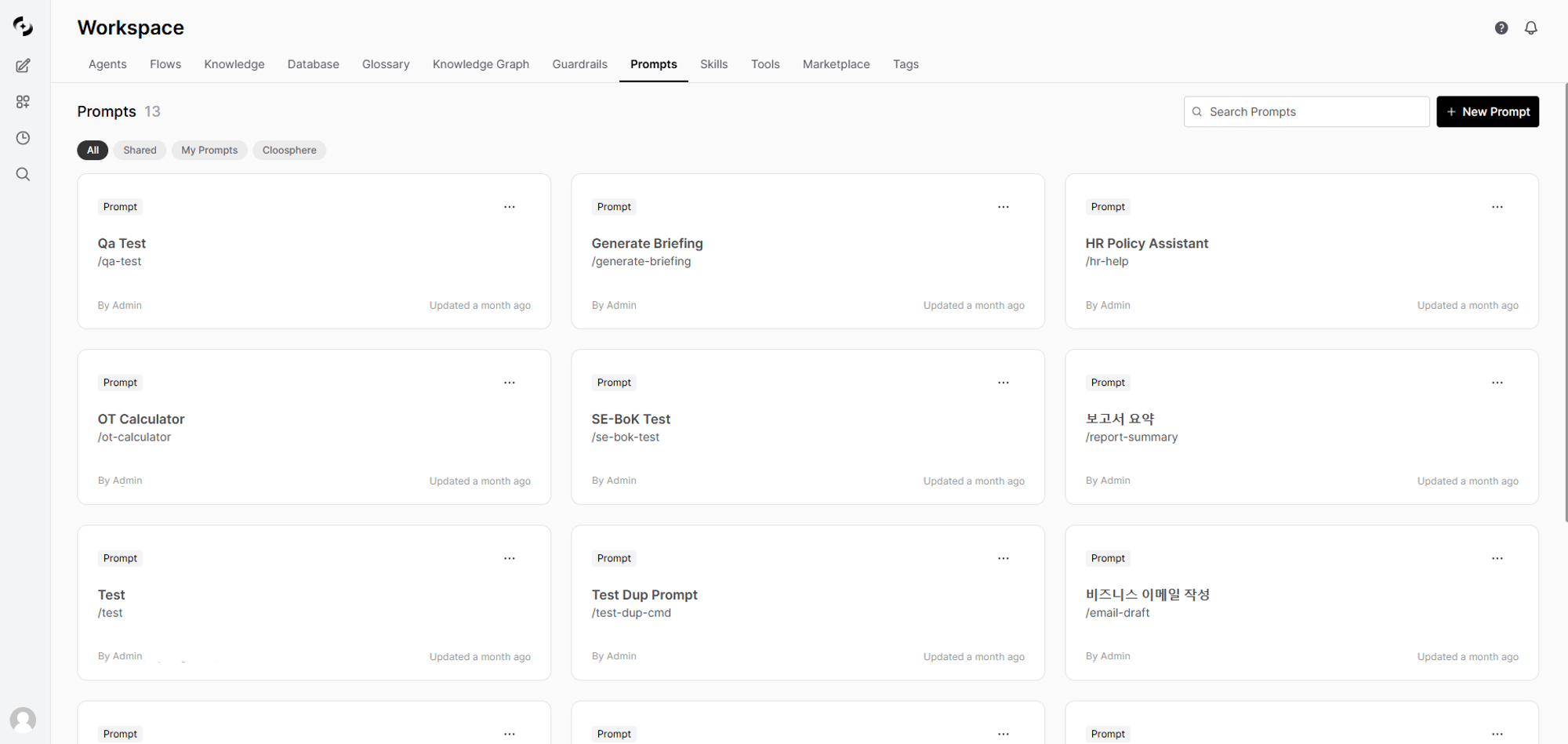 | Item | Description | Example |
| ----------- | --------------------------- | ---------------------- |
| **Title** | Prompt name | "Business Email Draft" |
| **Command** | Shortcut used to invoke | `/email-draft` |
| **Author** | User who created the prompt | "By Admin" |
***
## Creating a Prompt
In **Workspace > Prompts**, click the **+ New Prompt** button at the top-right.
| Item | Description | Example |
| ----------- | --------------------------- | ---------------------- |
| **Title** | Prompt name | "Business Email Draft" |
| **Command** | Shortcut used to invoke | `/email-draft` |
| **Author** | User who created the prompt | "By Admin" |
***
## Creating a Prompt
In **Workspace > Prompts**, click the **+ New Prompt** button at the top-right.
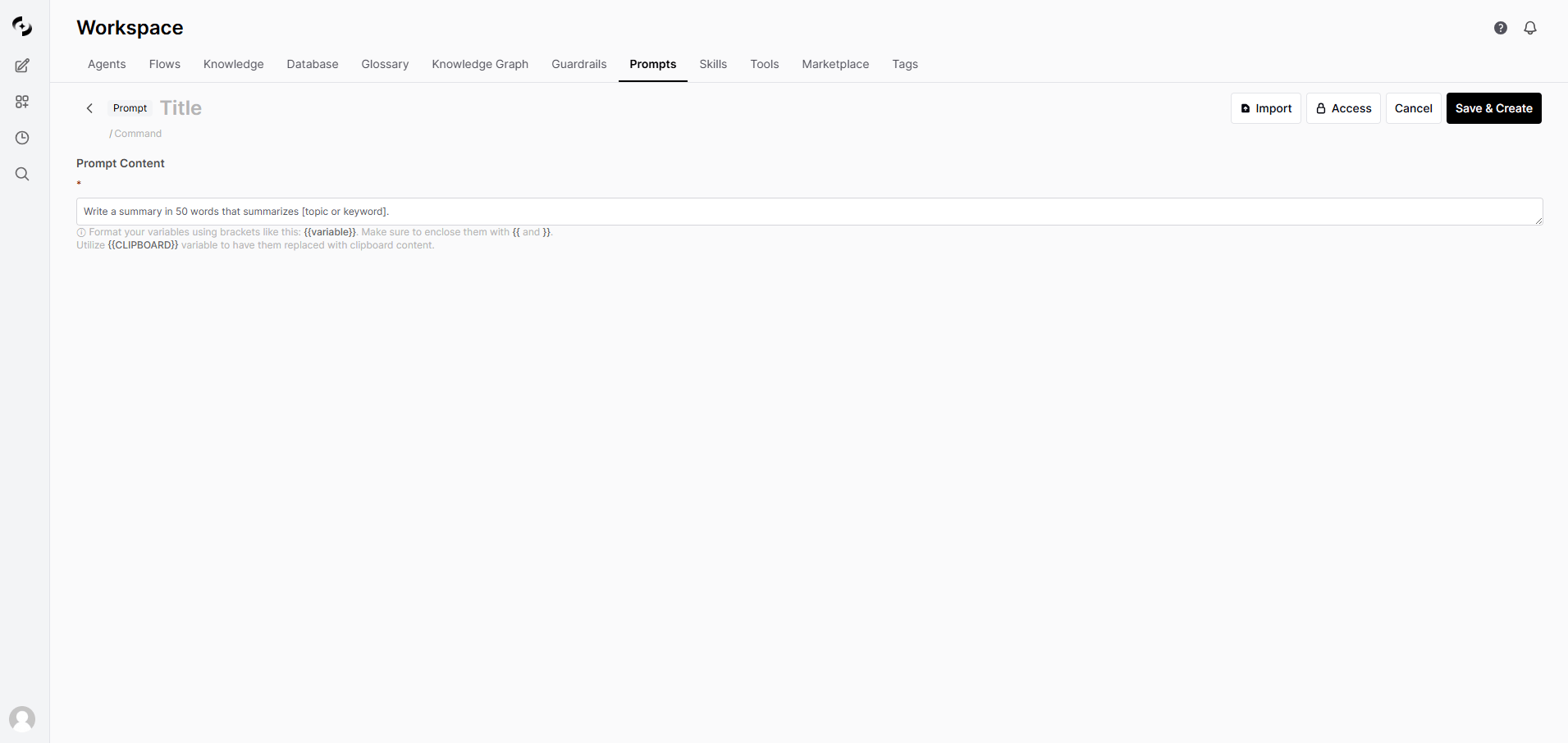 | Field | Description | Example |
| ----------- | -------------------------- | ---------------------- |
| **Title** | Prompt display name | "Business Email Draft" |
| **Command** | Shortcut starting with `/` | `email-draft` |
Commands can only contain **lowercase letters, digits, and hyphens (`-`)**. Korean characters, spaces, and special characters are not allowed.
Write the prompt template. Markdown is supported.
```markdown theme={null}
Write a professional business email based on the following.
## Writing Rules
- Polite and professional tone
- Clear and concise sentences
- Include appropriate greeting and closing
## Email Content
{{content}}
```
Use `{{variable_name}}` syntax to accept dynamic values.
When using the prompt, real values are substituted at the variable positions.
```markdown theme={null}
Write an email to {{recipient}} regarding {{purpose}}.
Content: {{content}}
```
Variable names can be in Korean too. Examples: `{{받는사람}}`, `{{주제}}`
#### System Variables
The following built-in variables are filled automatically.
| Variable | Description |
| ---------------------- | ----------------------- |
| `{{CLIPBOARD}}` | Clipboard content |
| `{{USER_NAME}}` | Current user's name |
| `{{USER_LANGUAGE}}` | User's language setting |
| `{{USER_LOCATION}}` | User's location |
| `{{CURRENT_DATE}}` | Today's date |
| `{{CURRENT_TIME}}` | Current time |
| `{{CURRENT_DATETIME}}` | Current date and time |
| `{{CURRENT_TIMEZONE}}` | Current timezone |
| `{{CURRENT_WEEKDAY}}` | Current day of week |
Choose the prompt's sharing scope.
| Option | Description |
| ----------------------- | ------------------------------------------------------------------------------------------------------------------------------------------------------------ |
| **Public** | All users can invoke via `/` command |
| **Private** | Accessible only to authorized users and groups. Specify targets via **Group** and **Organizational Unit** below; if unspecified, only the creator can access |
| **Group** | Grant access to members of a group created in the Admin Panel |
| **Organizational Unit** | Grant access to members of an organizational unit created in the Admin Panel |
The Public option is only available to admins or users with the prompt-public permission (`sharing.public_prompts`).
Click **Save & Create**.
***
## Using Prompts
### Invoke with `/`
Typing `/` in the chat input shows an autocomplete list of available prompts. When you pick a prompt from the list, **the entire template expands into the input** and the cursor moves to the `{{variable}}` position.
1. Enter a value at the highlighted variable position.
2. Press **Tab** to move to the next variable.
3. Send the message once all variables are filled.
| Field | Description | Example |
| ----------- | -------------------------- | ---------------------- |
| **Title** | Prompt display name | "Business Email Draft" |
| **Command** | Shortcut starting with `/` | `email-draft` |
Commands can only contain **lowercase letters, digits, and hyphens (`-`)**. Korean characters, spaces, and special characters are not allowed.
Write the prompt template. Markdown is supported.
```markdown theme={null}
Write a professional business email based on the following.
## Writing Rules
- Polite and professional tone
- Clear and concise sentences
- Include appropriate greeting and closing
## Email Content
{{content}}
```
Use `{{variable_name}}` syntax to accept dynamic values.
When using the prompt, real values are substituted at the variable positions.
```markdown theme={null}
Write an email to {{recipient}} regarding {{purpose}}.
Content: {{content}}
```
Variable names can be in Korean too. Examples: `{{받는사람}}`, `{{주제}}`
#### System Variables
The following built-in variables are filled automatically.
| Variable | Description |
| ---------------------- | ----------------------- |
| `{{CLIPBOARD}}` | Clipboard content |
| `{{USER_NAME}}` | Current user's name |
| `{{USER_LANGUAGE}}` | User's language setting |
| `{{USER_LOCATION}}` | User's location |
| `{{CURRENT_DATE}}` | Today's date |
| `{{CURRENT_TIME}}` | Current time |
| `{{CURRENT_DATETIME}}` | Current date and time |
| `{{CURRENT_TIMEZONE}}` | Current timezone |
| `{{CURRENT_WEEKDAY}}` | Current day of week |
Choose the prompt's sharing scope.
| Option | Description |
| ----------------------- | ------------------------------------------------------------------------------------------------------------------------------------------------------------ |
| **Public** | All users can invoke via `/` command |
| **Private** | Accessible only to authorized users and groups. Specify targets via **Group** and **Organizational Unit** below; if unspecified, only the creator can access |
| **Group** | Grant access to members of a group created in the Admin Panel |
| **Organizational Unit** | Grant access to members of an organizational unit created in the Admin Panel |
The Public option is only available to admins or users with the prompt-public permission (`sharing.public_prompts`).
Click **Save & Create**.
***
## Using Prompts
### Invoke with `/`
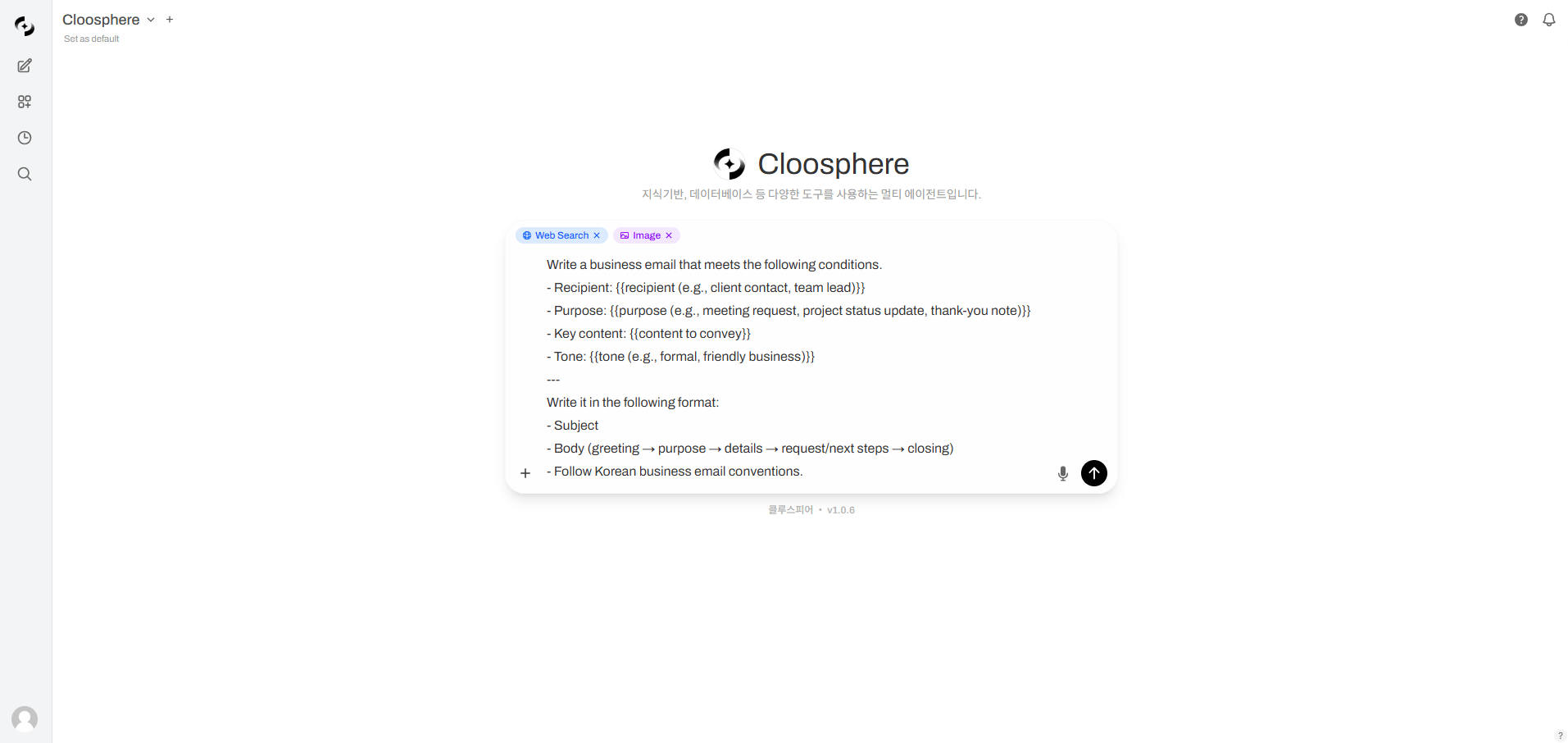
Typing `/` in the chat input shows an autocomplete list of available prompts. When you pick a prompt from the list, **the entire template expands into the input** and the cursor moves to the `{{variable}}` position.
1. Enter a value at the highlighted variable position.
2. Press **Tab** to move to the next variable.
3. Send the message once all variables are filled.
 #### Run directly by typing the command
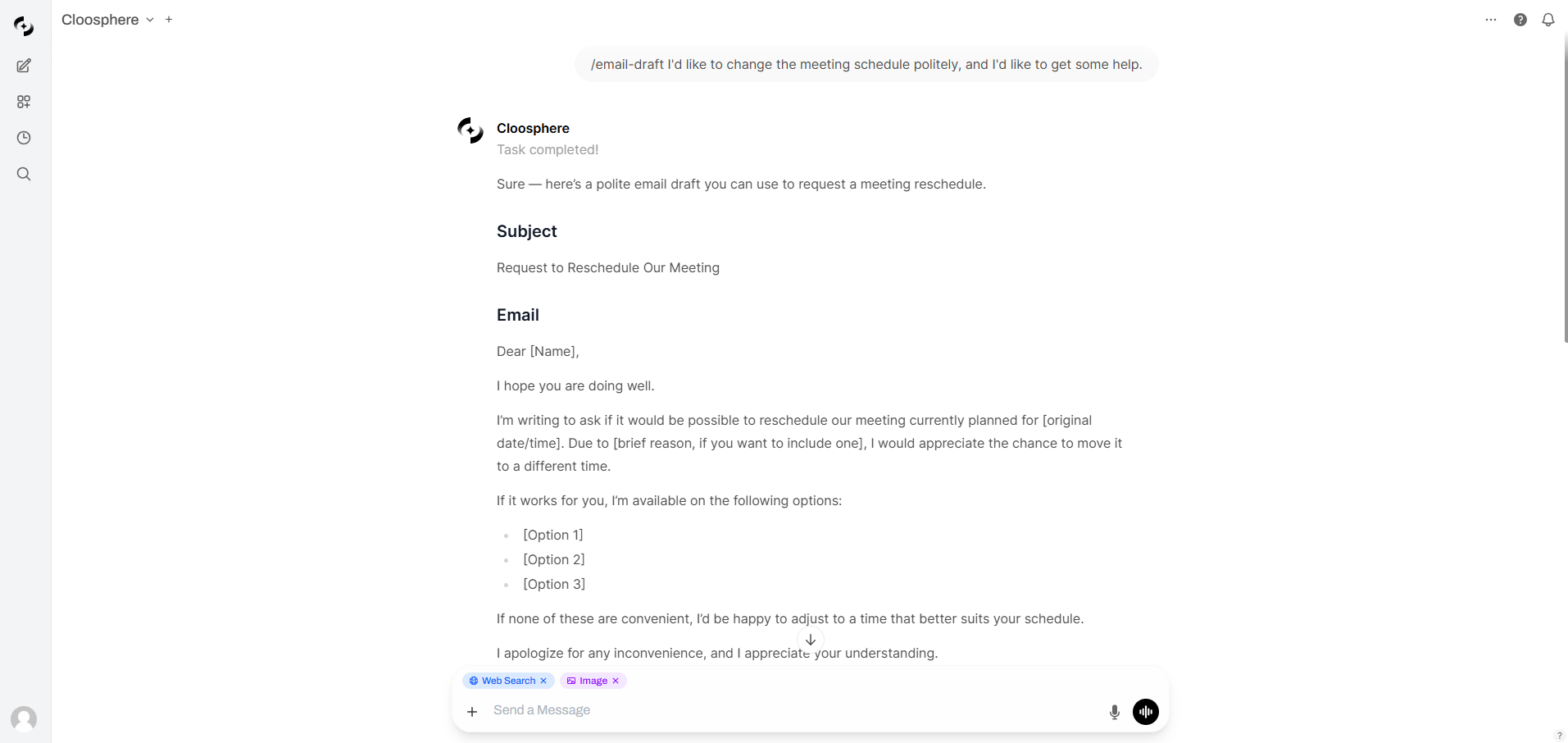
Instead of picking from the autocomplete list, type the command in full (e.g., `/email-draft`), add a space, and continue with your request. The prompt runs immediately using your appended text — without expanding the template. Useful for a quick one-line request instead of filling variables one by one.
```
/email-draft Ask the client to coordinate a meeting schedule
```
#### Run directly by typing the command
Instead of picking from the autocomplete list, type the command in full (e.g., `/email-draft`), add a space, and continue with your request. The prompt runs immediately using your appended text — without expanding the template. Useful for a quick one-line request instead of filling variables one by one.
```
/email-draft Ask the client to coordinate a meeting schedule
```
 ***
## Prompt Examples
The examples below are templates that expand in the input when you select a starter prompt.
**Command:** `/email-draft`
```markdown theme={null}
Write a business email that meets the following conditions.
- Recipient: {{recipient (e.g., client contact, team lead)}}
- Purpose: {{purpose (e.g., meeting request, project status update, thank-you note)}}
- Key content: {{content to convey}}
- Tone: {{tone (e.g., formal, friendly business)}}
---
Write it in the following format:
- Subject
- Body (greeting → purpose → details → request/next steps → closing)
- Follow Korean business email conventions.
```
**Command:** `/report-summary`
```markdown theme={null}
Summarize the following report/document for an executive briefing.
{{Paste the report content or attach a file}}
---
Summarize in the following format:
1. Executive summary (within 3 lines, graspable by executives in 30 seconds)
2. Key figures/data (table format)
3. Implications and suggestions (2–3)
4. Risks/cautions (if any)
```
**Command:** `/code-review`
```markdown theme={null}
Review the following code.
Language: {{language (e.g., Python, TypeScript, Java)}}
Purpose: {{feature description}}
{{Paste the code}}
Review from these perspectives:
1. Bugs/logic errors — potential issues
2. Security — vulnerabilities like SQL injection, XSS
3. Performance — unnecessary computation, N+1 queries, etc.
4. Readability — naming, structure, comments
5. Improvement suggestions — include revised code examples
Mark severity as ●(Critical) ◐(Warning) ○(Suggestion).
```
**Command:** `/meeting-minutes`
```markdown theme={null}
Write meeting minutes based on the following meeting.
## Meeting Info
- Date/Time: {{date}}
- Attendees: {{attendees}}
- Agenda: {{agenda}}
## Meeting Content
{{Enter the meeting content}}
---
Based on the above, write minutes in the following format:
1. Key discussion points (3–5 bullets)
2. Decisions (finalized items)
3. Action Items (table with owner and due date)
4. Next meeting agenda (if any)
```
**Command:** `/translate`
```markdown theme={null}
Translate the following text.
- Direction: {{Korean→English / English→Korean}}
- Document type: {{technical doc / business email / marketing copy / contract}}
{{Enter the text to translate}}
---
Follow these principles when translating:
- Use industry-standard translations for technical terms
- Use natural expressions that fit the context
- Preserve the original tone and level of formality
- For ambiguous expressions, include the original as [original: xxx]
```
***
## Prompt Management
### Edit and Clone
* **Edit**: Click the **prompt card** in the prompt list to open the edit page
* **Clone**: Choose **Clone** from the prompt menu (⋮) to create a new version
Users with write permission or admins can edit other users' prompts. If you don't have permission, **Clone** to create your own version, then modify.
### Export / Import
Export and Import prompts as JSON files.
* Share prompts with teammates
* Back up and restore
* Move to other environments
Bulk export/import is **admin-only**. Individual prompt export is available to all users from the prompt menu (⋮).
### Delete
Delete prompts no longer needed. The creator, users with write permission, or admins can delete.
***
## Tips for Effective Prompts
Giving the AI a clear role yields more expert answers.
```markdown theme={null}
You are a marketing expert with 10 years of experience.
```
Describe the desired output specifically. State length, tone, and content to include.
```markdown theme={null}
## Requirements
- About 500 words
- Professional yet friendly tone
- Include 3 key messages
```
Specifying the format (table, list, markdown) yields consistent results.
```markdown theme={null}
## Output Format
| Item | Content |
|------|---------|
| Title | ... |
| Body | ... |
```
Showing examples of the desired output helps the AI understand format and style precisely.
```markdown theme={null}
## Examples
Input: "Project Meeting"
Output: "Project A — 2nd Iteration Status Sync"
```
Telling the AI what to avoid prevents undesired output.
```markdown theme={null}
## Restrictions
- Minimize jargon
- No profanity
- No PII
```
***
## Sharing Prompts with the Team
### Access Permissions
Set access at prompt creation to specify the sharing scope.
| Option | Description |
| ----------------------- | ------------------------------------------------------------------------------------------------------------------------------------------------------ |
| **Public** | All users can invoke via `/` command |
| **Private** | Accessible only to authorized users and groups. Specify targets via **Group** and **Organizational Unit**; if unspecified, only the creator can access |
| **Group** | Grant access to members of a group created in the Admin Panel |
| **Organizational Unit** | Grant access to members of an organizational unit created in the Admin Panel |
***
## FAQ
No. Commands only allow **lowercase letters, digits, and hyphens (`-`)**. Examples: `/email-draft`, `/code-review`, `/meeting-minutes`
The prompt template itself can't include files, but you can attach files alongside the prompt when using it.
Only with write permission granted, or as an admin. Without permission, **Clone** to create your own version, then modify.
Yes — there's no length limit for text input into variables. You can pass an entire document as a variable.
***
## Next Steps
Apply validated instructions to an agent's system prompt
Use advanced chat features like web search and file attachment
***
## Prompt Examples
The examples below are templates that expand in the input when you select a starter prompt.
**Command:** `/email-draft`
```markdown theme={null}
Write a business email that meets the following conditions.
- Recipient: {{recipient (e.g., client contact, team lead)}}
- Purpose: {{purpose (e.g., meeting request, project status update, thank-you note)}}
- Key content: {{content to convey}}
- Tone: {{tone (e.g., formal, friendly business)}}
---
Write it in the following format:
- Subject
- Body (greeting → purpose → details → request/next steps → closing)
- Follow Korean business email conventions.
```
**Command:** `/report-summary`
```markdown theme={null}
Summarize the following report/document for an executive briefing.
{{Paste the report content or attach a file}}
---
Summarize in the following format:
1. Executive summary (within 3 lines, graspable by executives in 30 seconds)
2. Key figures/data (table format)
3. Implications and suggestions (2–3)
4. Risks/cautions (if any)
```
**Command:** `/code-review`
```markdown theme={null}
Review the following code.
Language: {{language (e.g., Python, TypeScript, Java)}}
Purpose: {{feature description}}
{{Paste the code}}
Review from these perspectives:
1. Bugs/logic errors — potential issues
2. Security — vulnerabilities like SQL injection, XSS
3. Performance — unnecessary computation, N+1 queries, etc.
4. Readability — naming, structure, comments
5. Improvement suggestions — include revised code examples
Mark severity as ●(Critical) ◐(Warning) ○(Suggestion).
```
**Command:** `/meeting-minutes`
```markdown theme={null}
Write meeting minutes based on the following meeting.
## Meeting Info
- Date/Time: {{date}}
- Attendees: {{attendees}}
- Agenda: {{agenda}}
## Meeting Content
{{Enter the meeting content}}
---
Based on the above, write minutes in the following format:
1. Key discussion points (3–5 bullets)
2. Decisions (finalized items)
3. Action Items (table with owner and due date)
4. Next meeting agenda (if any)
```
**Command:** `/translate`
```markdown theme={null}
Translate the following text.
- Direction: {{Korean→English / English→Korean}}
- Document type: {{technical doc / business email / marketing copy / contract}}
{{Enter the text to translate}}
---
Follow these principles when translating:
- Use industry-standard translations for technical terms
- Use natural expressions that fit the context
- Preserve the original tone and level of formality
- For ambiguous expressions, include the original as [original: xxx]
```
***
## Prompt Management
### Edit and Clone
* **Edit**: Click the **prompt card** in the prompt list to open the edit page
* **Clone**: Choose **Clone** from the prompt menu (⋮) to create a new version
Users with write permission or admins can edit other users' prompts. If you don't have permission, **Clone** to create your own version, then modify.
### Export / Import
Export and Import prompts as JSON files.
* Share prompts with teammates
* Back up and restore
* Move to other environments
Bulk export/import is **admin-only**. Individual prompt export is available to all users from the prompt menu (⋮).
### Delete
Delete prompts no longer needed. The creator, users with write permission, or admins can delete.
***
## Tips for Effective Prompts
Giving the AI a clear role yields more expert answers.
```markdown theme={null}
You are a marketing expert with 10 years of experience.
```
Describe the desired output specifically. State length, tone, and content to include.
```markdown theme={null}
## Requirements
- About 500 words
- Professional yet friendly tone
- Include 3 key messages
```
Specifying the format (table, list, markdown) yields consistent results.
```markdown theme={null}
## Output Format
| Item | Content |
|------|---------|
| Title | ... |
| Body | ... |
```
Showing examples of the desired output helps the AI understand format and style precisely.
```markdown theme={null}
## Examples
Input: "Project Meeting"
Output: "Project A — 2nd Iteration Status Sync"
```
Telling the AI what to avoid prevents undesired output.
```markdown theme={null}
## Restrictions
- Minimize jargon
- No profanity
- No PII
```
***
## Sharing Prompts with the Team
### Access Permissions
Set access at prompt creation to specify the sharing scope.
| Option | Description |
| ----------------------- | ------------------------------------------------------------------------------------------------------------------------------------------------------ |
| **Public** | All users can invoke via `/` command |
| **Private** | Accessible only to authorized users and groups. Specify targets via **Group** and **Organizational Unit**; if unspecified, only the creator can access |
| **Group** | Grant access to members of a group created in the Admin Panel |
| **Organizational Unit** | Grant access to members of an organizational unit created in the Admin Panel |
***
## FAQ
No. Commands only allow **lowercase letters, digits, and hyphens (`-`)**. Examples: `/email-draft`, `/code-review`, `/meeting-minutes`
The prompt template itself can't include files, but you can attach files alongside the prompt when using it.
Only with write permission granted, or as an admin. Without permission, **Clone** to create your own version, then modify.
Yes — there's no length limit for text input into variables. You can pass an entire document as a variable.
***
## Next Steps
Apply validated instructions to an agent's system prompt
Use advanced chat features like web search and file attachment