
Attaching Files
You can attach files in several ways.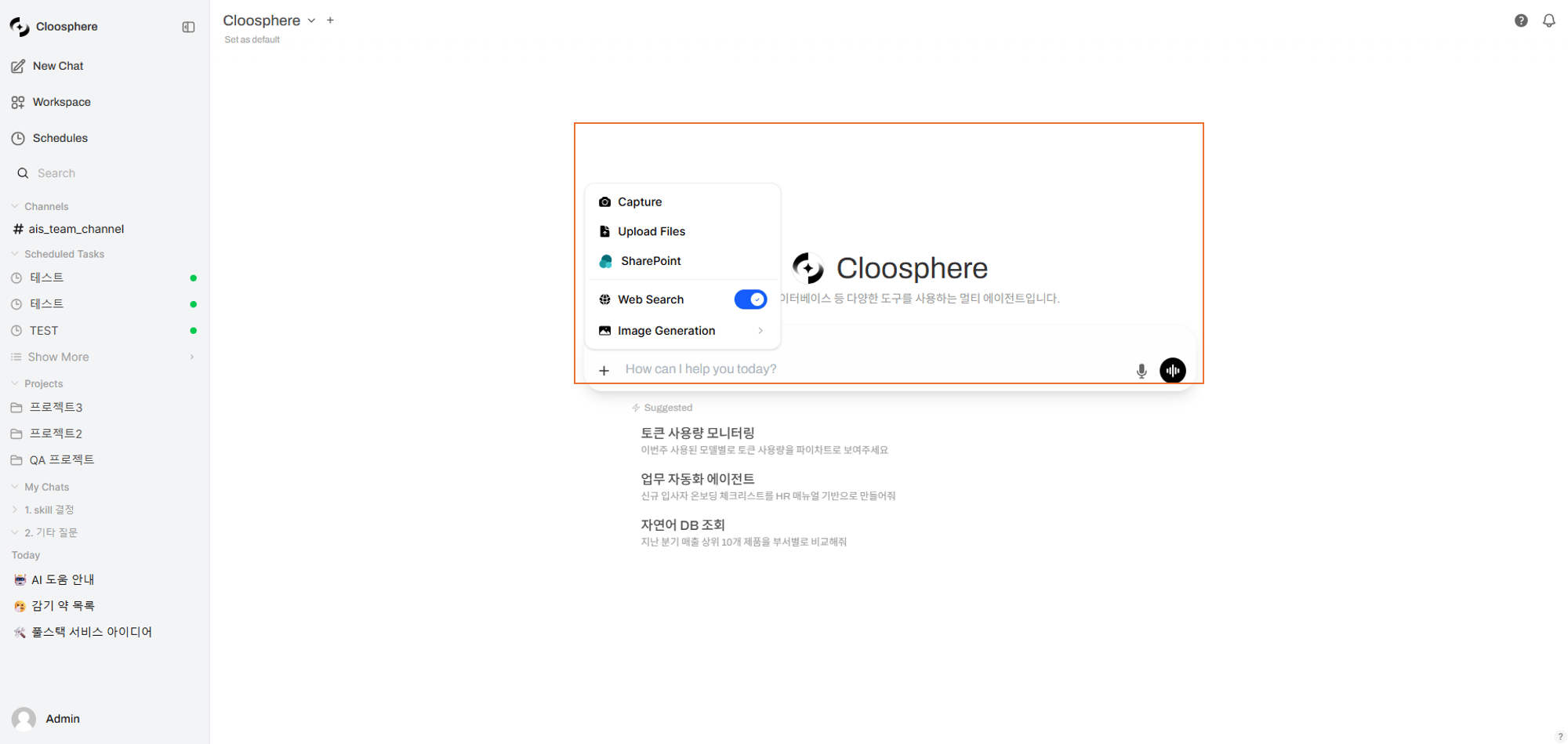
Input area with attached files
- Drag and Drop
- File Picker
- Screen Capture
- Clipboard Paste
- Cloud Storage
Drag files into the chat area to upload them automatically.
You can drag multiple files at once.
Supported File Formats
File Size Limits
The maximum file size depends on the value the admin sets in Settings > Documents.
Files exceeding the limit are rejected with a “File size should not exceed X MB” error.
Image Analysis
When you attach an image (PNG, JPG, GIF, WebP, AVIF), a Vision model analyzes its content.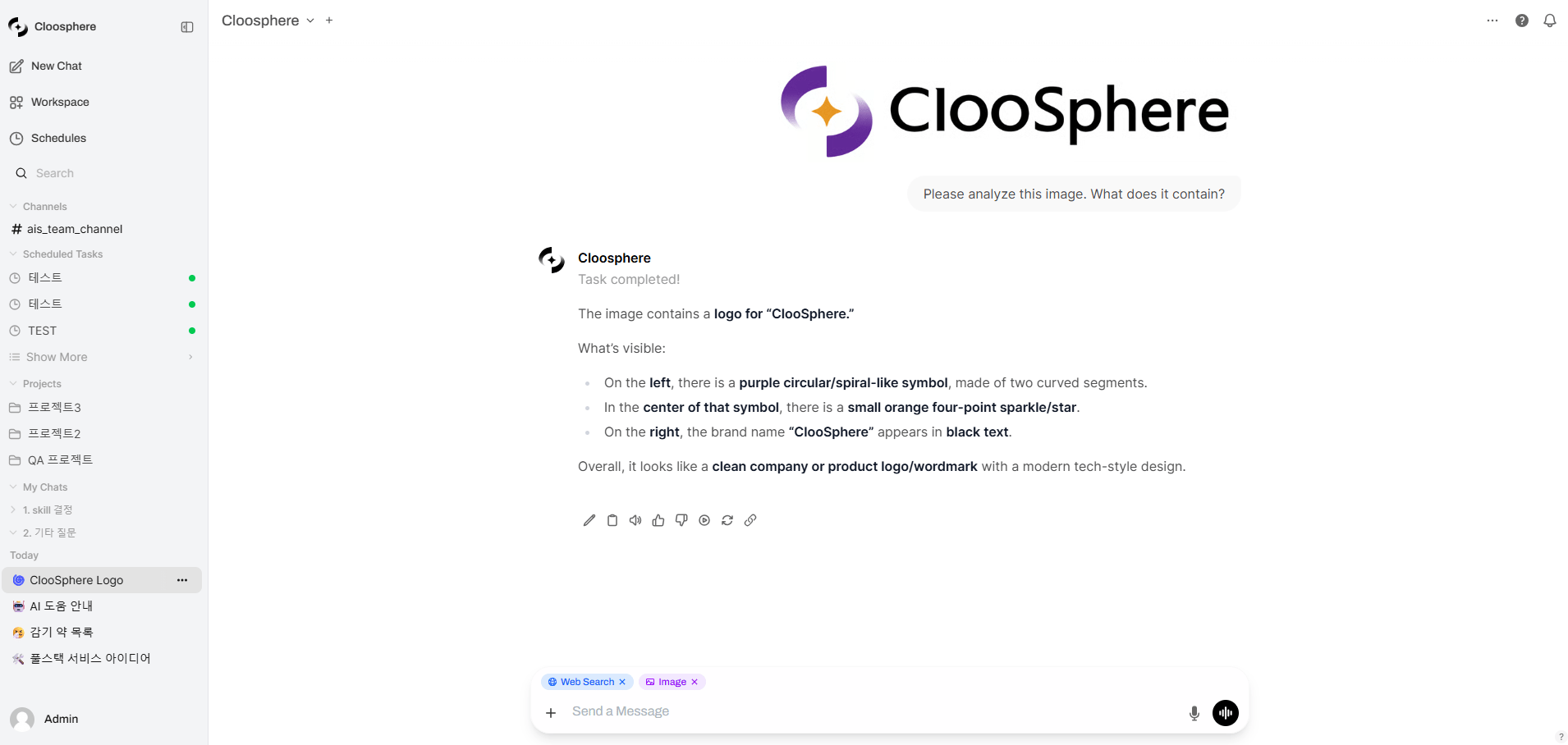
Image analysis response
Image analysis use cases
Image analysis use cases
- Charts/graphs: Extract and analyze data points
- Document images: OCR-based text extraction
- UI design: Design feedback and code conversion
- Error screens: Analyze error messages and suggest fixes
- Photos: Object recognition, scene description
Document File Processing
For non-image files (PDF, DOCX, code files, etc.), text is extracted automatically at upload time.1
Upload the file
Attach a file using one of the methods above. During upload it shows an “uploading” state.
2
Text extraction
The server extracts the file contents automatically. Once complete, the state changes to “uploaded”.
3
Use the context
The extracted text is included as context in the AI conversation, enabling questions about the file content.
Knowledge Base Integration (RAG)
Reference a Knowledge Base with #
Type # in the input box to see available Knowledge Base collections and individual files. The AI searches documents from the selected Knowledge Base or file and uses them in its answer.
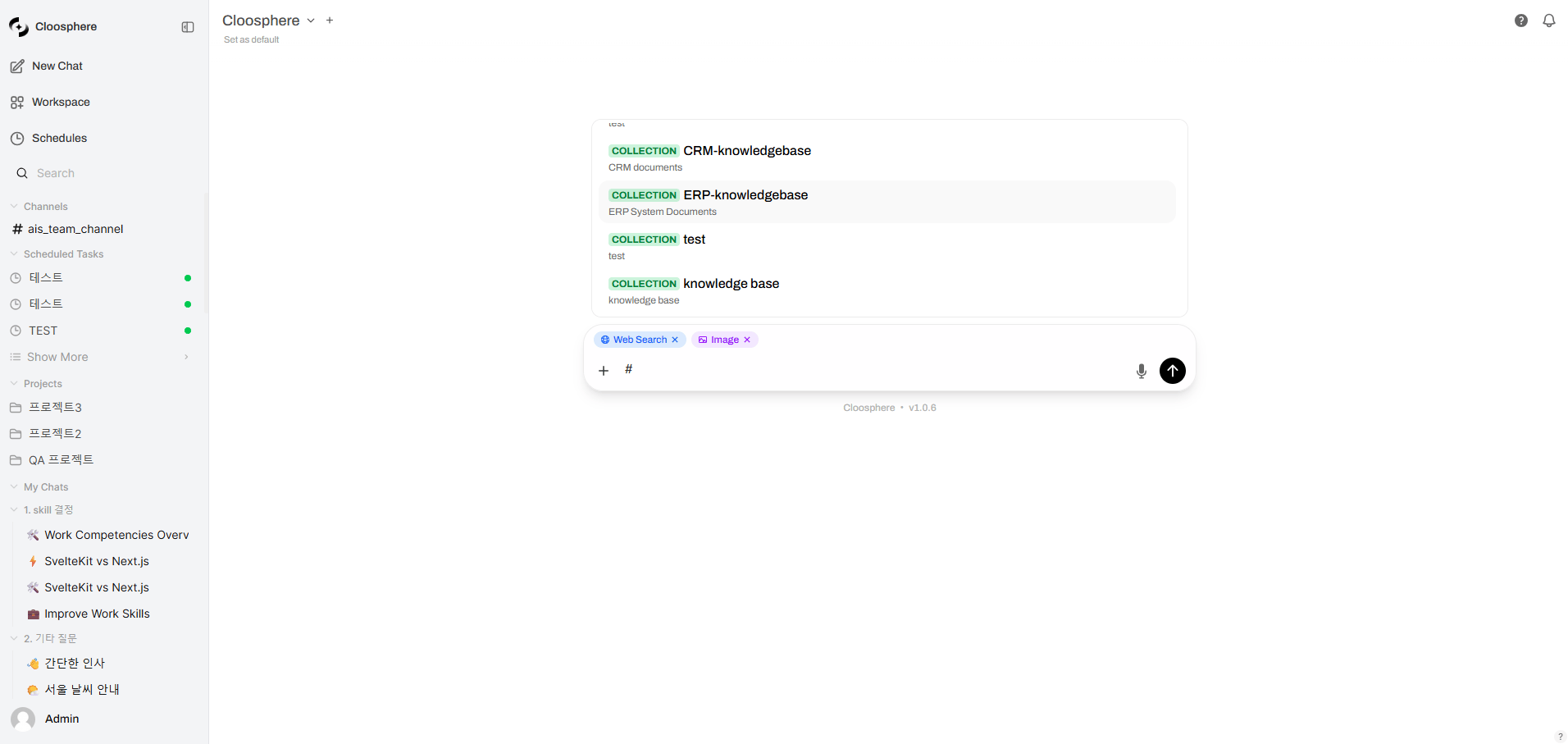
Knowledge Base autocomplete dropdown
How RAG Works
1
Query analysis
A search query is generated from the user’s question.
2
Vector search
Vector similarity search runs against document chunks stored in the Knowledge Base.
3
Build the context
The retrieved relevant chunks are inserted into the AI prompt as context.
4
Generate the response
The AI generates an answer that references the retrieved documents and provides citations.
Agent-based RAG
When an agent has Knowledge Bases attached, it searches them automatically — no# command required.
Attach Knowledge Bases in Workspace > Agent settings.
Citation Display
Responses that referenced Knowledge Base or web search results show citations.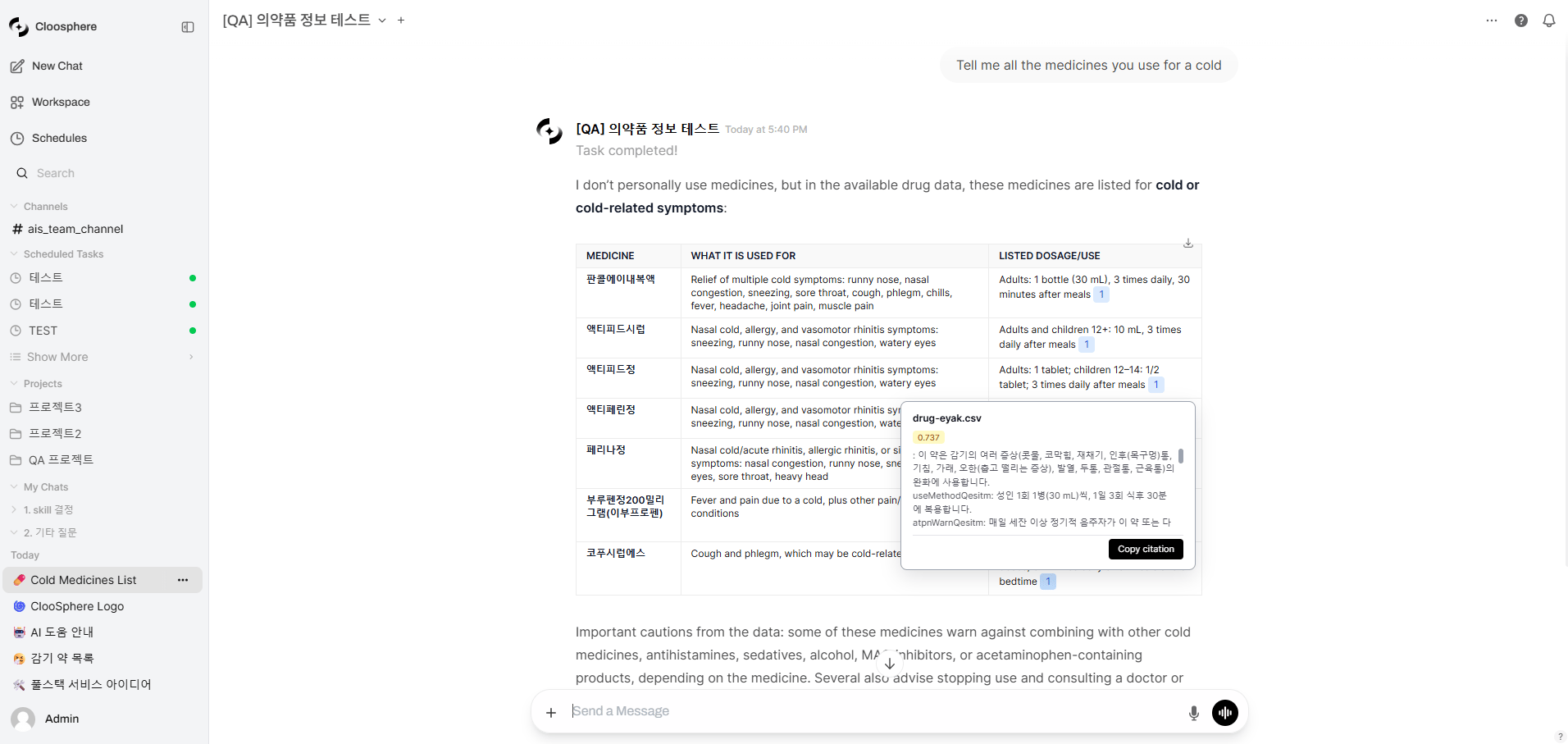
Citation display
Citation List
AnN Sources toggle appears below the response. Expand it to list the referenced sources as citation chips.
Sources that have a URL (web search results, for instance) render as an external link chip with a favicon and domain. Clicking one opens the original page in a new tab.
Reviewing the Excerpt (citation chip popover)
Hover over or click a citation chip to open a popover showing an excerpt of the retrieved chunk.Files in Chat Controls
The Files section of the Chat Controls panel lists files attached to the current conversation.- Each item shows filename, type, and size
- Remove individual files with the X button on the right of each item
- Clicking a file shows its details