
Sharing Chats
Create a Share Link
Generate a share link so other users can view the conversation.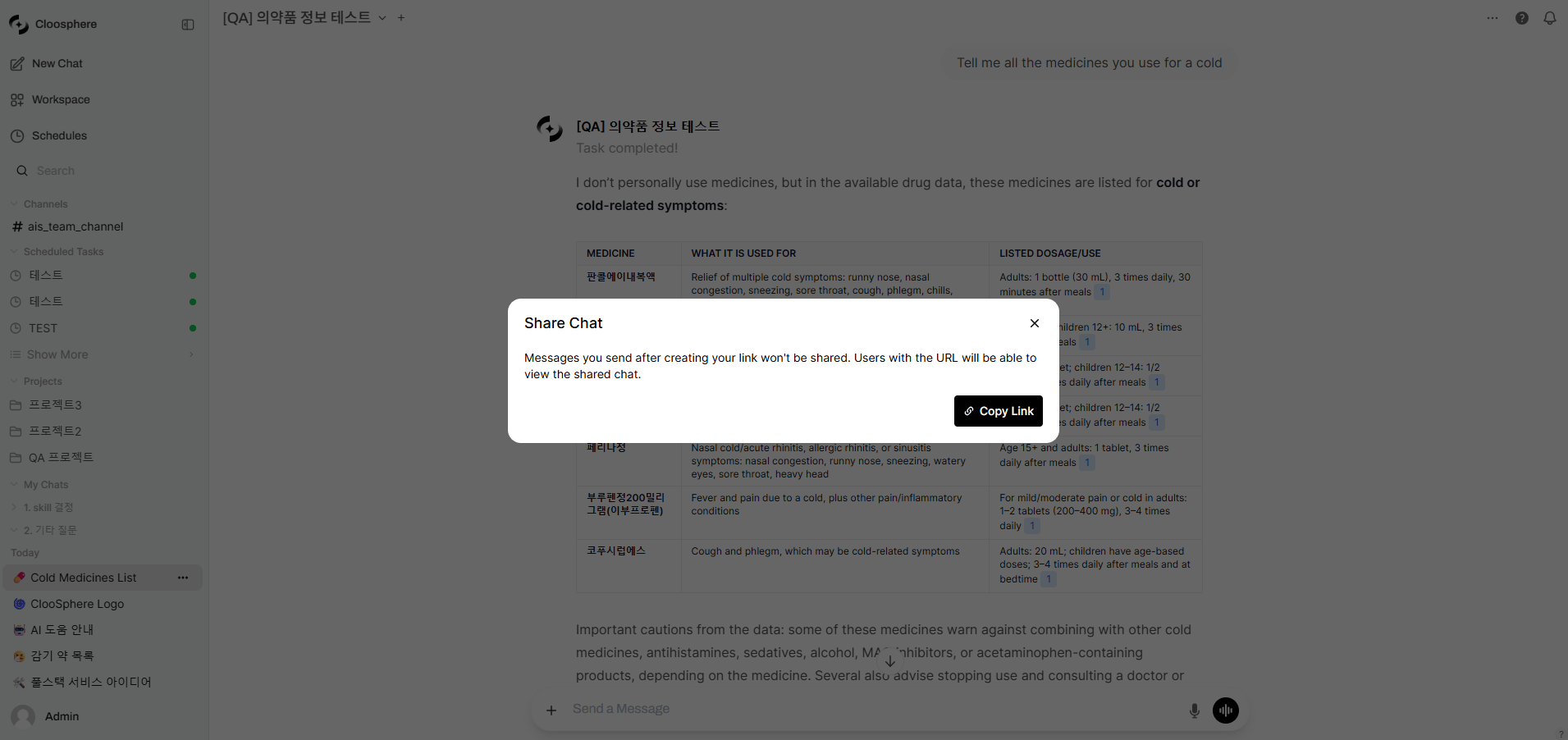
Share Chat modal
1
Open the share menu
Click Share in the chat item’s more menu (⋯), or — after you send the first message — open the more menu (⋯) at the top right of the chat screen and click Share.
2
Generate share link
Click Copy Link — a share link is generated and copied to the clipboard.
Share URL format:
https://{domain}/s/{share_id}3
Send the link
Send the copied link to a colleague. Through the link, they can view the conversation read-only.
Managing Share Links
Messages added after generating the share link are not included in the share.
To reflect the latest content, click Update and Copy Link again.
Tag Management
Use tags to classify conversations by category.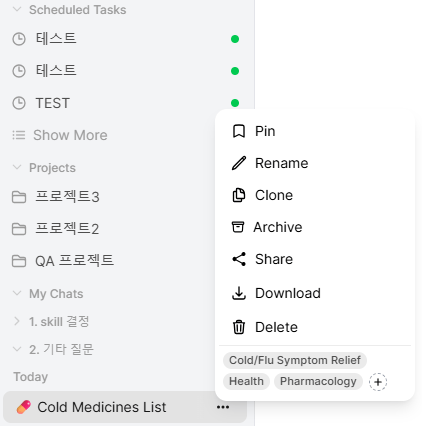
Tags displayed (1/2)
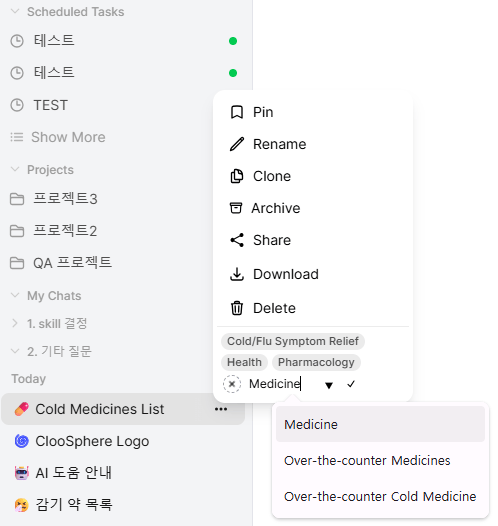
Tag input (2/2)
Add Tags
1
Open the tag area
At the bottom of the chat item’s more menu (or the more menu at the top of the chat screen) you’ll find the current tags and a + button.
2
Enter a tag
Click + to open the Add a tag input. Type a tag name and press Enter, or click the check (✓) button next to it to save.
Previously used tags are suggested as you type.
Remove Tags
Hover over a tag to reveal an X button at its right edge. Click it to remove that tag.Tag-based Filtering
Typetag: in the sidebar Search box to bring up the tag list. Pick a tag and the search box is filled with tag:<tag ID>, filtering the list to conversations carrying that tag. See Conversations > Searching Chat History for the search syntax.
Example tag usage
Example tag usage
Classifying tags by work type makes conversation management efficient.
Pinning
Pin important conversations to the top of the sidebar for quick access.1
Pin
Click Pin in the chat item’s more menu.
2
Unpin
Click Unpin in the pinned chat’s menu.
Archiving
Archive conversations no longer in active use but worth keeping.Archive Individually
1
Archive
Click Archive in the chat item’s more menu.
The conversation disappears from the sidebar list but is not deleted.
2
View archive list
See all archived conversations in Settings > Chats > Archived Chats.
Quick access via Archived Chats in the user menu at the bottom of the sidebar.
3
Restore
Click the Unarchive Chat button (up-arrow icon) in the archive list to restore — it reappears in the sidebar.
Archive All
Click Settings > Chats > Archive All Chats to archive all conversations at once.Cloning Chats
Copy an existing conversation to start a new direction with the same context.1
Pick clone menu
Click Clone in the chat item’s more menu.
2
Create new chat
A new chat with the entire history of the original is created.
Folder-based Organization
Use folders to hierarchically organize conversations. See Conversations > Folder Management for details.Drag and Drop
Easily move chat items by dragging into folders.Organization Strategy
Recommended organization
Recommended organization
As conversations grow, combine these strategies:
- Pin: Currently active major conversations (3–5)
- Folders: Classify by work unit
- Tags: Mark conversation type (coding, analysis, report, etc.)
- Archive: Store completed work conversations
- Periodic cleanup: Delete or archive unnecessary conversations monthly