Example
“Our team uses Python 3.11 + FastAPI, and we deploy on Azure AKS”
| State | Behavior | Result |
|---|---|---|
| Memory OFF | Each conversation is fresh | Repeated questions like “Which framework do you use?” |
| Memory ON | Stack remembered from past conversation | FastAPI-based code suggestions, AKS deployment guidance immediately |
Enabling Memory
3 Ways Memory is Stored
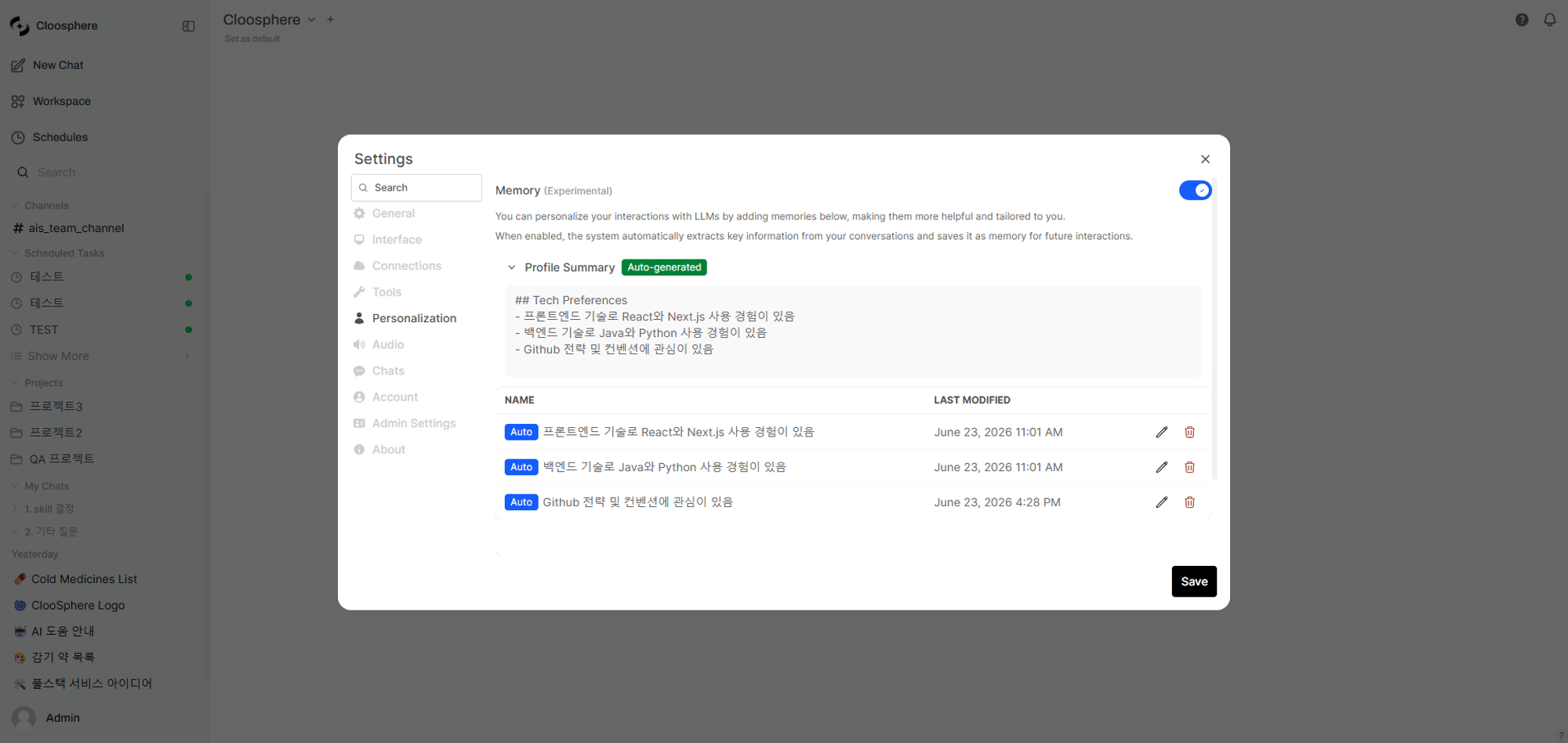
Memory is categorized into three types by source, each with different retention.| Type | Created By | Retention | Display in List |
|---|---|---|---|
| Manual | User input | 180 days | No badge |
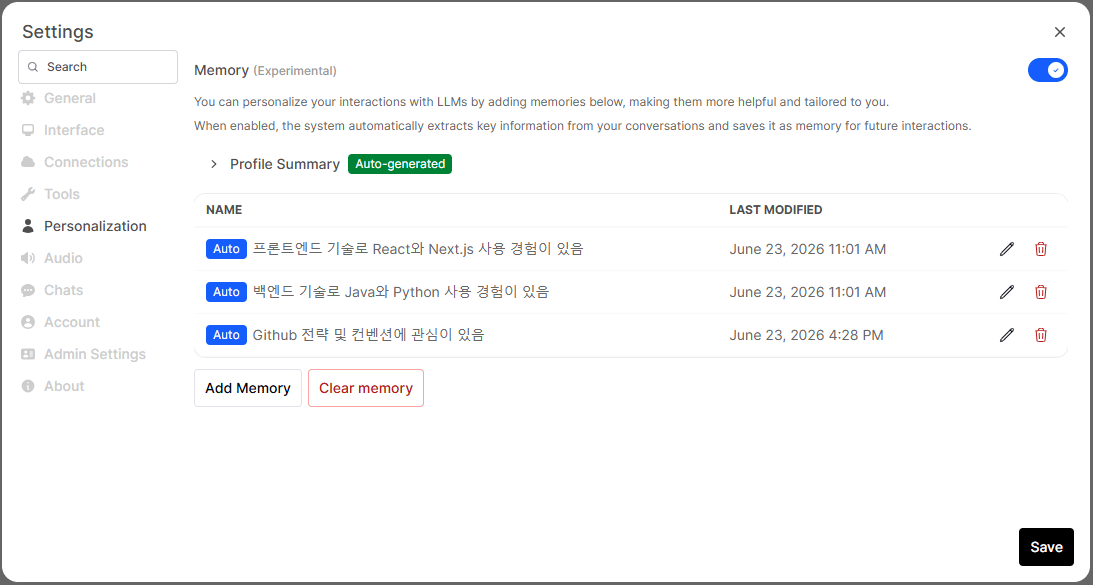
| Auto | AI auto-extracts from conversation | 30 days | Auto badge |
| Profile | AI summarizes/integrates all memories | Permanent | Auto-generated badge |
Manual Memory
Users directly enter information they want the AI to remember. Example inputs:- “User is a data engineer who primarily uses Snowflake”
- “User prefers camelCase for variable names in code reviews”
- “User’s team holds sprint reviews every Wednesday”
Memory is more effective in third person. Use “User…” form instead of “I…”.
Auto Memory
When chatting with Memory enabled, the AI auto-extracts key facts in the background after a response and saves them.- Up to 100 auto-memories stored per user
- Duplicate content is auto-merged to avoid bloat
- Consecutive messages within 5 minutes in the same chat skip extraction
Profile Summary
When a certain number of auto/manual memories accumulate, the AI integrates them into a structured profile document. The profile includes:- Role and work area
- Tech stack preferences
- Active projects
- Communication style
How Memory is Reflected in Conversations
When you ask a question with Memory ON, the AI auto-references relevant memories before answering. The AI auto-adjusts strategy based on memory volume:| Memory Count | Behavior |
|---|---|
| None | Standard conversation (no memory injection) |
| Few (< 20) | Reference all memories |
| Many (≥ 20) | Reference profile + selected memories relevant to the question |
Memory Management
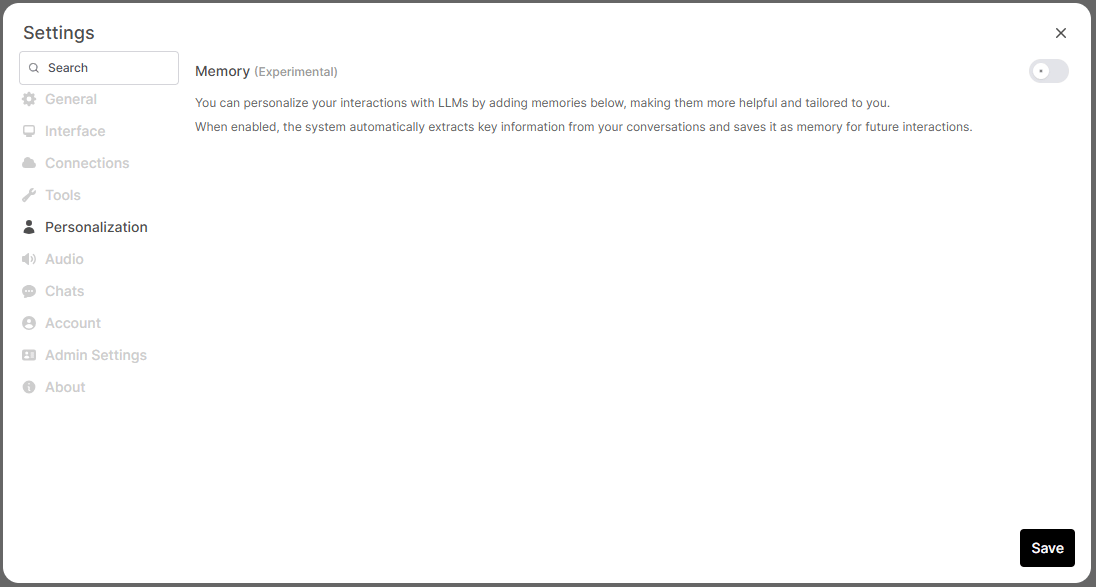
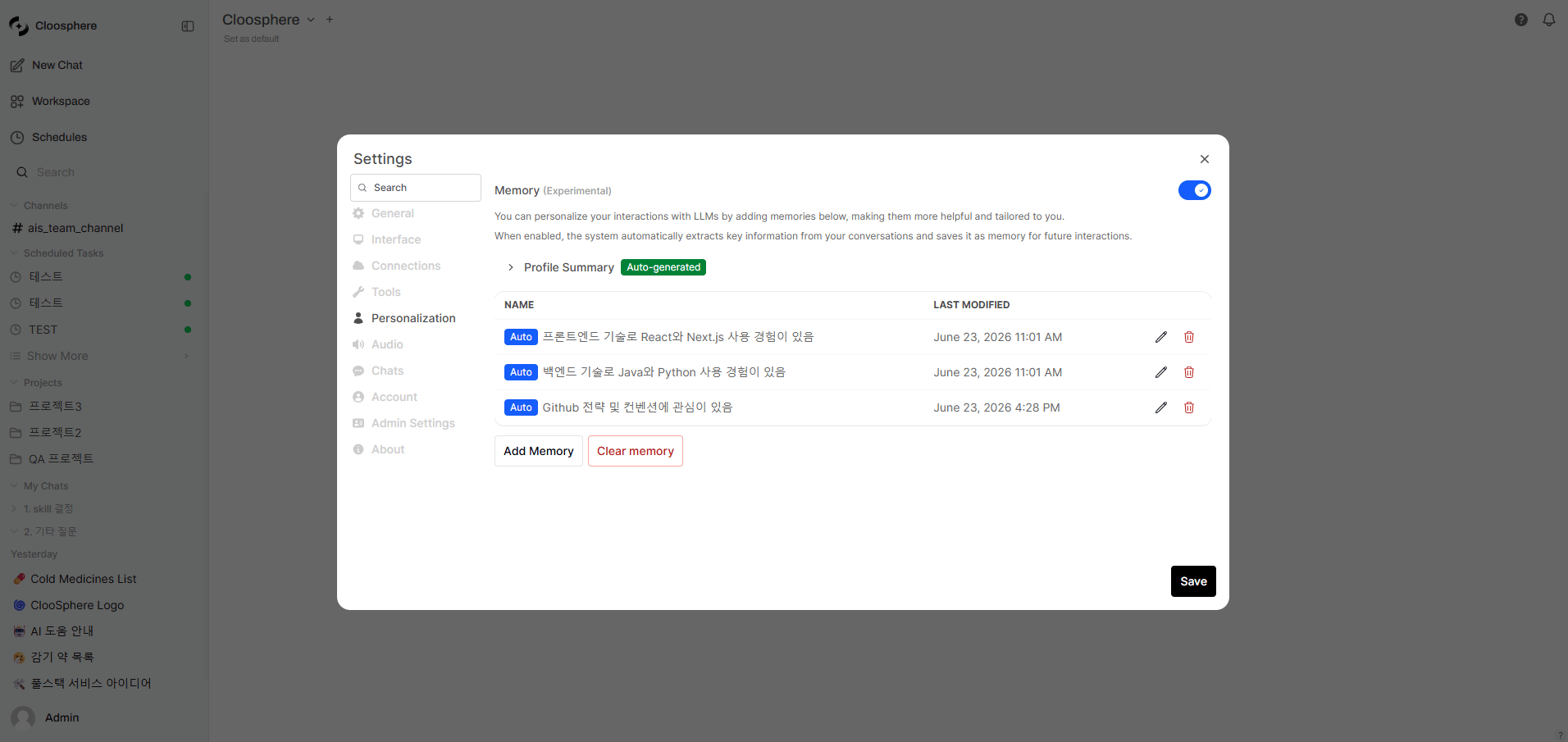
In Settings > Personalization, click the Manage button to open the memory management screen.
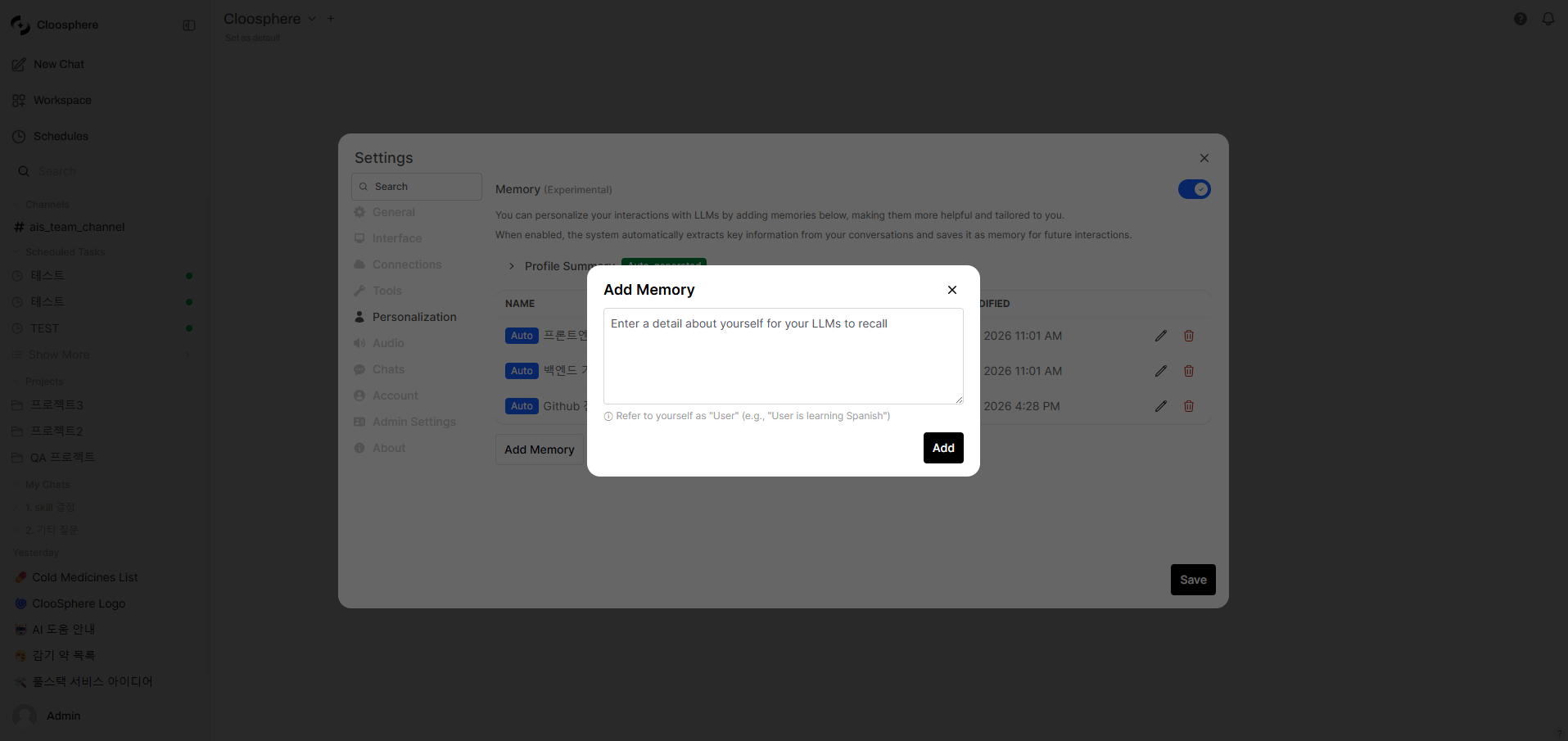
Add Memory

- Click Add Memory button
- Enter text (e.g., “User writes code comments in Korean”)
- Click Add
Edit Memory
Click the pencil icon on each memory to edit content. Auto-extracted memories can also be edited.Delete Memory
- Per-item: Click the trash icon on each item
- Bulk: Clear memory button at the bottom (with confirmation dialog)
Deleted memories don’t disappear immediately — they’re fully removed after a 30-day grace period. During this time, they’re not reflected in conversations.
Profile Summary View
A Profile Summary section appears at the top of the memory management screen (when a profile exists). Click to view the AI-generated user profile.
Organization Memory (Admin-only)
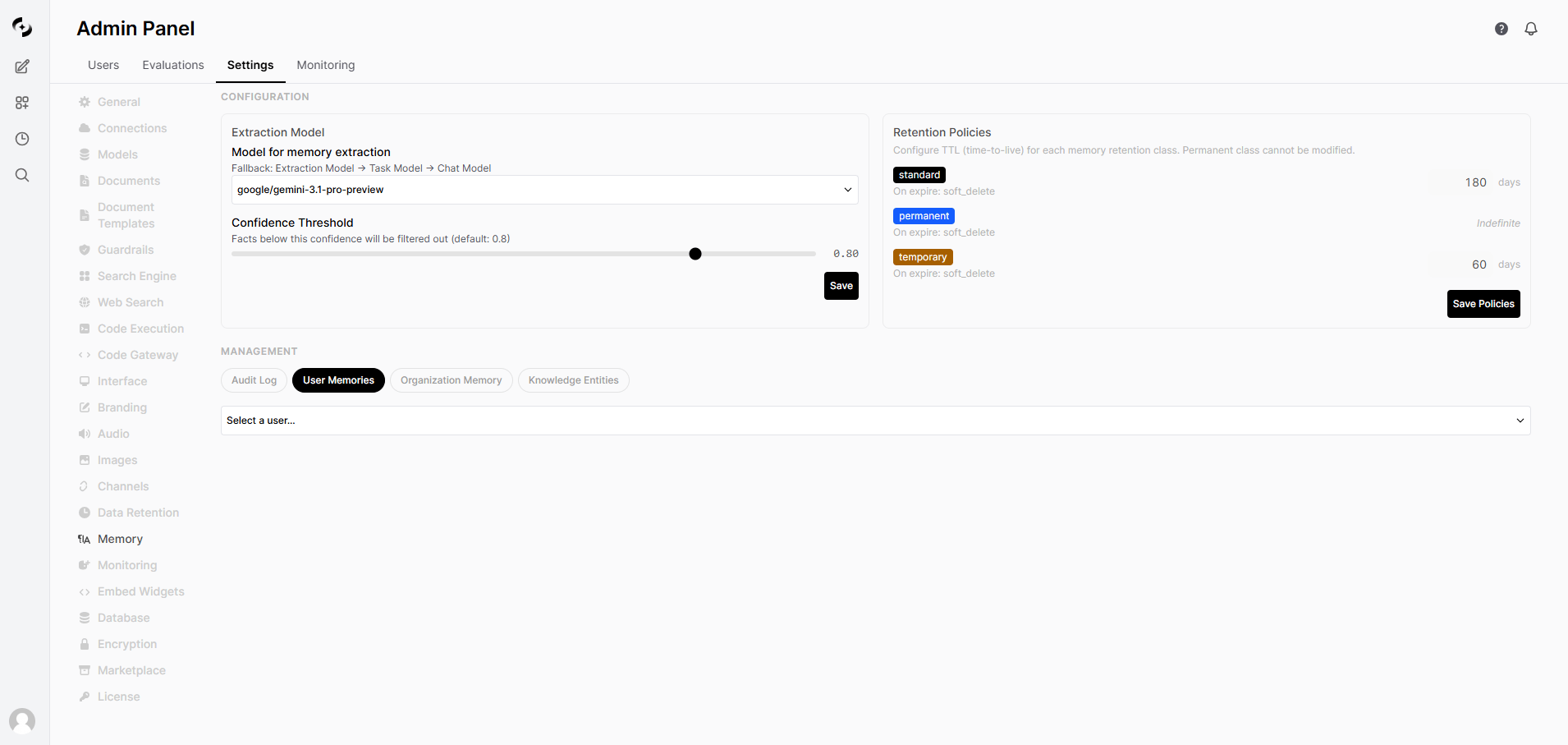
Admins can configure memory shared across the entire organization. Path: Admin > Settings > Memory tab > Organization Memory Organization memory is auto-injected into all conversations of all users in the organization.
Use Cases
- “Our company must always comply with PIPA when handling customer data”
- “In internal terminology, ‘Sprint’ means a 2-week development cycle”
- “Use the company’s official template (Template A) when writing reports”
Admin Settings

Extraction Settings
| Setting | Default | Description |
|---|---|---|
| Extraction Model | System default model | LLM model for memory extraction. Uses system default if unset |
| Confidence Threshold | 0.8 | Confidence threshold for extracted facts (0–1). Lower stores more memories |
Retention Policies
| Type | Default Retention | Editable |
|---|---|---|
| Temporary (auto-extracted) | 30 days | ✓ |
| Standard (manual input) | 180 days | ✓ |
| Permanent (profile) | Unlimited | ✗ |
Audit Log
All memory creation, modification, deletion, and setting change events are recorded. Filter by event type and user.Per-User Memory Management
Pick a specific user to view their memory list and delete entries as needed.Tips for Effective Memory
What information should I put in memory?
Effective memories:
- Role and area of expertise (“User is a backend developer”)
- Tech stack (“User’s project uses Python + FastAPI”)
- Preferred working style (“User requires type hints in code”)
- Project context (“User is currently working on payment system migration”)
- Temporary info (“Meeting at 3pm today”) → leave to auto-memory
- Too generic info (“User does programming”)
- Very long text → keep concise, only the essence
What if auto-memory is inaccurate?
Auto-extracted memories are AI-generated by analyzing conversations, so occasional inaccuracies are possible.
- Periodically review items with the
Autobadge in the Manage screen - Edit or delete inaccurate memories
- Admins can raise the Confidence Threshold to make extraction stricter (default 0.8)
What happens to existing memories when I turn off Memory?
When Memory toggle is OFF:
- Auto-extraction is stopped
- Memories aren’t injected into conversations
- Existing stored memories are preserved, not deleted
- Turning back ON immediately uses existing memories again
Personal vs. Organization Memory
| Personal Memory | Organization Memory | |
|---|---|---|
| Scope | Applied to your conversations only | Applied to all org users’ conversations |
| Creation | User (manual/auto) | Admin only |
| Retention | 30 days to permanent by type | Permanent |
| Use | Personal preferences, work context | Company policy, common rules, term definitions |