
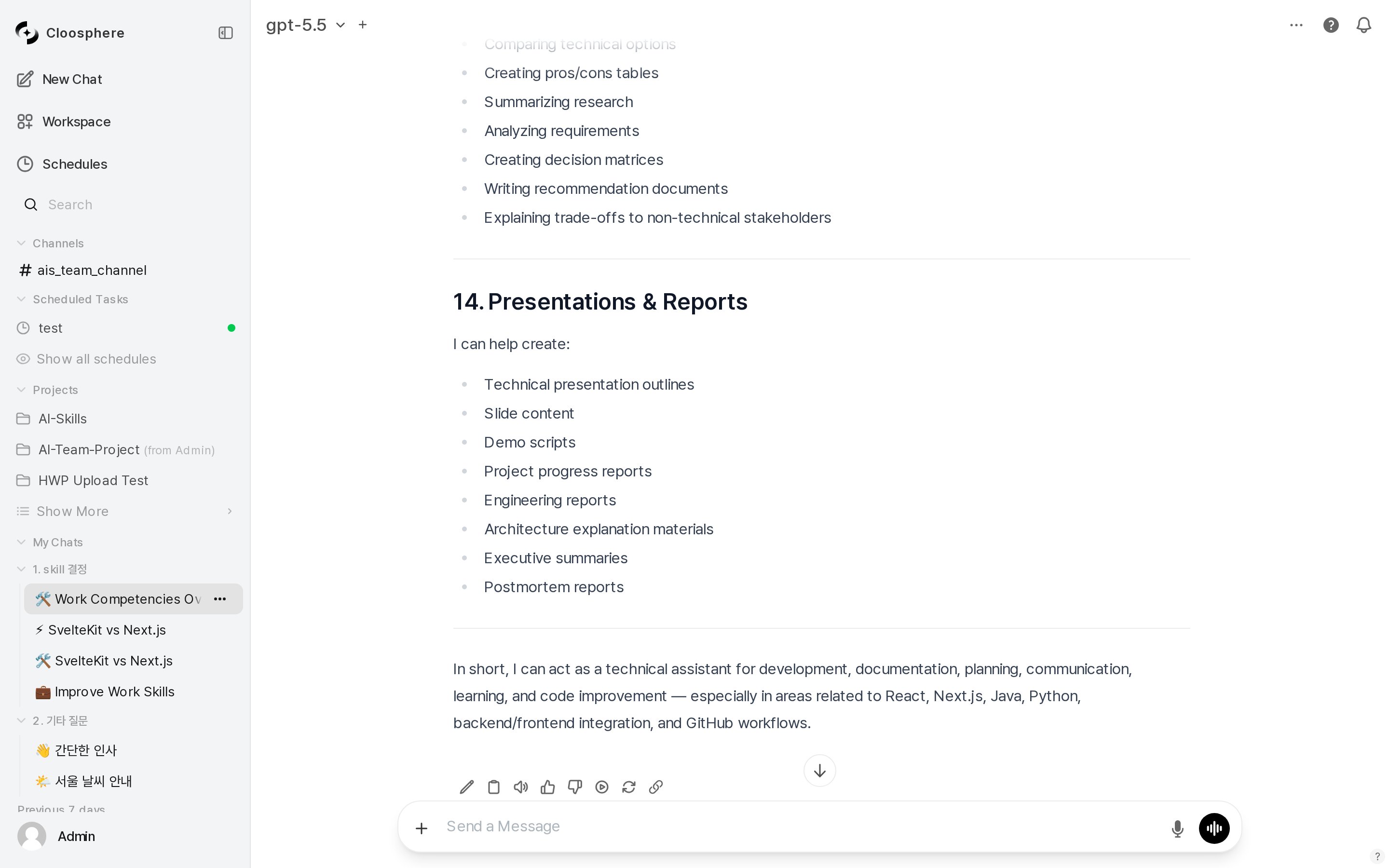
Full chat interface
Chat Flow
When you send a message, it’s processed through this flow.Chat Screen Layout
The model selector in the chat header is available right away in a new chat. The More (⋯) menu on the right appears only after you send the first message.
Key Features
Conversations
Manage chat history — create, search, organize into folders, archive, export
Model Selection
Choose models, compare multiple models, adjust parameters like Temperature
Advanced Features
Enable and use web search, image generation, code execution
Files & RAG
File attachment, knowledge base integration, citation review
Sharing & Organization
Share links, tags, archives, folder management
Memory
Store and manage what the AI remembers about you
Command System
Use special-prefix commands in the input box to invoke features quickly.Keyboard Shortcuts
AI Response Toolbar
A set of action buttons sits below each AI response.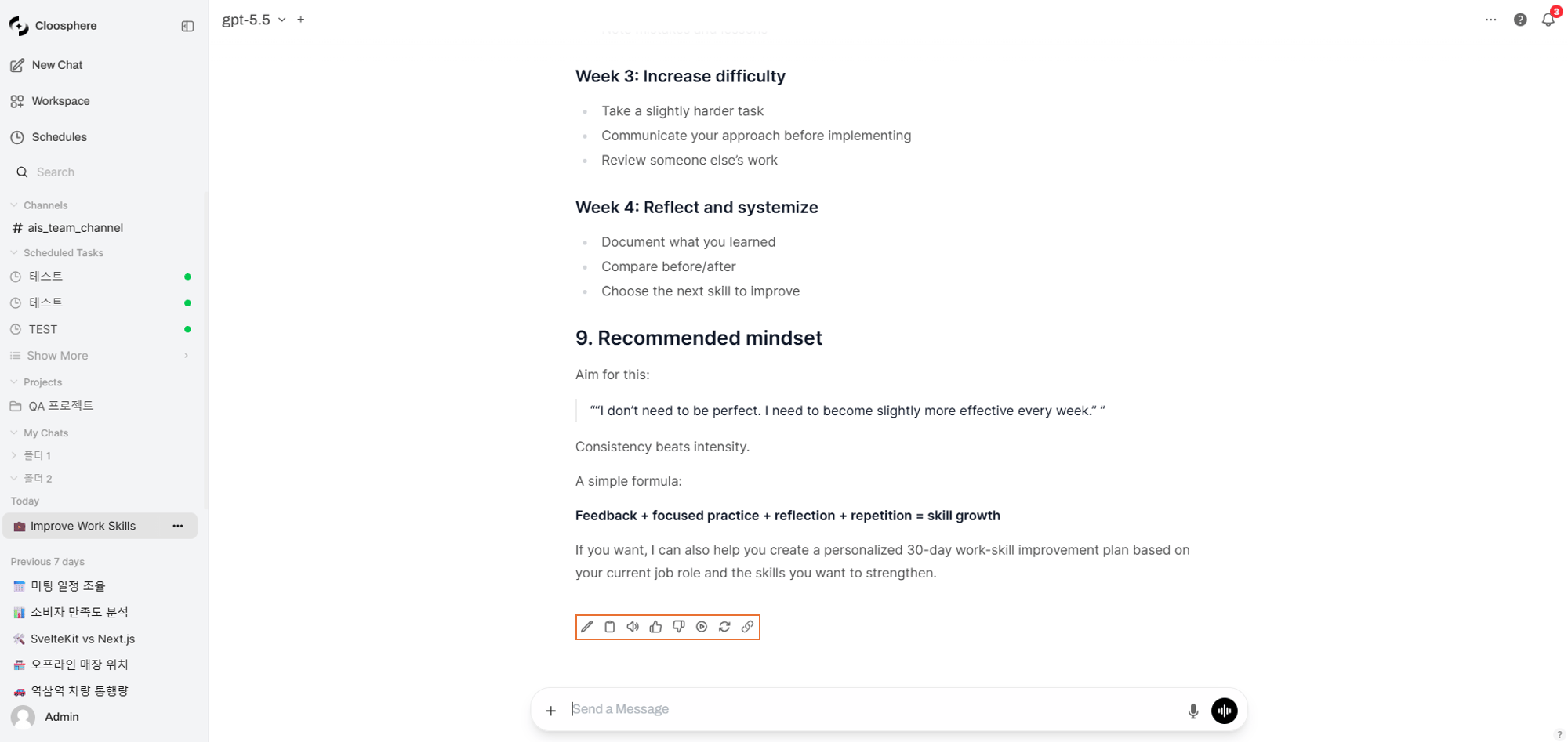
AI response toolbar
Editing a user message preserves the original and creates a new branch.
Use the left/right arrows to navigate between branches.
Next Steps
- See Conversations for organizing chat history.
- Visit Model Selection to pick the right model and tune parameters.
- Use Advanced Features for web search, image generation, and code execution.