
/playground URL. There’s no separate sidebar link.
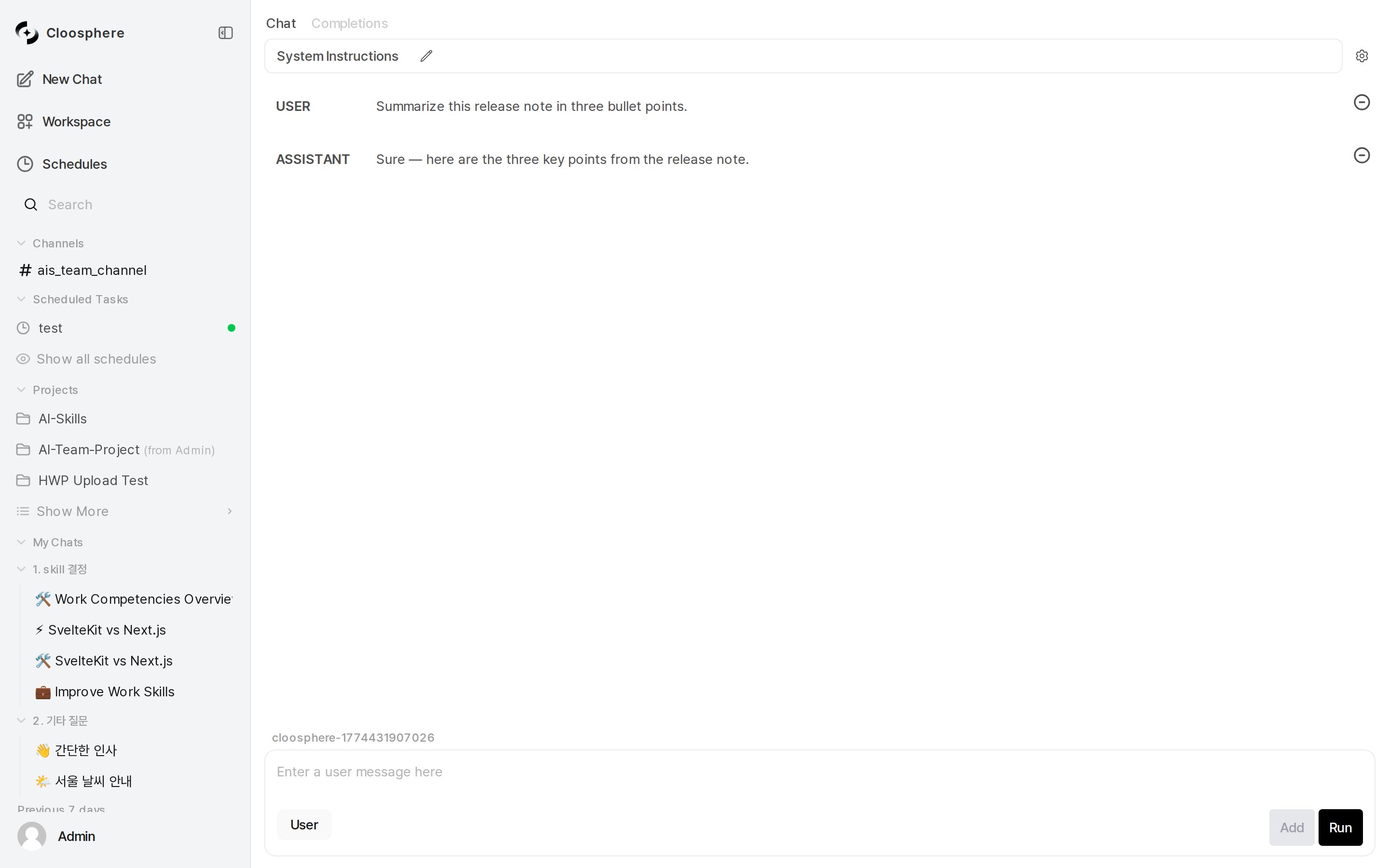
Playground Chat mode full screen
All Playground conversations are ephemeral. Content disappears when you leave the page; not recorded in chat history or audit logs.
Mode Switching
Top tabs offer two modes.Chat Mode
Compose multi-turn conversations to test model responses. Set System Instructions, switch message roles, and edit conversation history.Basic Usage
1
Pick a model
From the model selector dropdown in the right Settings sidebar (click the gear icon), pick a model to test. If you have a default model in your user settings it is selected automatically; otherwise the instance default model set by the admin is used. Manual selection is only needed when neither is set.
2
Set System Instruction (optional)
Expand the System Instructions section at the top and enter a system prompt.
Specify the model’s role, constraints, response style, etc.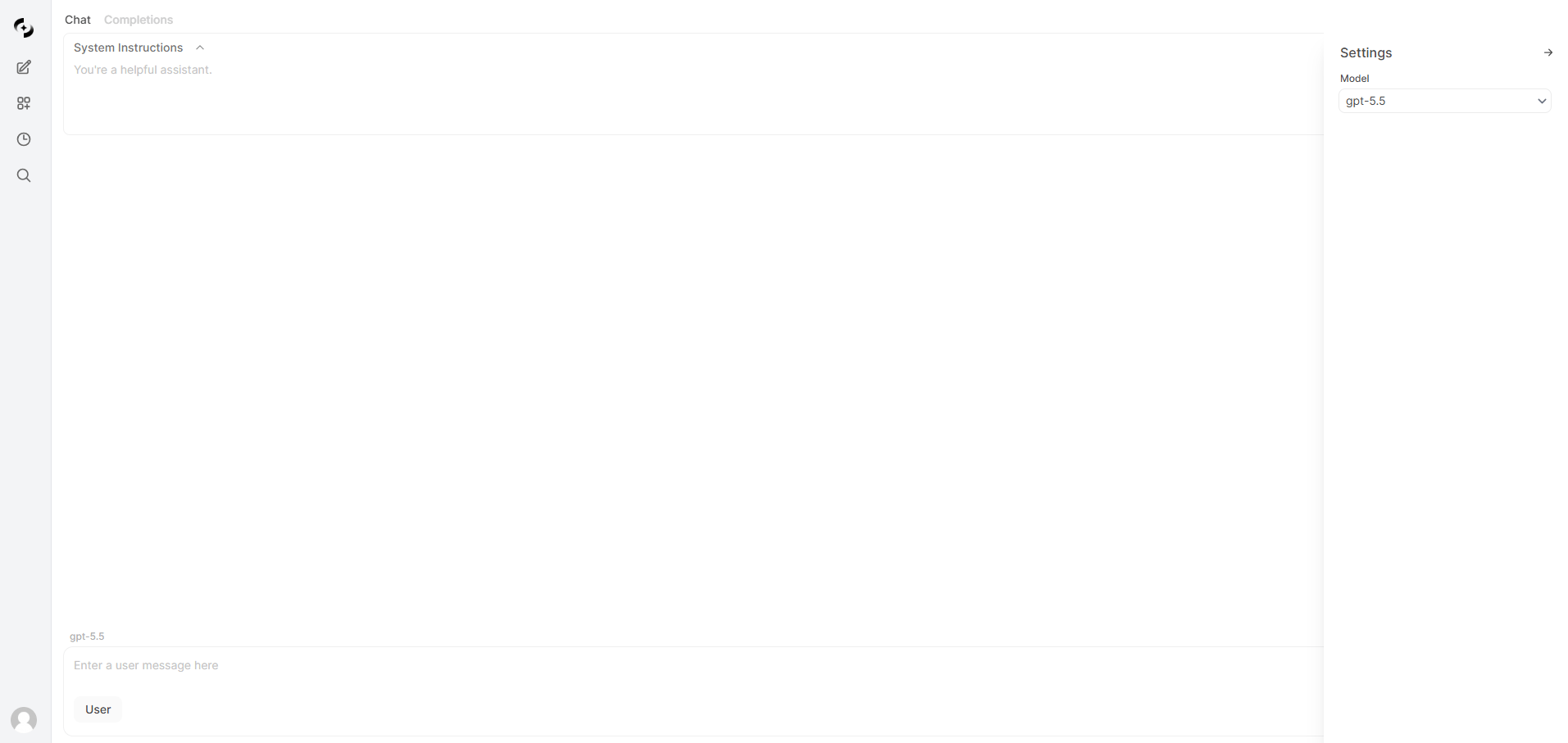
3
Enter message and run
Type a message in the bottom input and click Run.
The model generates a response with real-time streaming.
Message Role Management
In Chat mode, you can freely structure each message’s role (User/Assistant).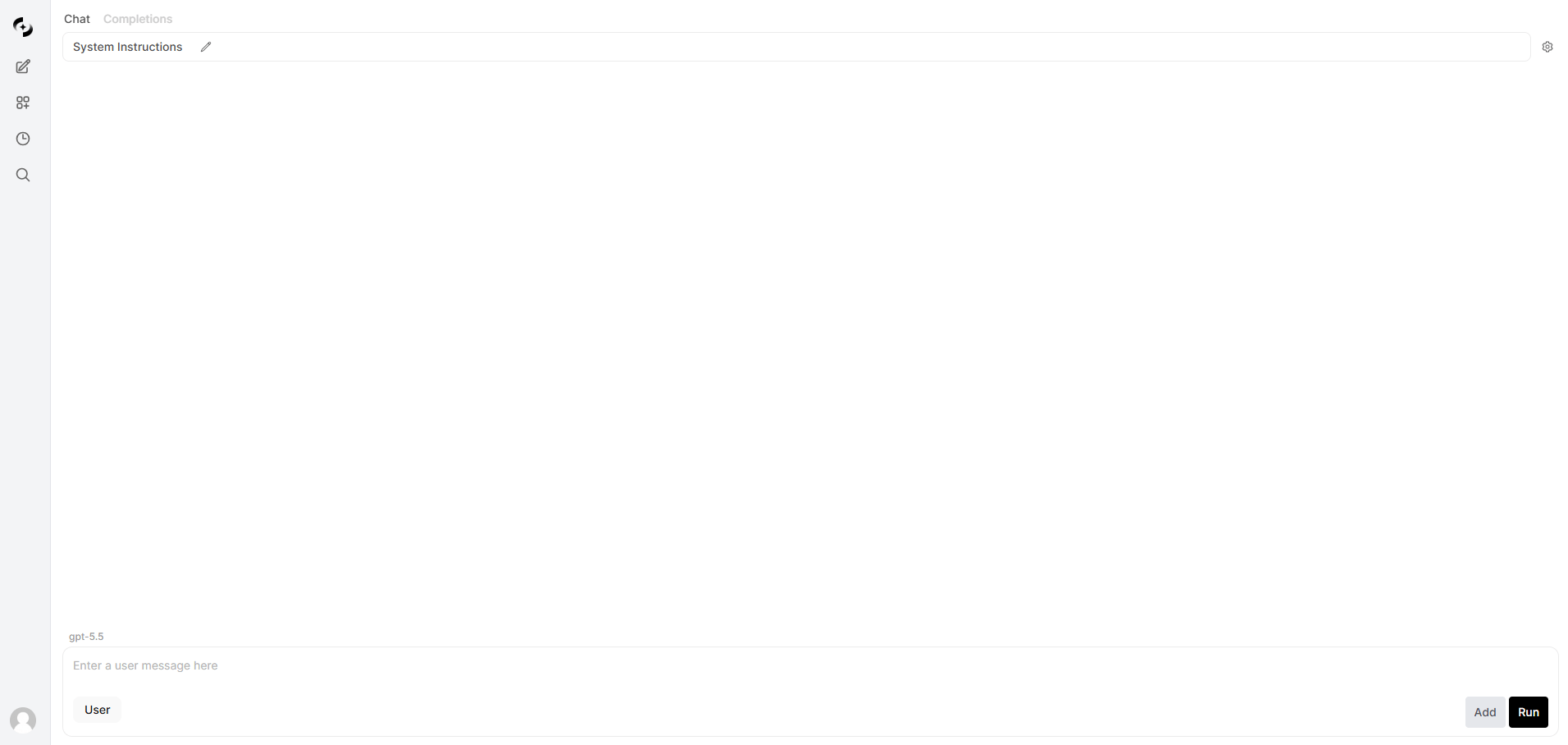
User role (1/2)
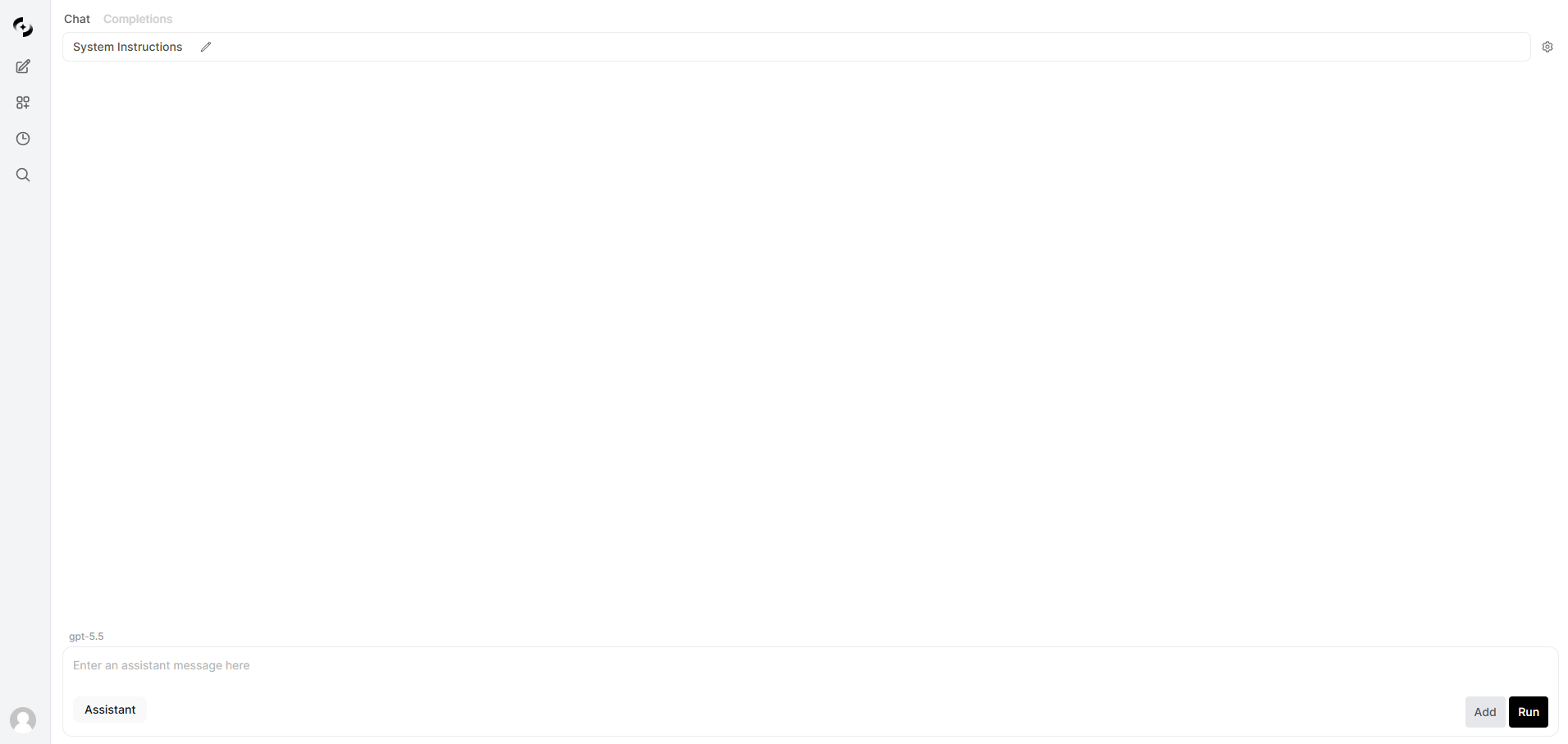
Assistant role (2/2)
System Instruction
- Collapsible header for efficient screen space
- Shows first-line preview when collapsed
- Edits apply from the next Run (no effect on previous responses)
Completions Mode
Test the model’s continuation of a single text input. Focus on pure text generation without conversation structure.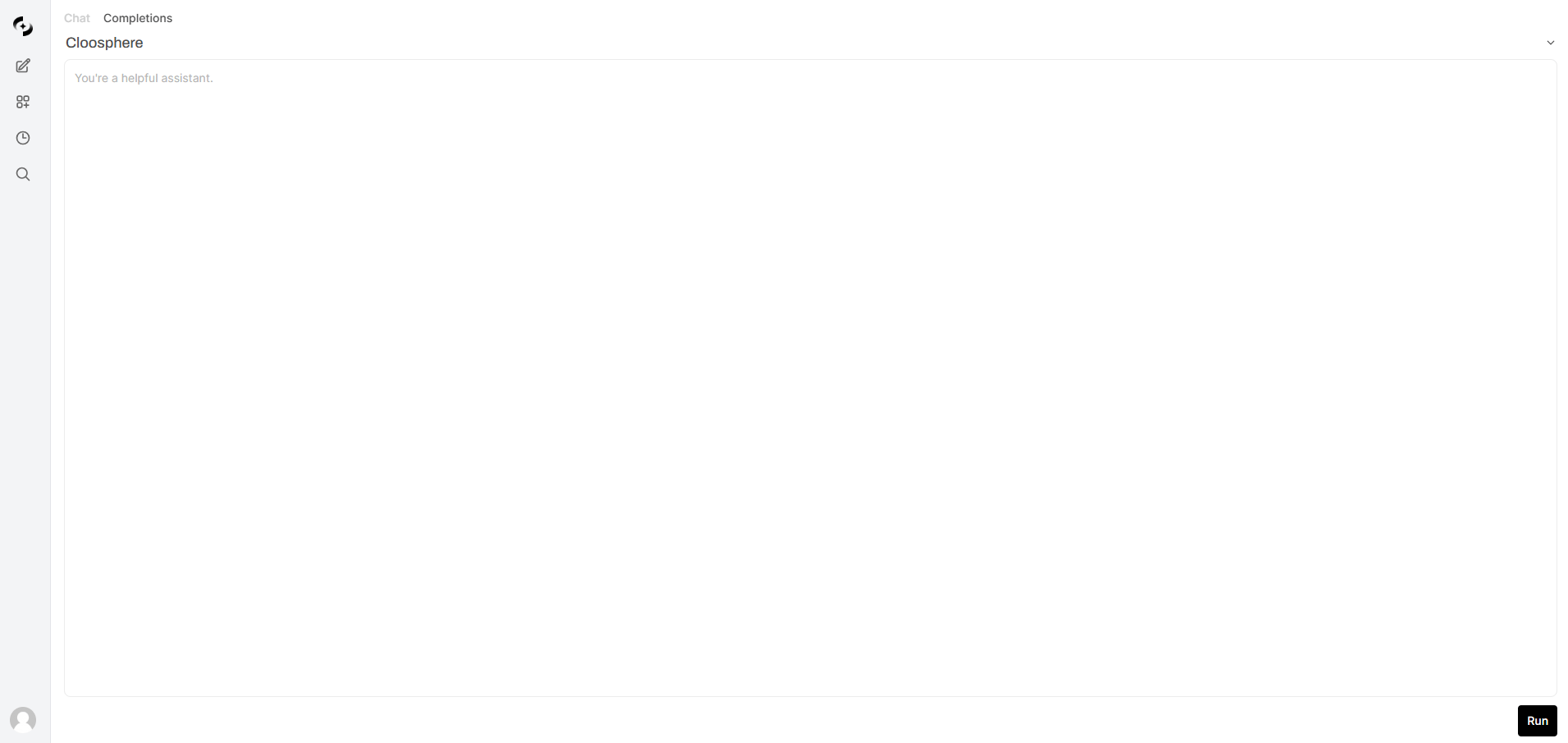
Completions mode
1
Pick a model
Click the model name at the top, then pick a model from the dropdown that opens.
2
Enter starting text
Enter the starting text to complete in the text area.
3
Run
Click Run — the model generates continuation text in real time.
Generated text appears appended to the input text.
Completions mode doesn’t use System Instructions. The input text is passed to the model as-is.
Common Features
Streaming Response
Both modes support real-time streaming via Server-Sent Events (SSE).- Response is displayed token by token in real time
- Click Cancel during generation to stop immediately
- In Chat mode the input and message areas auto-expand to fit content (in Completions mode the text area is fixed-size and scrolls internally)
Model Selection
- Uses the same model list as the chat screen — alongside the models enabled in admin settings, workspace agents and flows are listed too
- If a default model is set in your user settings, that model is selected; otherwise the instance default model set by the admin is used
- Chat mode — the dropdown in the gear → Settings sidebar shows the model name, and the selected model ID appears just above the input box
- Completions mode — the model selector at the top of the screen shows the model name (no model ID is displayed)
Use Cases
Prompt Engineering
Prompt Engineering
Model Performance Comparison
Model Performance Comparison
Sequentially test multiple models with the same prompt to compare response quality, speed, and cost.
In Chat mode, open the Settings sidebar with the gear icon and switch models from its dropdown; in Completions mode, use the model selector at the top of the screen.
System Instruction Validation
System Instruction Validation
Pre-test System Instructions before applying to agents.
Verify consistent responses across various user inputs.
Text Completion Testing
Text Completion Testing
In Completions mode, check text generation quality for document drafts, code snippets, translations, etc.