
Admin › Monitoring › File Logs
- Admins get a unified view of uploaded file sensitivity classification, blocking status, and security check results.
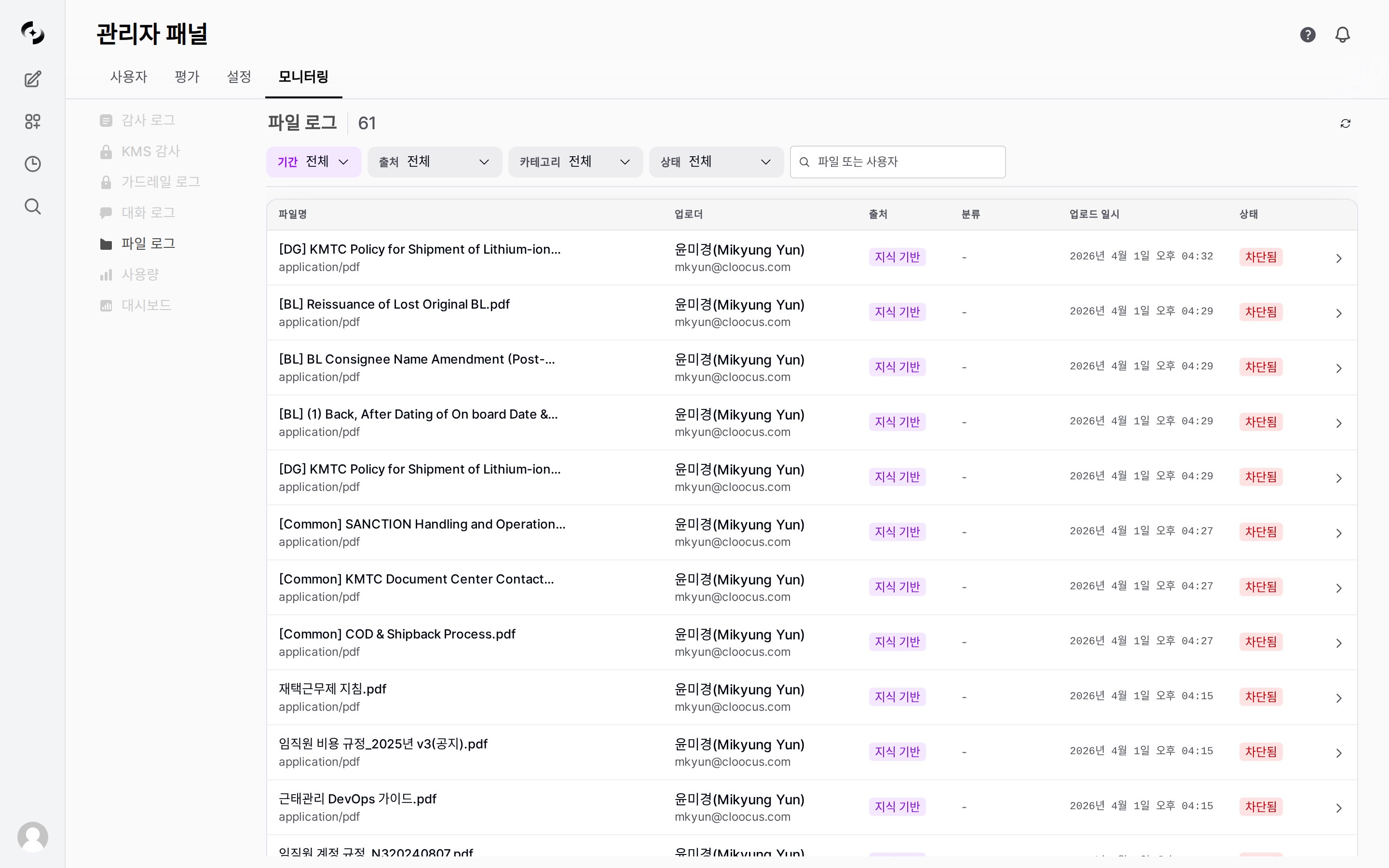
File Logs main screen — filter bar, table, source/classification badges
Not all uploaded files appear here. Only files with classification results or guardrail blocks are shown in the log.
Document Sensitivity Classification
File guardrails are an Enterprise-only feature and are off by default. Turn on File Upload Guardrails in Admin › Settings › Guardrails, then enable the applied scopes (Chat · Knowledge · Project) and each individual check. Document Classification and NSFW Image Detection also require a model — without one, files pass without being checked.
Each classification result includes a confidence score (0–100%) and the classification reason. Files with no extractable text or a failed classification are recorded as
UNCLASSIFIED, and no status badge is attached to them.
Guardrail Check Types
The checks you have enabled apply according to the file type.- Document Classification
- Macro Detection
- EXIF Metadata Removal
- NSFW Detection
- Text Content Guardrails
LLM-based sensitivity classification. Analyzes document text to assign PUBLIC ~ RESTRICTED grade.
- Target: All files with extractable text (PDF, DOCX, TXT, etc.)
- Result: Classification grade + confidence + reason
- Action: By default CONFIDENTIAL → flag, RESTRICTED → block
Viewing Logs
Filter Options
Filter Options
Table Columns
Table Columns
Pagination
Pagination
- 20 entries per page
- Total file count shown at top
- Page navigation controls when over 20
Detail View
Click the arrow on the right of a table row to expand it and show the file’s guardrail analysis.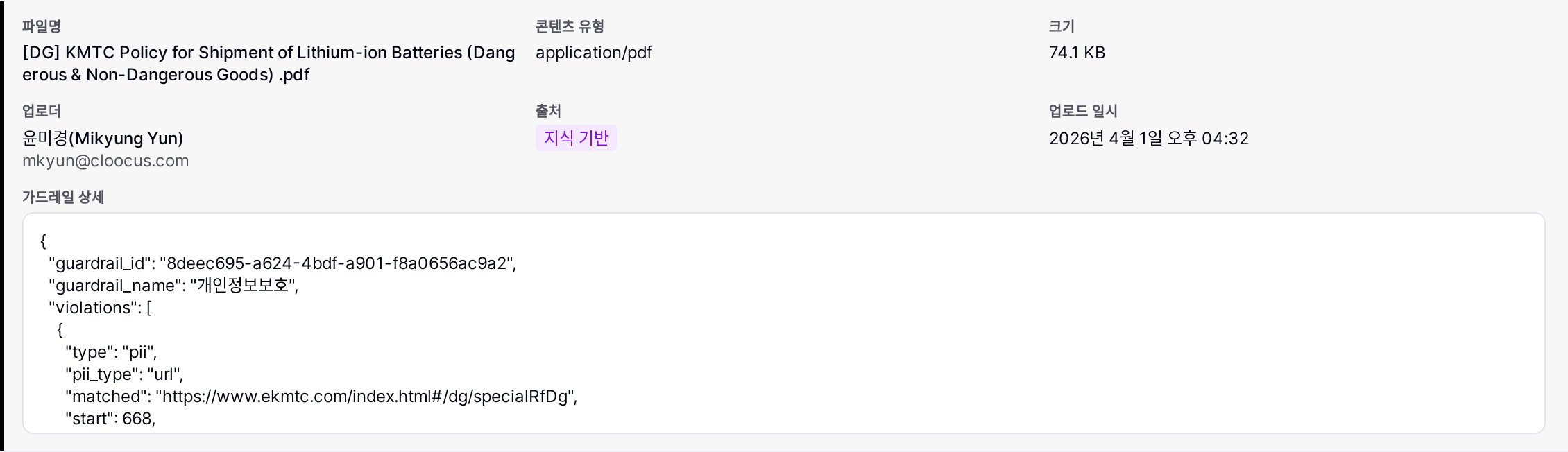
File detail — file info, uploader, source, guardrail detail JSON
- File info: Filename, content type, size (KB)
- Uploader info: Name, email, upload time
- Source: Upload path badge
- Classification result:
- Sensitivity grade + confidence (%)
- Classification reason
- Classification model used
- Error message on errors
- Guardrail Details (when a guardrail block record exists): block detail JSON
- EXIF Stripped (when the EXIF check ran): Yes or No
- NSFW Check (when the NSFW check ran): the model’s verdict
File Processing Flow
Files blocked by macro detection or NSFW image detection are rejected at upload, so they never appear in File Logs. File Logs shows files that have a classification result recorded, plus files that were blocked by the text content guardrail and left a block record.
Use Cases
Sensitive Document Monitoring
Sensitive Document Monitoring
- Set the Category filter to
CONFIDENTIALonly - Review the flagged file list
- Confirm classification reason and confidence in the expanded detail
- Adjust policy in Guardrail Settings as needed
Per-Source Upload Pattern Analysis
Per-Source Upload Pattern Analysis
- Use the Source filter to view upload status by Chat / Knowledge / Project
- If a source has many blocks, inspect that workflow
- Review Knowledge upload classification results to manage RAG data quality
Blocked File Investigation
Blocked File Investigation
- Set the Status filter to
Blocked. Files blocked by document classification carry no status badge, so check them separately with the Category filter set toRESTRICTED - Confirm uploader and reason for blocked files
- Review guardrail detail JSON in the expanded detail
- Consider revising guardrail rules if false positives
Best Practices
- Periodic monitoring: Review file logs at least weekly to detect anomaly patterns
- Guardrail integration: When blocks/flags occur frequently, review Guardrail Settings
- False positive management: When CONFIDENTIAL/RESTRICTED classification confidence is low, consider changing the classification model
- Source analysis: Watch for patterns where sensitive files concentrate in a specific source