
Admin › Monitoring › Usage
- Analyze token usage and request count across multiple dimensions (model, user, agent, group, organization).
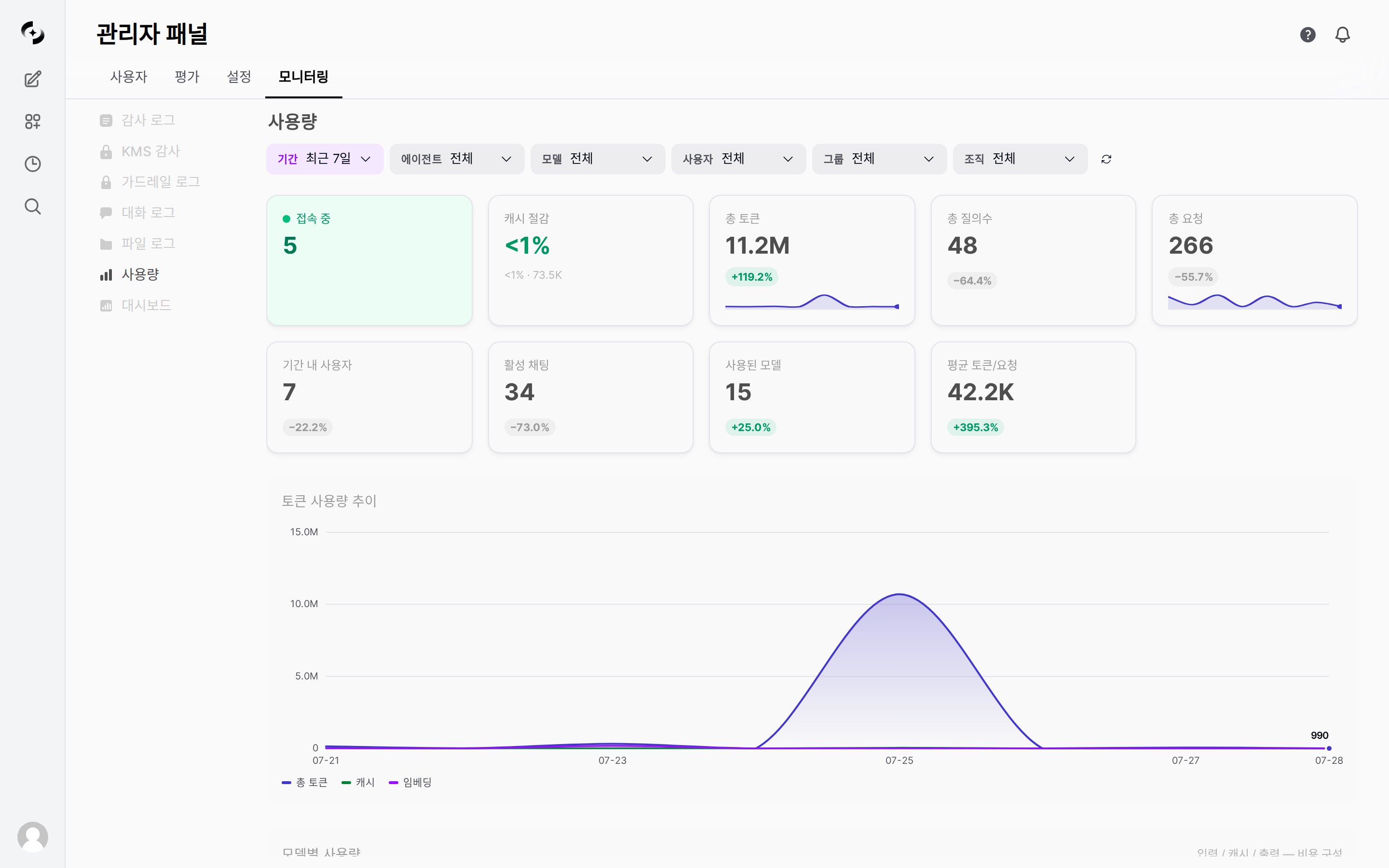
See token, request, and user status at a glance under Admin > Monitoring > Usage
Key Metrics
Key metrics appear at the top of the dashboard as cards.
Total Tokens, Total Queries, Total Requests, Users in Period, Active Chats, Models Used, and Avg Tokens/Request show the change against the preceding period of the same length, and Total Tokens / Total Requests include a trend sparkline. Online Now, Cache savings, and Estimated Cost have no change indicator, and no change is shown when the period is
All or the preceding period has no data.
The Estimated Cost card and the Estimated Cost column in the usage-by-model table appear only when at least one value is entered under Model Pricing in Admin › Settings › Models.
Usage Trend Chart
Visualize usage over time as a line chart.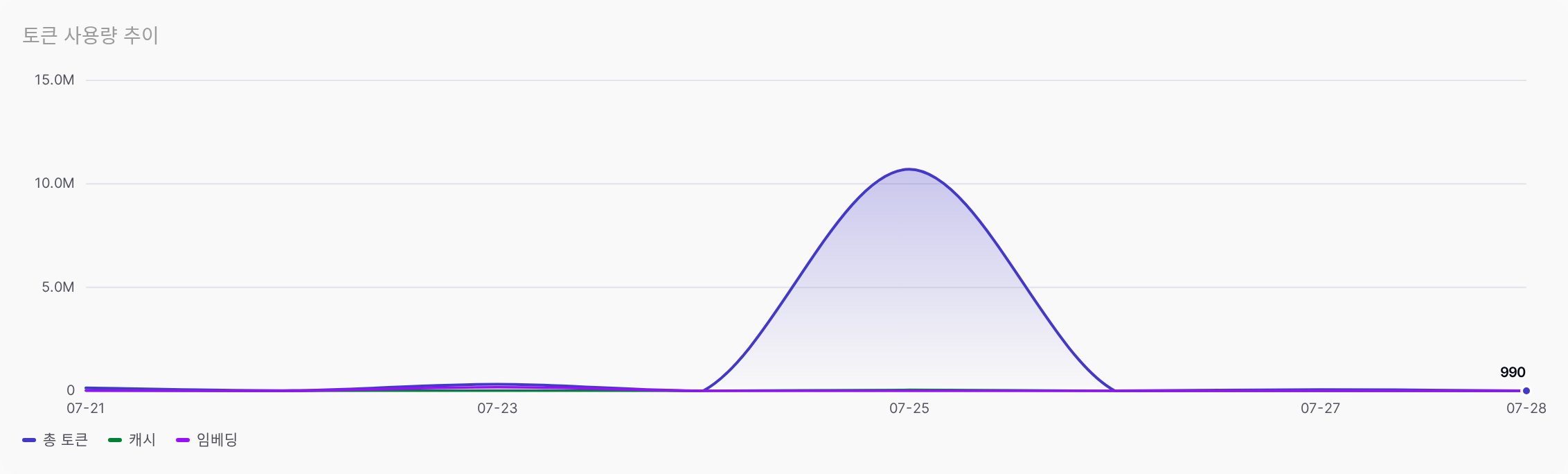
Usage trend chart — token usage line graph
Period Selection
With
Last 1 day selected, the x-axis switches from dates to hours (HH:00).
Chart Series
The token usage trend chart plots up to three series. The cache and embedding series appear only when the period has values for them.Multi-dimensional Analysis
Break usage down by model, user, agent, group, and organization.- All charts respond to the top filters (period, agent, model, user, group, organization).
Usage by Model
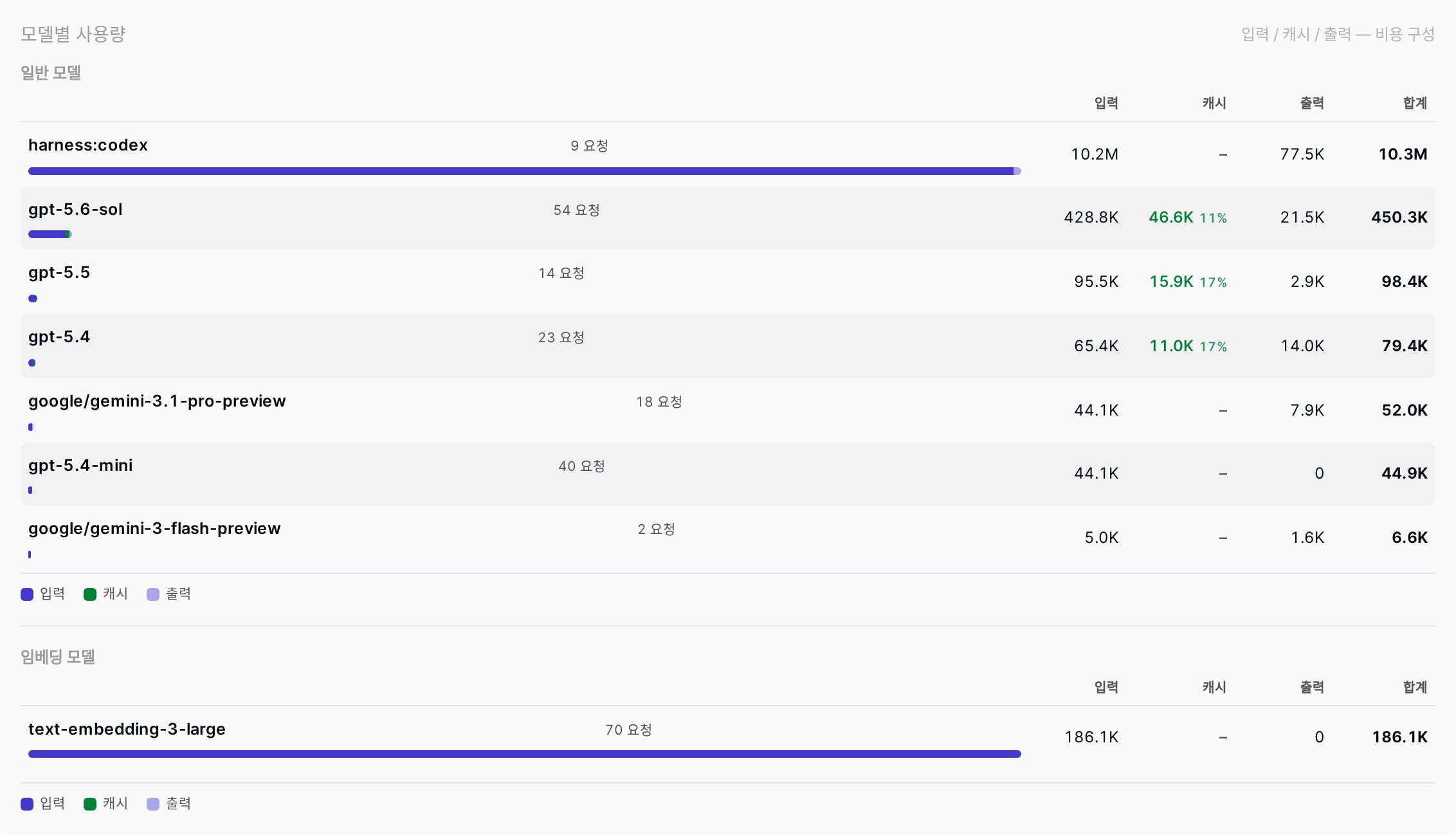
Usage by model — request count and input/cache/output composition per model
Estimated Cost column is added, and when embedding-only models are present the table splits into General models and Embedding models sections.
The table aggregates by model, so workspace agents and Agent Flows do not appear as their own rows. To see usage per agent, use the Agents tab in Top Rankings.
Top Rankings
Switch dimensions with the tabs in theTop Rankings panel. Each tab shows only the top 20 entries, and the share (%) shown next to each entry is measured against the sum of those 20 entries, not against the overall total.
- Users
- Agents
- Groups
- Organizations




Usage Type Classification
Classify what work tokens were used for.- The chart shows only types with usage records in the selected period.
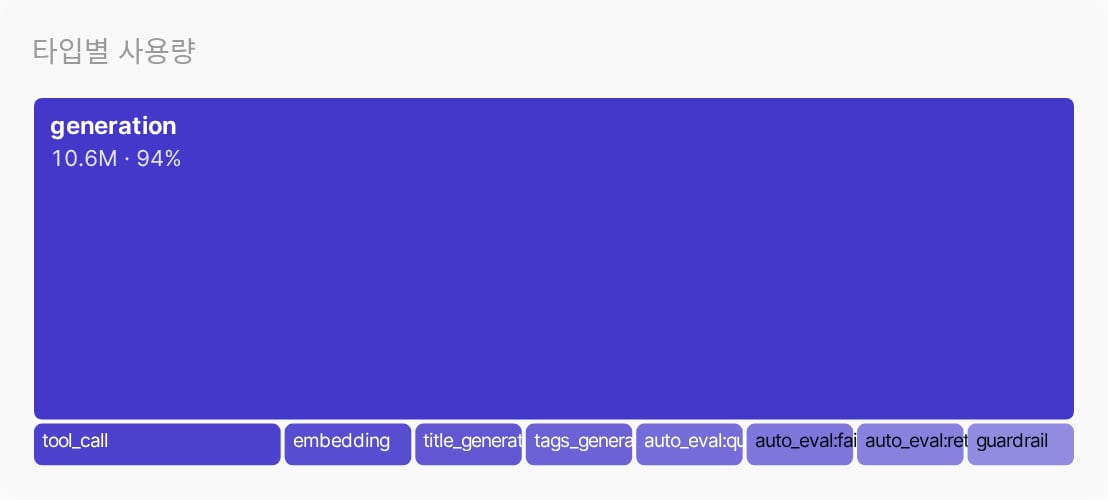
Usage by type — rectangle area is the token share
generation) usually dominates; if background work (title/tag generation) or guardrail / auto_eval grows disproportionately large, it is a signal to review the settings.
Activity Heatmap
The request count is plotted on a day-of-week × hour (0–23) grid by color intensity. Hours are bucketed in Korea Standard Time (KST).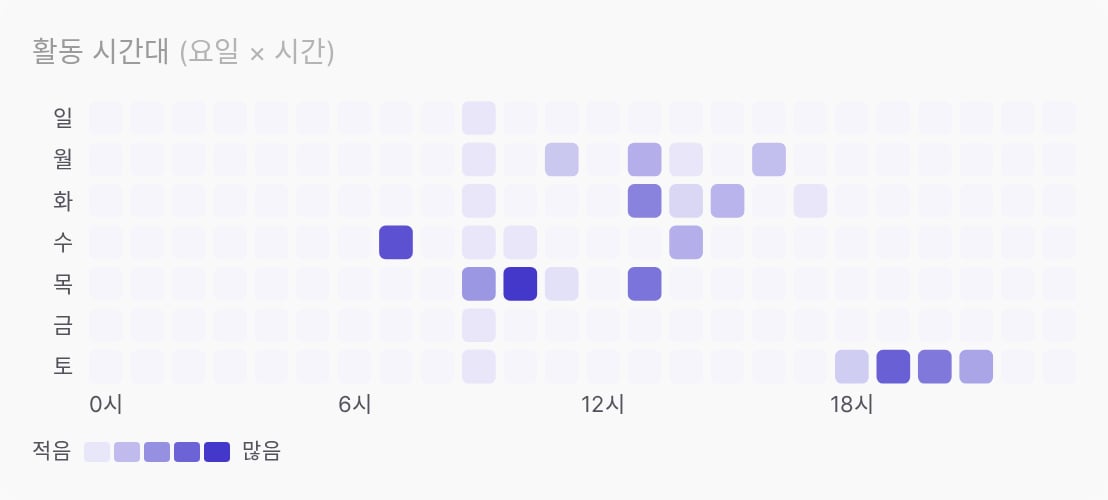
Activity heatmap — usage concentration by day and hour
Usage types
Usage types
Only types with actual activity in the period appear in the chart.User activity (counts toward the daily limit)
Background tasks (not counted toward the limit)
System / monitoring
Filtering
Combine multiple conditions to filter data.- All filters apply simultaneously.
- Every filter except Period accepts multiple selections and defaults to selecting everything. The selection is applied when you close the dropdown.
While a filter is partially selected, a
Clear Filters button appears next to the filters to restore the full selection at once.
The model, user, and agent dropdowns list only items with usage records (across all time, not the selected period). The group and organization dropdowns list every registered group and organization, so items with no usage can also be selected.
Individual conversation details are available in a separate Monitoring > Conversation Logs tab.
Related Pages
General
Configure usage limits and excess actions
Tracing
Track per-request token usage
Auto-Evaluations
Review response quality evaluation results