Track sensitive info and content violation events detected and processed by guardrails
Admin › Monitoring › Guardrail Logs
Guardrail logs record all events detected and processed by guardrails configured on agents.
Transparently track which user entered which sensitive info and how which guardrail processed it.
Guardrail logs are also available from Admin > Code Gateway > Guardrail Logs, but that screen shows only logs originating from the Code Gateway and its period and filter setup differs. Use this screen (Monitoring › Guardrail Logs) to see chat-originated events as well.
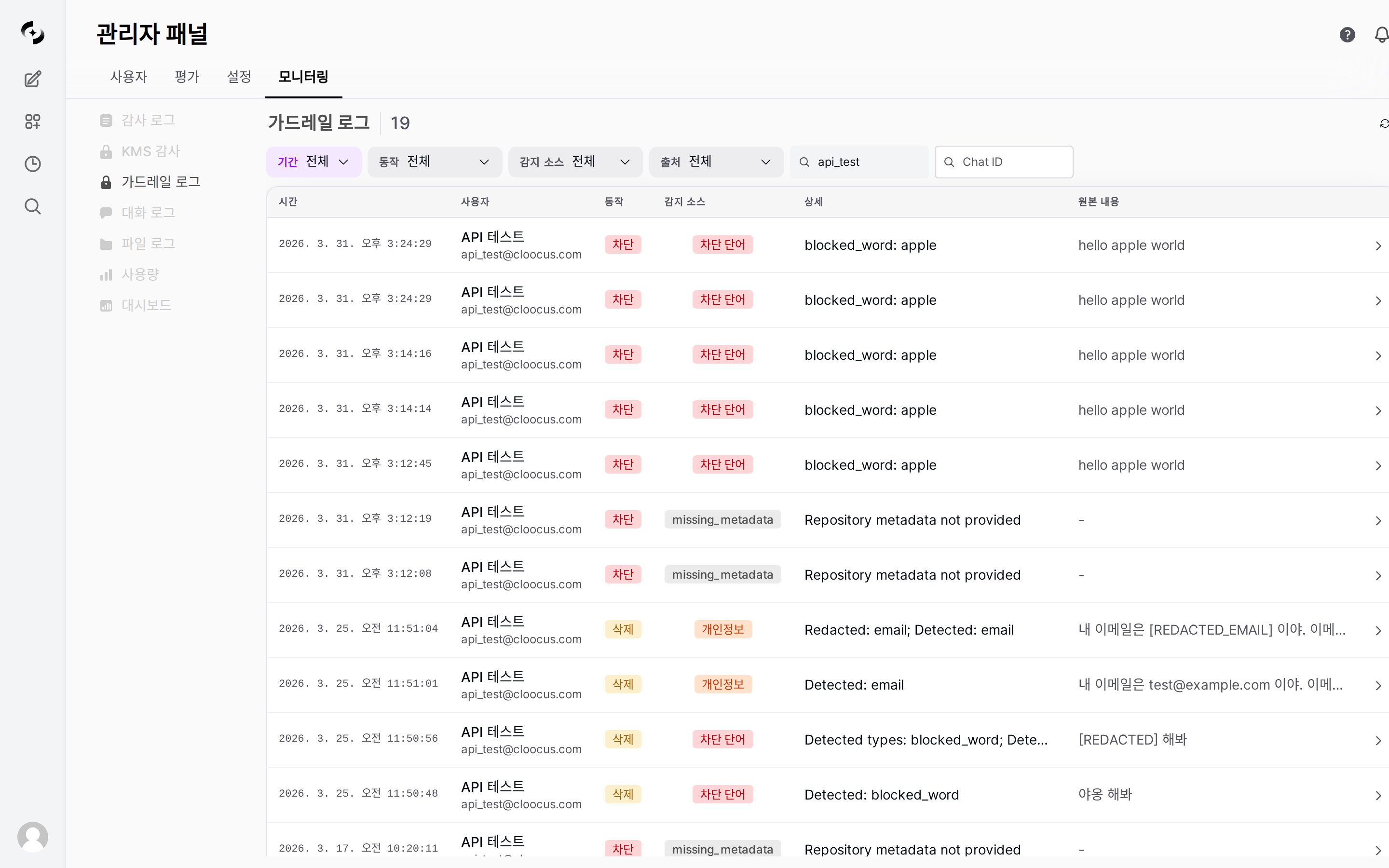
Guardrail Logs main screen — filter area, log table
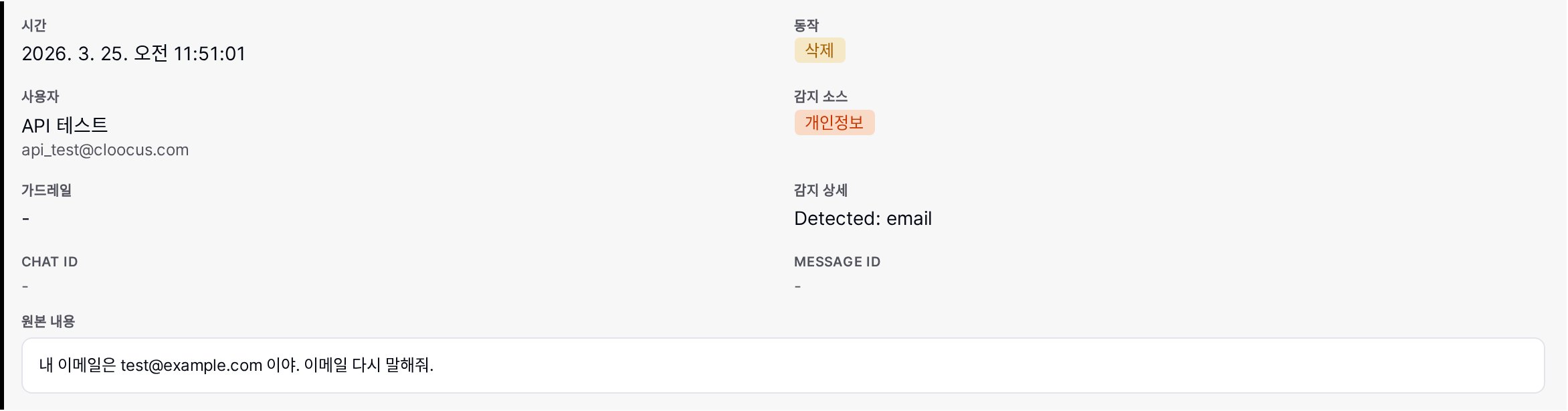
These are the elements that make up a guardrail log — check Fields · Action Types · Detection Sources in the tabs below.The list shows only six columns — Time, User, Action, Detection Source, Detail, and Original Content — while the remaining items (Chat ID, Message ID, Processed Content, Metadata, and so on) appear when you expand a row.
Fields
Action Types
Detection Sources
Field
Description
Time
Detection event time
User
Input user (name, email)
Chat ID
Conversation session
Message ID
Message identifier
Guardrail
Applied guardrail name
Action
Processing strategy (Block, Redact, Mask, etc.)
Detection Source
Detection method (Rule / LLM)
Detection Detail
Specific detected content (shown as Detail in the list)
Original content
Original input text
Processed Content
Text after strategy applied
Actions recorded per processing strategy.
Action
Description
Block (block)
Block entire message
Redact (redact)
Replace sensitive info with label (e.g., [REDACTED_EMAIL])
Mask (mask)
Show only some characters (e.g., j***@***.com)
Hash (hash)
Convert to hash value
log
Log only without blocking
warn
Log as a warning without blocking (Code Gateway missing-metadata policy)
log and warn have no display label, so they appear on screen exactly as recorded.
The list and detail views show the individual source, while the filter chip groups sources into Rule (regex/pattern matching) and LLM (LLM-based judgment).
Group
Detection source
Description
Rule
PII (pii)
Detect PII patterns (email, credit card, IP address, etc.)
Rule
Custom Pattern (custom_pattern)
Detect user-defined regex patterns
Rule
Blocked Word (blocked_word)
Detect blocked words/phrases
LLM
LLM Judge (llm_judge)
LLM-based content risk assessment
Besides these four, events raised by the Code Gateway and agent flows are recorded as missing_metadata (repository metadata missing), blocked_repo (blocked repository access), or flow (blocked during flow execution). These have no display label, so the raw value appears on the list badge.
Last 1 hour / 6 hours / 1 day / 7 days / 30 days / All / Custom (default: last 1 hour)
Action
Only values actually recorded appear as choices (multi-select). Changing Detection Source, Source, or the user search recomputes the choices, and values that no longer remain are deselected automatically.
Detection Source
Rule / LLM (multi-select, both selected by default = all)
User search
Search by user ID, email, or name
Chat ID
Matches a full Chat ID or just its leading characters
Source
Where the event originated — Chat / Gateway (multi-select, both selected by default = all)
If you select only Rule or only LLM in the Detection Source chip, logs recorded as missing_metadata, blocked_repo, or flow are excluded from the list. Keep both selected (the default) to see everything.
In guardrail log details, the Trace button lets you see the complete processing of that message.
1
Pick an entry in Guardrail Logs
Expand the log entry for the guardrail event you’re investigating.
2
Click Trace
Click the Trace button at the bottom-right of the expanded detail. The button appears only for events that have a Message ID — events without one (such as Code Gateway logs) do not show it.
3
Review the trace list
A new tab opens on Evaluations › Tracing, showing the trace list automatically searched for that Message ID.
4
View full processing
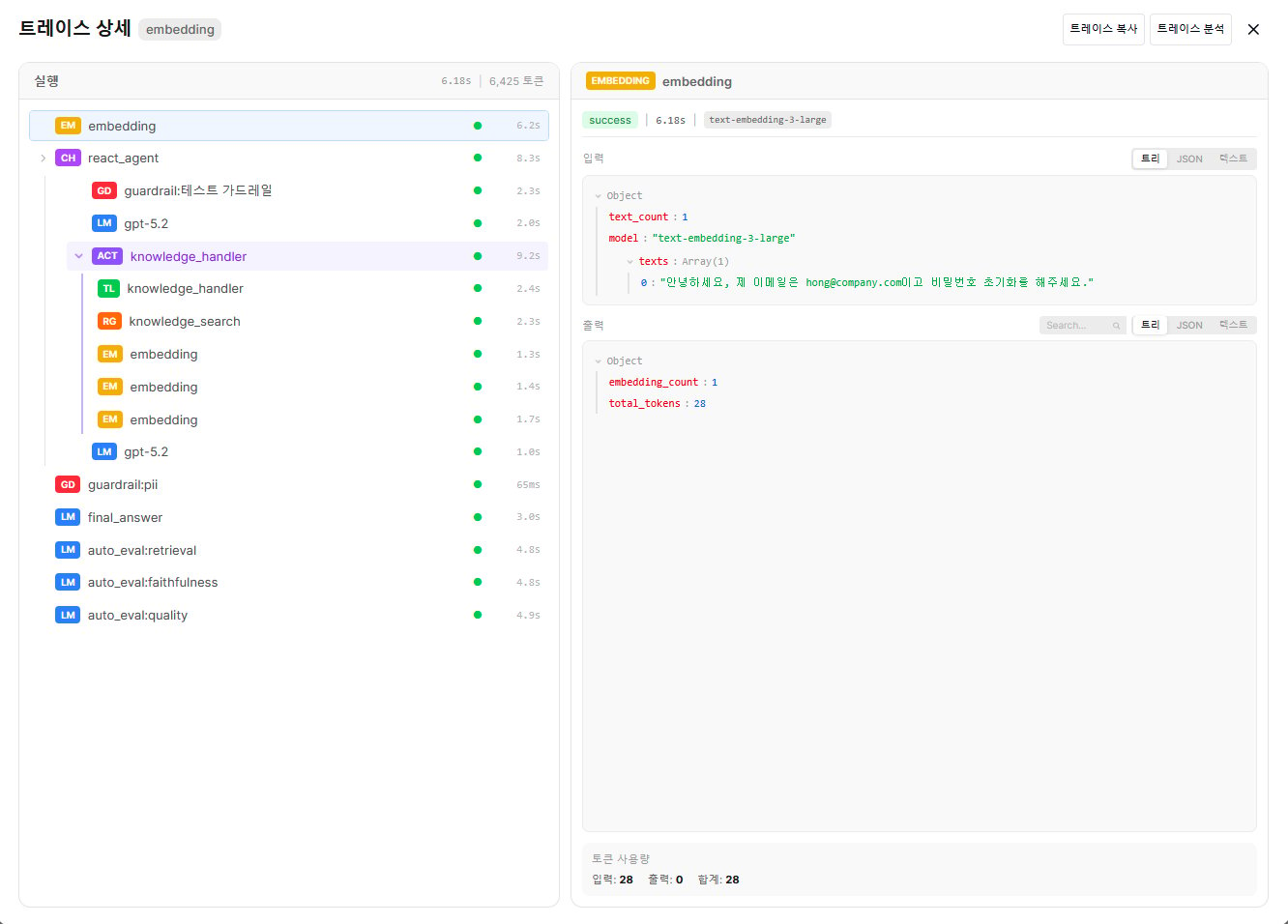
Click a trace in the list to open the Trace Detail, where the left run tree shows the guardrail step (red GD badge) and the right pane shows per-step input and output.
Trace Detail — guardrail steps (GD badges) in the left Run tree and per-step input/output on the right