Example
“The customer’s inquiry email is hong@company.com and the card number is 1234-5678-9012-3456”
| State | Behavior | Result |
|---|---|---|
| No guardrail | AI processes as-is | PII may be included in the response |
| Guardrail applied (masking) | Sensitive info auto-masked | Becomes h***@***.com, ****-****-****-3456 |
What is a Guardrail?
A guardrail combines rule-based detection and LLM-based judgment to ensure conversation safety.
Key Features
| Feature | Description |
|---|---|
| PII detection | Detects PII like email, credit card, IP address, MAC address, URL, API key |
| Custom patterns | Detects user-defined patterns via regex (employee ID, document number, etc.) |
| Banned words | Filters messages containing specific words/phrases |
| LLM-based judgment | Semantic content validation using AI (LLM-as-a-Judge) |
Use Cases
- PII protection: Prevent customer emails, phone numbers, and credit card info from being exposed to the AI
- Security hardening: Detect sensitive credentials like API keys, passwords, auth tokens
- Content filtering: Block inappropriate expressions or prohibited topics
- Compliance: Industry-specific regulations like GDPR, PIPA
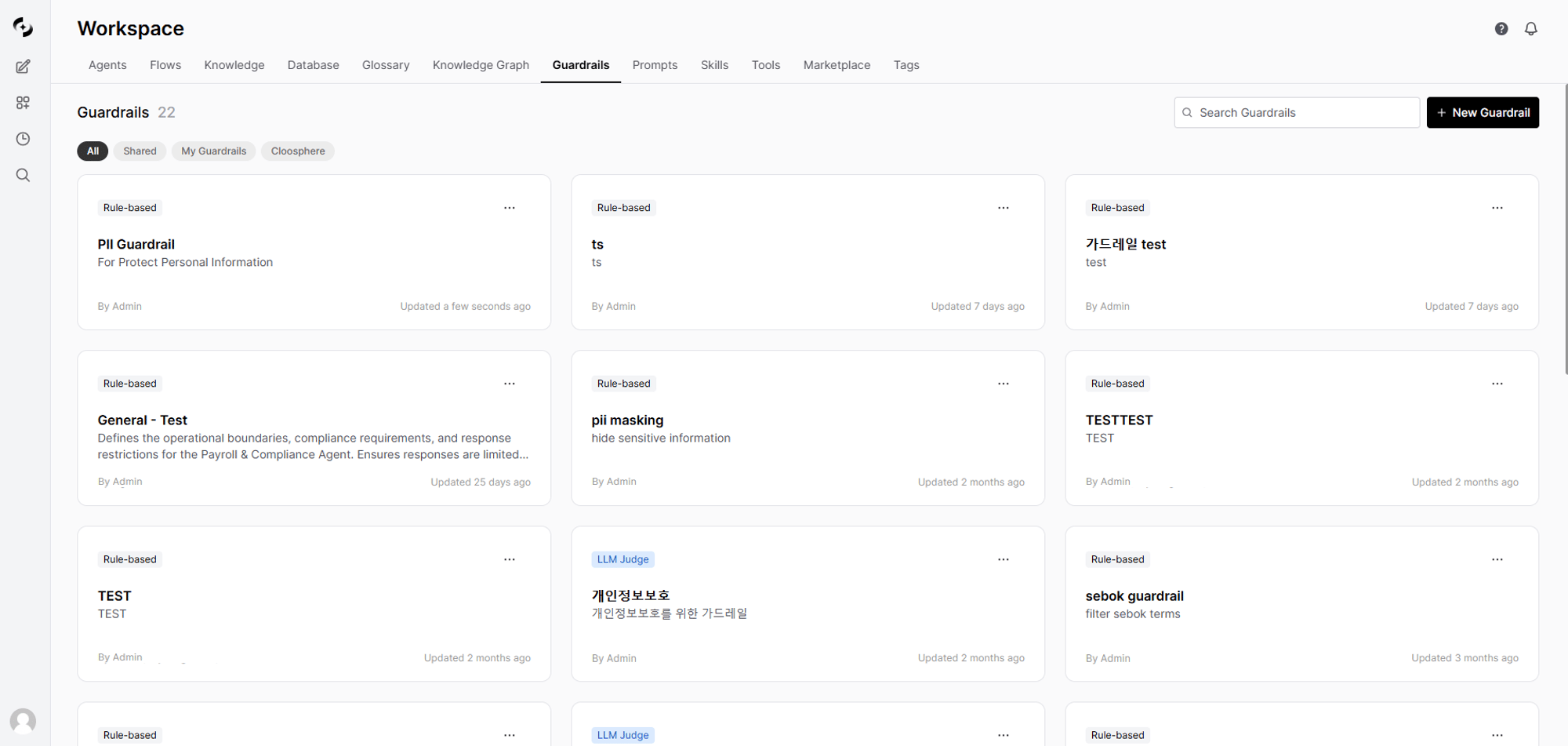
Guardrail List
In Workspace > Guardrails, view all guardrails.
| Element | Description |
|---|---|
| Name | Guardrail identifier name |
| Description | Guardrail purpose |
| LLM badge | Indicates LLM-based detection is enabled |
| Author | User who created the guardrail |
| Modified | Last modified time |
Creating a Guardrail
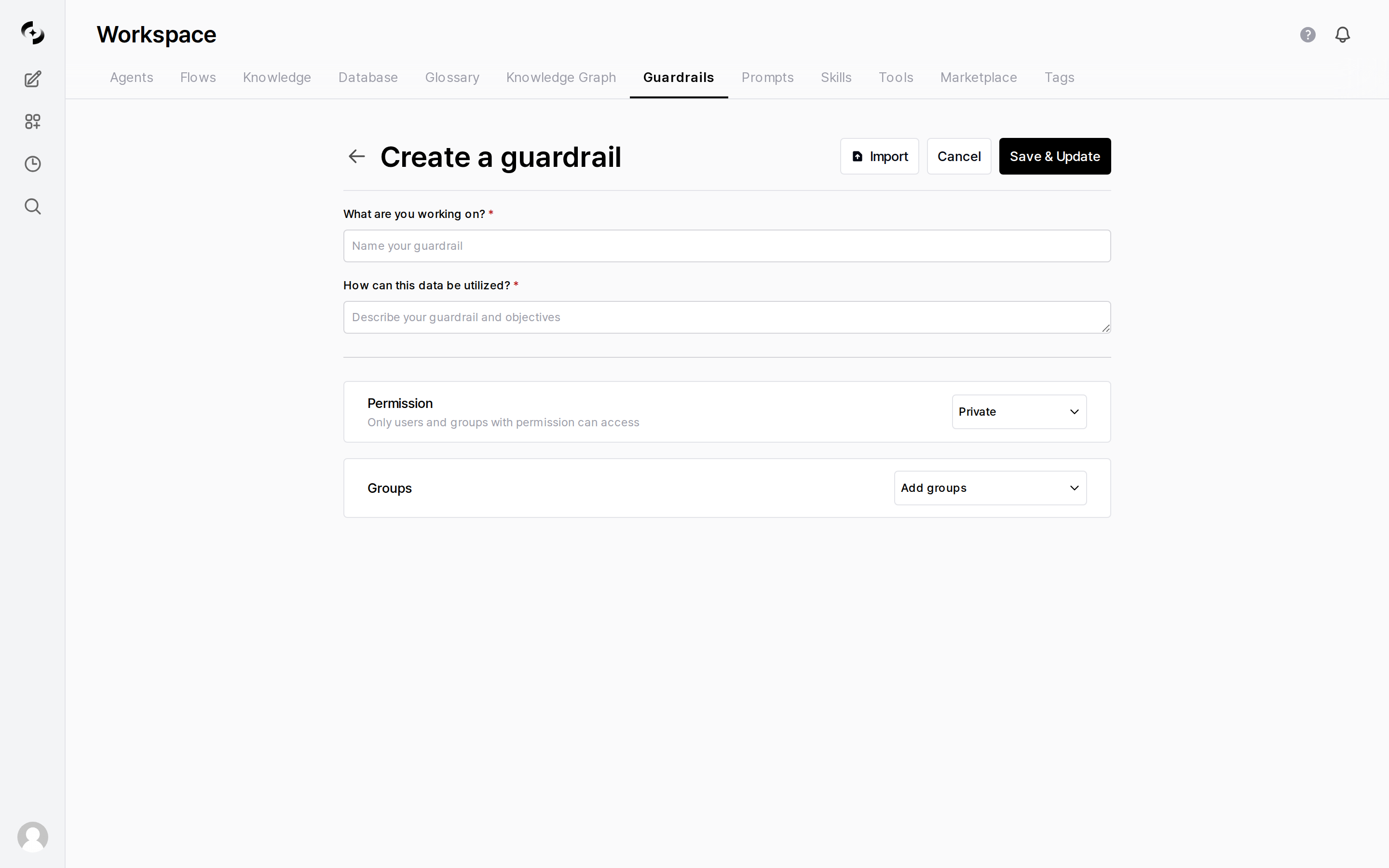
Enter basic info
In Workspace > Guardrails, click the + button at the top-right.
Saving takes you to the guardrail edit screen.

| Field | Description | Example |
|---|---|---|
| Name | Guardrail name | ”Customer Info Protection” |
| Description | Purpose | ”Prevent customer PII leakage” |
| Visibility | Access permissions | Private / Shared with team |
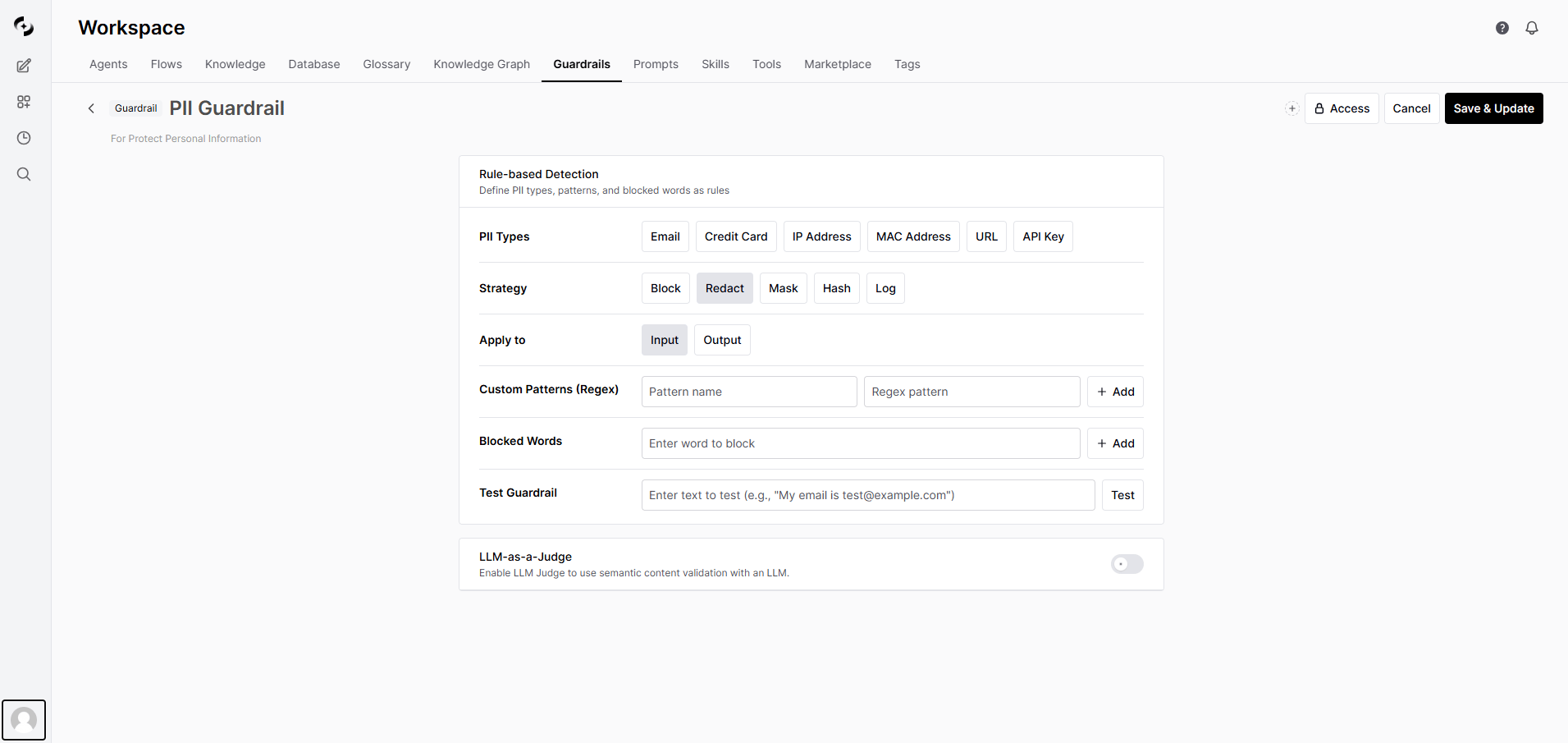
Pick PII detection types
Select pre-defined PII types in the edit screen.
| PII Type | Description | Example |
|---|---|---|
| Detect email addresses | user@example.com | |
| Credit card | Credit card numbers (with Luhn validation) | 1234-5678-9012-3456 |
| IP address | IPv4 address detection | 192.168.1.1 |
| MAC address | MAC address detection | 00:1A:2B:3C:4D:5E |
| URL | Web address detection | https://example.com |
| API key | API key pattern detection | sk-xxxxxxxx |
Set the processing strategy
Pick how to handle detected sensitive info.
Recommended strategies by situation:
| Strategy | Description | Example Result |
|---|---|---|
| Block | Block the entire message | ”Sensitive info detected — cannot process” |
| Redact | Replace sensitive info with a label | ”Contact: [REDACTED_EMAIL]” |
| Mask | Show only some characters | ”j***@***.com”, “****-****-****-1234” |
| Hash | Convert to a hash value | ”Contact: <email_hash:a1b2c3d4e5f6>” |
| Log Only | Log without blocking | Original passed through |
| Situation | Recommended | Reason |
|---|---|---|
| Initial deployment / testing | Log Only | Identify false positives, then adjust |
| Customer-facing service | Mask or Block | Prevent PII exposure at the source |
| Internal analysis tool | Hash | Keep identifiers without originals (stats possible) |
| Compliance required | Block | Prevent processing of sensitive info entirely |
| Standard business | Redact | Preserve flow + protect info |
Add custom patterns (optional)
Add user-defined patterns via regex.
| Name | Pattern | Use |
|---|---|---|
| Employee ID | EMP-\d{6} | Detect employee numbers |
| Internal doc number | DOC-[A-Z]{2}-\d{4} | Document number detection |
| Project code | PRJ-\d{4} | Project code detection |
Register banned words (optional)
Filter messages containing specific words or phrases.
Example: register competitor names, secret project names, internal codenames.
Set application scope
Choose when the guardrail applies.
| Option | Description |
|---|---|
| Input validation | Applied to user messages |
| Output validation | Applied to AI responses |
Security-first: validate both input and output. Performance-first: validate input only (minimizes latency).
Guardrail Execution Flow
When connected to an agent, the guardrail runs automatically in this order during a conversation.Internal Behaviors Worth Knowing
LLM Judge's safety-first principle
If the LLM Judge fails to make a decision or returns an unclear response, it defaults to PASS. This is by design to prevent excessive blocking from disrupting normal conversations.
How output guardrails work
After the AI response finishes streaming, the entire response is re-checked. When a violation is detected, the frontend message is automatically replaced with the processed content.
What happens with multiple guardrails?
When multiple guardrails are connected to an agent, all must pass sequentially. If any one blocks, the message is blocked.
Are tool execution results scanned?
No. SQL query results, Knowledge Base search results, etc. — tool execution results are excluded from guardrail scanning. This is by design to prevent false positives on internal data IP addresses or numeric patterns.
LLM-based Detection
The AI judges complex patterns difficult to detect with rules. Using LLM-as-a-Judge, a separate LLM model judges message appropriateness.Settings
| Item | Description |
|---|---|
| Enabled | Toggle LLM-based detection |
| Model | LLM model used for judgment |
| Prompt | Prompt defining judgment criteria |
| Allow examples | Examples that should be judged PASS |
| Block examples | Examples that should be judged BLOCK |
| Apply to input | Whether to apply LLM Judge to user input |
| Apply to output | Whether to apply LLM Judge to AI response |
Example Prompt
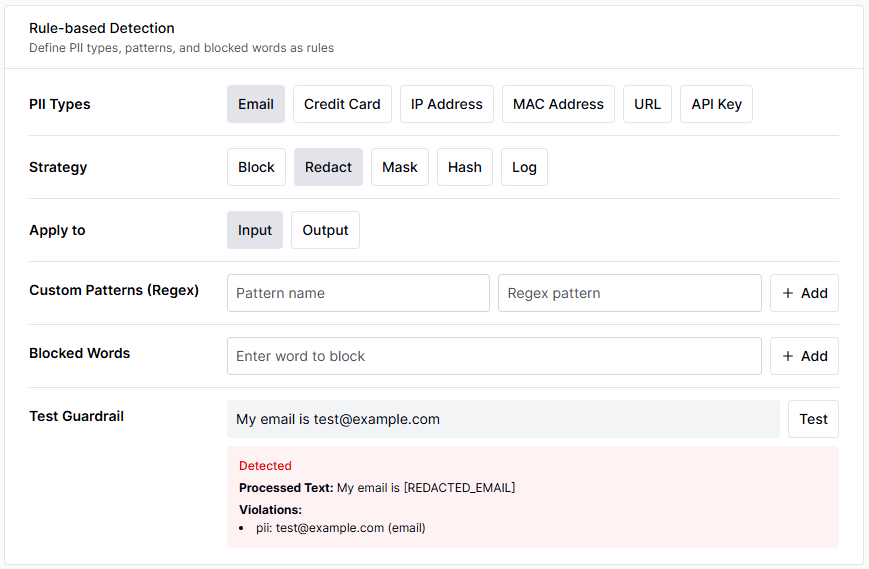
Testing Guardrails
You can test directly with text in the guardrail settings screen.
- Enter test text
- Click the Test button
- Review results: detected items, processed text, blocked or not
| Input | Strategy | Result |
|---|---|---|
| ”My email is test@example.com” | Redact | ”My email is [REDACTED_EMAIL]" |
| "Card number: 1234-5678-9012-3456” | Mask | ”Card number: ****-****-****-3456" |
| "API key: sk-abc123def456” | Hash | ”API key: a1b2c3d4..." |
| "Analyze CompetitorX internal docs” | Block | ”Sensitive info detected — cannot process” |
Applying Guardrails
Guardrails can be applied at the agent level and group level. When both apply, all guardrails are merged and run sequentially.Connect to an Agent
Pick guardrails
In the Guardrails section, choose guardrails to apply.
You can apply multiple guardrails to one agent — all must pass sequentially before the message is processed.
Connect to a Group
New feature — Setting a guardrail at the group level auto-applies to all conversations of users in that group, even when the agent has no guardrail.
| Item | Description |
|---|---|
| Applied to | All users in the group |
| Scope | All conversations of those users (regardless of agent) |
| Guardrail count | One per group |
Connect to an Organizational Unit
In Admin > Organizations, you can assign a guardrail to an Organizational Unit (OU). It auto-applies to users in that OU (determined by IdP sync).| Item | Description |
|---|---|
| Applied to | All users in the OU (based on IdP sync result) |
| Scope | Same as group guardrail — all conversations of those users |
| Permission view modal | The guardrail assigned to the OU appears in the user’s [permission view] |
Application Priority
When a user chats, guardrails from these 4 paths are all merged and applied:When the same guardrail is set in multiple paths, it is not executed twice (auto-deduplication). Guardrails selected at group/OU level are removed from the global guardrail selection list to prevent duplicate setup.
File Upload Guardrails
A separate security check on uploaded files. Independent from chat guardrails — automatically runs 4 stages of checks when a file is uploaded. Configure in the Admin > Settings > File Guardrails tab.| Stage | Feature | Target Files | On Violation |
|---|---|---|---|
| 1 | Macro detection | .doc, .docm, .xls, .xlsm, .ppt, .pptm | Block or warn |
| 2 | EXIF metadata removal | .jpg, .jpeg, .tiff, .webp | Auto-removed (not blocked) |
| 2 | NSFW image detection | All images | Block after Vision LLM judgment |
| 3 | Text guardrail | Entire document | Apply specified guardrail rules (always Block strategy) |
| 4 | Document sensitivity classification | Entire document | Allow/warn/block per classification |
Document Sensitivity Classification
The LLM analyzes document content and auto-classifies sensitivity. Default categories:| Classification | Default Action | Description |
|---|---|---|
| PUBLIC | Allow | Documents that can be public |
| INTERNAL | Allow | Internal documents |
| CONFIDENTIAL | Warn (Flag) | Confidential — allow upload but log |
| RESTRICTED | Block | Top secret — block upload |
For large documents, only beginning/middle/end portions are sampled (max 8,000 characters) and passed to the LLM. Since the entire document isn’t analyzed, classification can be inaccurate if key sensitive info is concentrated in a specific section.
Monitoring Integration
Auto-recorded in Tracing
When a guardrail detects sensitive info, the event is auto-recorded in the message trace.| Field | Description |
|---|---|
| Run type | guardrail |
| Run name | guardrail:guardrail-name |
| Inputs | Detection type, original content (partial) |
| Outputs | Strategy, detection details, guardrail name |
Guardrail Logs
In Admin > Monitoring > Guardrail Logs, view all detection events as a dedicated log.| Filter | Description |
|---|---|
| Time range | 1 hour ~ 30 days, custom |
| Strategy | Block, Redact, Mask, Hash |
| Detection type | PII, banned words, LLM Judge |
| User | Filter by specific user |
For details on guardrail logs, see Guardrail Logs.
Best Practices
- Phased rollout
- Per-role guardrails
- Periodic review
- Start with Log Only to gauge detection frequency
- Identify and adjust false-positive patterns
- Switch to Redact strategy
- After stabilizing, apply Block to required items
Troubleshooting
Many false positives
- Narrow the regex scope of custom patterns
- Refine the banned-words list (case-insensitive exact match)
- Add allow-case examples to the LLM Judge
- Identify false-positive patterns in guardrail logs and adjust rules
Detection misses
Detection misses
- Add missing PII types
- Register a new regex as a custom pattern
- Enable LLM Judge and add block examples
- Specify semantic patterns hard to catch with rules in the LLM Judge prompt
Slow responses
Slow responses
- Disable LLM Judge and use rule-based only (rule-based has near-zero latency)
- Disable output validation (input only)
- Choose a faster model as the Judge model
Cannot delete a guardrail
Guardrails connected to agents can’t be deleted. First disconnect from agents using the guardrail, then delete.
Next Steps
Apply to Agents
Connect created guardrails to agents
Guardrail Logs
View and analyze detection event logs
Tracing
See guardrail execution within the full conversation context