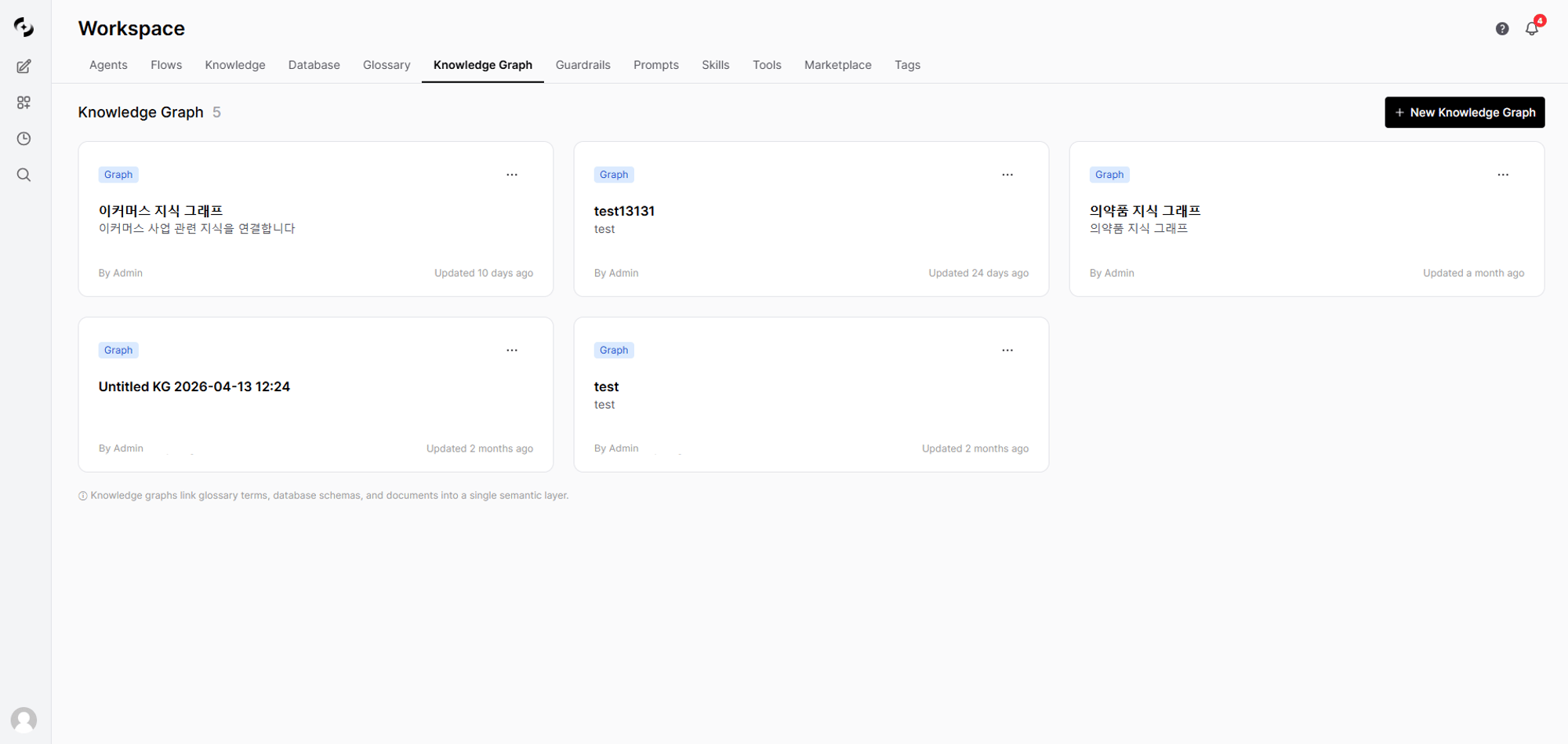
Knowledge Graph is a unified knowledge structure that connects glossaries, databases, and Knowledge Bases into a single graph.It lets AI agents automatically understand which table column maps to a business term, and which document context relates to it.
User: What are the TOP 3 products bought most by VIP customers at the Gangnam branch?Agent behavior: 1. resolve_term("VIP customer") → Found mapping: users.tier = 'VIP' 2. resolve_term("Gangnam branch") → Found mapping: stores.region = 'Gangnam' 3. find_related_tables("users") → Found connected tables: orders, products 4. Auto-generate and execute SQLResponse: Gangnam VIP customer sales TOP 3: 1. Wireless Earbuds Pro — 1,523 units 2. Smart Watch X — 1,287 units 3. Noise-cancelling Headphones — 892 units
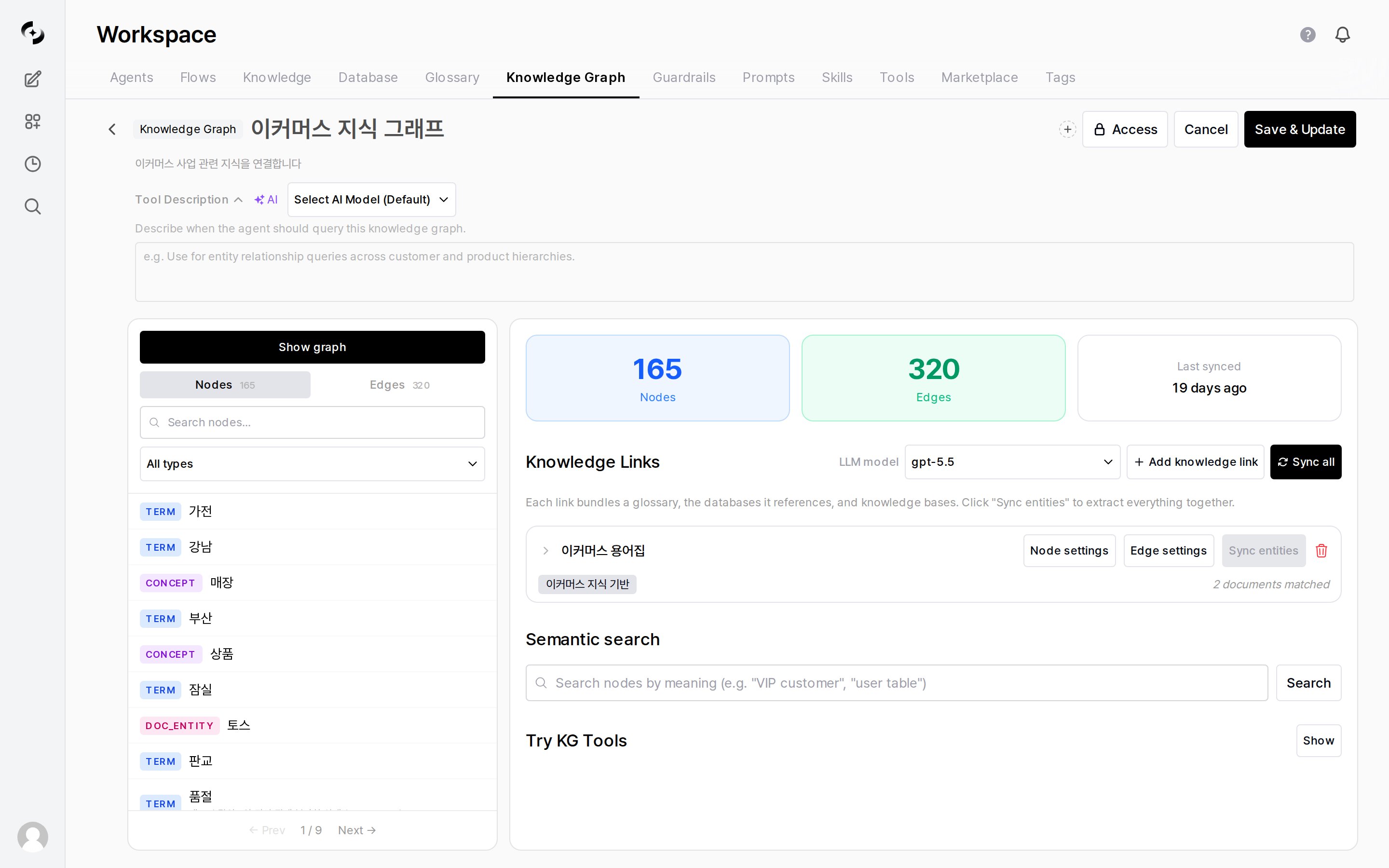
Use the “LLM Model” dropdown at the bottom right of the card area to pick the LLM model used to build the Knowledge Graph. It’s used for category definition generation, Knowledge Base document matching, AI tool description auto-generation, and more.
A Knowledge Link is the core structure of a Knowledge Graph. Bundles 1 glossary + N Knowledge Bases into one link to automatically connect meanings between terms and documents.
When extraction sources are configured on a glossary’s category, the corresponding DB schema is automatically included in the Knowledge Link. No need to add the DB separately.
In the Knowledge Links section of the Knowledge Graph detail page, click ”+ Add knowledge link”.
2
Pick a glossary
Select the glossary to connect. Already-connected glossaries are excluded from the list.
3
Pick Database / Knowledge Bases
With checkboxes, select the sources to actually sync to this Knowledge Link. Choose only some of the auto-detected candidates, or add additional ones.
Source
Effect
Database
Tables, columns, and foreign keys of the selected DB are extracted as graph nodes
Knowledge Base
The LLM extracts entities and relationships from the selected Knowledge Base’s document chunks
Unchecked sources are not included in this Knowledge Link even if auto-detected. Unlike older versions, sources aren’t force-connected automatically — explicitly select only what you need to control sync cost and time.
4
Pick Knowledge Base filter slots to extract (optional)
If you selected a Knowledge Base, you can choose whether to promote its dynamic filters (department/year/document-type) into Knowledge Graph nodes. For details, see the Promoting Knowledge Base Filters to Knowledge Graph Nodes section below.
5
Sync after creation
After creation, click the “Sync entities” button to sync the link. Only the selected databases and Knowledge Bases are processed, and the sync target list is auto-updated.
Performs only structural transformation without LLM calls — completes quickly.
Source
Node Created
Connecting Edge
Table
Table node
—
Column
Column node
belongs_to (column → table)
Foreign keys
—
foreign_key edge
To create DB schema nodes, you must run schema extraction in DbSphere first. Without it, nodes show as 0.
Source
Node Created
Connecting Edge
Entities in document chunks
Doc Entity node
LLM-extracted relationship edges
Knowledge Base filter values (selected slots only)
Doc Attribute node
Filter-name edge (document → attribute node)
Doc Entity is the result of an LLM analyzing each document chunk to extract entities and relationships. Doc Attribute is a non-LLM path that lifts Knowledge Base filter values directly into the graph — see Promoting Knowledge Base Filters to Knowledge Graph Nodes below.
Doc Entity extraction incurs LLM call costs. Only connect Knowledge Bases you need. Doc Attribute does not call the LLM, so it has no cost.
Promoting Knowledge Base Filters to Knowledge Graph Nodes
Knowledge Base filter values (country, category, department, etc.) can be lifted directly into the graph as nodes for use in retrieval, exploration, and agent routing. Because no LLM call is made, structured metadata flows into the graph at zero cost.
Example: if your Knowledge Base has a “department” filter and you promote it to a Knowledge Graph node, the agent automatically translates queries like “find from finance team docs” into a department filter.
1
Open Node Settings on the Knowledge Graph Link card
In the Knowledge Links on the right side of the screen, click the “Node Settings” button on a connected Knowledge Base card to open the modal.
2
Select filters to promote
The connected Knowledge Base’s filter values are shown. Pick the filters to promote into nodes via checkboxes.
A moderate number of distinct values makes them a good fit for nodes
Numeric/date
✓
Very many distinct values can cause the node count to explode — choose carefully
Glossary-linked
—
Auto-connected to glossary terms, so no separate promotion is needed (existing Term nodes are reused)
3
Save → applied on next sync
Saving stores the selected slots on the Knowledge Graph link. On the next sync, the selected slots’ values become Doc Attribute nodes, and each document is connected to the values it holds via edges.
The selected filters are recorded on the Knowledge Graph link. The original Knowledge Base filter settings are not changed, so Knowledge Bases keep working the same in environments that don’t use Knowledge Graph
2. Value collection
The distinct values the selected filters actually take across documents are collected
3. Glossary match
If a collected value matches a term in a linked glossary, the existing Term node is reused to prevent graph duplication and fragmentation
4. Node creation
Only values not found in the glossary become new Doc Attribute nodes
5. Edge wiring
Each document is connected to the value nodes it holds (e.g., a document with the value “Finance team” → Finance team node)
The connecting edge name uses the filter name directly (e.g., department, country). If a more natural name is suggested during routing, that name is used instead.
Doc Attribute is a lightweight path that brings Knowledge Base filters into the graph without LLM calls. If chunk-level entity extraction (Doc Entity) is cost-prohibitive, start with Doc Attribute only, then enable LLM extraction selectively on Knowledge Bases that warrant it.
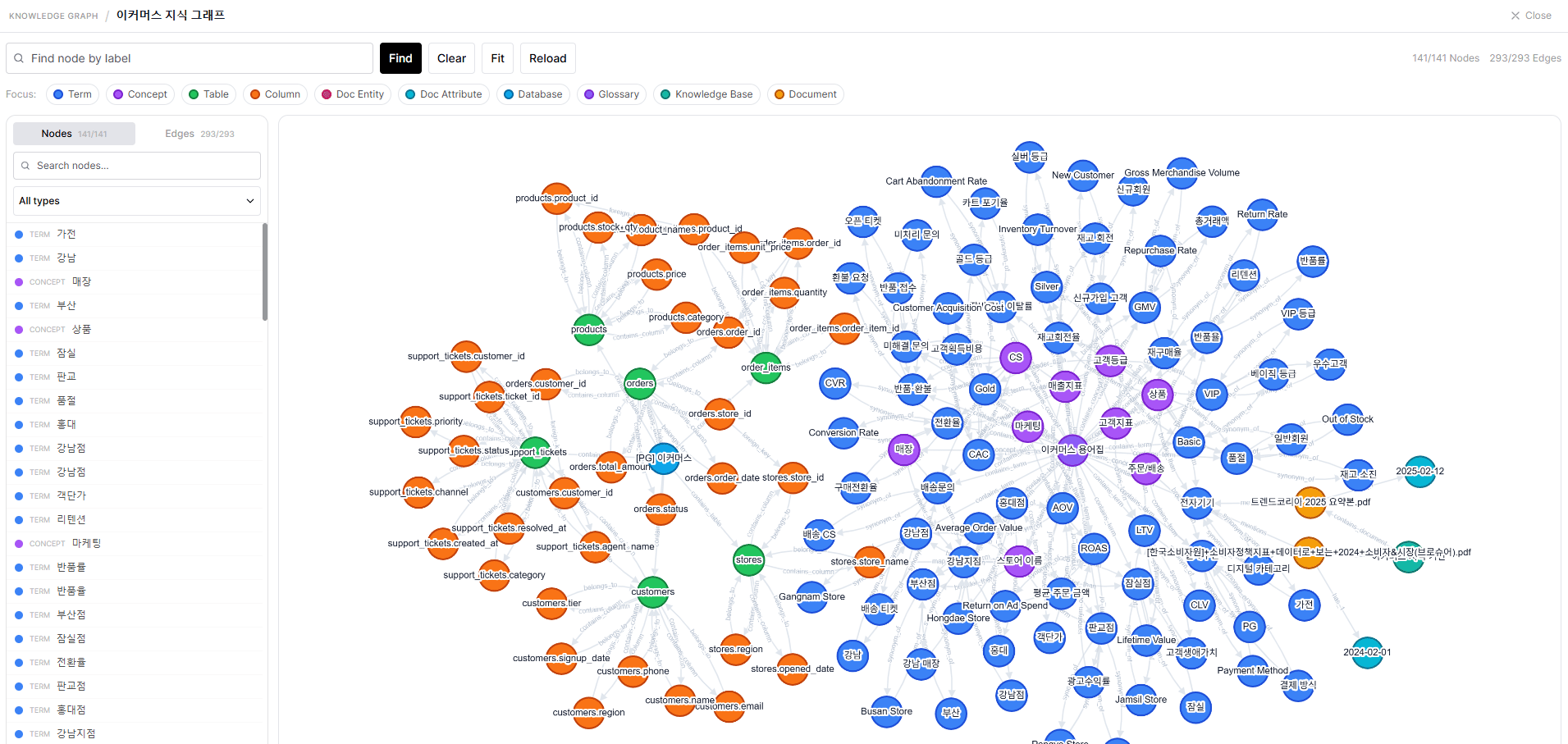
Click “Show graph” at the top of the left panel on the Knowledge Graph detail page and the
interactive graph view opens full-screen in a new tab. It is not a toggle that expands in place —
to tweak settings while watching the graph, keep the two tabs side by side.
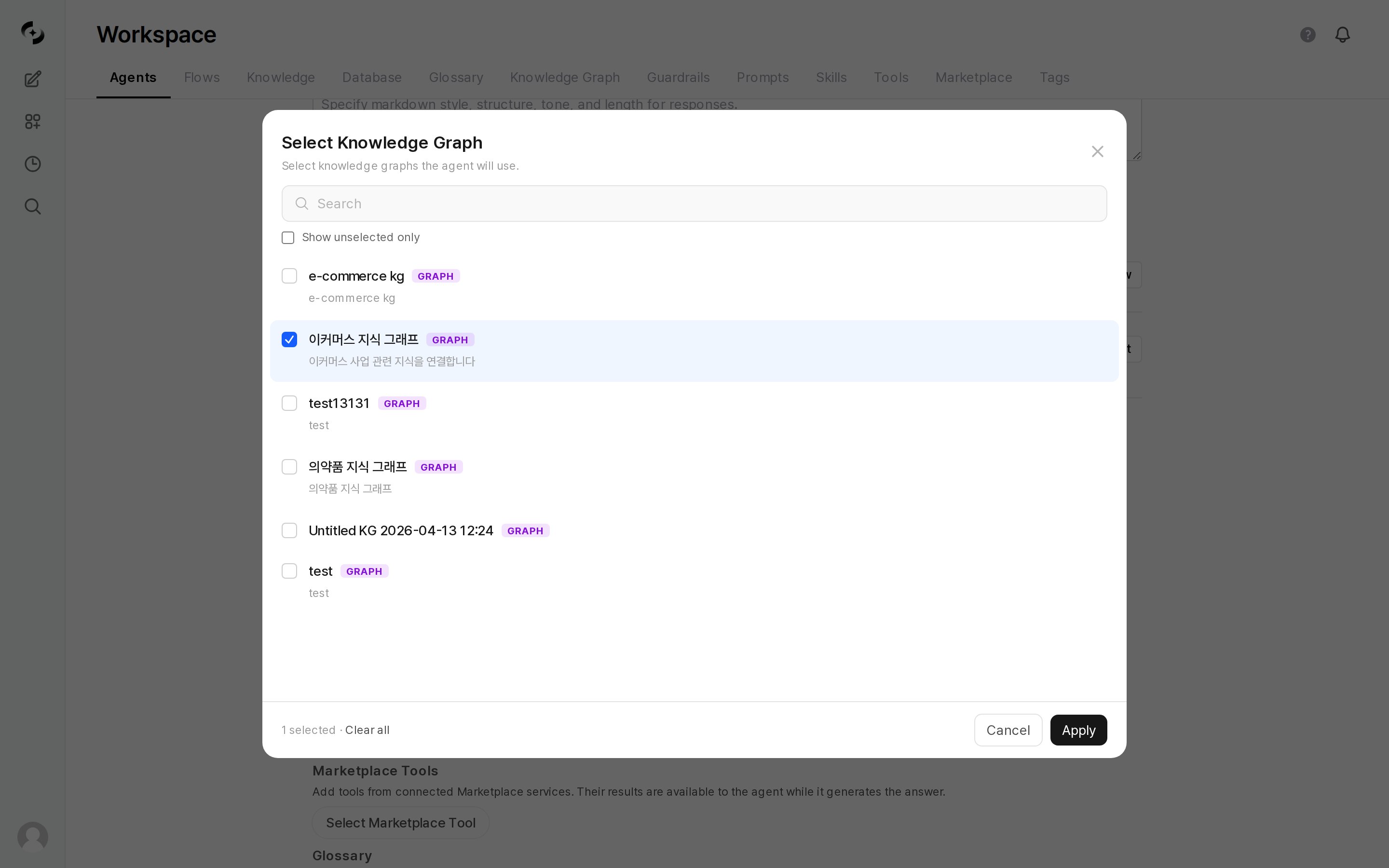
In the agent edit page’s Knowledge Graph section, pick the Knowledge Graph to use.
Connect a Knowledge Graph to an agent
When you connect a Knowledge Graph, the glossaries, databases, and Knowledge Bases included in that Knowledge Graph are auto-inherited by the agent. No need to add the same resources separately.
What's the difference between Knowledge Graph and Glossary?
A glossary manages term definitions only. Knowledge Graph connects glossaries to database columns and document entities so agents can answer with actual data.
What's the difference between Knowledge Graph and DbSphere (Database)?
DbSphere specializes in schema-based SQL generation. Knowledge Graph adds business terminology and document context so it understands non-schema expressions like “VIP customer”.
Sync takes too long
Glossary/DB sync: Seconds to minutes (fast)
Knowledge Base entity extraction: Minutes to hours, proportional to document count
Knowledge Bases only reprocess newly added or changed documents and skip already-processed ones. So even large Knowledge Bases only take long the first time, and later syncs are fast.
Sync failed
DB-related errors: Check that DbSphere schema extraction succeeded first
Knowledge Base extraction errors: Verify LLM model setting and API key
Duplicate runs are blocked while sync is in progress — retry shortly
I'm worried about LLM costs
Only Knowledge Base entity extraction uses the LLM. To control cost:
Connect only the Knowledge Bases you need
Even with just glossaries and DBs, resolve_term and find_related_tables work fine
Can I connect multiple Knowledge Graphs to one agent?
Yes. With multiple Knowledge Graphs connected, tools work over the unified nodes and edges from all Knowledge Graphs. Run separate Knowledge Graphs per domain while querying them together from the agent.