Connect external APIs and MCP servers to AI for real-time data lookup and task automation
Tool integration lets the AI invoke external system functions (Function Calling).
Connect a REST API based on an OpenAPI spec or an MCP (Model Context Protocol) server, and the AI automatically calls tools at the right moment during a conversation.
A tool is an interface that extends the AI’s capabilities to external systems. The AI can fetch real-time information beyond its training data or trigger actions on external systems.
Tool creation has two steps: enter basic info (CreateTool), then configure the connection on the detail page (ToolDetail).
1
Enter basic information
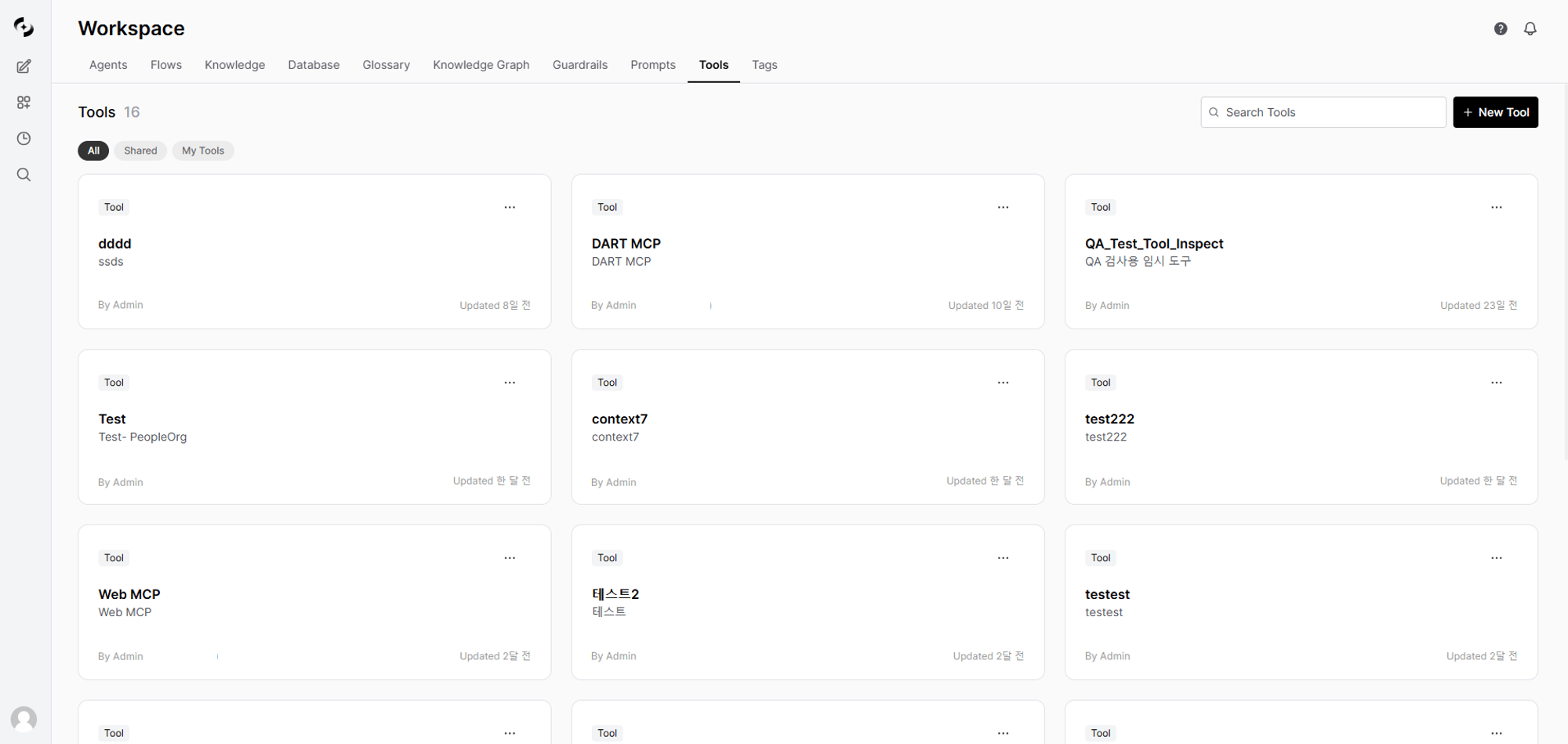
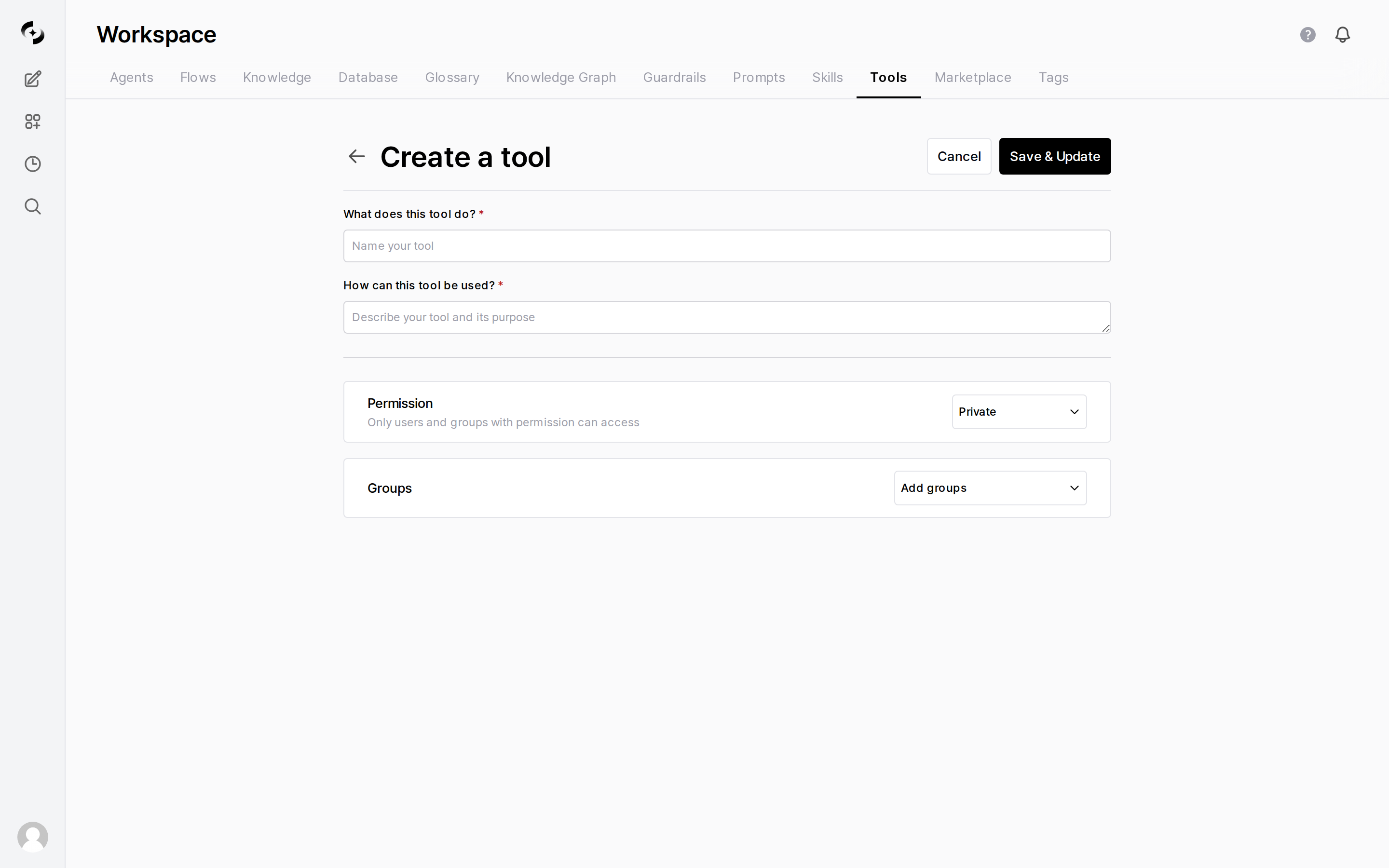
Click + New Tool at the top-right of the Workspace > Tools list to open the create form.
Enter a name and description, then set the permission.Fill in the create form.
Set tool name, description, and access permissions
Field Label
Description
Example
What does this tool do? (name)
Tool display name
”Customer Management API”
How can this tool be used? (description)
Tool purpose
”Look up and manage customer info in the CRM system”
Permission
Public / Private. If private, pick targets in the Groups card below
Private + “Dev”
Permission is either Public or Private. Choosing Private reveals a Groups card below, where each added group gets Read or Write. Individual users and organizational units cannot be selected here.
Clicking Save & Update creates the tool and auto-redirects to the detail settings page.
2
Configure the connection on the detail page
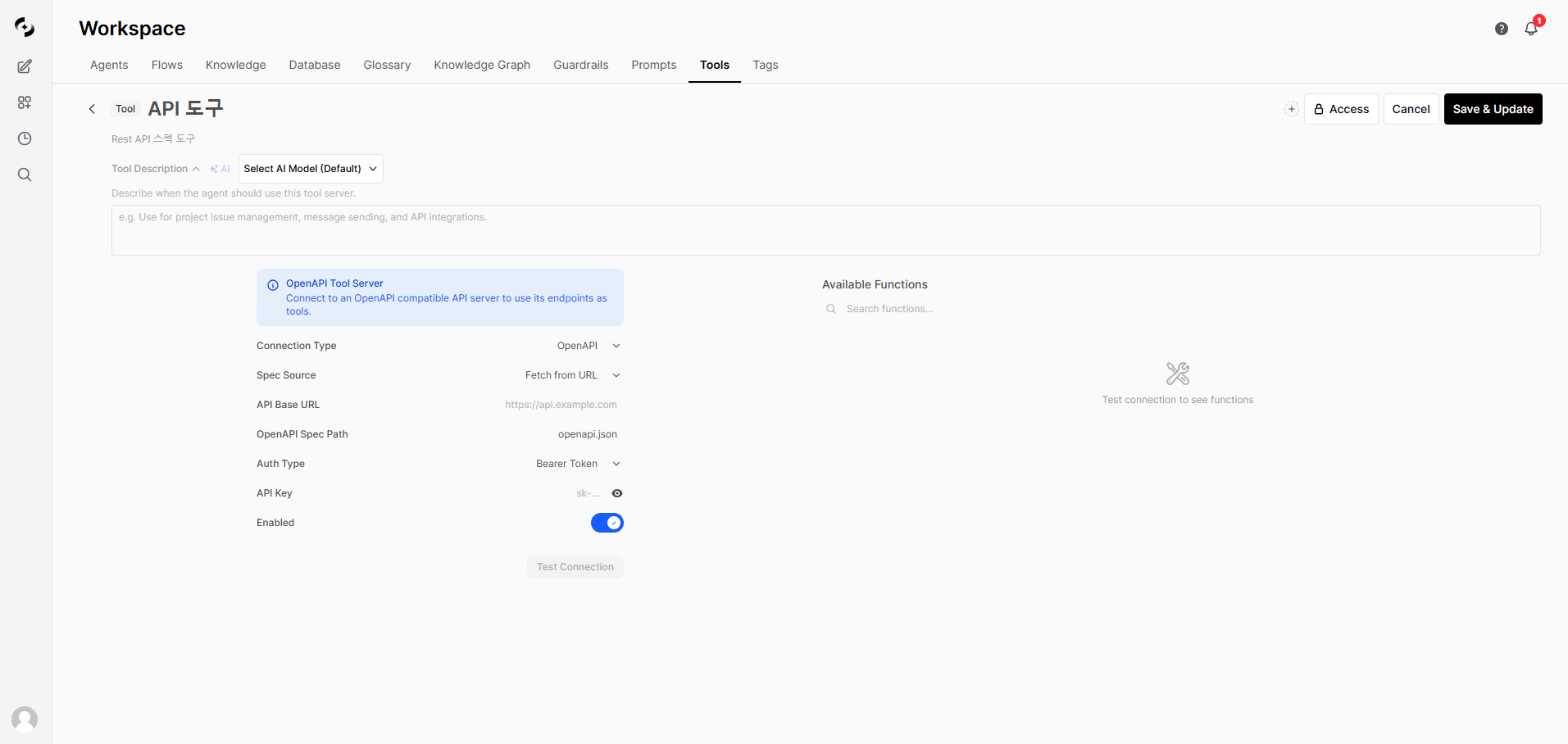
Set up the actual connection on the auto-loaded detail page (/workspace/tools/{id}).
See the OpenAPI Tool Connection and MCP Tool Connection sections below for the detail page configuration.
Enter the Bearer token in the API Key field. It’s sent as the Authorization: Bearer <token> header on API calls.
API Base URL: https://api.example.comOpenAPI Spec Path: openapi.jsonAuth Type: Bearer TokenAPI Key: sk-xxxxxxxxxxxxxxxx
Uses the current signed-in user’s session credentials directly. No separate API key entry needed.
Suitable when an internal API server uses the same auth scheme as Cloosphere.
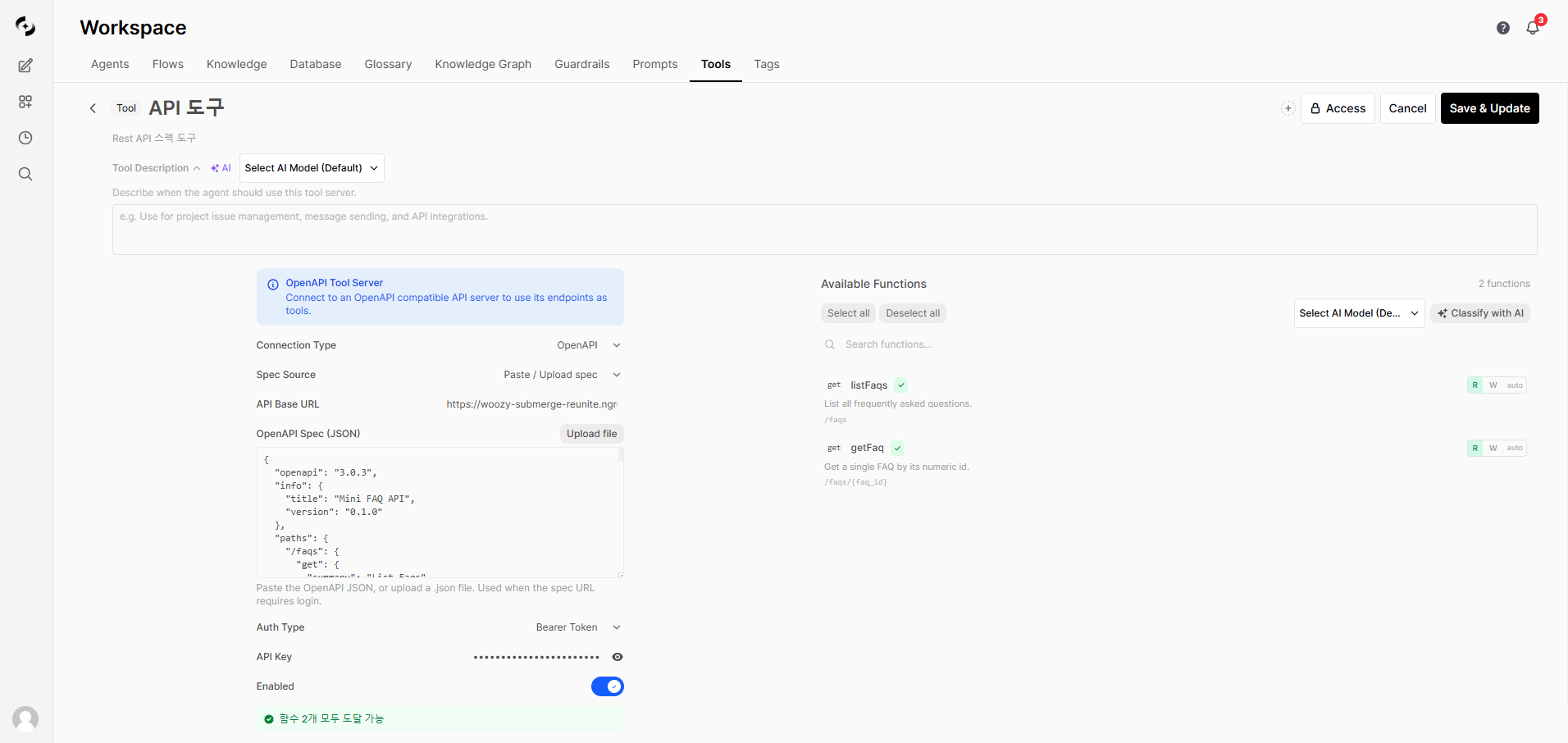
After configuration, click the Test Connection button.When the connection succeeds, the Available Functions panel on the right auto-displays the API endpoint list.
Each function shows HTTP method (GET, POST, etc.), name, description, and path. Hover to see parameter details.
On successful connection, the available API endpoint list is displayed automatically
MCP (Model Context Protocol) is a dedicated protocol for communication between AI models and external tools.
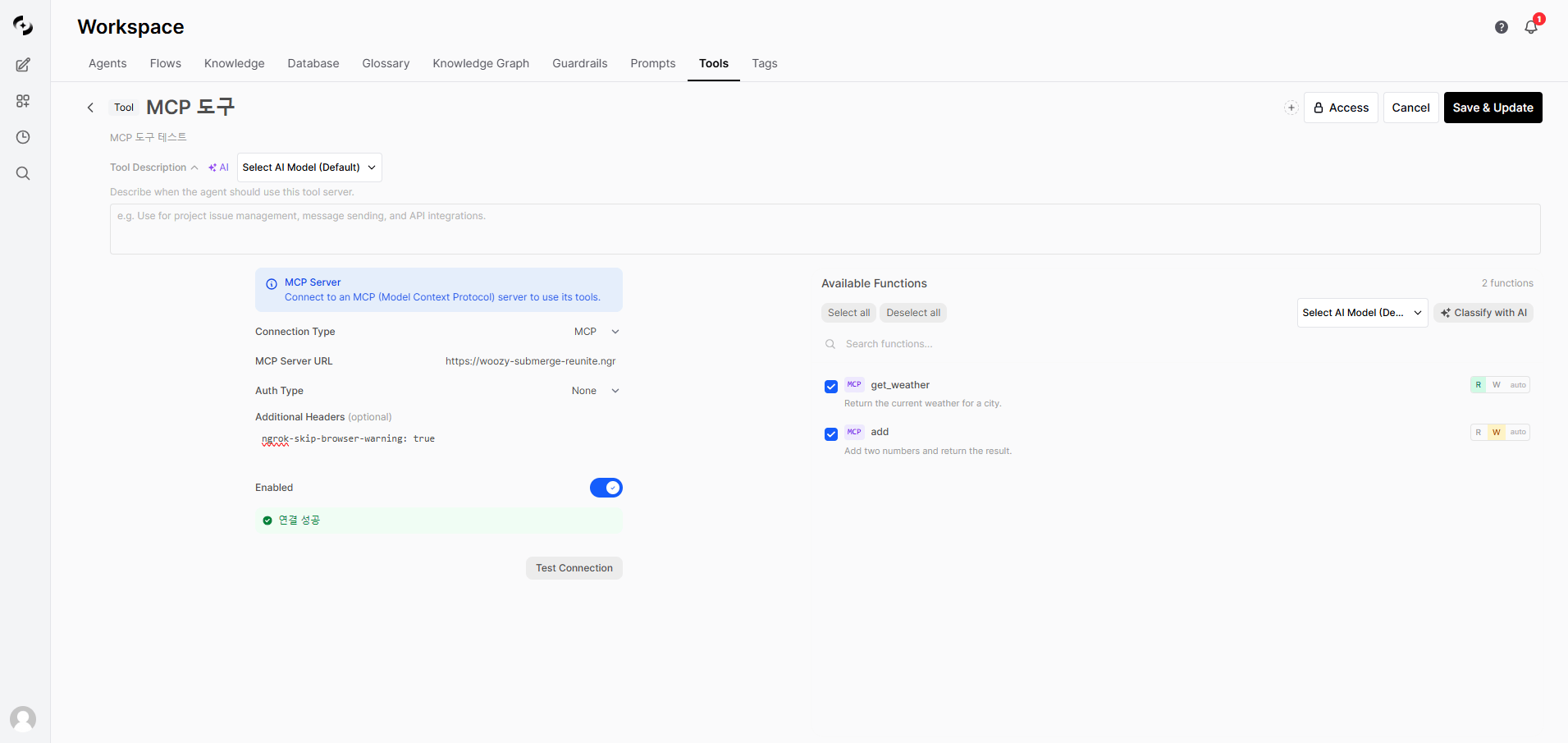
On the tool detail page, change Connection Type to MCP and configure the following.
Change Connection Type to MCP and configure server URL and authentication
Connect to the MCP server without auth. Suitable for local or internal-network MCP servers.
Auth using a Bearer token. The token is sent as the Authorization: Bearer <token> header on requests.
Auth using an API key. The key is sent in an auth header per the server’s requirements.
Auth using the signed-in user’s own SSO token. No key entry is needed — based on the selected provider (Microsoft / Google), each request automatically injects that user’s OAuth access token.
Suitable for MCP servers that require per-user permissions, such as Google Workspace or Microsoft 365.
Click Test Connection to connect to the MCP server and fetch the list of provided tools.
On success, the MCP tool list is shown in the Available Functions panel on the right.
The Tool Description field at the top of the tool detail page is used by the agent to decide when to use this tool server.
Write the description directly, or click the AI button to auto-generate based on the connected function list
For AI generation, choose the model from the dropdown (default: system default model)
AI generation is only possible after Test Connection has loaded the function list
A well-written Tool Description improves the agent’s accuracy in choosing the right tool at the right time.
Example: “Use when project issue management, message sending, or API integration is needed.”
The AI analyzes the user’s question, decides if a tool is needed, and calls it automatically when so.
User: Look up customer ID 12345AI: [Calling CRM API...]Customer info retrieved:| Item | Value ||------|-------|| Name | John Doe || Email | hong@example.com || Tier | VIP || Last purchase | 2024-01-15 |
Click a card in the tool list to go to the detail page where you can edit connection settings, name, description, Tool Description, and more.
Save changes with the Save & Update button at the top-right of the detail page.
Click the Access button at the top-right of the detail page to change access permissions.
Set Access permission to Everyone or Selected groups only, then set Editable per group.
API keys are stored as plain text — rotate them regularly.
Connect only APIs within private networks, and use IP allowlisting or VPN/Private Endpoint when needed.
Restrict database access appropriately to protect credentials.
Any API providing an OpenAPI (Swagger) spec can be connected.
Without a spec, build your own MCP server or write the OpenAPI spec separately.
Are there API call costs?
The external service’s pricing applies when using its API.
Cloosphere itself charges no extra cost for tool calls.
Is sensitive data safe?
All communication is TLS-encrypted, and access can be finely controlled to limit usage.
Combined with guardrails, you can further prevent sensitive info leaks.
Should I use OpenAPI or MCP?
If you already have a REST API providing an OpenAPI spec, choose OpenAPI.
If you’re building a new AI-dedicated tool server or already have an MCP-compatible server, choose MCP.