
Admin › Settings › Branding
Branding customization may be restricted depending on your license feature keys.
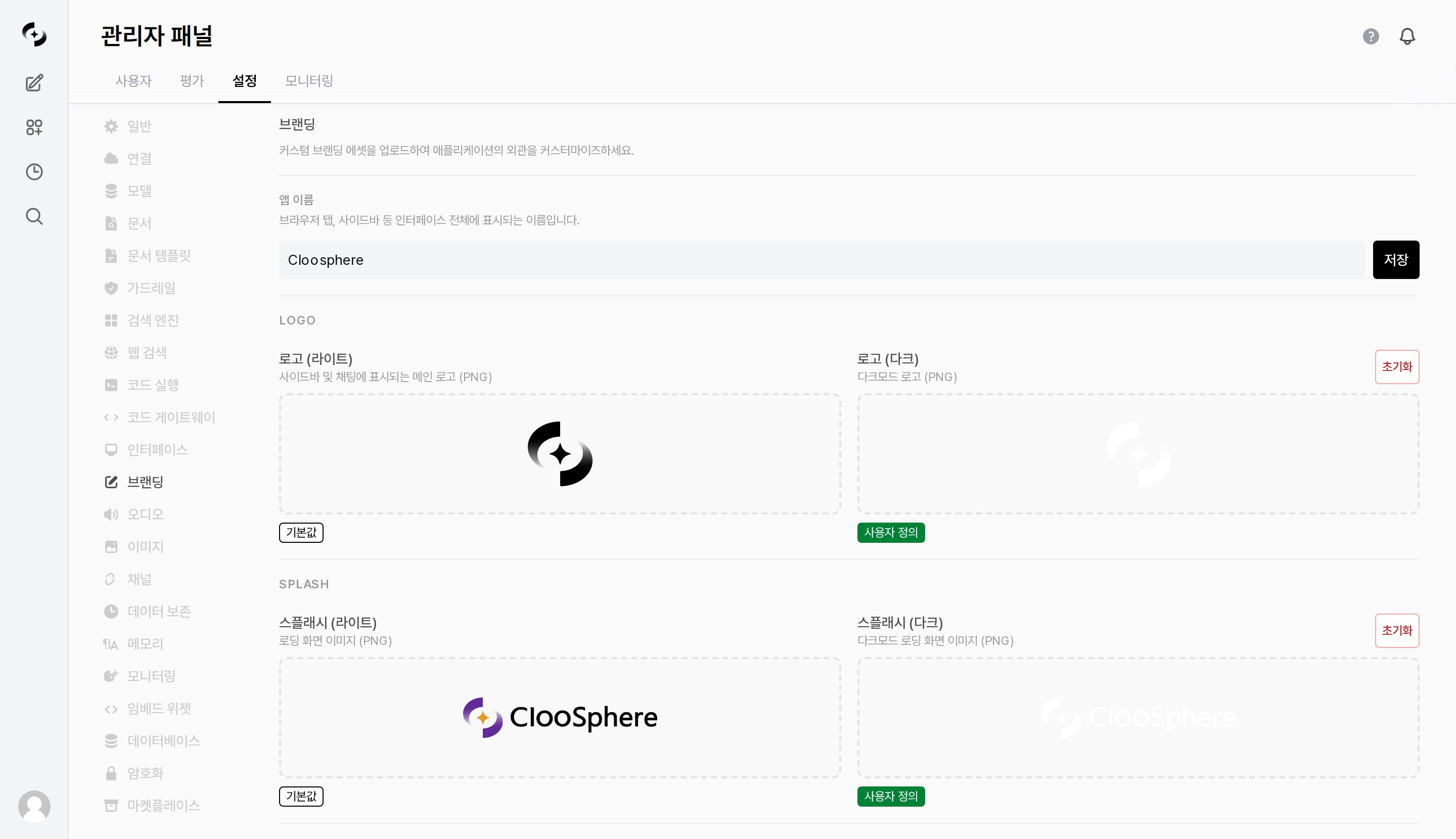
Branding settings tab
App Name
At the very top of the tab. This is the name displayed in the browser tab, sidebar, and throughout the interface.The app name is only applied after pressing the Save button to the right of the field. The image items below are saved the moment they are uploaded, so they have no separate save button.
Branding Assets
LOGO
SPLASH
Others
How to Upload
1
Open the Branding tab
Go to Admin > Settings > Branding.
2
Upload the image
Click each item’s upload area, or drag and drop an image file onto it.
3
Confirm
The upload is saved immediately, and the badge under the item changes from
Default to Custom.Status Badges and Reset
Each item shows its current state as a badge underneath.
The Reset button only appears on items in the
Custom state; pressing it restores the default Cloosphere image.
Branding changes take effect for all users immediately. Some users may see the change late due to browser caching.