
Admin › Settings › Channels (Bot Connection)
- Same permissions and agent settings apply across 1:1 chat, team channels, and group chats.
The Teams bot is different from the notification channel (Teams webhook in
/admin/notifications). The notification channel is one-way message delivery; the Teams bot is two-way integration where users converse directly with the bot.Why You Need It
Use scenarios:
- Deploy an internal IT helpdesk bot to Teams 1:1 to automate password reset and access permission inquiries
- Add a sales analytics agent to the sales team channel for instant data queries during meetings
- Invoke a meeting note summarization agent in group chats
How It Works
Key points:- JWT validation: M365 Agents SDK validates Teams Activity’s JWT against Azure
- User matching: Match Teams user’s AAD Object ID ↔ Cloosphere
User.oauth_oidfield. Only users who’ve signed in at least once via OAuth (Entra/Google) match - Permission application: The matched Cloosphere user’s permissions apply directly — Teams calls use the same agent/Knowledge Base access permissions the user has in the workspace
- Conversation persistence: Teams conversation ID (
teams_conversation_id) is saved in Cloospherechat.meta, so the same Teams conversation always links to the same chat record
Setup Procedure
Step 1: Configure Bot in Admin Panel
Configure the bot in Admin > Settings > Channels > Bot Connection.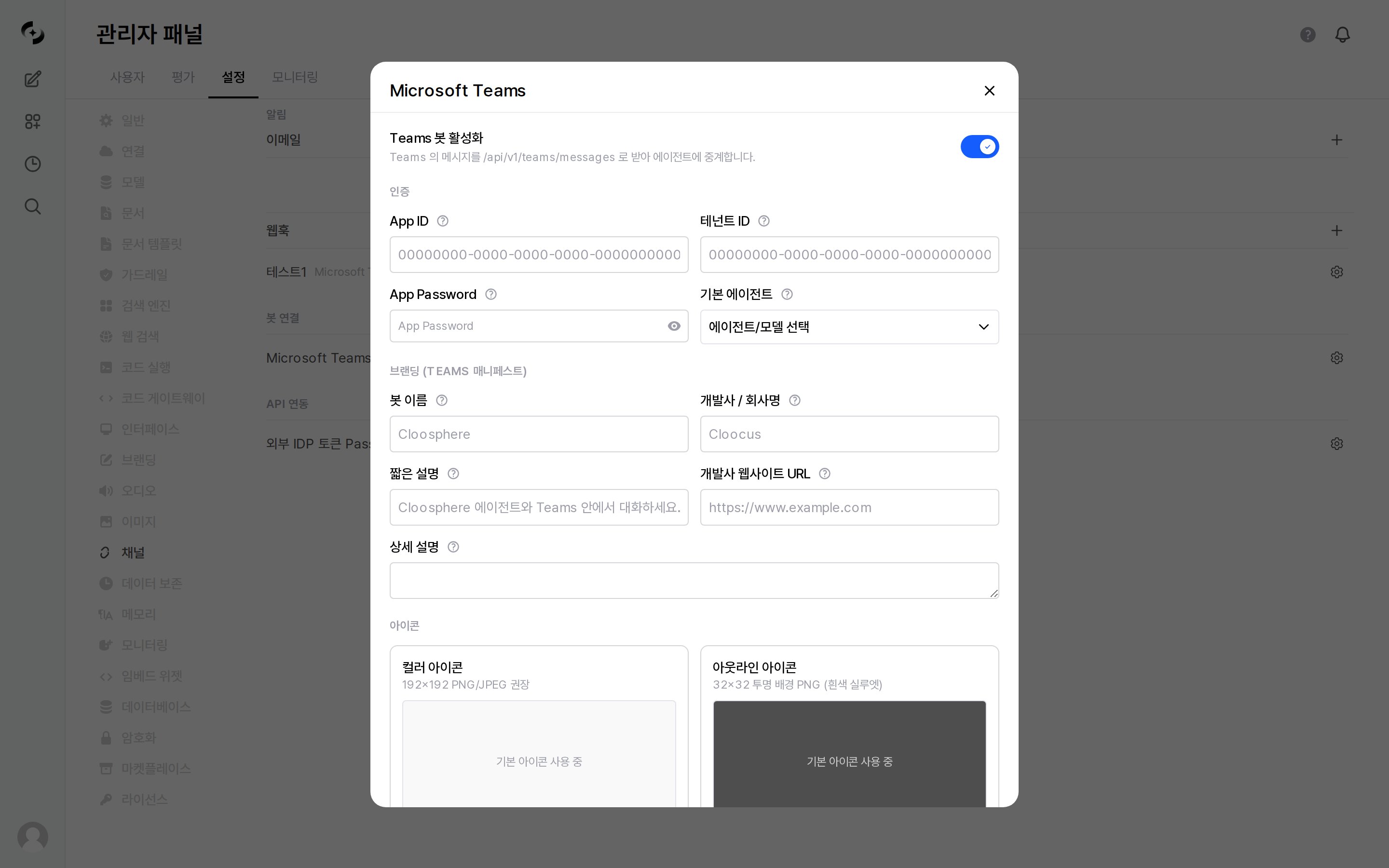
Admin > Settings > Channels > Bot Connection — turning it on expands the Authentication, Branding, and Icons sections
Authentication (required for P2 mode)
Production environments are recommended to use P2 mode (certificate-based auth). P1 mode (anonymous) auto-falls-back when auth info is empty and is for local development.
Branding (Teams manifest) — optional
Icons — optional
If you upload nothing, both slots read
Using default and the Cloosphere default icons go into the manifest. After uploading, Remove restores the default.Deployment
Default Group Capability appears only when two or more bot scopes are selected. With a single scope it is not shown.
Integration
Step 2: Register Azure Bot Service
For P2 mode operation, create a Bot resource in Azure Portal.1
Register Entra app
Azure Portal > Microsoft Entra ID > App registrations > New registration.
- Name: anything (e.g., “Cloosphere Teams Bot”)
- Supported account types: single / multi-tenant
- After registration, get Application (client) ID, Directory (tenant) ID
- Certificates & secrets > generate new client secret → use as App Password
2
Create Azure Bot resource
Azure Portal > Create resource > Search Azure Bot and create.
- Microsoft App ID: enter Step 1’s Client ID
- Pricing tier: F0 (development) or S1 (production)
3
Register messaging endpoint
Created Bot resource > Configuration > Messaging endpoint:
4
Add Microsoft Teams channel
Bot resource > Channels > Add Microsoft Teams.
Step 3: Download and Upload Teams Manifest
1
Download manifest ZIP
Click Download Teams Manifest in Admin > Settings > Channels > Bot Connection.
A manifest ZIP is downloaded with the current App ID, branding, and icons injected.
2
Upload to Teams
Teams left sidebar Apps > Manage your apps > Upload an app > Upload a custom app > Select downloaded ZIP.To deploy to the org catalog, proceed with Org-wide publishing in the Teams admin center > App management.
3
Wait for activation
The bot activates in about 30 seconds to 1 minute after upload. Verify by having a first user start a conversation.
User Usage
Prerequisites — Sign in to Cloosphere via OAuth Once
The Teams bot matches users’ AAD Object ID with the CloosphereUser.oauth_oid field.
- So before using the bot in Teams, each user must sign in to the Cloosphere web app once via OAuth (Entra/Google).
First Conversation
When you invoke the bot in Teams, an agent selection card appears automatically.Slash Commands
Teams autocomplete may strip the leading
/, so typing agent without the slash is handled as the same command.Conversation Persistence
The bot remembers previous conversations in the same Teams conversation window — but each piece of that memory has a different lifetime.- LLM context sends up to 10 most recent turns (token saving on long conversations)
- Full conversation is saved in the Cloosphere chat record — users can continue the same conversation in the web app
/resetseparates into a new chat record
These retention windows live in Redis in multi-worker deployments. Running several workers without Redis can show a different context per worker.
Citation Display
Responses using Knowledge Base or web search results are shown as Teams Citation Cards — click to view source documents/URLs.Environment Variables (for operators)
Known Limitations / Caveats
Users without OAuth sign-in can't use the bot
Users without OAuth sign-in can't use the bot
Teams user’s AAD Object ID must match Cloosphere
User.oauth_oid. Users who’ve never signed in via OAuth (Entra/Google) get a notice when invoking the bot.
TEAMS_BOT_TEST_JWT fallback is available in development environments but must not be used in production.Agent visibility scope
Agent visibility scope
Agents shown by
/agent command are filtered by that user’s permissions. Agents the user can’t see in the web app aren’t visible in Teams either.Conversation history limit
Conversation history limit
LLM calls send only the last 10 turns. For longer context, explicitly ask the user for a summary, or have them re-enter key info after
/reset.i18n supported languages
i18n supported languages
Bot system messages are completed only for Korean (ko-KR) and English (en-US). Other-language users fall back via
TEAMS_BOT_DEFAULT_LOCALE (default en-US).Streaming response
Streaming response
Cloosphere internal Socket.IO streaming is subscribed and relayed to Teams. Even if Socket.IO connection fails, the final response arrives — but progress (typing/tool calls) and some citation cards may be missing.
RSC (Resource-Specific Consent) permissions
RSC (Resource-Specific Consent) permissions
Enabling team channel/group chat scope declares RSC permissions like
ChannelMessage.Read.Group in the manifest. Admin consent may be required per the corporate Teams admin center’s app approval policy.Related Pages
Notification Settings
Teams webhook-based one-way notification channel (separate from bot integration)
Agents
Create and configure permissions for agents usable in Teams
User Management
OAuth sign-in / permissions / group settings
Embed Widgets
Website embed-form integration (alternative option)
Deployment Checklist
TEAMS_BOT_* production environment variables