
Admin › Settings › Models
- From this tab, control individual model activation, customization, access control, and token limits and pricing.
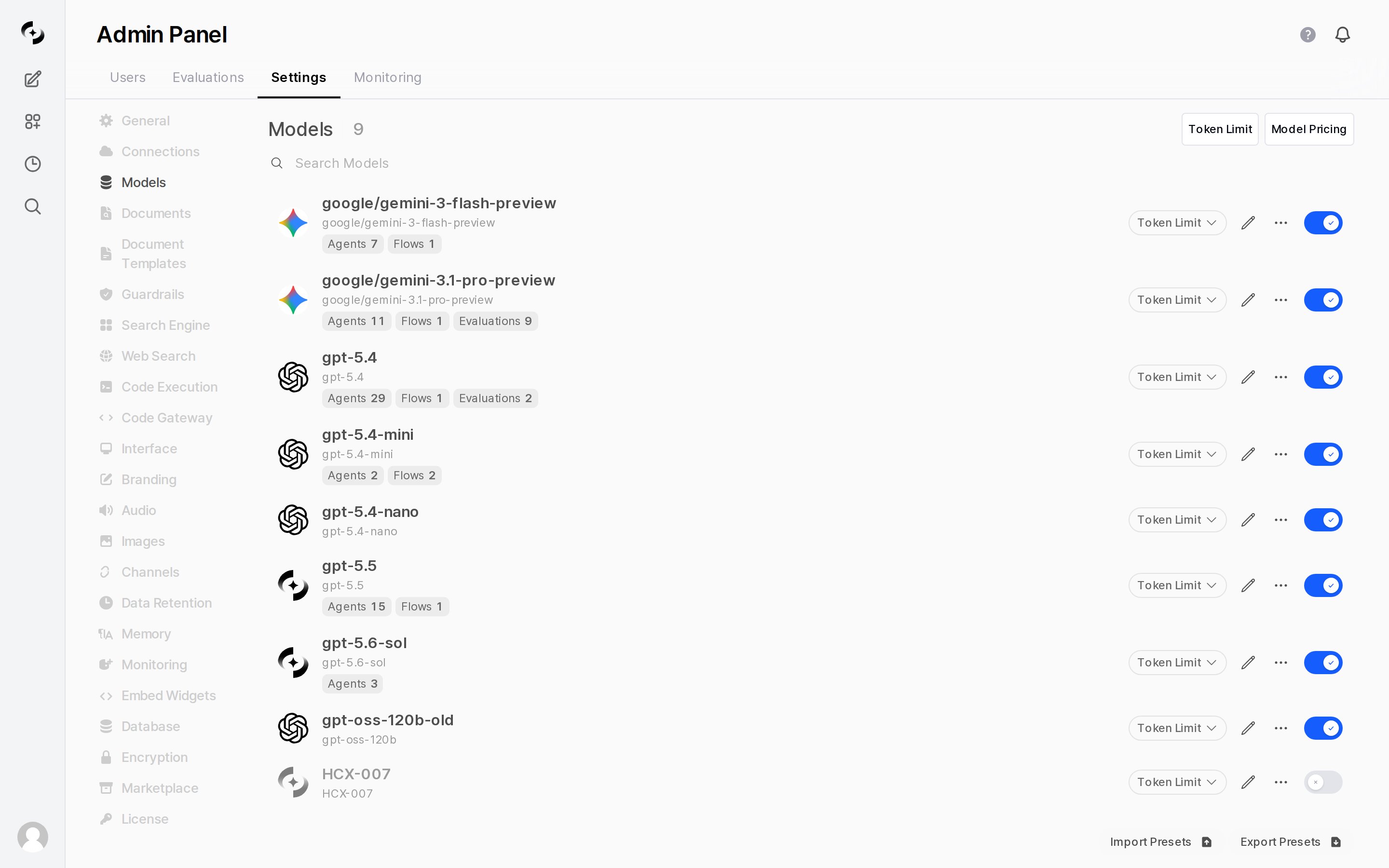
Manage all connected models in one place — activate, customize, order
Model List
Shows Workspace models (admin-created/customized) combined with Base models (system models pulled from connected APIs).- You can filter by name/ID with the Model Search input at the top of the list.
Each model row also shows dependency badges counting the agents, flows, and evaluations that reference it (e.g.
Agents 6, Flows 1, Evaluations 9), so you can see at a glance where the model is used (the same dependency information as Used by at the bottom of the model editor).
Hide Model (Shift+Click)
While Shift is held, the edit (pencil) icon on each model row turns into an eye icon. Click it to toggle that model between hidden and shown. Hidden models don’t appear in the user’s model picker.Hidden and Disabled are separate features.
Hidden removes from the model picker; Disabled makes the model itself unavailable.
Top-of-List Buttons
There are two buttons at the top-right of the model list.Default model and model display order are not settings in this tab. Each user sets their own default with
Set as default at the bottom of the model picker (see Model Selection). To restrict users to specific models, an admin uses Deactivate, Hide, or Access control (see Controlling Models Visible to Users below).Activate / Deactivate Models
Use per-model Enabled / Disabled toggle (Switch) to expose only needed models to users.Disabled models don’t appear in the user’s model picker dropdown.
Disabling a model that’s set as an agent’s base model doesn’t affect agent execution.
Model Customization
Click the edit (pencil) icon on a model row to customize that model.Knowledge base, database, tool, and glossary connections and auto-evaluation are agent-only. They aren’t offered in the admin model editor — configure them under Workspace > Agents. The only runtime resource applied from the model editor is guardrails.
Customizing a model creates a Workspace setting record for that model. Unlike agents, this doesn’t directly modify the base model — it adds an override configuration.
Controlling Models Visible to Users
Token Limits
Limit daily token usage per model to manage AI usage cost.- Set the global default with the
Token Limitbutton at the top-right of the model list. - Set per-model limits with the
Token Limitdropdown on each model row.
Global Token Limit (Token Limit button)
Per-Model Limits
Set an individual daily limit for a model with theToken Limit dropdown on its row. Models without one follow the default daily token limit above.
Admin role users are excluded from token limit checks. Limits can be set at 4 levels — global, user, group, organization — and when set in multiple places, the most permissive (highest) value applies. Check per-user and per-model usage in the usage tab of User Management.
Model Pricing
Use theModel Pricing button at the top-right of the model list to enter the price per 1M tokens for each model. These values feed the cost estimates in Usage.
- With many models, narrow the list first using Search models at the top.
- Models left without a price are excluded from cost estimates — their token usage is still counted.
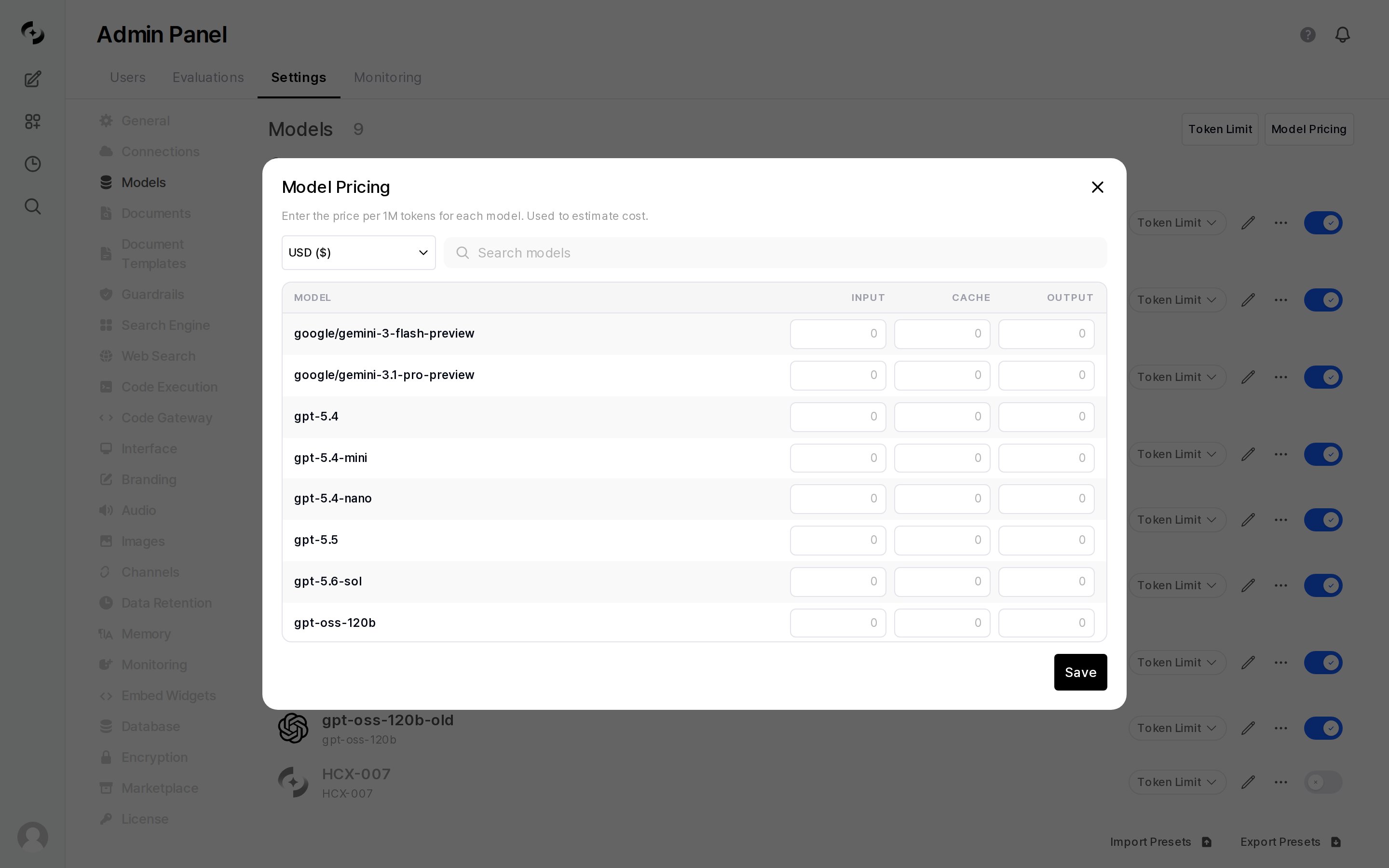
Enter input, cache, and output prices per 1M tokens for each model
Pricing is an input for estimation. It isn’t fetched from what the provider actually bills, so update this table yourself whenever provider prices change.
Ollama Model Management
The screen for pulling and deleting Ollama models lives on each Ollama connection row under Settings > Connections. It can’t be opened from the Models tab.Model Preset Import / Export
Back up and restore model settings as JSON.- This feature is admin-only.
Which models are imported?
Which models are imported?
Only the Workspace model settings you customized in this tab are imported. Agents are not included — they are built on top of another model, so import them separately under Workspace > Agents.
Related Pages
Connections
Configure LLM provider API connections
Agents
AI assistants combining Knowledge Bases, tools, and guardrails on top of a model
Usage
Per-model token usage and cost analysis