
Admin › Settings › Code Execution
- This page configures the code execution engine (enable + Pyodide/Jupyter), and that engine is shared by both user-manual execution and the agent’s Code Interpreter (auto-execution).
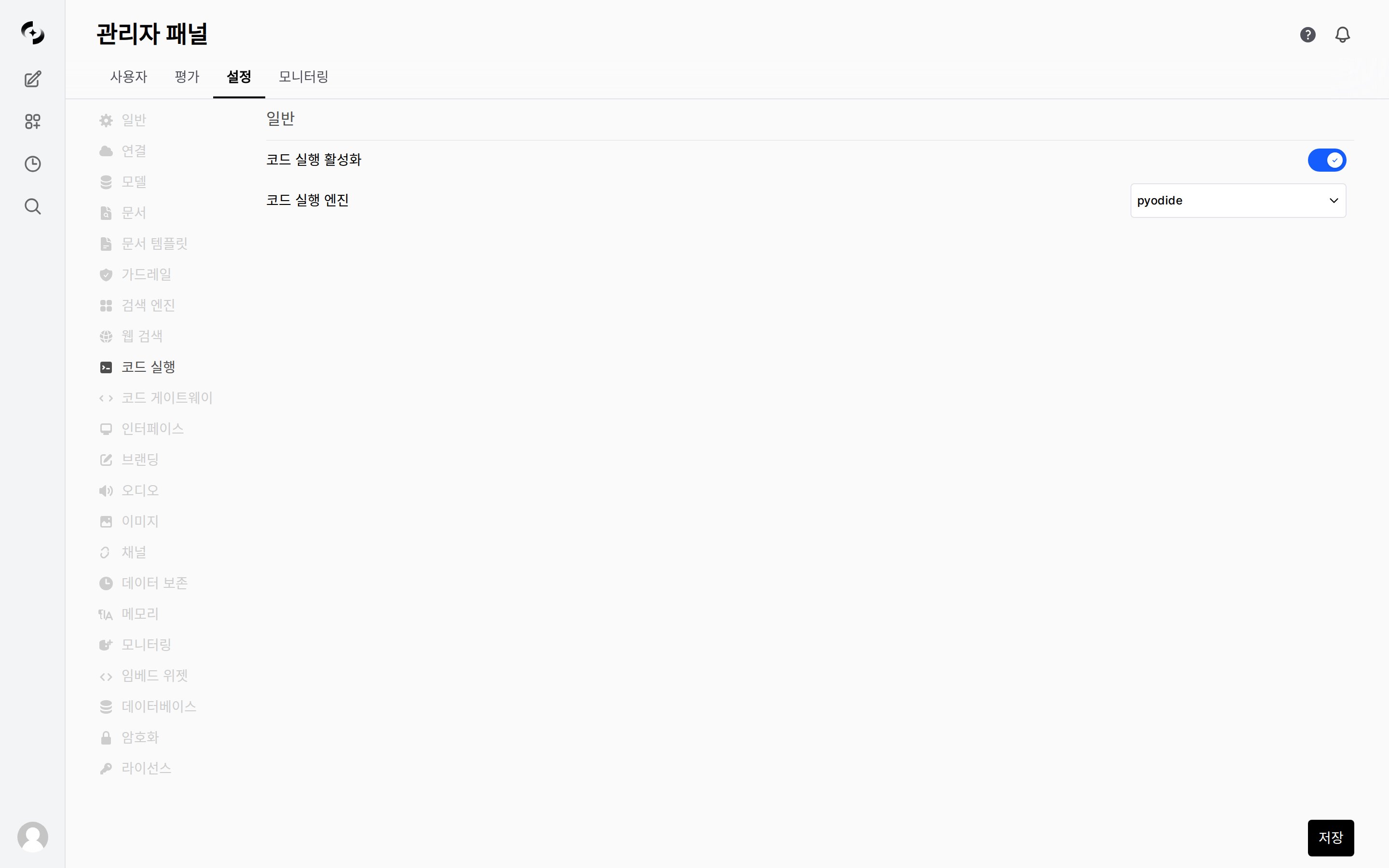
Configure the code execution engine (Pyodide/Jupyter) — shared by user-manual execution and the agent Code Interpreter
Code Execution vs Code Interpreter
Code Execution
A feature that lets users directly run AI-generated code blocks in chat.Execution Engines
- Pyodide
- Jupyter
Run Python inside the browser. WebAssembly-based — doesn’t affect the server.
Code Interpreter
A feature where the agent auto-generates and runs code for data analysis, chart generation, etc.- This tab has no separate settings for it — the Code Interpreter uses the code execution engine (Pyodide/Jupyter) configured above as-is.
- It only works inside a data analysis project. It can’t be enabled in a regular conversation.
Code Interpreter isn’t a toggle users flip. Inside a data analysis project, the AI invokes it on its own when it decides analysis is needed. There is no matching item in agent capability settings either.