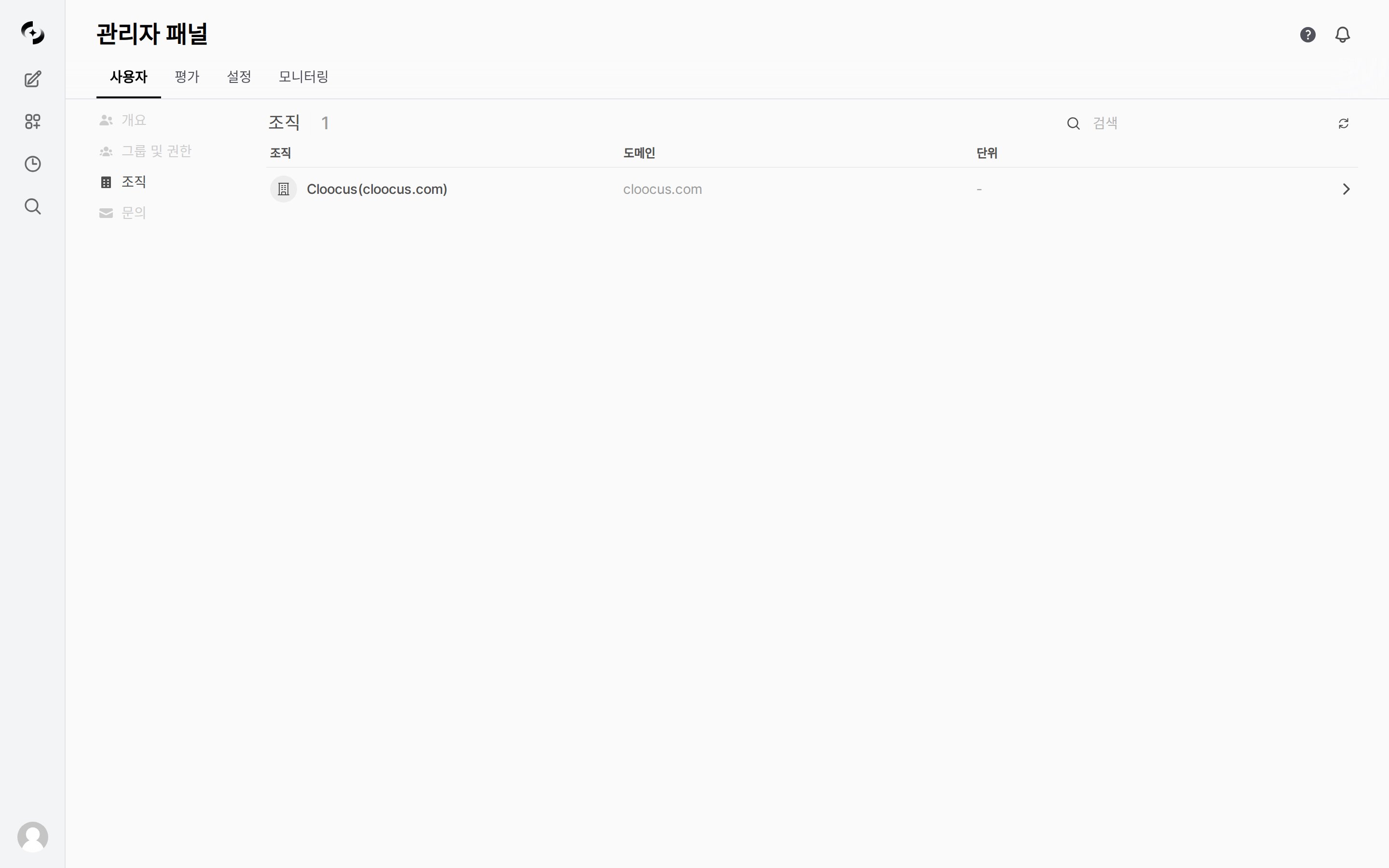
Click the sync button () next to the search box at the top-right of the organization list to open the Organization Sync dialog.
2
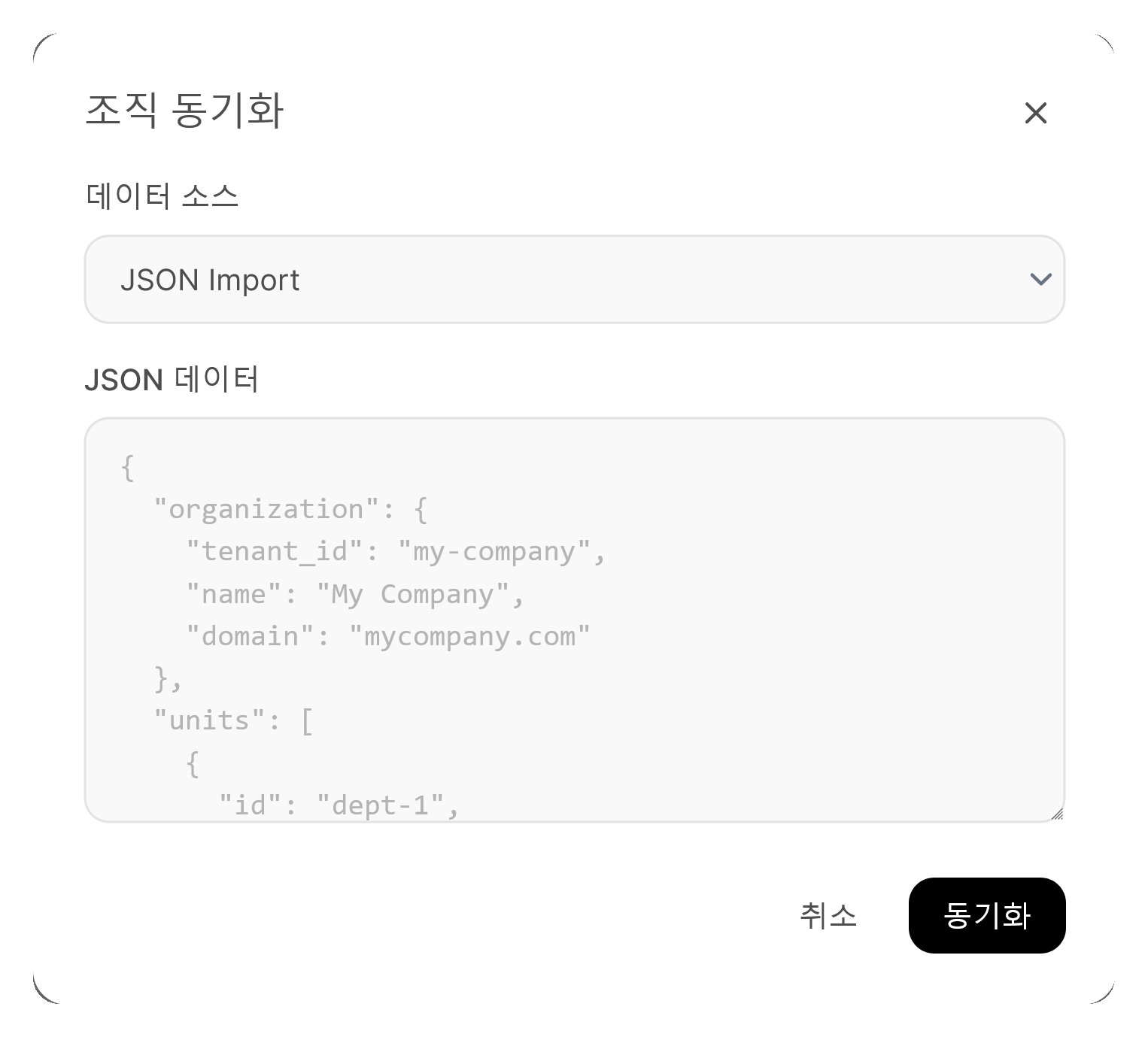
Pick a data source
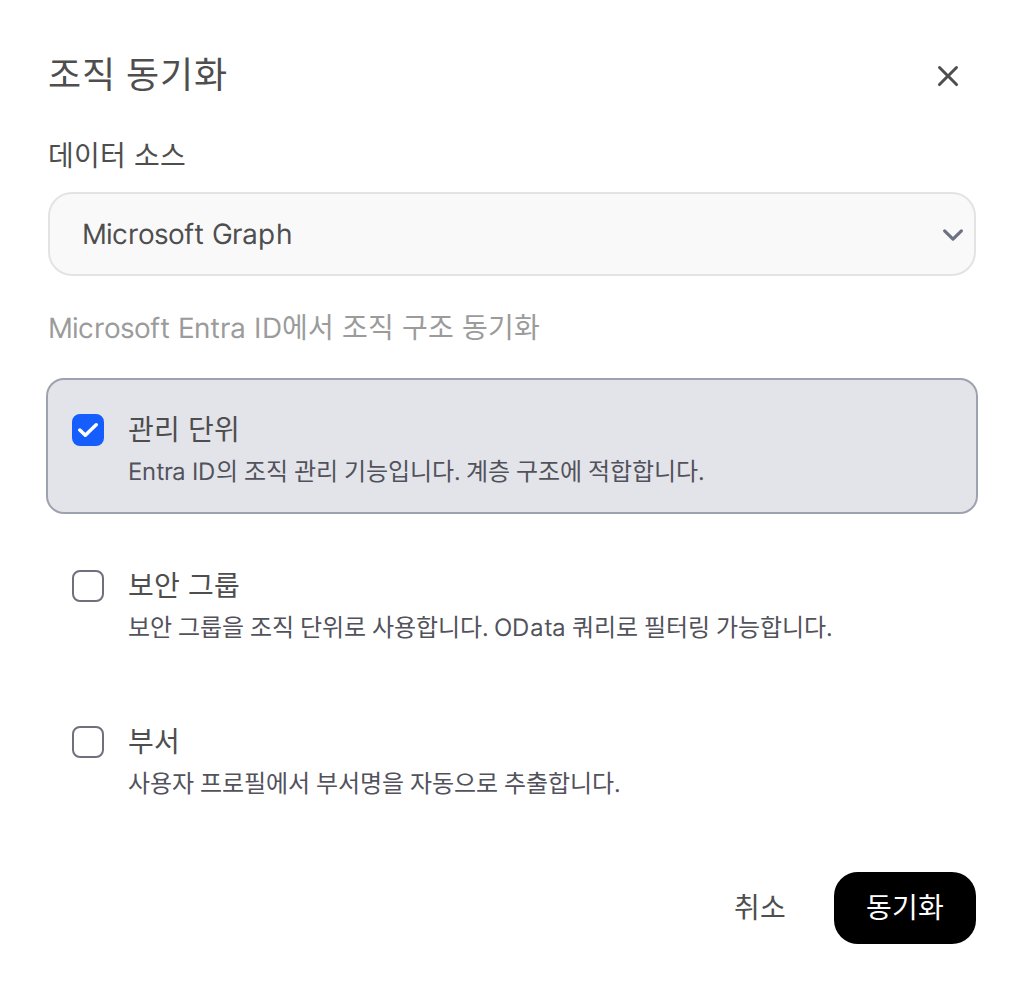
In the Data Source dropdown, pick the sync method — JSON Import (default) · Microsoft Graph · Keycloak · Google Workspace. For Entra ID integration, pick Microsoft Graph.When Microsoft Graph is selected, choose which items to fetch.
Option
Description
Default
Administrative Units
Entra ID’s org management feature; suited to hierarchies
ON
Security Groups
Use security groups as organizational units; filter with OData query
OFF
Departments
Auto-extract department names from user profiles
OFF
The Group Filter box appears only while Security Groups is on. Enter an OData filter expression to import specific groups only (optional).
Sync options when Data Source = Microsoft Graph
3
Run sync
Click the Sync button at the bottom of the dialog.
Organization Sync dialog — data source selection (default: JSON Import)
4
Verify results
Verify the synced OU tree and member mapping. On success the dialog reports counts as Synced N organization(s), M unit(s); if nothing was found, it suggests enabling different options.
Switching Data Source to Keycloak or Google Workspace changes the option set as well.
Keycloak
Google Workspace
The server URL and credentials are not entered on screen — they come from the OPENID_PROVIDER_URL · OAUTH_CLIENT_ID · OAUTH_CLIENT_SECRET environment variables.
Option
Description
Default
Groups
Sync the Keycloak group hierarchy as organizational units
ON
Organizations (v26+)
Use the Keycloak Organizations feature (requires Keycloak 26 or later)
Selecting an organization expands its organizational units below, in hierarchy order.
Element
Description
Indentation
Mirrors hierarchy depth — the deeper the OU, the further right it sits
Type badge
Grey badge to the right of the name (department · team · group)
Member-count button
People icon + number. Click it to open that OU’s member list
Type tabs
All / Department / Team / Group tabs appear above the list only when two or more types exist
The member list shows both members mapped by IdP sync and users auto-assigned via OAuth login; members without a Cloosphere account yet are marked Not registered.
Per-OU token caps are managed under Admin > Settings > Models, not on the Organizations screen. They are set per model — there is no single cap that applies to an OU as a whole.
1
Turn usage limits on
Under Admin > Settings > Models, click the Token Limit button at the top to open the Token Limit Management dialog. Turn on Enable Usage Limit, and optionally set the default daily token limit and the action on exceeding (Warn / Block).
2
Expand a model
Once usage limits are on, each model row becomes expandable. Expanding shows that model’s base limit along with three override cards.
3
Set the org unit override
Among User overrides · Group overrides · Org unit overrides, open Org unit overrides and set per-OU caps. The number on each card is the count of overrides currently registered.
Value
Meaning
Empty
Inherit — decided by a higher layer
0
Explicitly unlimited
Positive number
Daily token cap
Usage limits can be set at four layers — global, user, group, and organizational unit. When several layers carry a value, the most permissive (highest) one applies, and if any layer is 0 (unlimited) that wins immediately. Overrides are designed to raise a cap, so you cannot shrink a higher-layer cap by entering a smaller value at a lower layer.
A screen for attaching guardrails directly to an organizational unit is not available in the current release. OU rows carry only the member-count button.
Apply guardrails through these paths instead.
Target
Where to configure
Per group
Admin > Users > Groups & Permissions > edit a group > Chat Guardrail on the General tab
Per agent
Workspace > Agents > that agent’s guardrail settings
If you need guardrails at department granularity, map the OU to a group (see Group ↔ OU Mapping) and set the chat guardrail on that group — that is the route available today.
The bottom of the Organizations screen has a Delete Organization area.
Deleting removes the organization and every organizational unit under it, permanently. This cannot be undone. Confirm the organization name in the dialog before proceeding. Member associations are removed as well — user accounts themselves are not deleted.
Verify Azure App Registration has Directory.Read.All permission.
Verify environment variables MICROSOFT_CLIENT_ID, MICROSOFT_CLIENT_SECRET, MICROSOFT_CLIENT_TENANT_ID are correctly set.
Check server logs for detailed error messages.
Do I need to use both organizations and groups?
Not necessarily. Permission management alone is fine with groups. Use organizations additionally when you need department-based access control with Entra ID integration.
Are members deleted when I delete an OU?
Deleting an OU doesn’t delete the user accounts in it. Only the resource access permissions configured for that OU are removed.