
Admin › Settings › Channels
- Notification channels automatically deliver scheduled task results via email and webhooks.
- Once admins pre-configure notification channels, users select a channel when creating scheduled tasks to receive result notifications.
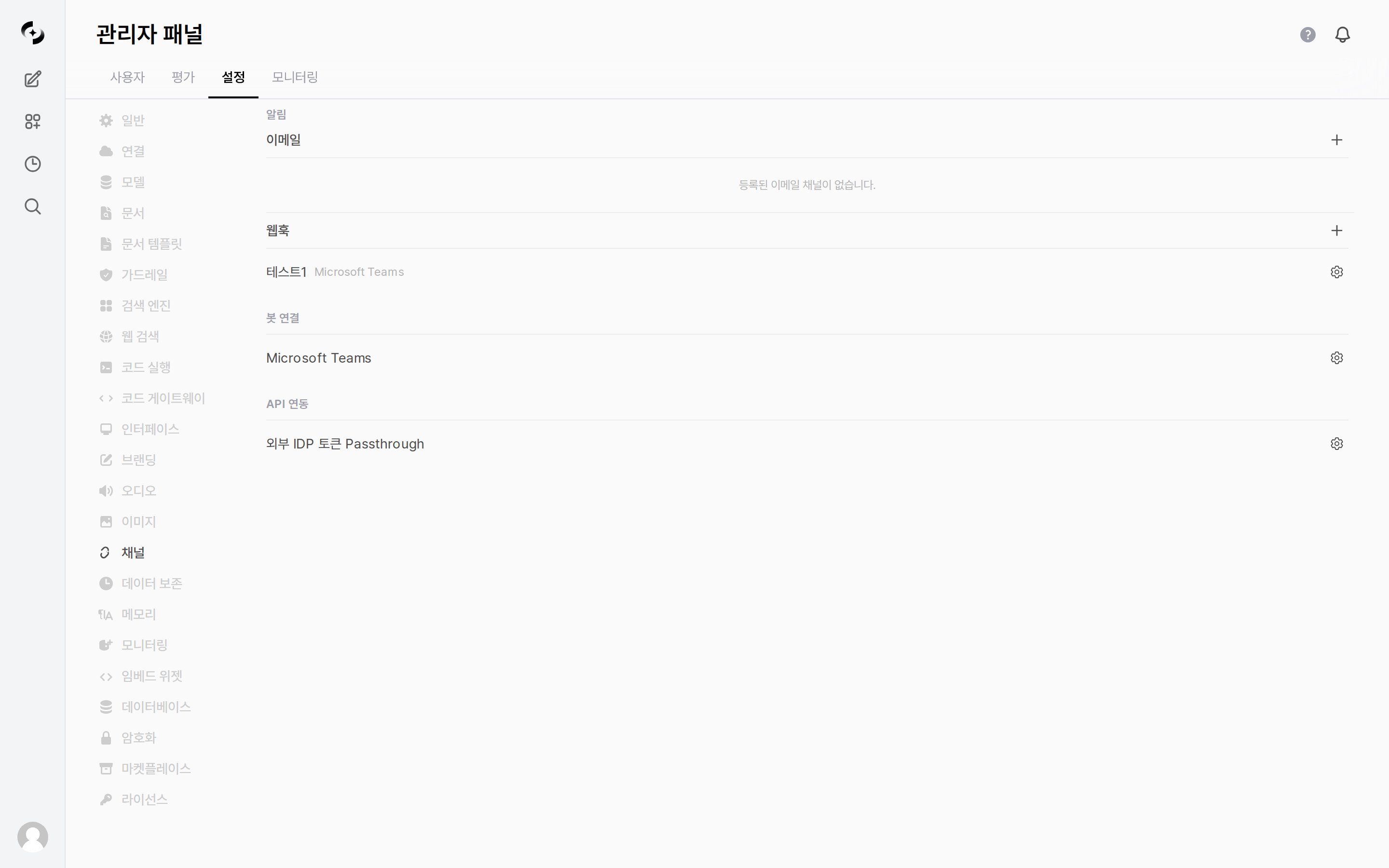
Notification settings main screen
Notification Architecture
Email Channels
Add email channels in Admin > Settings > Channels or the dedicated notification management screen.- Register multiple channels to use different sender configs per team.
An email channel is a prerequisite for scheduled task email notifications. If no channel is registered, the Email type does not appear at all in the user’s scheduled task screen — only webhook options are selectable.
Add Channel
Click the + icon button on the right of the Email section (tooltip: Add Email Channel), then choose an Email Provider.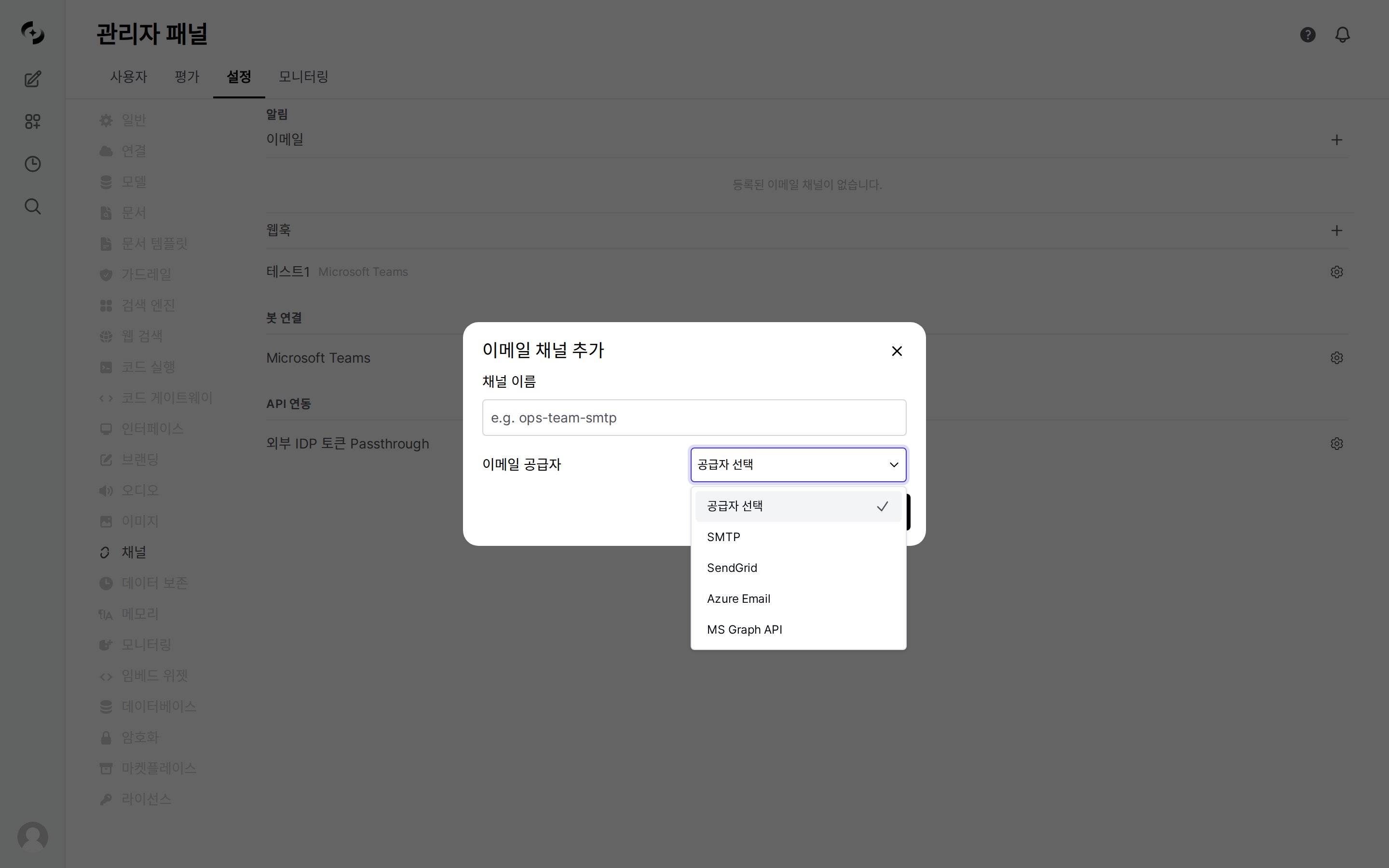
- button in the Email section → provider selection
Selecting a provider reveals the input fields for that method.
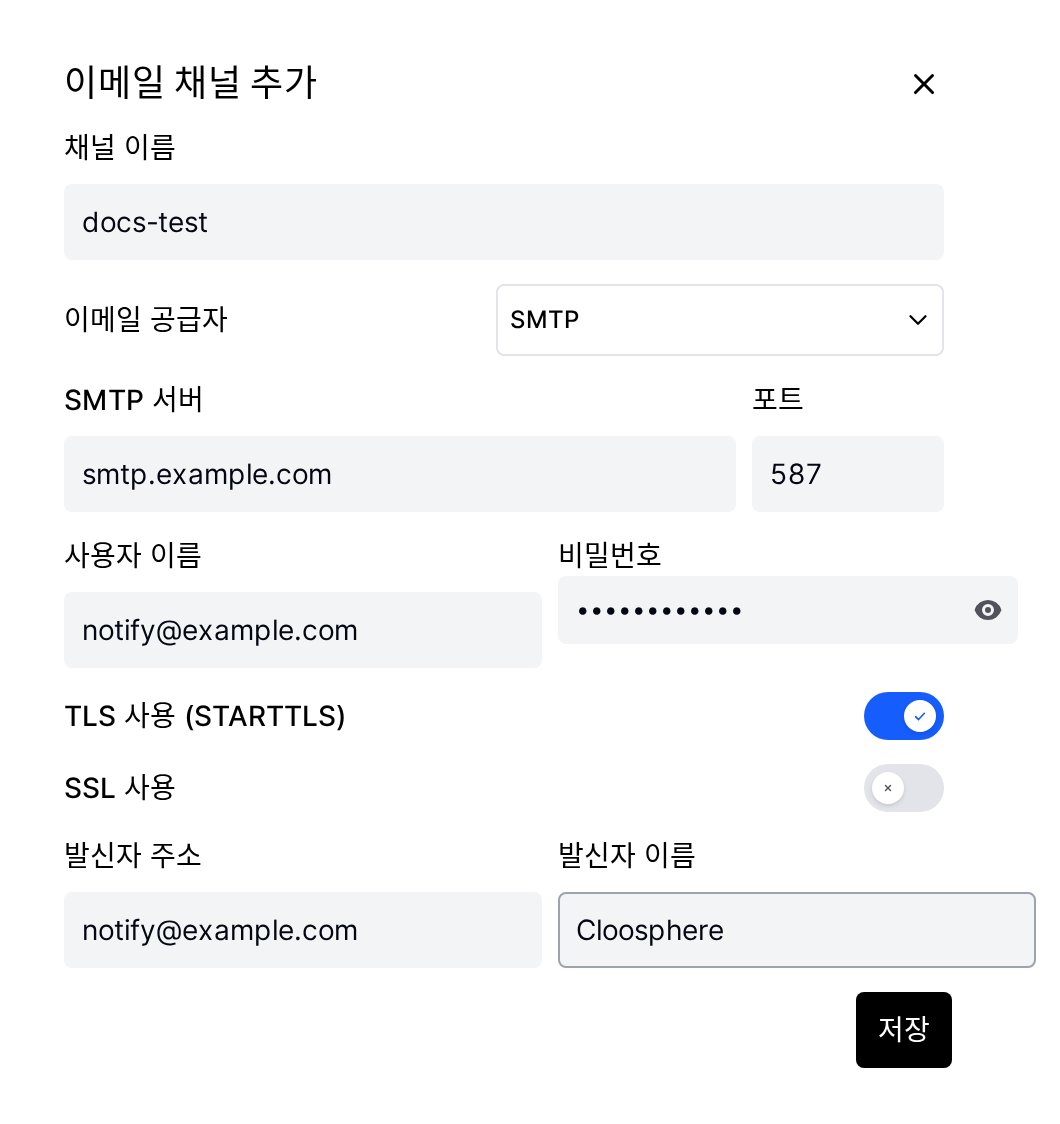
Input fields when SMTP is selected
Per-Provider Settings
- SMTP
- SendGrid
- Azure Email
- MS Graph
Connect your internal mail server or external SMTP service (Gmail, Outlook, etc.).
Connection Test and Test Email
Test Connection and Send Test Email are available only in the edit screen after saving the channel. They are not in the add modal, so save a new channel first, then reopen it from the list with the gear icon.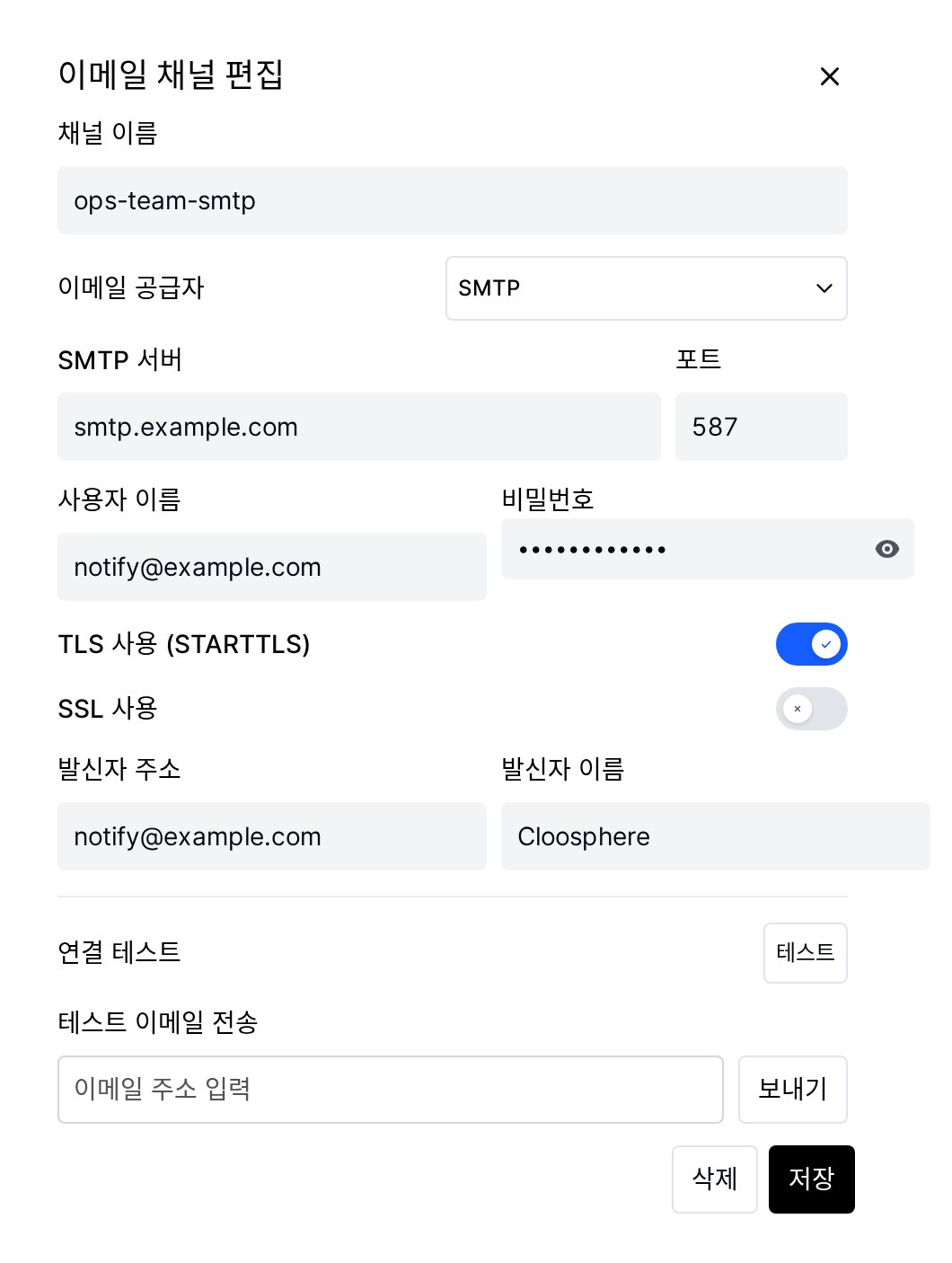
Connection test and test email at the bottom of the edit screen
To verify actual delivery, enter an address under Send Test Email and click Send. Check both the inbox and the spam folder — a successful connection test does not guarantee delivery, since sender domain policy (SPF/DKIM) can still filter the message.
Webhook Channels
Connect with external messaging services to send notifications.Add Channel
Click the + icon button on the right of the Webhook section. (Tooltip: “Add Webhook Channel”)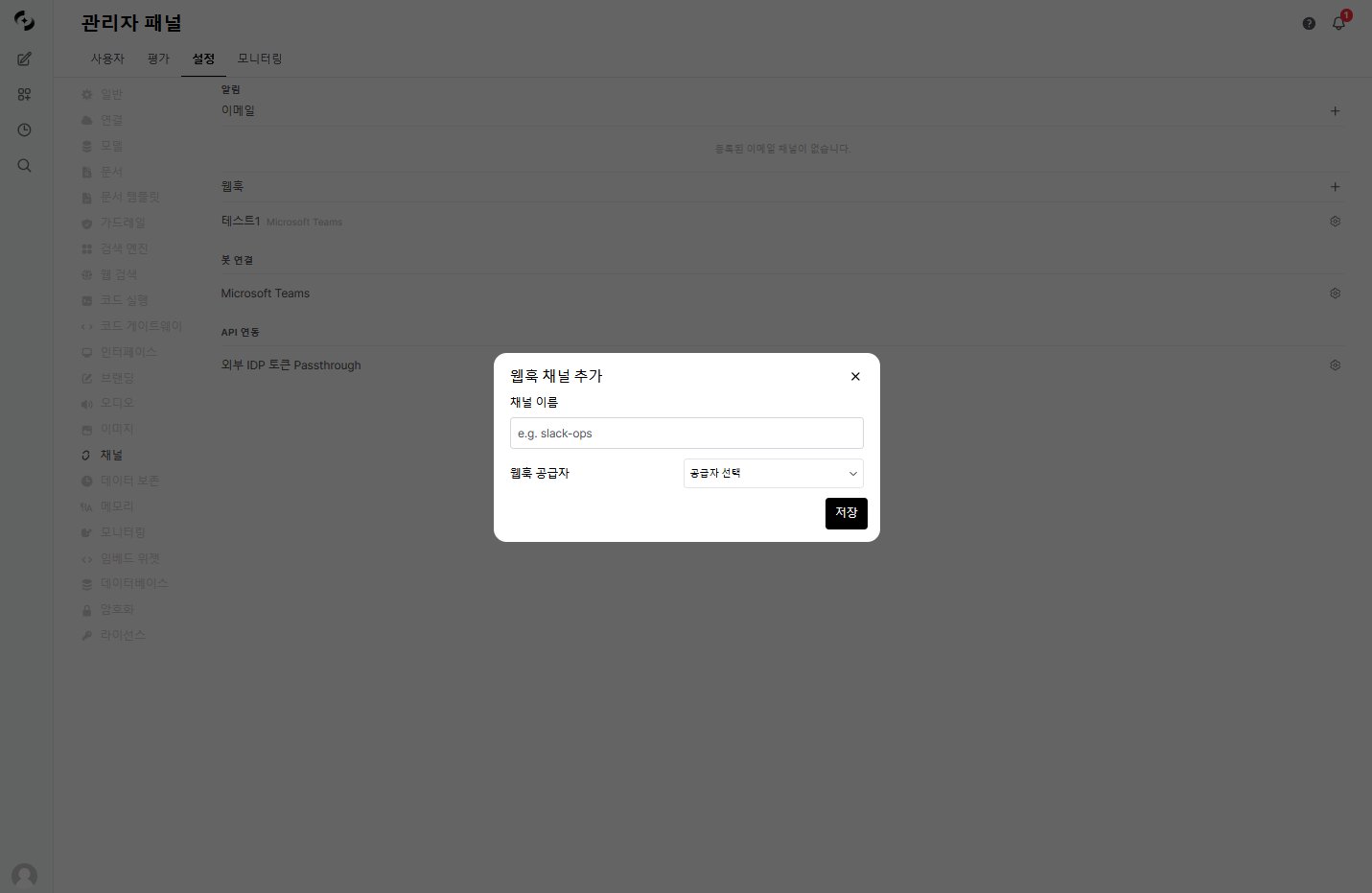
Add webhook channel
The webhook URL box appears only after you pick a webhook provider, along with a provider-specific hint on where to obtain it. Telegram uses Bot Token and Chat ID instead of a webhook URL, and the input form switches automatically when Telegram is selected.
Per-Provider Settings
- Slack
- Teams
- Discord
- Telegram
- Google Chat
Generate webhook URL:
- Enable Incoming Webhooks in your Slack app management page
- Click Add New Webhook to Workspace
- Pick a channel and click Allow
- Copy the generated URL (
https://hooks.slack.com/services/...)
Test Webhook
Click Test Webhook to send a test message in the selected provider’s format.As with email, Test Webhook is available only in the edit screen after saving the channel.
Bot Connections
Connect a Microsoft Teams bot so users can chat with Cloosphere directly from Teams.- Configure it via the gear (⚙) icon to the right of the Microsoft Teams item in the Bot Connections section.
API Integration
Configure token passthrough, which forwards external IdP (Identity Provider) tokens directly to downstream services.- Configure it via the gear (⚙) icon to the right of the External IdP Token Passthrough item in the API Integration section.
Schedule Notification Integration
After admins configure channels, users configure notifications in scheduled tasks.Trigger Conditions
Multiple Notifications
A single scheduled task can have multiple notification channels.Chart Image Delivery
Plotly charts generated by DbSphere agents are server-side rendered to PNG images and included in notifications.Chart images are auto-extracted before notification dispatch. Chart markers are removed from the notification body so clean text is delivered.
Troubleshooting
Email issues
Email issues
Webhook issues
Webhook issues
General issues
General issues