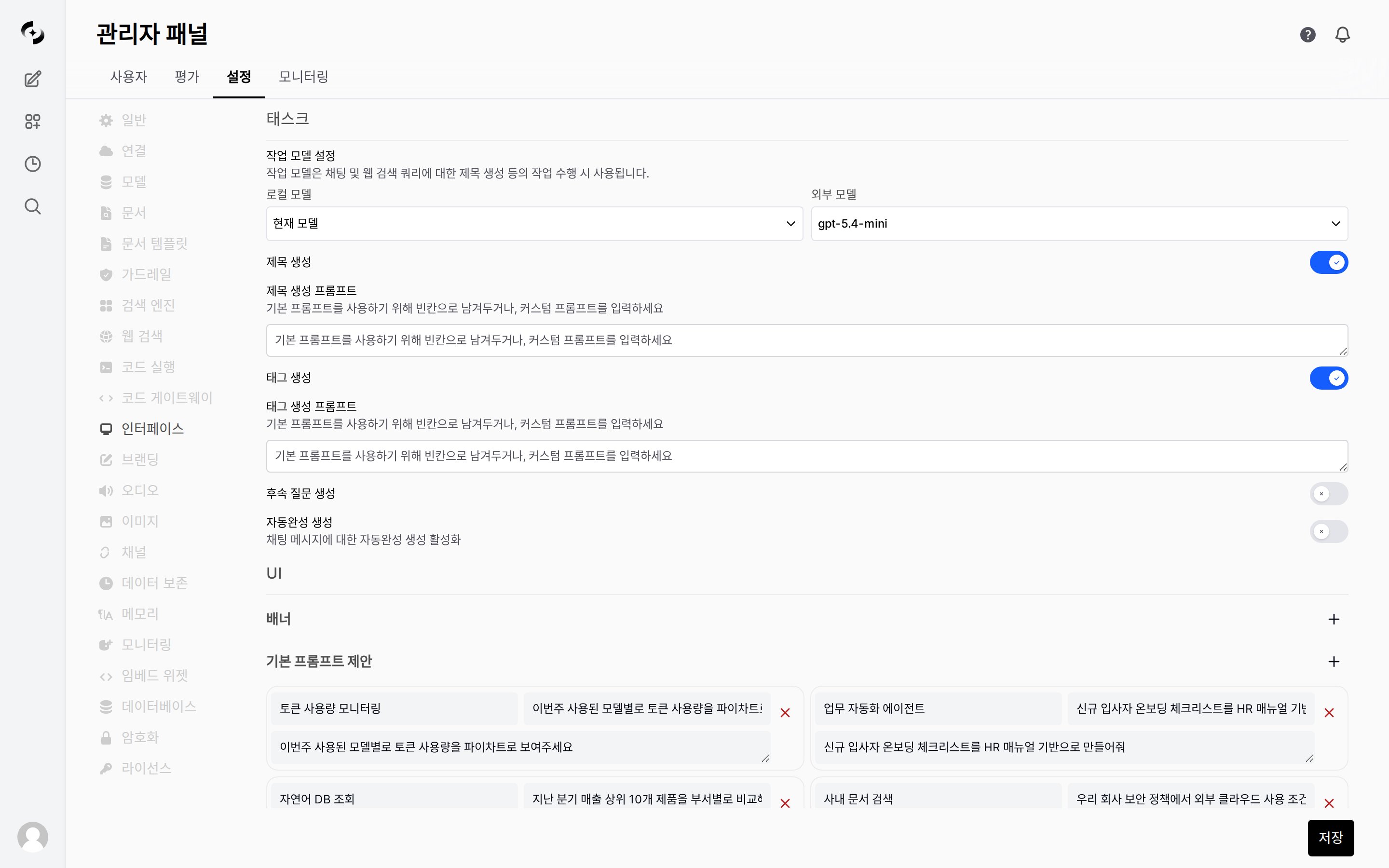
In Admin > Settings > Interface, configure chat interface automations and UI elements.
Interface settings tab
The screen has two main sections: Tasks (auto-generation features, task model) and UI (banners, prompt suggestions).

Task Model

Specify the model used for background automation like title generation, tag generation, and follow-up suggestions.
SettingDescription
Local ModelsPick from models registered in the system
External ModelsEnter model ID for the task model from a separate external API
The task model needs fast response and low cost above all. Use lightweight models (e.g., GPT-4o-mini, Claude Haiku, Gemini Flash).
When the task model is unset, the currently selected chat model is used for background tasks too. In a chat using a high-cost model (Opus, GPT-4o, etc.), the same model is invoked every turn for title/tags/follow-up generation, greatly increasing cost. Always set a separate task model in production.

Auto-Generation Features

Configure activation and prompts for chat-related auto-generation Tasks. Each Task can be toggled ON/OFF and have its prompt template customized.
TaskBehaviorDefault
Title GenerationAuto-generate title from chat content after the first turnON
Tags GenerationAuto-extract and assign tags from chat contentON
Follow-Up GenerationSuggest 3–5 follow-up questions as a button list below the last assistant responseOFF
Autocomplete GenerationSuggest message autocomplete during user inputON
Follow-Up Generation ships OFF by default. Showing follow-up question buttons to users incurs additional LLM calls every turn — turn it on after considering cost and response latency. When enabled, suggested questions appear as a vertical button list below the assistant response immediately after it ends.

Prompt Customization

Leaving each Task’s prompt empty uses the system default; entering a prompt overrides it.
PromptDescription
Title Generation PromptLength/style for generating chat titles
Tags Generation PromptCategories/language for tag extraction
Follow-Up Generation PromptTone/perspective/count of follow-up questions (e.g., “3 short questions predicting the user’s next action”)

Autocomplete Input Max Length

Set the input-length cap for triggering autocomplete.
ValueMeaning
-1No length limit (try autocomplete on every input)
Positive integer ≥ 1Only call autocomplete when input is ≤ that length
Calling autocomplete on every long message accumulates cost and latency, so set a reasonable cap (e.g., 200) in production.

Prompt Suggestions

Configure default prompt suggestions shown to users when starting a new chat. Each suggestion consists of Title, Subtitle, and Content (the actual prompt sent). Add with the + button and delete with each item’s × button.
For per-agent prompt suggestions, set Custom in the agent edit screen’s Prompt Suggestions section. Per-agent settings take precedence over this global setting.

Banners

Show announcement banners across the system. Use for maintenance schedules, policy changes, etc.
SettingDescription
Banner typeinfo, warning, error, success
ContentBanner message (HTML supported)
DismissibleWhether users can close the banner