
Admin › Settings › Encryption
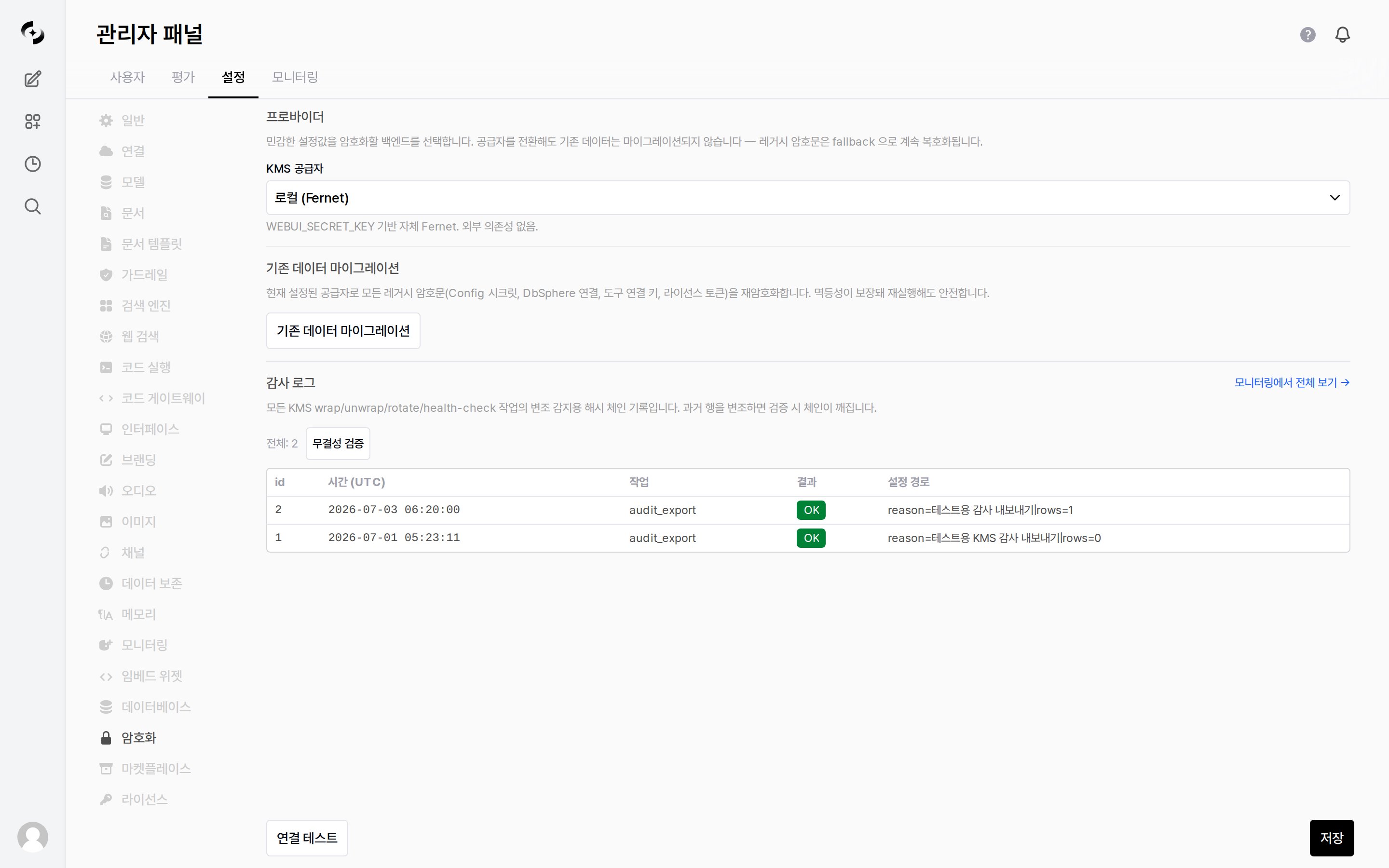
Admin > Settings > Encryption — KMS provider and migration
Providers
Select the encryption backend in the KMS provider field.Switching providers does not automatically migrate existing data. Legacy ciphertext continues to decrypt via fallback, so nothing breaks immediately, but run the migration below to unify everything under the new provider.
Azure Key Vault settings
Choosing Azure Key Vault (envelope) reveals the fields below.
Service Principal (optional) — leave blank to use the server’s managed identity / default credentials.
Press Test Connection (bottom left of the screen) first to confirm Key Vault is reachable. The result appears as a
Connected / Failed badge.
Migrating Existing Data
Running Migrate existing data re-encrypts all legacy ciphertext with the currently configured provider.- Targets: Config secrets · DbSphere connections · tool connection keys · user API keys
- Idempotent, so it is safe to re-run.
- Each target reports
Migrated N·Skipped N·Failed Nbadges when the run finishes.
Auto Rotation
A section that appears only for the Azure Key Vault provider. It periodically checks whether the Key Vault key has rolled to a new version and re-encrypts accordingly.
Dry-run check or Check Now runs the check immediately and reports per key tier as
Up to date · Rotated · Would rotate (dry-run) · Error badges. The last check time is shown too, or never if it has never run.
Audit Log · Integrity Check
Every KMSwrap, unwrap, rotate, and health-check operation is recorded in a tamper-evident hash chain.
- Tampering with a past entry breaks the chain at verification time.
You can view the full audit records and integrity verification in Monitoring › KMS Audit.